QR Codes
Create a QR code, design it, redirect it after printing, and see how often it is scanned.
A QR code in RateUp is printed once and pointed wherever you like. The code holds a short RateUp link rather than your page's address, so changing the destination later never means reprinting.
Create a QR Code
Go to QR & Links → QR codes and click Create QR code. With no codes yet, the button sits in the middle of the page under "No QR codes yet".
Enter a Name. Only you see it, so name it by where it will be printed: Table tent, spring menu beats qr1. Up to 200 characters.
Enter Where it points: the page people land on when they scan. It has to be a full link
starting with https:// (or http://), up to 2,048 characters.
Click Create QR code. The code's own page opens, ready to design.
The List
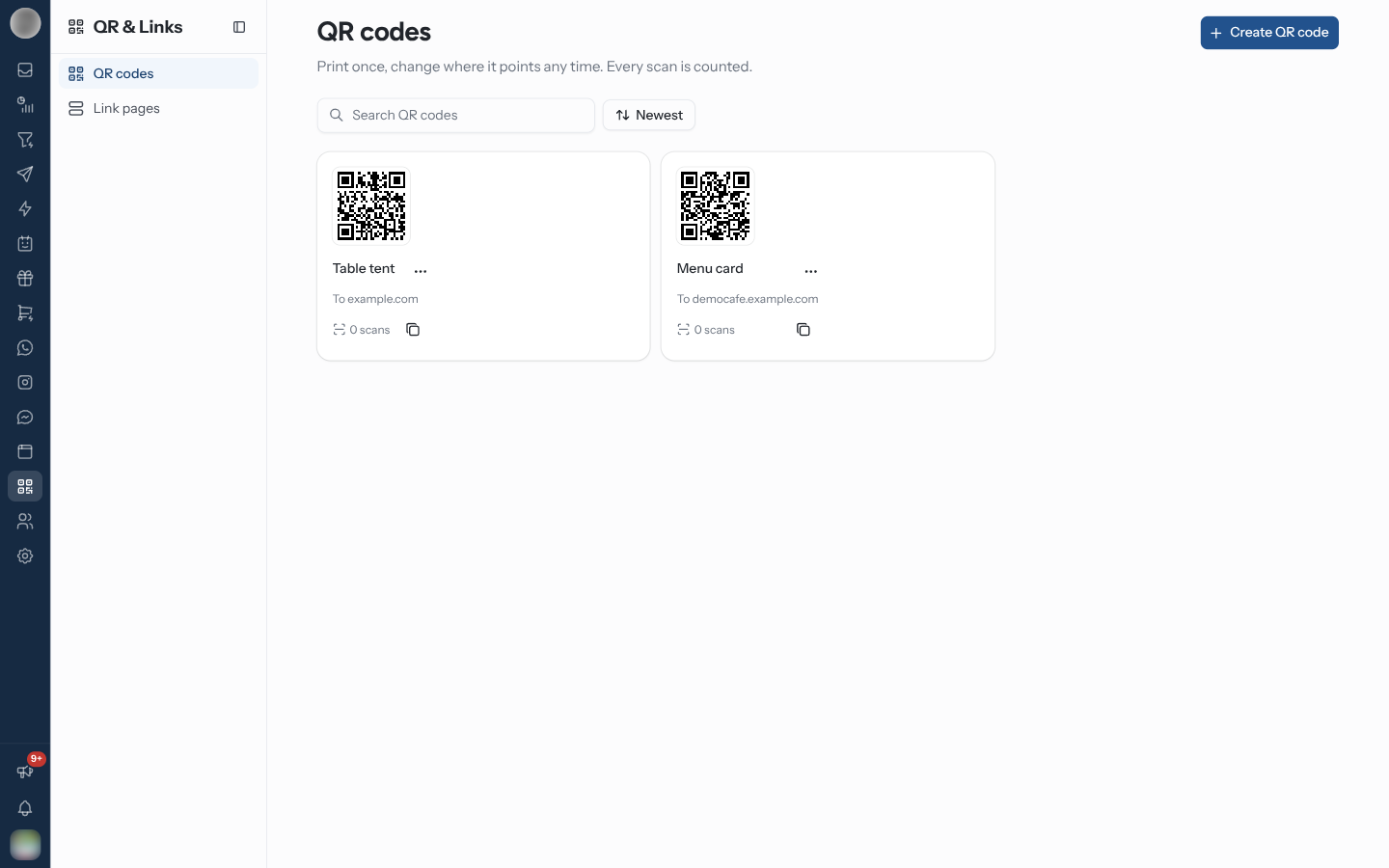
Each tile shows the code, its name, the site it sends people to (To example.com), how many times it has been scanned, and a copy button for its short link. Click the thumbnail or the name to open it.
| Control | Does |
|---|---|
| Search QR codes | Filters the tiles by name. "Nothing matches that search" offers Clear search |
| Sort menu | Newest, Oldest, Name (A-Z), Name (Z-A) |
| ⋯ → Rename | Changes the name. The code and its destination stay the same |
| ⋯ → Delete | Deletes the code after a confirmation |
Deleting a QR code breaks every printed copy of it, and its scan count goes too. The confirmation says so: "Printed copies of this code will stop working." If a code is out in the world, point it at a new page instead of deleting it.
Change Where It Points
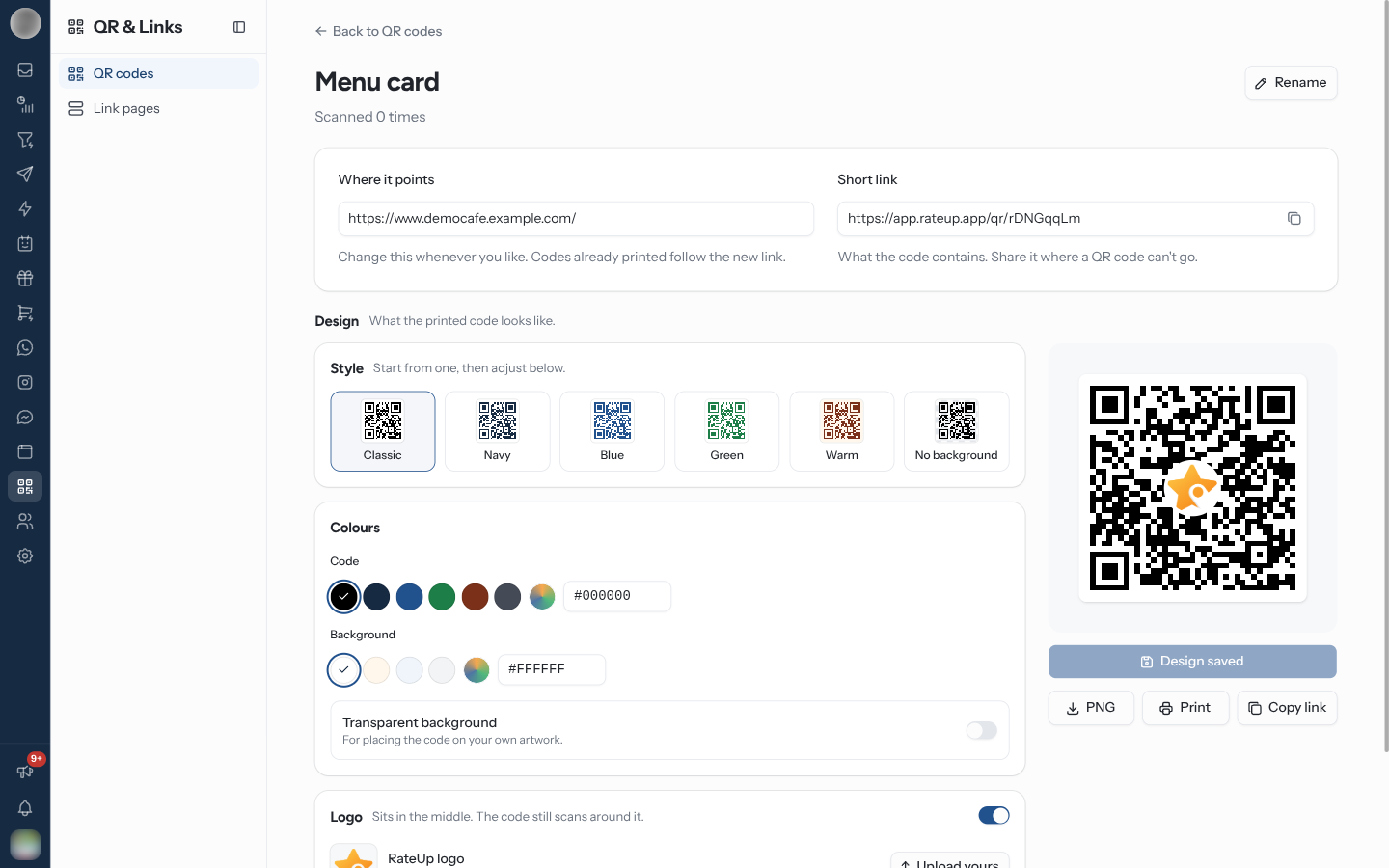
Open the code. The page heading shows its name and "Scanned {n} times", with Rename beside it.
| Field | Use |
|---|---|
| Where it points | Edit the link; Save appears once you change it. "Codes already printed follow the new link." |
| Short link | What the code itself contains. Copy it to share where a QR code cannot go |
This is the whole reason to use RateUp's codes rather than a static generator:
- Redirect a seasonal campaign without reprinting
- Point last year's table tents at this year's survey
- Fix a link that turned out to be wrong
Design the Code
The Design section sets what the printed code looks like. The preview on the right is exactly what downloads and prints.
| Part | Options |
|---|---|
| Style | A starting colour pair: Classic, Navy, Blue, Green, Warm or No background |
| Colours | Code and Background colours, and Transparent background for placing the code on your own artwork |
| Logo | On by default with the RateUp logo. Upload yours takes PNG, JPG or SVG (a square image works best), with a Size slider and a Shape of Square, Rounded or Circle. Switch it off for a plain code |
Changes stay on screen until you click Save design; the button reads Design saved once there is nothing left to save.
The designer warns you about colours phones struggle with: "A light code on a dark background won't scan on every phone" and "These colours are too close." Take the warning seriously, and test-scan the printed code from a phone that is not yours before you print a batch.
Download, Print or Copy
| Button | Does |
|---|---|
| PNG | Downloads the code as an image, named after the code |
| Prints the code about 6 cm across, big enough to scan from arm's length on a counter | |
| Copy link | Copies the link the code contains |
How Scans Are Counted
A scan counts when someone opens the code itself. The printed code carries a marker that the copied short link does not, so sharing the short link in a message never inflates the scan count. Every scan counts, including repeat scans from the same phone.
Compare codes by placement: the same campaign on a receipt, a table tent and a poster tells you where your customers actually are.
Troubleshooting
| Symptom | Cause | Fix |
|---|---|---|
| Enter a full link starting with https:// | The destination is missing its https://, or is not a link | Paste the whole address from your browser's address bar |
| This QR code doesn't exist | It was deleted, or belongs to another organisation | Go back to QR codes |
| The scan count did not go up when you opened the short link | Only scans of the code count | Scan the code with a phone camera |
| Phones will not read the printed code | Low contrast, a light code on a dark background, or a logo set too large | Pick Classic, shrink the logo, and test again |
Related Pages
- Link Pages: point a code at several destinations
- QR & Links Overview
- Share Your Survey