Link Pages
One short link that opens a page of buttons. Build it with a live phone preview, publish it, share it and see what gets clicked.
A link page is a single page of buttons behind one short link: your surveys, a WhatsApp chat, your menu, your website. Share one address and let people choose where to go.
It is the answer to "we only get one link in the bio", and the way to let customers pick which survey to fill in from one printed code.
Create a Link Page
Go to QR & Links → Link pages and click Create link page.
Give it a Name, such as Instagram bio. Only you see it. Up to 200 characters.
Click Create and add links. The editor opens on the Links tab.
Click Add link and choose what the button opens (see below). Repeat for each button.
Switch on Published at the top of the editor. Until you do, the page is a draft and its link shows "This page isn't available".
The List
Each tile shows the page's name, Live or Draft, how many links it holds, how many visits it has had, and a copy button for its link (greyed out on a draft). Click the name to open the editor.
The search box, sort menu and ⋯ menu (Rename, Delete) work the same as on QR codes.
Deleting a link page breaks its link and every QR code printed for it: "Anyone who opens its link, or scans a QR code for it, will find nothing." To take a page down for a while, switch off Published instead. Its address and its counts survive.
Add Links
Add link asks "What should the button open?":
| Choice | What you pick |
|---|---|
| Web survey | One of your web surveys, by name |
| WhatsApp survey | One of your WhatsApp surveys, which starts in a chat |
| Any web address | Button text and a Web address starting with https://: your menu, website, booking page or social profile |
For a survey, pick it from Survey and RateUp fills in the link. If the survey is shared with several teams, pick whose copy under Team. Button text starts as the survey's title; change it to whatever visitors should read.
A survey that is not shared with any team has no link yet, so it cannot be added: "This survey isn't shared with any team yet, so it has no link."
Every change on the Links tab saves straight away, and goes live straight away on a published page.
| On a link row | Does |
|---|---|
| Grip handle | Drag to change the order the buttons appear in |
| Pencil | Edit link: change its button text or web address |
| Bin | Removes the link after a confirmation. Its click count goes with it |
Removing the last link unpublishes the page, since a published page cannot be empty. A page with no links cannot be published at all: "Add at least one link before you publish."
Change the Look
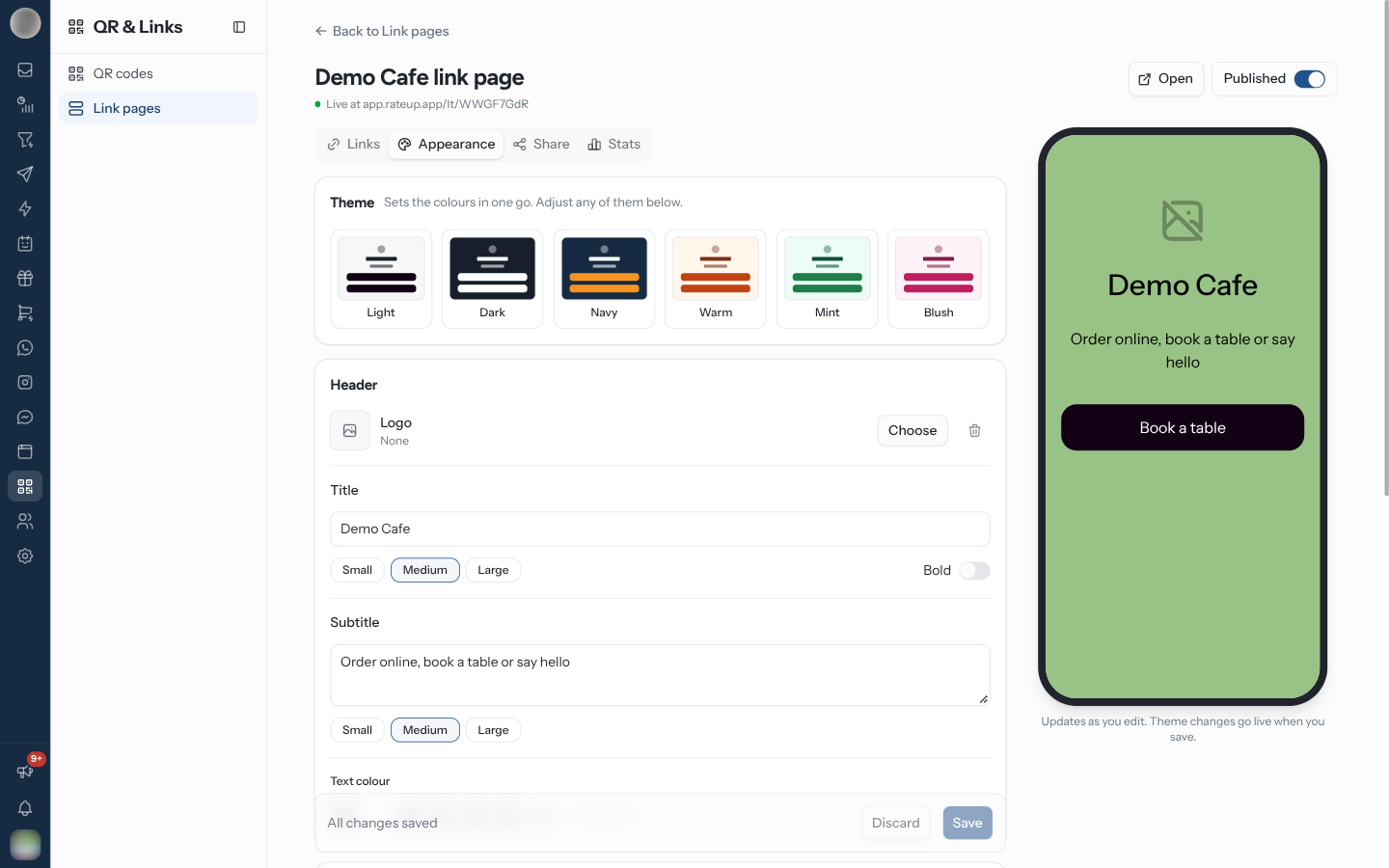
The Appearance tab styles the page. The phone preview beside the editor updates as you go, but nothing on this tab is live until you click Save at the bottom. The bar there reads "Unsaved changes" until you do, and Discard puts back the saved look.
| Card | Options |
|---|---|
| Theme | Sets the colours in one go: Light, Dark, Navy, Warm, Mint or Blush |
| Header | A Logo (PNG or JPG, cropped to 4:3) with a Logo size slider; the Title with Small, Medium or Large and a Bold switch; an optional Subtitle with its size; and a Text colour for both |
| Buttons | Shape (Square, Rounded or Pill), Button colour and Button text colour |
| Background | Page colour, plus optional photos: Photo on phones and Photo on computers |
For a background photo, Choose offers Upload from Device or Select from Unsplash. A photo covers the page colour, and a page showing an Unsplash photo credits the photographer automatically.
The editor warns you when text will be hard to read: "The text is hard to read on this page colour" and "The button text is hard to read on this button colour."
On a narrow screen the phone preview is hidden; Preview at the top opens it in a side panel.
Share the Page
The Share tab has everything for handing the page out. On a draft it is all greyed out: "This page is a draft. Switch on Published at the top before you share it."
| Control | Use |
|---|---|
| Page link | The page's address. Copy it for your bio or a message |
| WhatsApp, Email, Facebook | Opens a share with the link filled in |
| Embed on a website | Code to put the page inside your own site |
| QR code | A printable code for the page, with the same designer as QR codes: style, colours, logo, Save design, PNG, Print and Copy link |
Once published, Open at the top of the editor opens the live page in a new tab.
See What Gets Clicked
The Stats tab shows two totals, Visits and Link clicks, and a table of every link with its Clicks, most-clicked first. Refresh fetches the latest numbers.
"A visitor is counted once an hour, and so is each link they click." The same person opening the page five times in an afternoon counts as several visits, not one, so read the numbers as reach rather than unique people.
Best Practices
- Put the most important link first. Most visitors tap one thing and leave
- Keep the list short; five good links beat fifteen
- Print the page's QR code, not a code per survey, so you can swap surveys without reprinting
- Check Stats monthly and remove the links nobody uses
Troubleshooting
| Symptom | Cause | Fix |
|---|---|---|
| The Published switch is greyed out | The page has no links | Add at least one link |
| Visitors see "This page isn't available" | The page is a draft, or was unpublished when its last link was removed | Add a link and switch on Published |
| A new colour or photo is not on the live page | Appearance changes need Save | Click Save at the bottom of the tab |
| An image didn't upload, so nothing was saved | A logo or photo upload failed | Try Save again |
| A survey is missing from the Survey list | It is the other kind of survey, or you have none of that kind | Go back and choose Web survey or WhatsApp survey |