Managing Campaigns
Learn how to manage broadcast and drip campaigns from the Campaigns dashboard.
This guide explains how to manage campaigns from the Campaigns dashboard.
The Campaigns page allows you to:
- View campaigns
- Search campaigns
- Filter campaigns
- Sort campaigns
- Enable or disable campaigns
- View campaign details
- Edit campaigns
- Delete campaigns
Open Campaigns
To access Campaigns:
- Open the RateUp dashboard
- From the sidebar, click Campaigns
The Campaigns dashboard will open.
View Campaigns
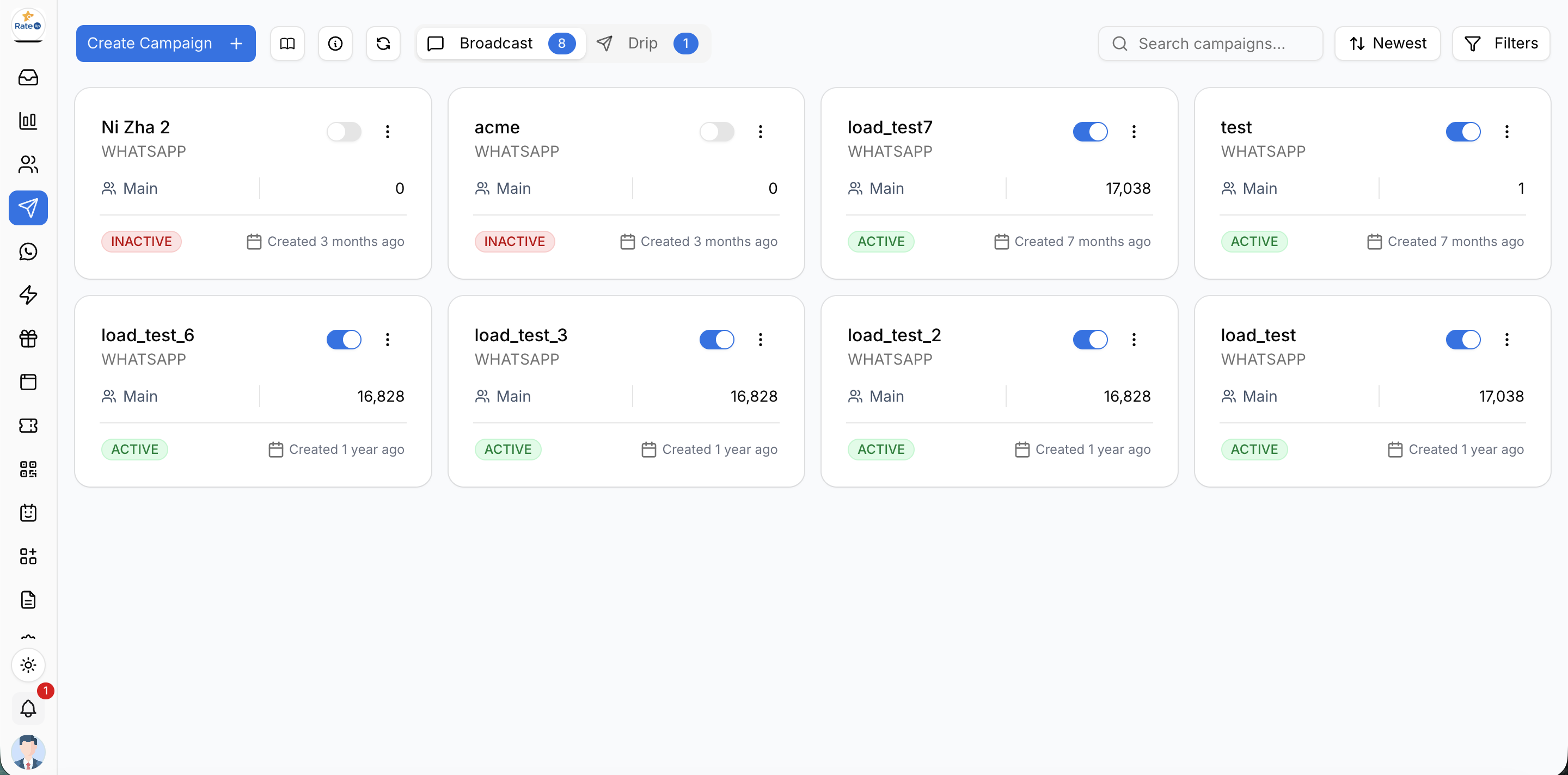
The Campaigns page displays all available campaigns in card format.
Each card displays:
- Campaign name
- Channel type
- Assigned team
- Status
- Created date
- Audience or participant count
Switch Between Broadcast and Drip Campaigns
At the top of the page, use the tabs to switch between:
- Broadcast
- Drip
This allows you to manage different campaign types separately.
Search Campaigns
To search campaigns:
- Use the search bar in the top-right corner
- Enter the campaign name or keyword
Matching campaigns will appear automatically.
Sort Campaigns
To sort campaigns:
- Click the Newest dropdown
- Select a sorting option
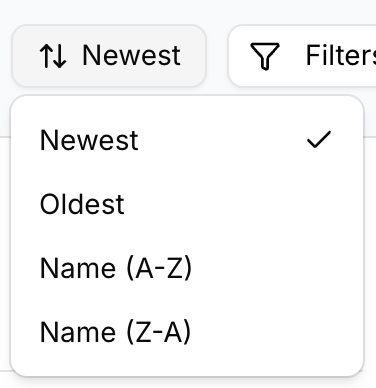
Available options include:
- Newest
- Oldest
- Name (A-Z)
- Name (Z-A)
Filter Campaigns
To filter campaigns:
- Click Filters
- Configure filter options
- Click Apply
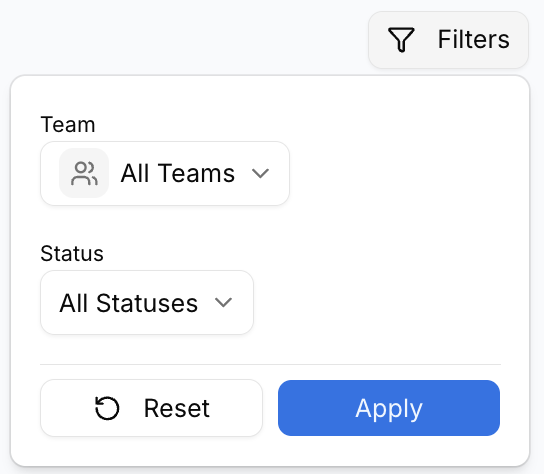
Filter by Team
Use the Team dropdown to display campaigns belonging to a specific team.
Example:
- All Teams
- Main
- Calicut
Filter by Status
Use the Status dropdown to filter campaigns by status.
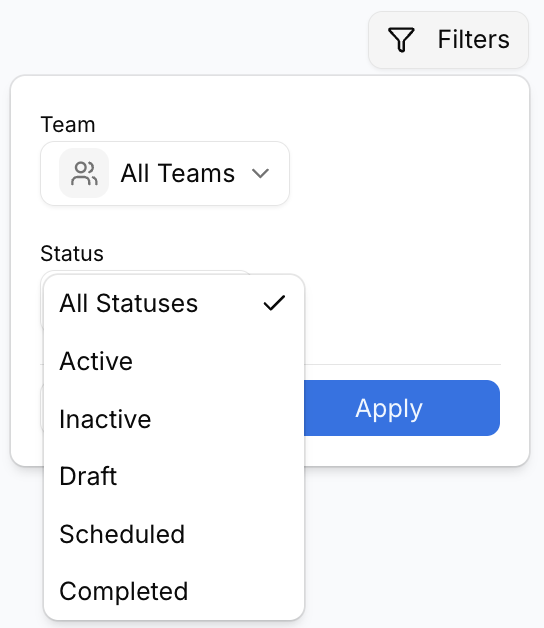
Available statuses include:
- Active
- Inactive
- Draft
- Scheduled
- Completed
Reset Filters
To clear all applied filters:
- Click Reset
- The campaign list will return to default view
Enable or Disable a Campaign
Each campaign card includes a toggle switch.
To Enable a Campaign
- Turn the toggle ON
- The campaign status will change to Active
To Disable a Campaign
- Turn the toggle OFF
- The campaign status will change to Inactive
Open Campaign Actions
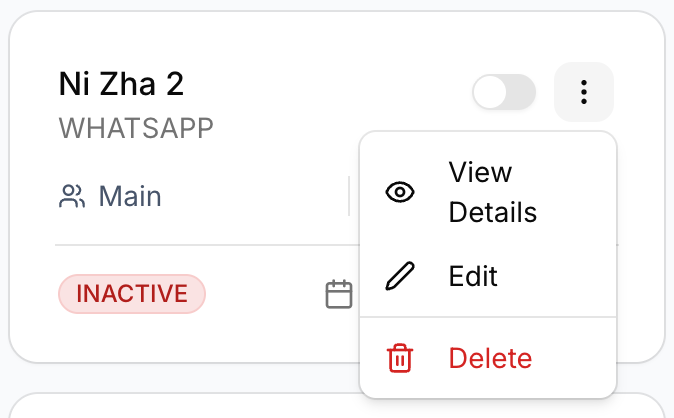
Each campaign card contains an action menu.
To open campaign actions:
- Click the three-dot menu on the campaign card
View Campaign Details
To view campaign information:
- Open the campaign actions menu
- Click View Details
You can review campaign configuration, templates, participants, and performance.
Edit a Campaign
To modify a campaign:
- Open the campaign actions menu
- Click Edit
- Update campaign details
- Save changes
Delete a Campaign
To remove a campaign:
- Open the campaign actions menu
- Click Delete
- Confirm deletion
Deleted campaigns cannot be recovered.
Important Notes
- Only active campaigns can send messages
- Filters help organize large campaign lists
- Broadcast and drip campaigns are managed separately
- Campaigns can be paused or resumed anytime