Templates
Build and manage the pre-approved messages you need to reach customers outside the 24-hour window.
A template is a message format approved by WhatsApp in advance. Templates are the only way to message a customer more than 24 hours after their last message — which makes them the backbone of campaigns and re-engagement.
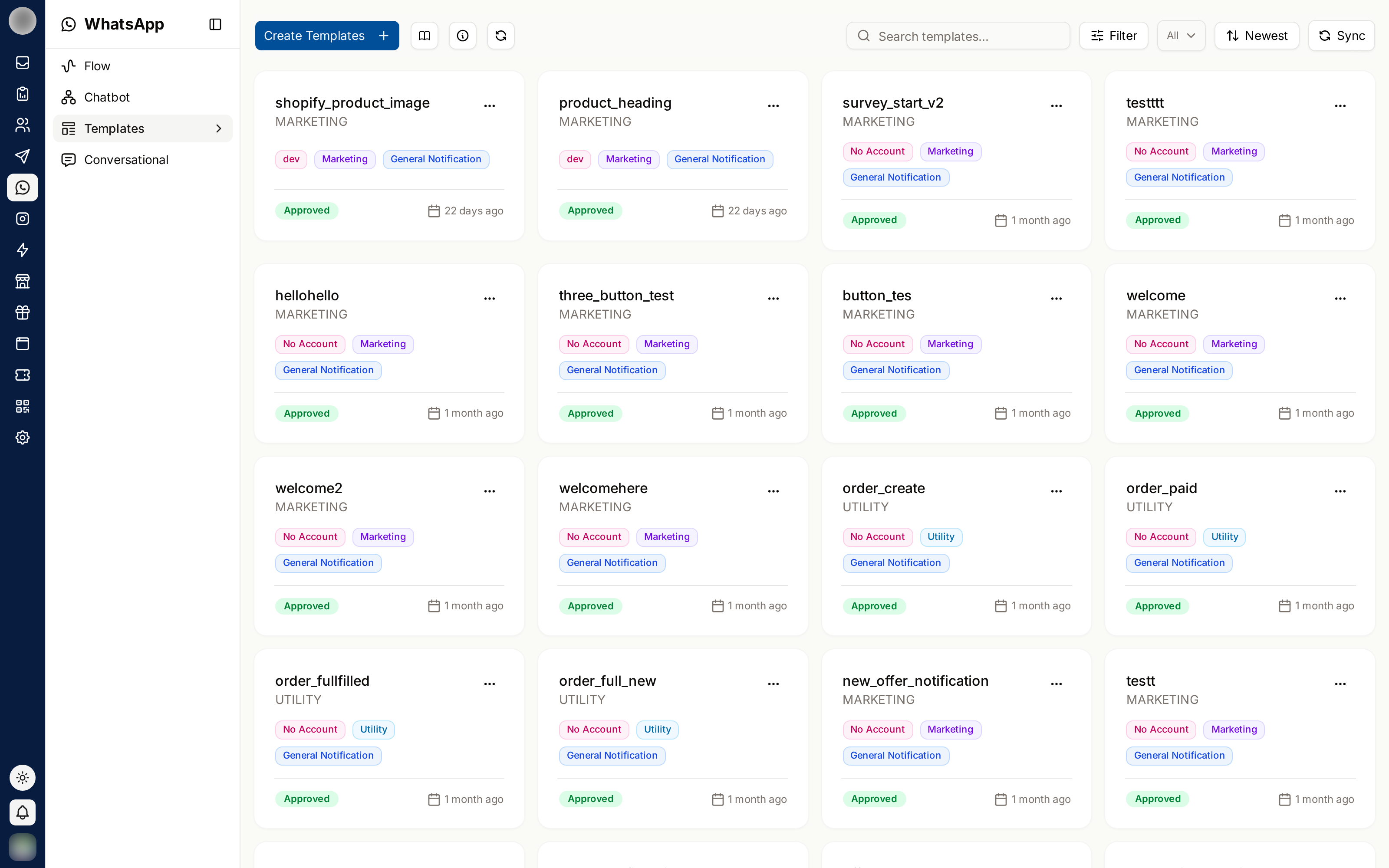
Creating a Template
Click Create Template and choose a starting point: Blank Template, or Create Draft from Predefined Template to start from a ready-made one.
Enter a template name. Lower-case letters and underscores only.
Choose the category and language.
Build the message in the template editor — header, body, footer and buttons.
Save as draft while you work, or Save & Submit to send it to WhatsApp for approval.
Message Structure
| Part | Purpose |
|---|---|
| Header | Optional title, image, video or document |
| Body | The message itself — supports bold, italic, strikethrough and monospace |
| Footer | Optional small print |
| Buttons | Optional actions |
Variables
Insert {{1}}, {{2}} and so on to personalise a template — a name, an order number, a date.
Click Add Variable where you want it. The next free placeholder — {{1}}, then {{2}} — is
inserted at the cursor.
Provide an example value. WhatsApp requires one for approval and rejects templates without it.
Variables are positional. Reordering your text without reordering the values breaks every send — always preview before submitting.
Button Types
| Type | Does |
|---|---|
| Quick Reply Buttons | Sends a canned reply back to you |
| Call-To-Action Buttons | Visit a Website or Call phone number |
| Catalog Buttons | Opens your product catalog |
| Authentication Buttons | One-time password flows — Copy offer code, code expiration |
| RateUp Interactive Buttons | Opens a RateUp Web Survey or a Flow |
Rules the editor enforces:
- A maximum of 12 buttons
- Only one authentication button
- Flow and catalog (MPM) buttons are exclusive — remove one to add the other
Approval
Submitted templates are reviewed by WhatsApp. Until approved, a template cannot be sent.
Common rejection causes:
| Cause | Fix |
|---|---|
| Missing variable examples | Fill in an example for every variable |
| Promotional content in a utility category | Pick the right category |
| Vague or misleading wording | Say plainly what the message is |
| Wrong language selected | Match the language to the content |
Get templates approved before the campaign you need them for. Approval is not instant, and a rejection means starting the wait again.
Managing Templates
| Action | Notes |
|---|---|
| Preview | See the rendered message before submitting |
| Edit | Change a draft |
| Create Draft | Copy an existing template as a starting point |
| Sync | Pull the latest approval status from WhatsApp |
| Delete | Removes the template |
| Filter by Teams | Narrow the list to one team's templates |
Related Pages
- Template Editor — every field and rule in the editor
- Campaigns — sending a template to many people
- Sending Templates — sending one from a conversation
- Flows