Boards
Create boards, define columns, and control which teams can see them.
A board is one workflow. Each board has its own columns, labels and team access.
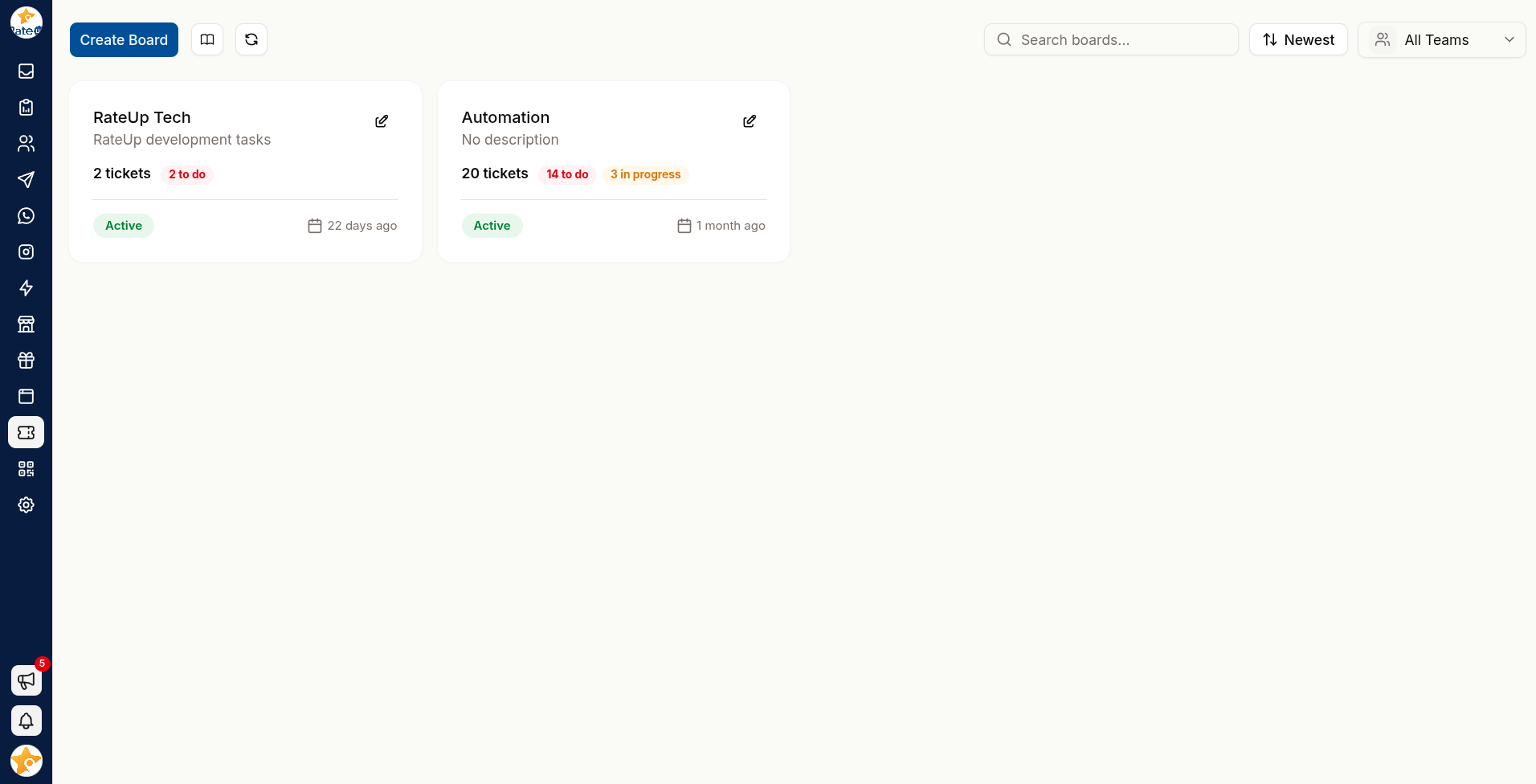
Creating a Board
Click Create Board.
Enter a board name — the placeholder suggests the idea: Customer Support, Bug Tracker.
Answer "What kind of work lives here?" with a short description, so people joining later know what belongs on it.
Select teams that should have access. Use All Teams for a board everyone works from.
Click Create.
Columns
Columns are the stages work moves through. A ticket sits in exactly one column at a time, and moving it between columns is how progress is recorded.
Common shapes:
| Board | Columns |
|---|---|
| Bug tracker | Reported → Confirmed → In progress → Fixed |
| Refund approvals | Requested → Under review → Approved → Paid |
| Feature requests | Received → Considering → Planned → Shipped |
Keep columns to four or five. More than that and people stop moving cards, which makes the board a worse record than no board at all.
Board Labels
Each board has its own board labels — a cross-cutting way to mark tickets that columns cannot express: severity, product area, customer tier.
Manage them from the board; if none exist yet you will see "No labels found on this board".
Team Access
Boards are scoped to teams. Someone outside the selected teams does not see the board at all.
Use this to keep sensitive workflows — refunds, HR, escalations — away from the whole organisation, without creating a separate system for them.
Editing and Deleting
| Action | Notes |
|---|---|
| Edit Board | Change the name, description or team access |
| Search boards | Find a board by name |
| Delete board | Removes the board and everything on it |
Deleting a board deletes its tickets, comments and attachments. If a board is finished rather than wrong, archive the work by moving live tickets elsewhere first.