Lifecycle Stages
The customer journey funnel — where each contact stands, from lead to customer.
A lifecycle stage records where a contact stands in your customer journey. Each contact is in exactly one stage at a time, and the stages together form your Customer Journey Funnel.
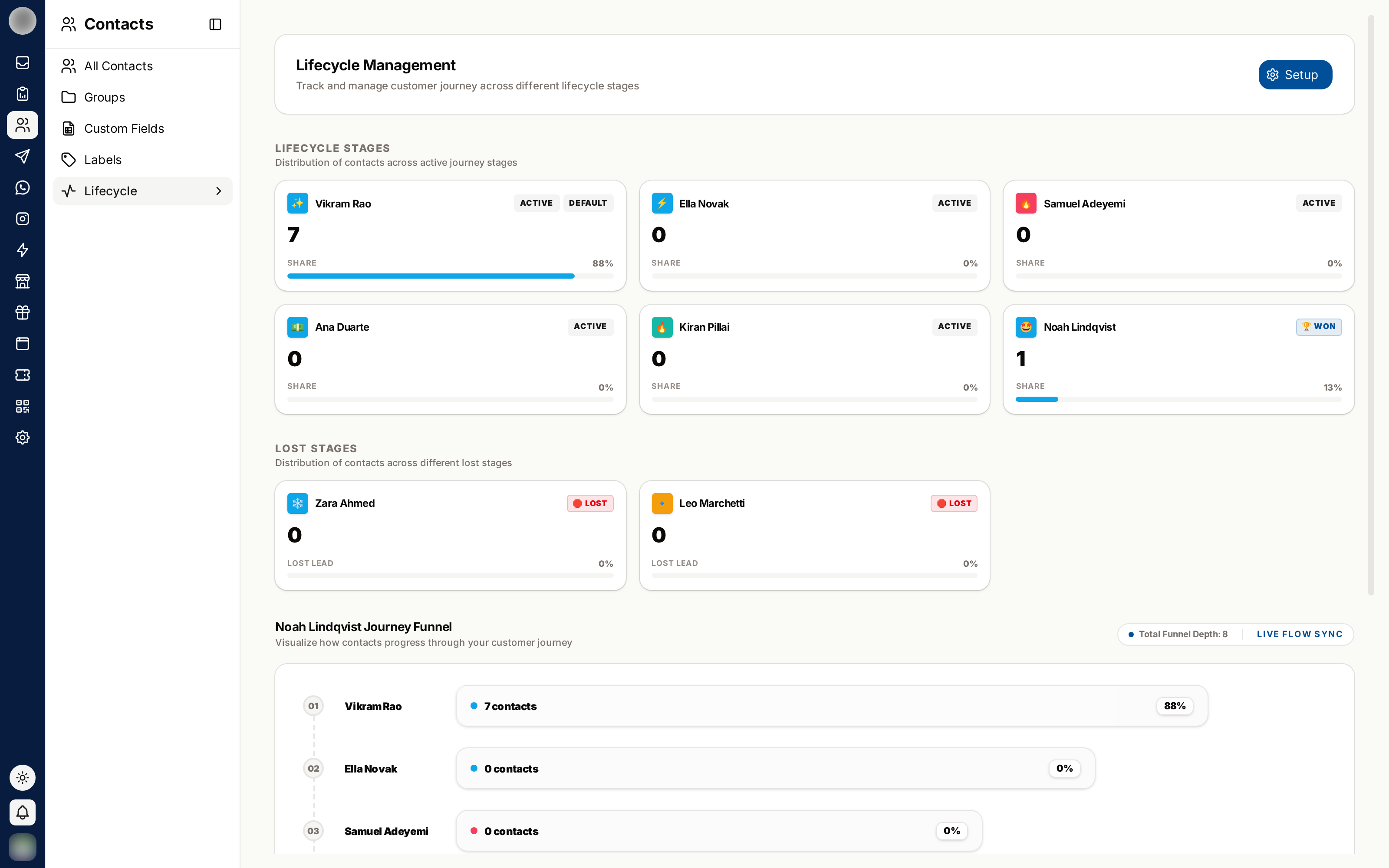
Setting Up Stages
Lifecycle is no longer listed in the sidebar. It was dropped from the Contacts menu when
Pipeline took over the places it used to be read from. The page itself still works —
go to /dashboard/contacts/lifecycle directly, or bookmark it.
Open /dashboard/contacts/lifecycle. If nothing is configured you will see "No lifecycle stages
yet" and a Set up Lifecycle Stages prompt.
Click Add Stage or Create Lifecycle Stage.
Enter a stage name — the placeholder suggests the shape: New Lead. A name is required.
Pick an emoji icon. It is how the stage is recognised at a glance across RateUp.
Add a description explaining what qualifies someone for this stage, so the whole team applies it the same way.
Save.
Won and Lost Stages
The funnel has two kinds of endpoint:
| Type | Meaning |
|---|---|
| Won stage | The contact converted. Switch a stage to Won stage to mark it — there must always be at least one |
| Lost stages | The contact did not — add these with Add Lost Stage |
Several lost stages is usually better than one. Too expensive, Went to competitor and No response are three different problems, and lumping them together hides all three.
A Typical Funnel
| Stage | Meaning |
|---|---|
| 🆕 New Lead | Just made contact |
| 💬 Engaged | In active conversation |
| 📋 Qualified | A genuine fit |
| ✅ Customer | Bought — the won stage |
| ❌ Lost Lead | Did not convert — a lost stage |
Keep it to five or six. A funnel with fifteen stages does not get maintained.
Changing a Contact's Stage
| From | How |
|---|---|
| Contact record | Set the stage directly |
| Import | Assign a stage during import |
| Automation | The Assign Lifecycle (legacy) action, on rules that already use it |
What moved to Pipeline, and what did not
Lifecycle is being retired rather than removed: on an organisation with a pipeline board, the board is what tracks a contact's progress.
| Surface | Now |
|---|---|
| The sidebar | Contacts → Lifecycle is gone; the route still works |
| Inbox details panel | Shows Lead stage instead of Lifecycle Stage |
| Contacts table column | A Lead stage column replaces Lifecycle Stage once the org has a board |
| Contacts list filter | A Lead stage filter replaces the Lifecycle filter once the org has a board |
| Contacts bulk action | Update lead stage, or Update Lifecycle Stage without the feature |
| Automation | Assign Lead Stage action and Lead Stage Updated trigger; Assign Lifecycle and Lifecycle Updated are legacy — see Actions |
Still read from the lifecycle, and unchanged:
| Surface | Still uses lifecycle |
|---|---|
| Inbox filter rail | The Lifecycle filter section |
| Automation trigger | Lifecycle Updated |
| Zoho Bigin and Zapier | Field mappings that name a lifecycle stage |
An organisation without the Pipeline feature keeps lifecycle everywhere it always was. Nothing described here changes for them.
Automating stage changes on real signals — a first purchase, a form submission — keeps the funnel honest in a way that relying on people to remember never does.
Display Options
Show/Hide Lifecycle Stages controls whether the funnel appears in the contacts view. Hidden, it reads "Lifecycle Display is Hidden" — the stages still exist and still apply.
The contacts table's Lifecycle Stage column also depends on this switch, and is replaced by a Lead stage column once your organisation has a pipeline board.
Descriptions can be shown or hidden with Show description / Hide description.
Editing and Deleting
Use Update Lifecycle Stage to change a stage's name, icon or description.
Cannot delete default stage — the default is required, and so is at least one won stage: "Cannot delete the last won stage. There must be at least one won stage." Deleting any other stage asks "Delete lifecycle stage?"; make sure contacts sitting in it are moved somewhere sensible first.
Lifecycle vs Labels
| Lifecycle stages | Labels | |
|---|---|---|
| How many | One per contact | Many |
| Shape | An ordered funnel | A flat set of tags |
| Answer | "How far along are they?" | "What is true about them?" |
Related Pages
- Labels
- Automation Actions
- Campaigns — targeting by stage