Labels
Coloured tags that describe a contact, visible everywhere they appear — create, apply, filter and clean them up.
A label is a coloured tag on a contact. Unlike groups, labels show up wherever the contact appears — including on every row in the Inbox.
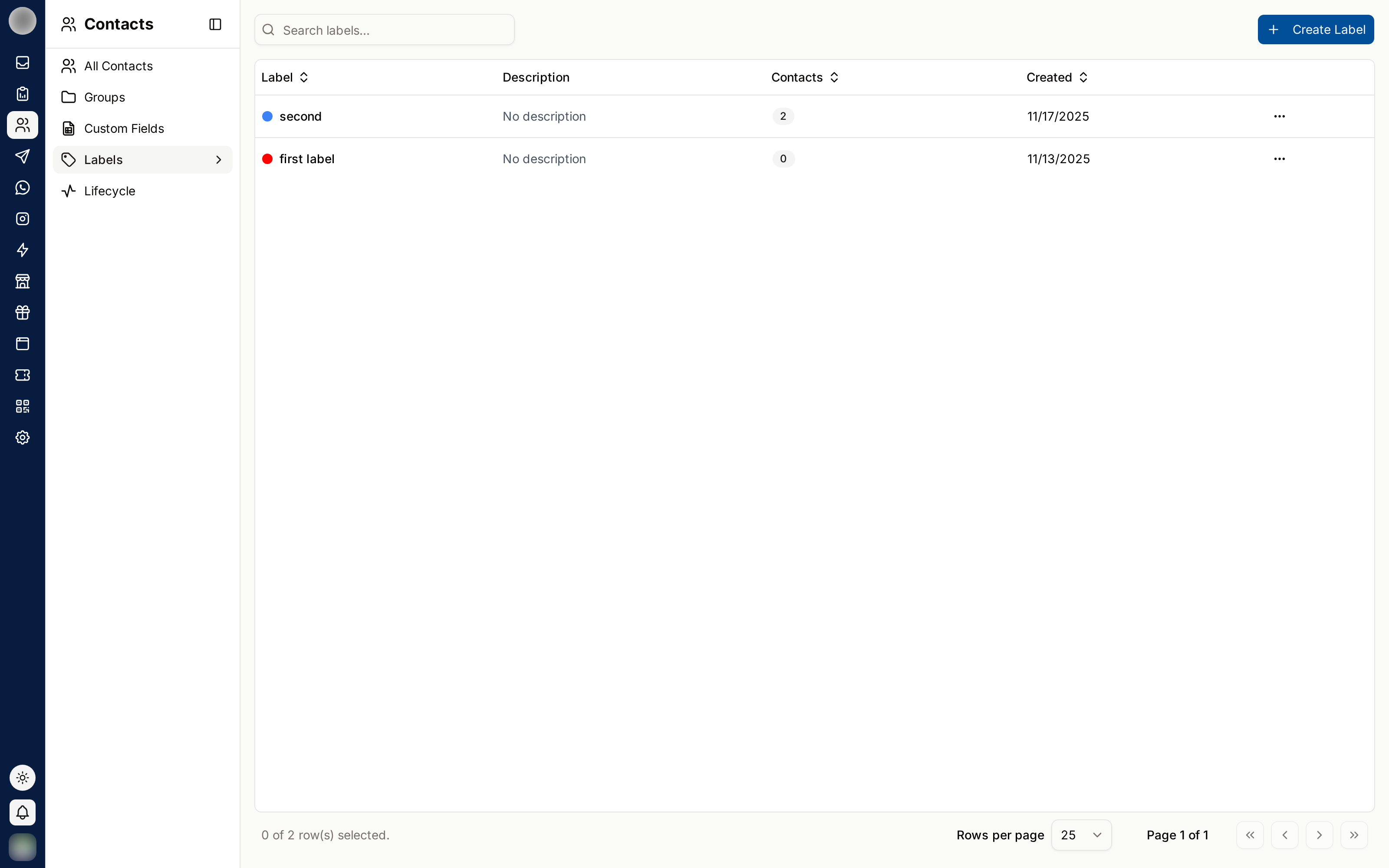
The Labels page lists each label with its Description, how many Contacts carry it, and when it was Created. Use Search labels... to find one. With none yet, the page reads "No labels yet" with a Create Label button.
Create a Label
Click Create Label. The Create New Label dialog opens.
Enter a Name (required).
Pick a Color with the colour picker, or type a hex value such as #3b82f6.
Optionally add a Description so everyone applies it the same way.
Click Create Label.
The colour is what makes labels useful at a glance — an agent scanning the Inbox reads colour long before they read text. Pick colours with meaning and stick to it:
| Colour | Convention |
|---|---|
| Red | Needs attention — Complaint, At risk |
| Amber | In progress — Refund pending |
| Green | Positive — VIP, Advocate |
| Grey | Neutral classification — Wholesale |
Labels can also be created from Inbox → Settings → Contact labels. It is the same list.
Edit or Delete a Label
Open the row's ⋮ menu:
- Edit — change the name, colour or description, then Update Label
- Delete — asks you to confirm, and says how many contacts carry the label
Deleting a label removes it from every contact that carries it, and it cannot be undone. Renaming is almost always the better choice.
Apply Labels
| From | How |
|---|---|
| Contacts list | Tick contacts → Apply Label → pick labels → Apply |
| Add / Edit Contact | The Labels field |
| Inbox | Ticket Details panel → Contact Labels → + Add |
| Automation | The Attach Label action — see Actions |
To remove a label from one person, edit the contact, or click the ✕ on the label chip in the Inbox's Ticket Details panel.
Automation is where labels earn their keep. A rule that labels every refund enquiry costs nothing and makes "how many refund requests last month?" a question you can answer.
Where Labels Show Up
- On every conversation row in the Inbox, for every ticket that customer has
- In the Inbox's Ticket Details panel
- In the Label column of the contacts table, and in each contact's details
- As a filter: the Label filter on the contacts list, and Contact Labels in the Inbox sidebar
A label describes the customer. To tag a single conversation instead — Escalated, Refund — use a conversation tag.
Keeping Labels Useful
Label sprawl is the standard failure. Once there are forty labels, nobody knows which to use and the colours stop meaning anything.
- Agree the list before rolling it out, and keep it short
- Check the Contacts count and delete labels nobody applies
- Use consistent wording — VIP, not vip and V.I.P.
- Automate the ones that can be automated; humans forget