WhatsApp Logs
The WhatsApp Logs section helps you monitor, debug, and resolve issues that occur while sending WhatsApp messages such as Flows, Templates, and Catalog-based messages.
Accessing Logs
Logs can be accessed from WhatsApp → Logs.
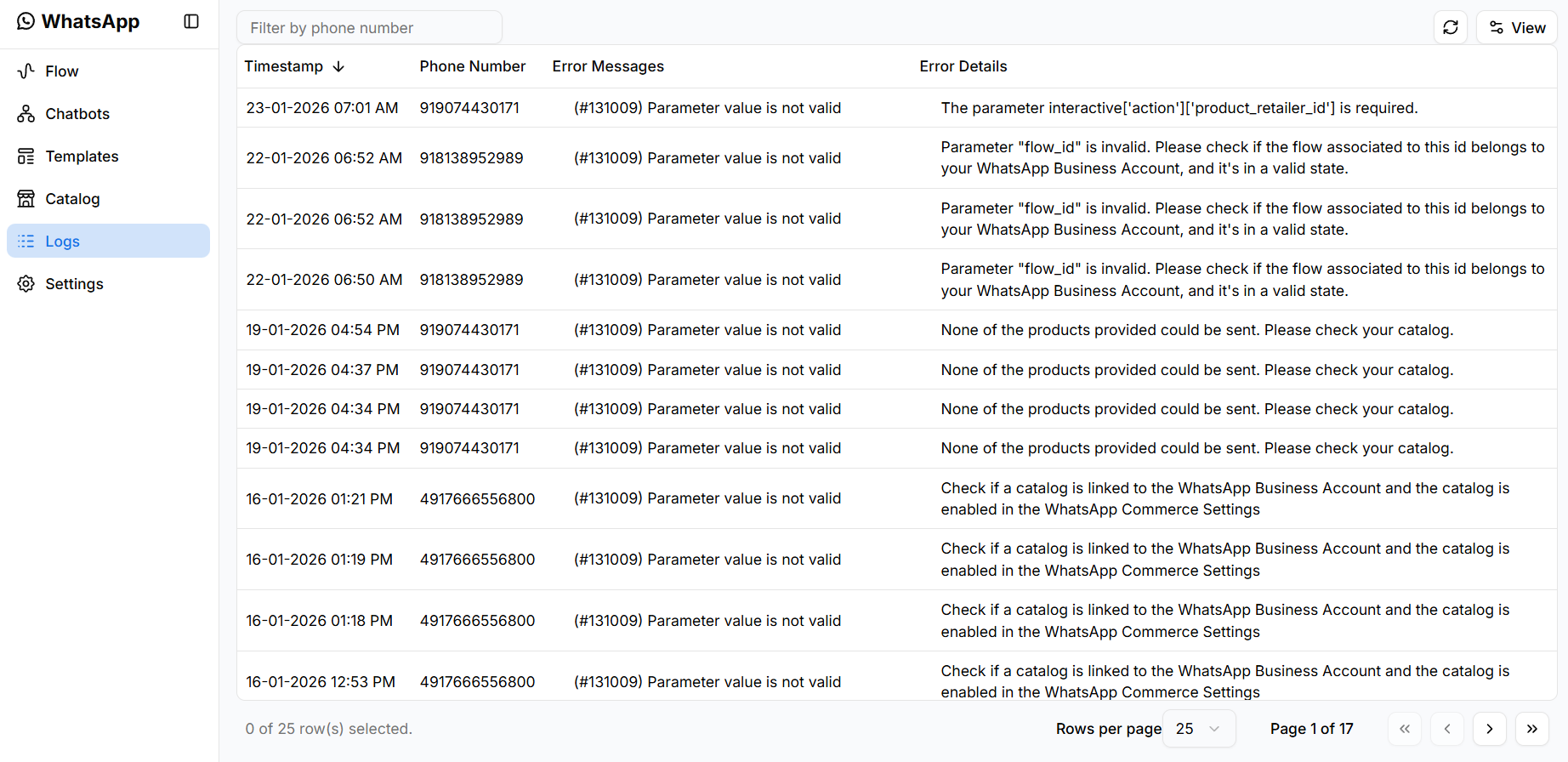
This page displays all error logs generated from WhatsApp message interactions.
Logs Overview
Each log entry represents a failed or invalid WhatsApp action.
The table displays:
- Timestamp
- Phone Number
- Error Messages
- Error Details
Logs are sorted by time, with the latest entries shown first.
Sorting Logs by Timestamp
To sort logs by time:
- Click the arrow icon next to the Timestamp column header.
- Toggle between ascending and descending order.
This helps prioritize recent failures during troubleshooting.
Filtering Logs by Phone Number
Use the filter to view logs for a specific recipient.
- Locate the Filter by phone number field at the top.
- Enter a full or partial phone number.
- The logs update automatically.
This is useful when investigating customer-reported issues.
Toggling Column Visibility
The Logs table allows customization of visible columns.
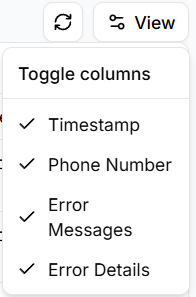
To toggle columns:
- Click the View button on the top-right.
- Enable or disable the following columns:
- Timestamp
- Phone Number
- Error Messages
- Error Details
Use this to simplify the table view based on your needs.
Understanding Error Messages
Each log includes an error code and a descriptive message.
Common error examples include:
- Invalid flow parameters
- Missing product identifiers
- Catalog or product configuration issues
Always refer to Error Details for actionable resolution steps.
Error Details and Resolution
The Error Details column provides guidance on what needs to be fixed.
Examples include:
- Ensuring products are correctly linked to a catalog
- Verifying Flow IDs belong to the correct WhatsApp Business Account
- Checking that catalogs are enabled in WhatsApp Commerce settings
Use this information to correct configurations before retrying message delivery.
Pagination and Table Controls
The Logs table includes built-in controls for navigation.
You can:
- Change Rows per page
- Navigate between pages
- View total log count
These controls help manage large volumes of log entries.
Recommended Usage Workflow
When resolving issues using Logs:
- Start with the most recent log entries
- Filter by phone number if applicable
- Read Error Details carefully
- Fix the related Flow, Template, or Catalog configuration
- Retry the WhatsApp action
When to Use Logs
Logs are primarily used when:
- Messages fail to deliver
- Flows do not trigger correctly
- Catalog or product messages error out
- Debugging WhatsApp automation issues
Best Practices
- Monitor logs regularly during active campaigns
- Resolve repeated errors promptly
- Keep Flows, Templates, and Catalogs in sync
- Use filtering and sorting to isolate issues quickly
Why WhatsApp Logs Matter
WhatsApp Logs provide visibility into message failures and configuration issues, enabling faster troubleshooting and more reliable WhatsApp communication.