Create an Account
Sign up for RateUp with email, Google or Apple, verify your email, then tell RateUp about your business in two short steps.
Signing up is three steps: Account, Your store and Goals. The account is created at the end of the first step; the other two describe your business and choose which features your menu starts with.
If a colleague invited you, do not sign up here — use the invite link in your email instead. Registering separately creates a second, empty organisation rather than joining theirs.
Getting to the Signup Form
Visit rateup.app and click Login in the top-right corner.
Next to "Don't have an account?" in the header, click Create account.
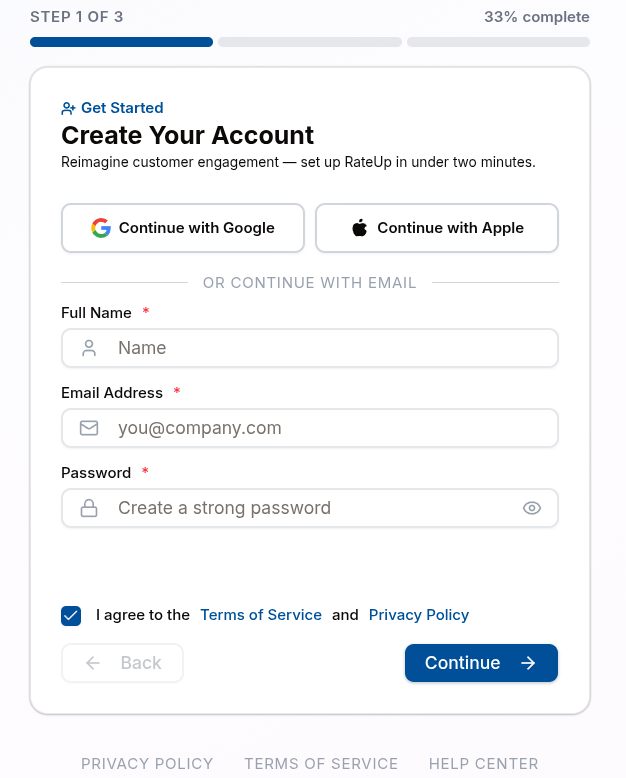
A rail above the card shows where you are — "Step 1 of 3 · Account" — and roughly how long the step takes.
Step 1 · Create Your Account
The card is headed "Create your account". Choose Google or Apple at the top, or fill in the form under "or with email".
With email
| Field | Notes |
|---|---|
| Full name | Your own name |
| Work email | Must be valid, and not already registered |
| Password | See the rules below |
A strength meter under the password reads Weak, Fair, Good or Strong. A password is accepted only when it has all of these:
| Rule | Meaning |
|---|---|
| At least 8 characters | Shorter passwords are rejected. 12 or more is ideal |
| An uppercase and a lowercase letter | A–Z and a–z |
| A number | 0–9 |
| A special character | One from the list below |
Accepted special characters:
! @ # $ % ^ & * ( ) , . ? " : { } | < >The meter never shows Good or Strong for a password that would be refused, so if it stops at Fair, a rule is still missing. Submitting it anyway shows "Your password must meet all security requirements".
The terms box — "I agree to the Terms of Service and Privacy Policy" — is ticked for you. Click Create account.
With Google or Apple
After you approve RateUp with the provider, the card shows Account connected with your email. Check your Full name and click Create account.
Verify Your Email
Email signups only. RateUp sends a verification link and shows "Check your inbox":
Open the email and click the link. "It works once and expires in 24 hours."
RateUp opens Step 2 of signup.
If it does not arrive, click Resend the email (available again after a one-minute countdown) and check your spam folder.
An unverified account cannot reach the dashboard — every visit sends you back to the verification screen until the link is clicked.
Step 2 · Tell Us About Your Store
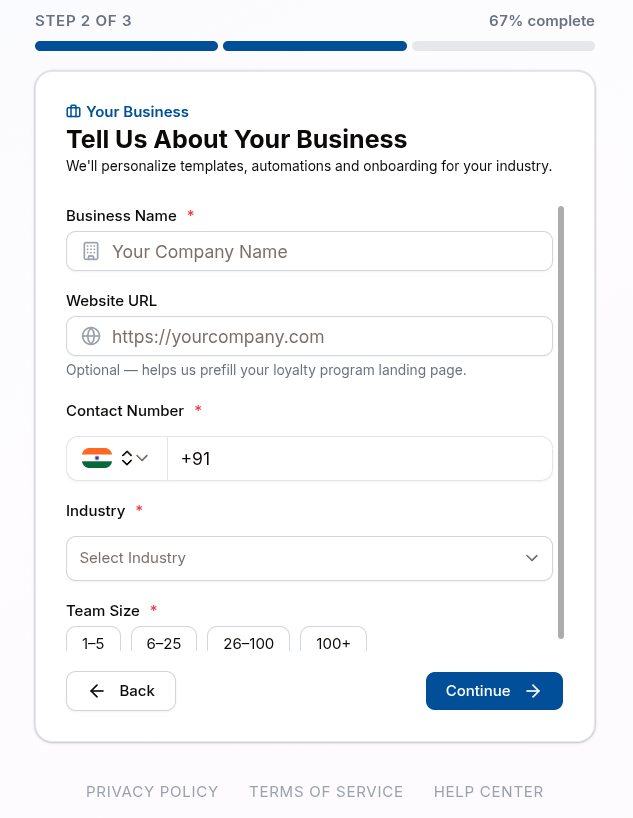
The card is headed "Tell us about your store" — "What your customers will see in chat."
| Field | Required | Notes |
|---|---|---|
| Business name | Yes | At least 2 characters. Appears across RateUp and on customer-facing pages |
| WhatsApp business number | Yes | With country code. Must be a valid phone number |
| Website | No | For example https://yourcompany.com |
| What do you sell? | Yes | E-commerce · Healthcare · Education · Finance · Real Estate · Hospitality · Retail · Technology · Marketing · Other |
| How big is your team? | Yes | 1–5, 6–25, 26–100 or 100+ |
Click Continue.
Leaving after step 1 is safe: the account already exists, and the next time you sign in RateUp brings you back here to finish.
Step 3 · What Should RateUp Do First?
"Pick one or more — you can change this later."
| Option | Described as |
|---|---|
| WhatsApp Business API | Verified sender, approved templates |
| Loyalty inside chat | Points and tiers in the thread |
| Campaigns that get opened | Broadcasts with delivery reporting |
| Reviews and ratings | Ask for a rating after delivery |
| Surveys on the web | NPS and CSAT forms you can share |
| One shared inbox | WhatsApp and Instagram in one queue |
| Sell products on WhatsApp & Instagram | A shop with checkout in the chat |
Your picks decide which optional features start in your menu: Loyalty inside chat turns on Loyalty, Surveys on the web turns on Web Forms, and Sell products on WhatsApp & Instagram turns on Commerce. Pipeline is always on. Pick nothing and every feature starts on. Nothing is locked — you can change the set at any time in Features.
Click Finish setup. Back returns to step 2 without losing anything.
You're In
The last screen says "… is live" and lists what was set up — Email verified, Workspace created for … and Free account started — no card on file. Click Go to dashboard.
Owners and Admins land on the setup guide, which starts with Choose features and then connecting a channel.
The Flow at a Glance
Step 1 · Account
  ├── Email        →  full name, work email, password  →  verify email link
  └── Google/Apple →  full name
        ↓
Step 2 · Your store  →  business name, WhatsApp number, website, what you sell, team size
        ↓
Step 3 · Goals       →  pick one or more (sets your starting features)
        ↓
Success screen  →  Go to dashboard  →  setup guide
Troubleshooting
| Message | Meaning | What to do |
|---|---|---|
| "This account already exists. Please sign in to continue" | That email is already registered | Log in, or reset your password |
| "Sign up process is already completed" | Registration finished on a previous attempt | Go to the login page and sign in |
| "Your password must meet all security requirements" | One or more password rules is unmet | Add whatever is missing — upper and lower case, a number, a special character, 8+ characters |
| "Enter a valid email" | The address is malformed | Check for typos |
| "Please accept the Terms of Service and Privacy Policy to continue" | The terms box was unticked | Tick it |
| "Enter a valid phone number" | The WhatsApp number is incomplete or has no country code | Pick the country and enter the full number |
| "Couldn't save. Try again." | Steps 2–3 did not save | Click Finish setup again |
| No verification email | Filtered as spam, or a typo in the address | Check spam, then Resend the email |
| A feature you expected is missing from the menu | Your step 3 picks did not include it | Turn it on in Features |
Related Pages
- Setup Guide — what to do after signing up
- Login
- Reset Password
- Features — change which features show in the menu
- Account Settings — changing these details later