Reset Password
Recover access to your account when you cannot sign in.
Use this when you cannot sign in. If you are already signed in and simply want a new password, use Security instead — it is quicker and does not involve email.
Resetting
Open the login page and click Forgot password?
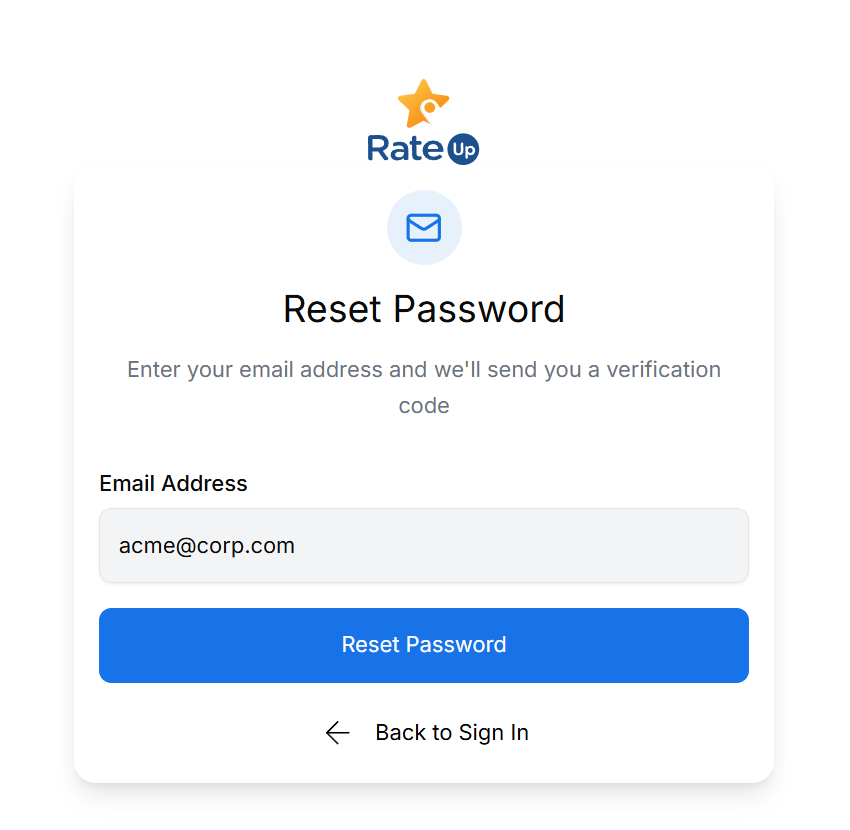
Enter the email address registered to your RateUp account and click Reset Password.
Open the email from RateUp and click the Reset Password link.
The link is time-sensitive and works once. Request a new one if it has been sitting in your inbox.
Enter your new password, confirm it, and click Update Password.
A checklist under the field ticks off each rule as you type: at least 8 characters, 1 uppercase letter, 1 lowercase letter, 1 number, and 1 special character. Satisfy all five — a password that is under 8 characters, or has no letter or no number, is rejected outright.
Sign in with the new password.
Troubleshooting
| Symptom | Cause | Fix |
|---|---|---|
| No email arrived | Filtered as spam, or the address is not registered | Check spam and promotions; confirm the address, then retry after a few minutes |
| "Reset link expired" | The link timed out or was already used | Request a new reset |
| "Passwords do not match" | The confirmation differs | Retype both fields |
| You signed up with Google | There is no password to reset | Use Continue with Google on the login page |
Choosing a Password
Beyond the five rules the form enforces:
- Unique to RateUp, not reused from another service
- Long rather than complicated — a passphrase beats a short string of symbols
- Never shared; add colleagues as users instead of sharing a login