Features
Choose which optional features — Pipeline, Loyalty, Commerce, Web Forms, QR & Links and Meta AI Agent — show in your organisation's menu.
Features lists everything RateUp offers and lets an admin choose which optional features show in the menu for the whole organisation. A feature you turn off is only hidden: nothing in it is deleted, and nothing you built on it stops running.
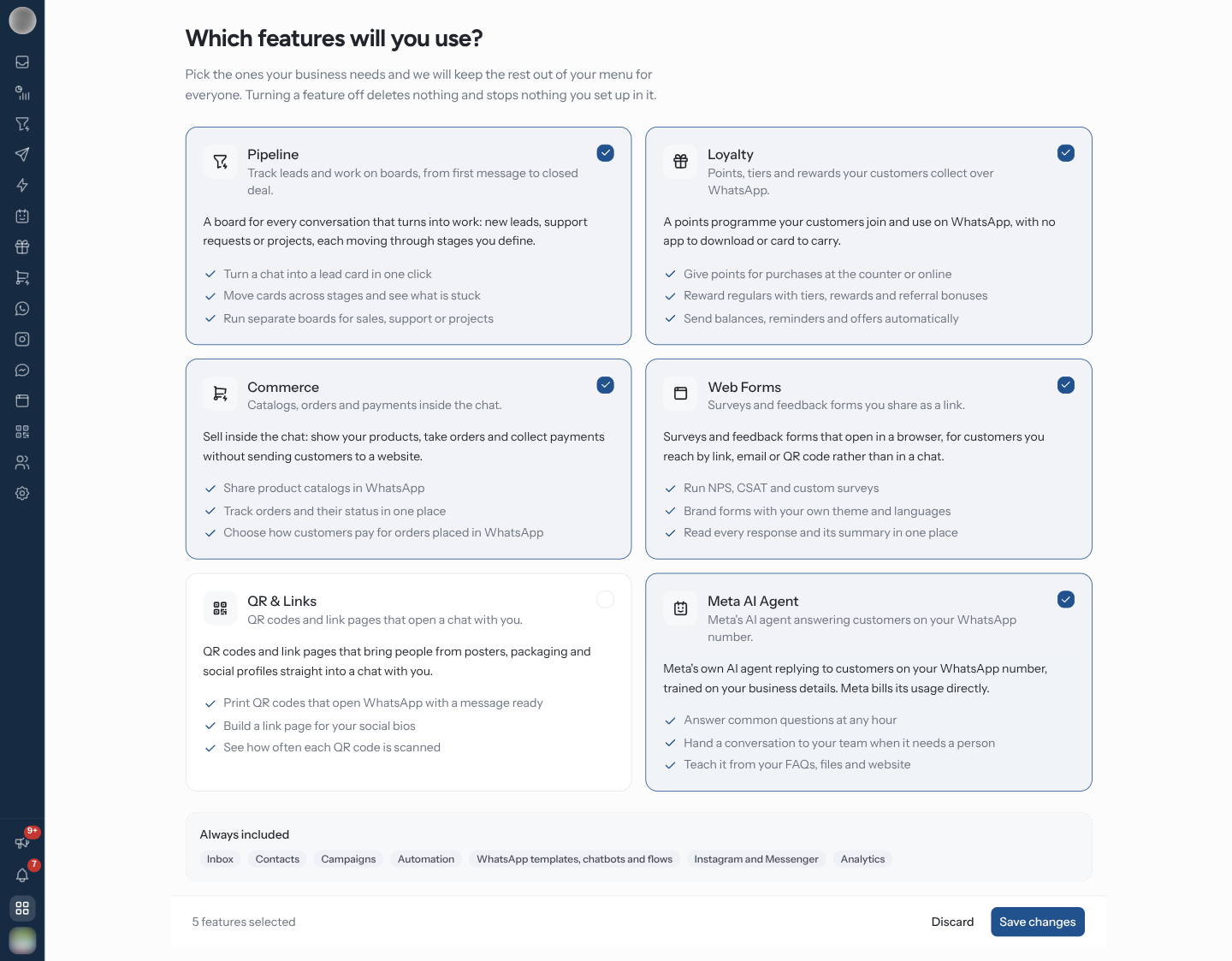
Open Features
Click the grid icon (Features) at the bottom of the sidebar rail, between the notification
bell and your avatar. It opens /dashboard/features. Everyone in the organisation can open it.
The old address /dashboard/settings/features redirects there.
The Optional Features
| Feature | What it is | Needs a plan that includes it |
|---|---|---|
| Pipeline | "Track leads and work on boards, from first message to closed deal." | No |
| Loyalty | "Points, tiers and rewards your customers collect over WhatsApp." | Yes |
| Commerce | "Catalogs, orders and payments inside the chat." | Yes |
| Web Forms | "Surveys and feedback forms you share as a link." | Yes |
| QR & Links | "QR codes and link pages that open a chat with you." | No |
| Meta AI Agent | "Meta's AI agent answering customers on your WhatsApp number." | Yes |
Each card also explains the feature in a sentence and lists three things a team does with it. A feature your plan does not include carries a Not on your plan badge. You can still tick it, but opening it shows the plan-upgrade screen.
Under the cards, Always included lists what cannot be turned off: Inbox, Contacts, Campaigns, Automation, WhatsApp templates, chatbots and flows, Instagram and Messenger and Analytics.
Turn a Feature On or Off
Open Features. If you are allowed to change it, the page is headed "Which features will you use?" and every card has a tick box.
Click a card to tick or untick it. The footer counts the selection — "4 features selected".
Click Save changes. RateUp confirms "Your features are saved". Discard throws away unsaved clicks.
The change applies to everyone in the organisation, not just you.
Who can change it
Changing features needs the ability Edit organisation details and business hours. By default that is Managers, Admins and the Owner — see Members & Roles.
Everyone else sees the same cards as a catalogue headed "What RateUp offers", with an In your menu or Turned off badge on each and the note "Features marked In your menu are on for your organization. Ask an admin to turn on any of the others."
What Turning a Feature Off Does
| Where | Effect |
|---|---|
| Sidebar | The feature's entry disappears for everyone |
| Its pages | Opening one by URL or bookmark shows, for example, "Loyalty is turned off". Admins get a Turn on Loyalty button there; everyone else is told "Ask an admin to turn on Loyalty from Features in the menu." |
| Inbox | With Pipeline off, conversation rows lose their stage chip and the ticket panel loses its board section. With Commerce off, the ticket panel's orders section is hidden |
| Members & Roles | The roles table and Fine-tune abilities hide the abilities for that feature, with "Abilities for features your organization has turned off are hidden." and a Manage features link. Fine-tuned abilities you set earlier are kept |
| Setup guide | With Loyalty off, the guide's loyalty step is not offered |
| Your data and automations | Untouched. Programmes, boards, products, forms and codes stay, and automations, reminders and scheduled jobs that rely on the feature keep running |
Turning a feature off does not stop it. A loyalty programme keeps awarding points and sending its messages, and published QR codes and link pages keep working. To stop a feature, switch it off inside the feature itself. Turning it off here only hides it.
Which Features a New Organisation Starts With
The answers to What should RateUp do first? at signup pick the starting set:
| Signup answer | Turns on |
|---|---|
| (always) | Pipeline |
| Loyalty inside chat | Loyalty |
| Surveys on the web | Web Forms |
| Sell products on WhatsApp & Instagram | Commerce |
Everything else starts off, including QR & Links and Meta AI Agent. If you skipped every answer, every feature starts on. The setup guide opens with a Choose features step so you can change this straight away.
Connecting a Shopify or WooCommerce store in Integrations turns Commerce on automatically.
Features, Roles and Teams
Three different settings decide what someone sees. They stack: an entry shows only if all of them allow it.
| Setting | Decides | Applies to |
|---|---|---|
| Features (this page) | Whether a feature is in the menu at all | The whole organisation |
| Members & Roles | What a person may do in each feature — read, manage, export | One person, through their role and fine-tuned abilities |
| Teams → Channel Access | Which channels' conversations a team sees | The members of that team |
So if Loyalty is missing for one agent but not for others, it is their role. If it is missing for everyone, it is turned off here.
Troubleshooting
| Symptom | Cause | Fix |
|---|---|---|
| A feature has vanished from everyone's sidebar | Someone turned it off on this page | Tick it and Save changes |
| A page says "… is turned off" | The feature is hidden for the organisation | Click Turn on … if you can, or ask an admin |
| No tick boxes, only In your menu / Turned off badges | You lack Edit organisation details and business hours | Ask a Manager, Admin or the Owner |
| Ticked a feature, but it opens an upgrade screen | Not on your plan | Upgrade in Billing |
| A feature shows for some people and not others | Their roles differ | Check abilities in Members & Roles |
| Commerce came back after you turned it off | A Shopify or WooCommerce store was connected | Turn it off again if you do not want it in the menu |
Related Pages
- Members & Roles — what each person may do inside a feature
- Teams — which channels a team sees
- Setup guide — the Choose features step
- Billing — features that need a plan