Members & Roles
Invite people, give each a role, fine-tune individual abilities, and pause or remove access when someone leaves.
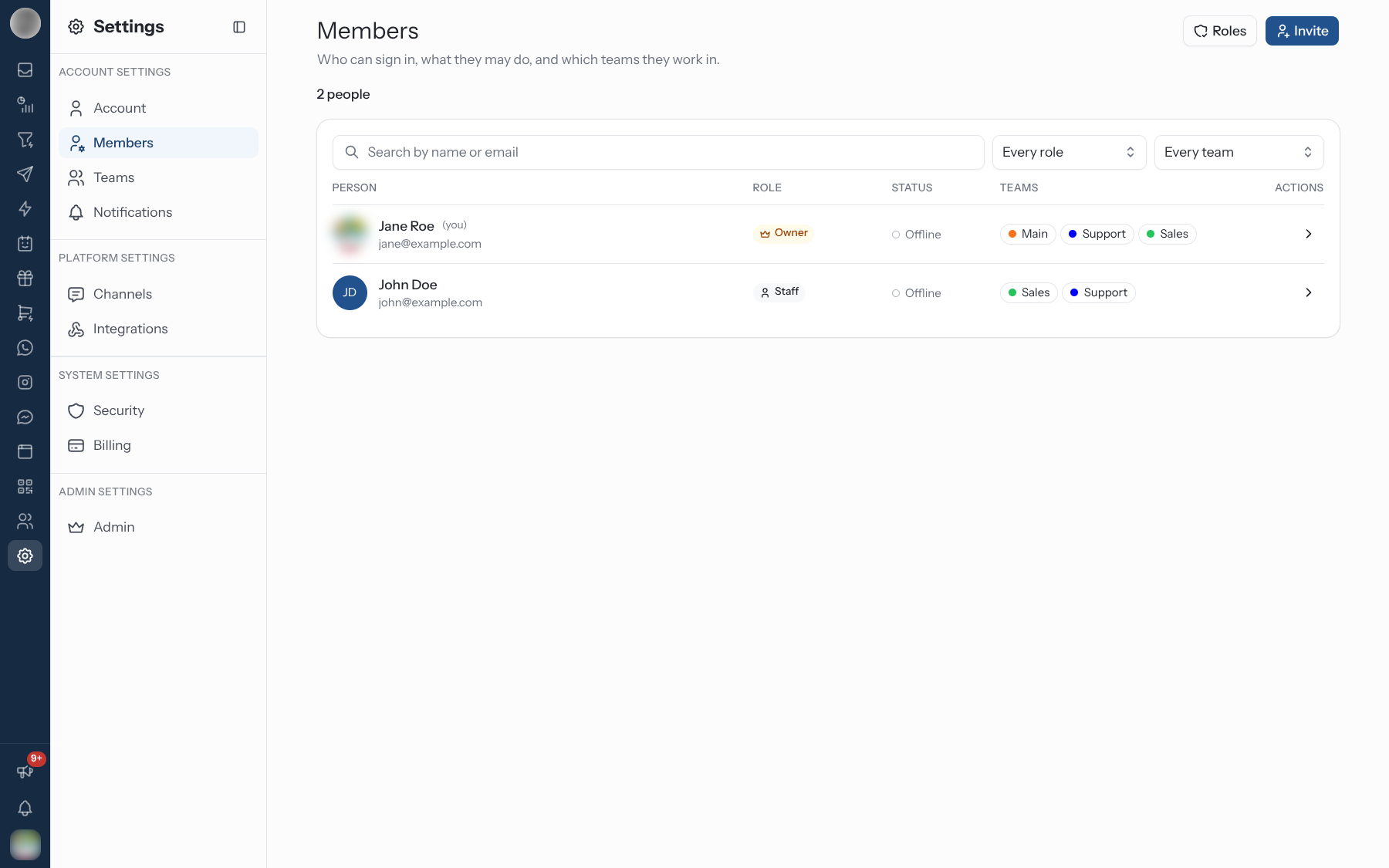
Settings → Members lists everyone who can sign in to your organisation, with their role, status and teams. A role decides what someone may do; their teams decide where they may do it.
This page replaced Settings → Users. Old links to /dashboard/settings/users now open
Members.
Find Someone in the List
The list has one row per person, with the columns Person, Role, Status, Teams and Actions. Pending invitations are listed after the people.
| Column | What it shows |
|---|---|
| Person | Name, email and photo. Your own row is marked (you) |
| Role | The person's role. Customised means their abilities have been fine-tuned away from the role — see Fine-Tune One Person's Abilities |
| Status | Online, Busy or Offline, or Paused for an account that cannot sign in. Invitations show Invited |
| Teams | The teams they belong to. Owners and Admins with no team show Every team; anyone else with no team shows Not in any team |
| Actions | The arrow opens the person's page. For an invitation: copy the link, resend or revoke it |
To narrow the list:
- Type in Search by name or email.
- Pick a role from Every role or a team from Every team.
- Click one of the counts under the heading — people, in no team, invited, paused — to show only those rows. Click it again to go back to everyone.
"No one matches" means the filters exclude everybody — clear them to see the whole list.
Invite Someone
You need the Invite people ability, which comes with the Manager role and above.
Click Invite. The Invite someone dialog opens.
Enter their Name (at least two characters) and Email.
Choose a Role. Only roles you could hold yourself are offered — a Manager cannot invite an Admin. Staff is selected by default. Each role card shows whether it covers Every team or Their teams, and the selected card lists a few things the role adds.
For Manager, Staff, Agent and Viewer, pick at least one team under Teams — the first team is filled in for you. Owners and Admins reach every team, so there is nothing to pick.
Click Send invite. They get an email with a link to set their own password.
If the email already belongs to someone in your organisation, RateUp adds them to the chosen teams instead of inviting them again, and shows "Added to the team".
An invitation sent as Agent or Viewer currently arrives as Staff when it is accepted — more access than you chose. After they join, open their page and set the role again.
You can also invite from a team's own page — see Teams.
When an Invite Is Refused
| Message | Cause |
|---|---|
| "Invitation with the provided email is already pending." | An unaccepted invite to that address already exists. Resend it instead |
| "User with the provided email is already a member of another organization." | One email address can belong to only one organisation |
| "Team member with the provided email already exists in the team." | They are already in that team |
| "You have reached the maximum limit of N users." | Your plan's user allowance is used up. Pending invitations count towards it |
Manage Pending Invitations
Invitations sit at the bottom of the list with an Invited badge until they are accepted. Use the icons in the Actions column:
| Action | What it does |
|---|---|
| Copy invite link | Copies the invite link, so you can send it yourself — useful if the email went to spam |
| Resend invite | Sends the invite email again |
| Revoke invite | Deletes the invitation; the link stops working |
Revoking an invitation you no longer need also frees the user allowance it was holding.
The Six Roles
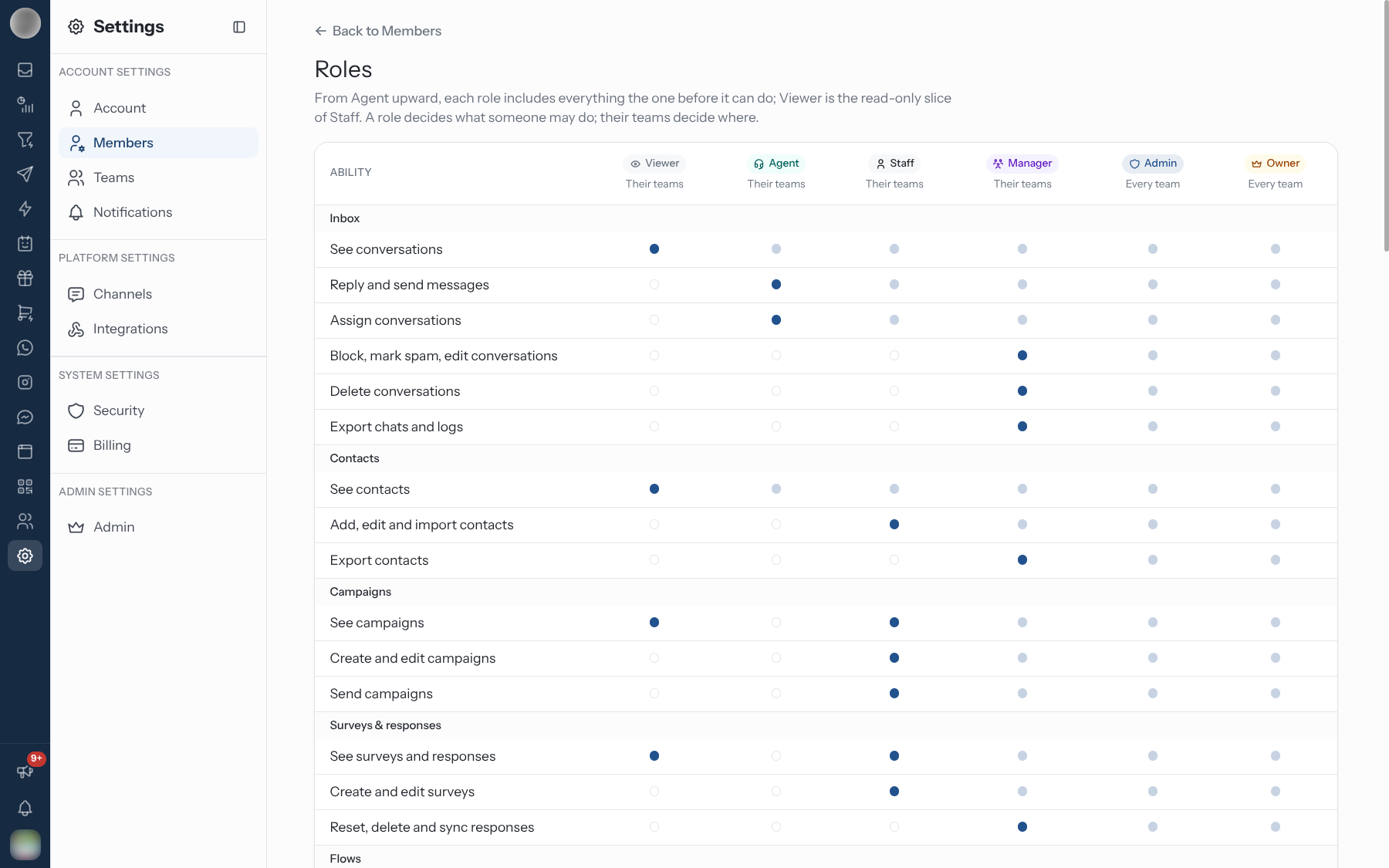
Click Roles on the Members page to open the roles table at /dashboard/settings/members/roles.
It lists every ability down the side and the six roles across the top. From Agent upward, each role
includes everything the one before it can do; Viewer is the read-only slice of Staff.
| Role | Reaches | What it is for |
|---|---|---|
| Owner | Every team | "Everything, including billing, deleting the organisation and handing it over." There is exactly one |
| Admin | Every team | "Everything across every team, except deleting or transferring the organisation." |
| Manager | Their teams | "Runs their teams: invites people, manages the inbox, integrations and loyalty." |
| Staff | Their teams | "Works in their teams: inbox, campaigns, surveys, flows, contacts and the cashier." |
| Agent | Their teams | "Replies in the inbox and serves the loyalty counter for their teams." |
| Viewer | Their teams | "Read-only access to their teams' data and analytics." |
In the table, a solid dot marks the role where an ability first appears, and a faint dot means the role inherits it from the one below.
What Each Role Can Do
The abilities, grouped and worded as the app shows them. From is the lowest role that has the ability; every role above it has it too. Viewer has every ability marked † (the See … abilities that Staff holds).
| Group | Ability | From |
|---|---|---|
| Inbox | See conversations † | Agent |
| Reply and send messages | Agent | |
| Assign conversations | Agent | |
| Block, mark spam, edit conversations | Manager | |
| Delete conversations | Manager | |
| Export chats and logs | Manager | |
| Contacts | See contacts † | Agent |
| Add, edit and import contacts | Staff | |
| Export contacts | Manager | |
| Campaigns | See campaigns † | Staff |
| Create and edit campaigns | Staff | |
| Send campaigns | Staff | |
| Surveys & responses | See surveys and responses † | Staff |
| Create and edit surveys | Staff | |
| Reset, delete and sync responses | Manager | |
| Flows | See flows † | Staff |
| Create and publish flows | Staff | |
| Templates | See templates † | Staff |
| Create and edit templates | Staff | |
| Sync templates with Meta | Manager | |
| Automation | See automations † | Staff |
| Create and edit automations | Staff | |
| Chatbots | Use chatbots † | Staff |
| Build and train chatbots | Manager | |
| Meta Business Agent | See the Meta Business Agent † | Staff |
| Run agent actions | Staff | |
| Connect systems and credentials | Manager | |
| Catalogue | Manage the product catalogue | Staff |
| Pipelines | See pipelines † | Staff |
| Edit stages and move leads | Staff | |
| Delete boards or move them between teams | Admin | |
| Analytics | See analytics † | Agent |
| Loyalty | See the loyalty programme † | Agent |
| Serve the counter: enrol, award, redeem | Agent | |
| Approve or reject point requests | Manager | |
| Configure tiers, rewards and rules | Manager | |
| Export member lists | Manager | |
| Delete members | Manager | |
| Manage the loyalty API key | Admin | |
| Members | See who is in the organisation † | Agent |
| Invite people | Manager | |
| Pause or remove people | Admin | |
| Change roles | Admin | |
| Teams | See teams † | Agent |
| Add and remove team members | Manager | |
| Create, edit and delete teams | Admin | |
| Channels | See connected channels † | Agent |
| Connect, remove and configure channels | Admin | |
| Integrations & webhooks | See integrations † | Staff |
| Connect and configure integrations | Manager | |
| Manage the Shopify connection | Manager | |
| See webhooks | Manager | |
| Configure webhooks | Manager | |
| See API keys and their usage | Admin | |
| Create, rotate and revoke API keys | Admin | |
| Organisation | Edit organisation details and business hours | Manager |
| See the webhook signing secret | Manager | |
| See the audit log | Admin | |
| See invoices and orders | Admin | |
| Change the plan and payment | Admin | |
| Hand the organisation to someone else | Owner | |
| Delete the organisation | Owner |
The sidebar follows these abilities. Someone without See campaigns does not see Campaigns at all — it is hidden, not greyed out. Settings → Members itself appears only for people who have See who is in the organisation.
Open a Member's Page
Click the arrow at the end of a row to open that person's page at
/dashboard/settings/members/<id>. The arrow appears on your own row, and on everyone else's if you
can pause or remove people, change roles, or add and remove team members.
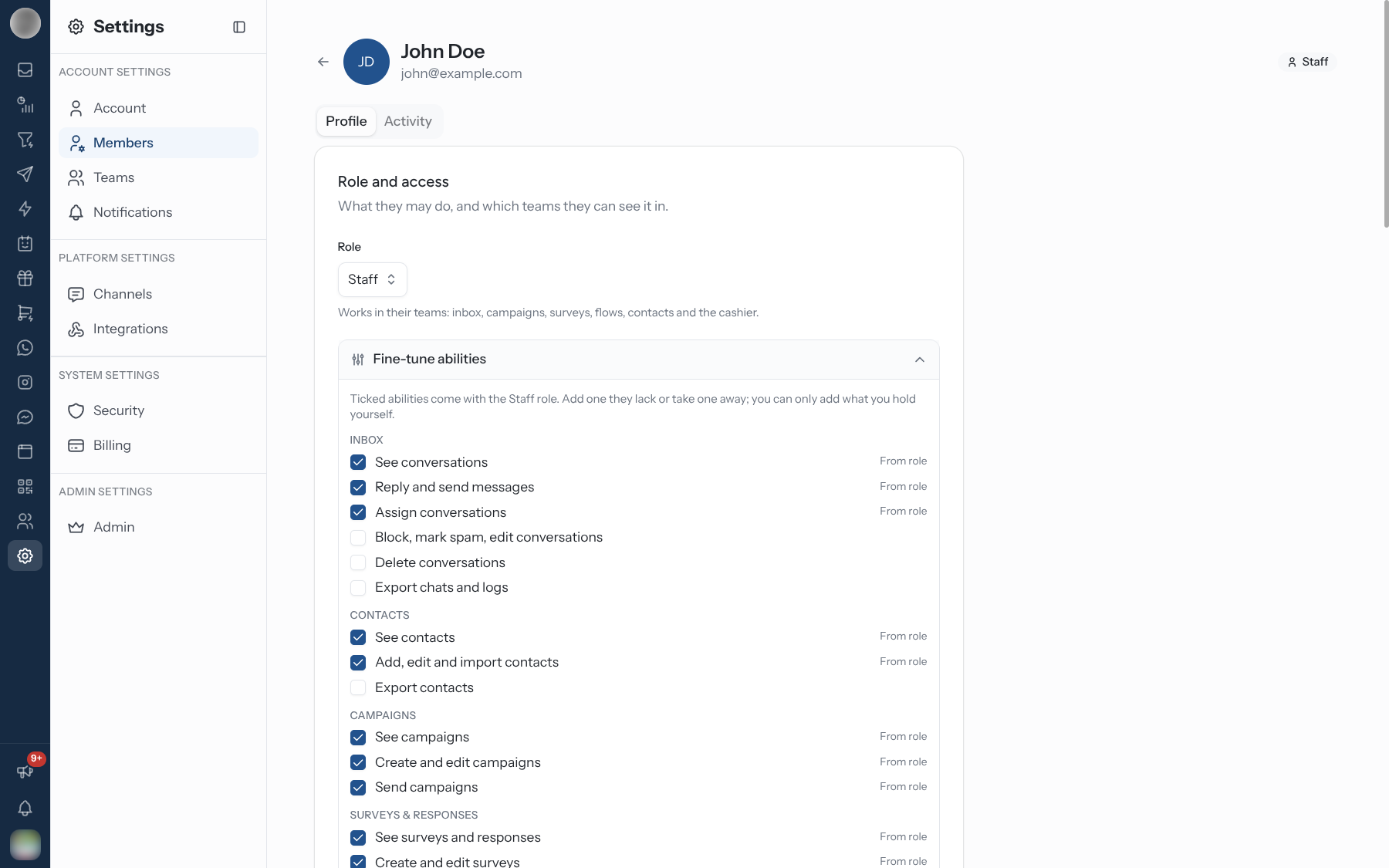
The page has two tabs: Profile and Activity.
Profile Tab
| Card | What you can change | Who can change it |
|---|---|---|
| Role and access | Role, Fine-tune abilities, Teams | Role and abilities: anyone who can Change roles. Teams: anyone who can Add and remove team members |
| Profile | Title, Name, Phone Number, then Save profile | The person themselves, or anyone who can Pause or remove people |
| Account | Active / Paused, Transfer ownership, Remove from organisation | See Pause or Remove Someone |
Team changes save as soon as you pick or drop a team ("Team changes are saved immediately."). The Teams picker only appears for team-bound roles — Owners and Admins reach every team.
Activity Tab
Activity lists the changes this person has made — sending a campaign, inviting someone, changing a role — newest first, with a time on each. Reading and browsing are not recorded. You need See the audit log (Admin and Owner) to view it.
Change Someone's Role
Open the person's page.
In Role and access, pick a new Role. It saves straight away, and a message confirms how many abilities they gained or lost.
| You cannot… | Why |
|---|---|
| Change your own role | Someone else has to do it |
| Change the Owner's role | "The owner's role cannot be changed, and the owner cannot be paused or removed. Hand the organisation over first." |
| Give a role with abilities you lack | The picker only offers roles inside your own. The API refuses anything else |
| Make someone Owner from the role picker | Ownership is handed over, not granted — see Transfer Ownership |
If the role picker is greyed out, the page says "Changing roles needs the Manage roles permission." — in the roles table that ability is called Change roles.
Fine-Tune One Person's Abilities
When a role is almost right, adjust that one person rather than inventing a new role.
Open the person's page and expand Fine-tune abilities under the role.
Every ability is listed by group. Ticked abilities marked From role come with their role.
Untick one to take it away (it is marked Removed), or tick one the role lacks to add it (marked Added).
Click Save abilities. Reset to role clears every change.
The person's row in the list then shows Customised, and the panel header shows how many abilities are customised.
| Rule | Detail |
|---|---|
| You can only add what you hold | An ability you do not have yourself is greyed out with Not yours to give |
| Anyone with Change roles can take an ability away | Removing never exceeds your own reach |
| Not on yourself | "You cannot change your own permissions." |
| Not on the Owner | The Owner always has every ability |
| Survives a role change | Fine-tuning stays with the person when their role changes — check the panel afterwards |
Pause or Remove Someone
Both need Pause or remove people, which comes with Admin and Owner. Neither is available on your own page or on the Owner's.
Pause
Switch Active off in the Account card. "A paused account cannot sign in until it is re-enabled." The person keeps their role, teams and fine-tuning, and shows as Paused in the list. Switch it back on to restore access.
Pause is the reversible option — use it for someone on leave, or while you check what they own.
Remove
Open the person's page and, under Remove from organisation, click Remove.
Confirm in the Remove …? dialog: "They lose access straight away. Their conversations and work stay with the organisation."
Removing someone cannot be undone. Their sign-in is deleted and they disappear from the Members list. To bring them back you have to invite them again, and they arrive as a new account. If they might return, pause them instead.
Before Someone Leaves
Removing a person does not reassign anything they own. Their conversations stay assigned to them, so do this first:
Reassign their open conversations — filter the Inbox to them with the sidebar filters, then reassign each one or send it back to their team.
Check whether any automation, chatbot or pipeline assigns work to them by name.
If they are the Owner, transfer ownership — the Owner cannot be paused or removed.
Then pause or remove the account.
Transfer Ownership
Only the Owner can do this, and only to an active member.
Open the new owner's page.
In the Account card, under Transfer ownership, click Transfer.
Confirm: "You stay an Admin. Only the owner can delete the organisation or hand it over again."
There is always exactly one Owner. After the handover you keep every ability except deleting or transferring the organisation.
Troubleshooting
| Symptom | Cause | Fix |
|---|---|---|
| No Invite button | You lack Invite people | Ask a Manager, Admin or the Owner |
| The Members list is empty for a Staff, Agent or Viewer | The list currently loads only for people who can invite (Manager and above) | Ask a Manager or Admin to look the person up |
| A role is missing from the invite or role picker | It has abilities you do not hold | Ask someone with a higher role |
| "This person is not in your organisation" | They were removed, or the link is from another organisation | Go back to Members |
| "Seeing a person's activity needs the View audit log permission." | You lack See the audit log | Ask an Admin or the Owner |
| A new member has more access than you chose | They were invited as Agent or Viewer and arrived as Staff | Set their role again on their page |
Related Pages
- Teams — where each role's abilities apply
- Notifications — each member chooses their own alerts
- Assignment & Reassignment
- Sidebar Filters