Creating a Survey
Start blank or from a template, add questions, and preview before you share.
A survey starts from Surveys & Links → Surveys (/dashboard/surveys), either blank or from one
of RateUp's templates. The page has two tabs: Surveys, your own, and Templates.
Start Blank or From a Template
To start blank, click Create Survey on the Surveys tab (or Start Blank on the Templates tab). To start from a template, open the Templates tab, click a template, and click Try this Template in the Create Survey from Template dialog.
In the Create Survey dialog, enter a Title (labelled Template Selected when you came from a template), pick at least one language under Select Languages, and choose the teams it belongs to under Select teams — All Teams or Select Manually. Pick a theme under Select Theme if you like.
Click Submit. The editor opens on the Questions tab.
Templates are worth browsing even if you end up starting blank — a template shows how a well-structured survey is put together. If there are none, the tab shows "No templates found".
Adding Questions
The editor has three parts: the question list down the left, the Page Editor in the centre with a Preview button in its header, and the Add Element pane you pick new questions from.
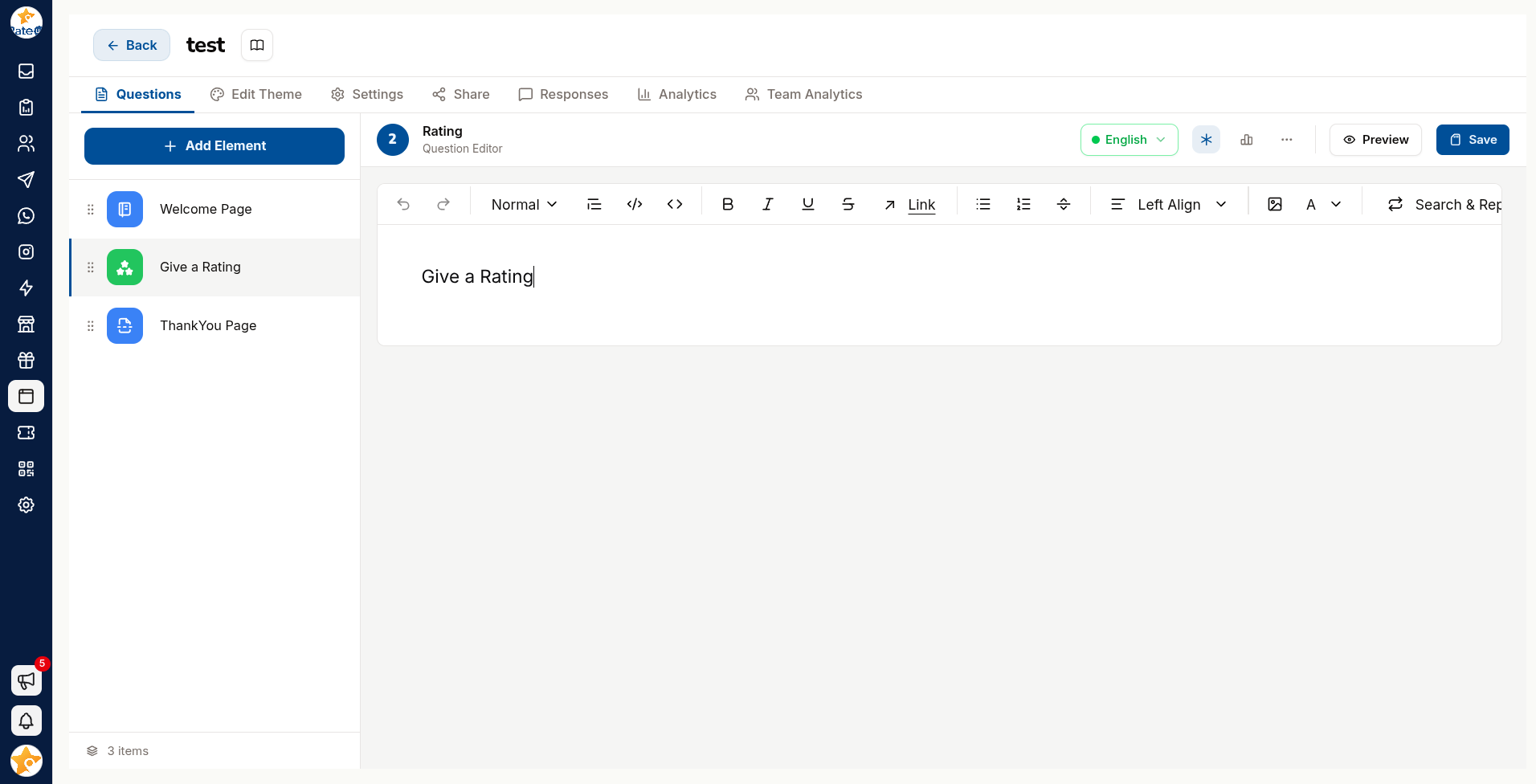
Click Add Question, then pick a type from Add Element. The tiles are grouped by category — type in Search elements… to jump straight to one.
Write the question in Enter question here.
Add a description if the question needs context — but if it needs a paragraph, rewrite the question.
Configure the type-specific options.
Reorder questions from the sidebar by dragging.
Writing Questions People Answer
Completion rate is decided almost entirely by the questions, not the design.
| Do | Instead of |
|---|---|
| Ask one thing per question | Bundling two into one sentence |
| Use the customer's words | Internal jargon |
| Make optional questions optional | Requiring everything |
| Put the easy questions first | Opening with a long free-text box |
| Stop at five or six questions | Twenty "while we have you" extras |
Every extra question costs completions. Before adding one, ask what decision its answer will change — if there is no answer to that, cut it.
Previewing
Use Preview to take the survey as a customer would. Check it on a phone: most responses arrive on one, and layouts that work on a laptop often do not.
The editor flags problems with an Issue with your survey warning — resolve those before sharing.
Status
A survey is Active or Paused. Paused surveys do not accept responses, which is the safe way to stop collection without deleting anything.