Sharing
Links, QR codes, WhatsApp, embedding and URL tags for tracking where responses came from.
Getting the survey in front of people. The Share tab covers every route.
Link
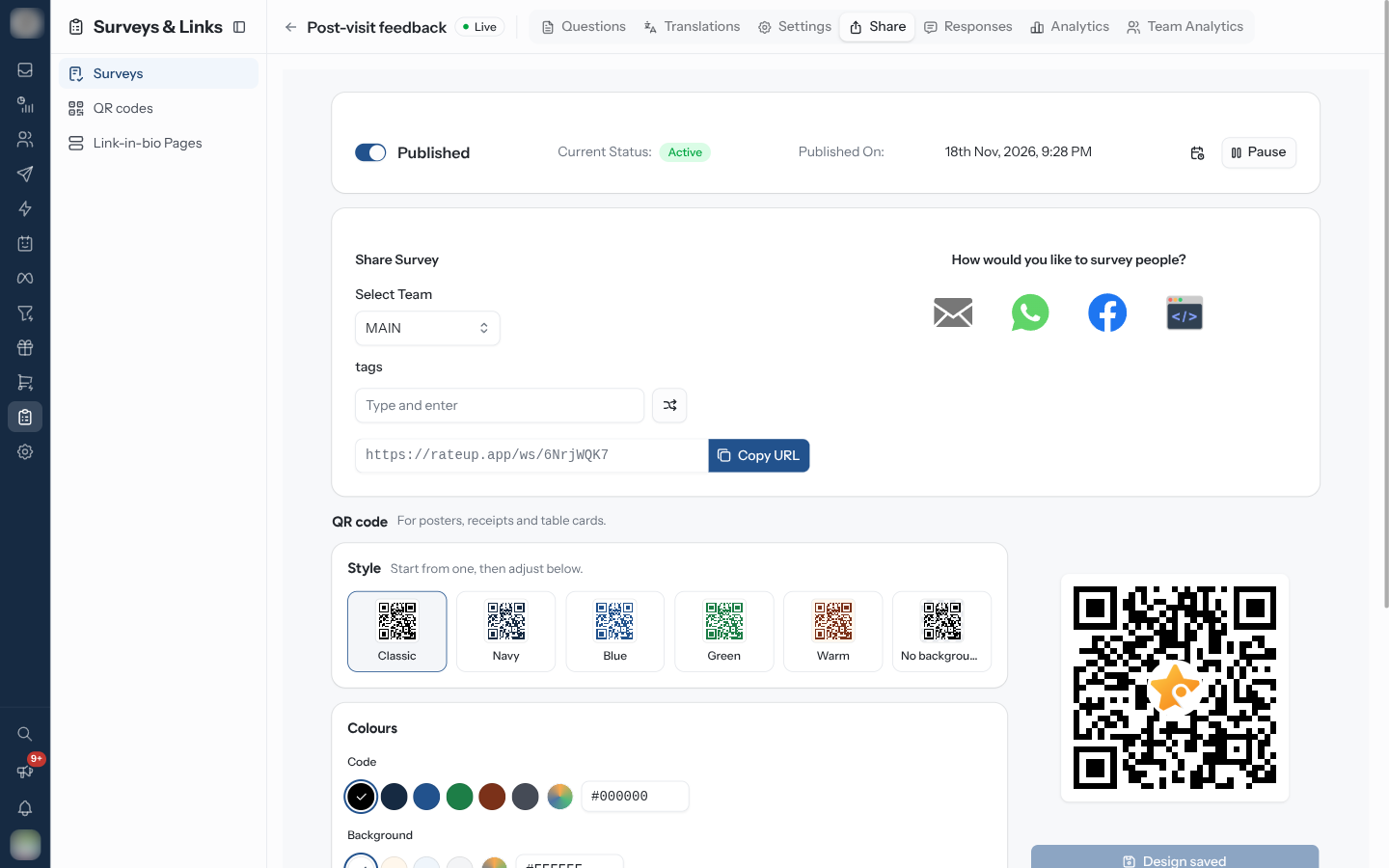
Copy URL gives you the survey's address. Pick the team the responses belong to under Select Team first — each team has its own link. It works anywhere a link does — email, SMS, social, your website. The icons under How would you like to survey people? share it by email, WhatsApp or Facebook, or open the embed options.
The survey must be published first.
QR Code
Under the share card, QR code — "For posters, receipts and table cards" — designs the code for the selected team's link, with a live preview on the right:
| Section | Sets |
|---|---|
| Style | A starting point — Classic, Navy, Blue, Green, Warm or No background — that you then adjust below |
| Colours | The Code and Background colours, from swatches or a hex value. Transparent background is "For placing the code on your own artwork." |
| Logo | Show a logo in the middle — the RateUp logo or Upload yours (PNG, JPG or SVG; a square image works best). Size and Shape (Square, Rounded, Circle). The code still scans around it |
Save design keeps the design for this survey — the button reads Design saved once nothing has changed. PNG downloads the code, Print prints it and Copy link copies the survey link it points to. Until the survey is published, the download and print buttons are off and the card says "Publish to download or print the code."
Use QR codes for anything physical: receipts, table tents, packaging, posters, event badges.
For anything printed, consider pointing a QR code at the survey instead. The printed code stays valid even if you later replace the survey — a QR printed on 5,000 receipts is not something you want tied to one survey forever.
Send the survey link from a WhatsApp conversation, a template button, a campaign or an automation rule.
Response rates over WhatsApp are typically much higher than email — the message arrives where the customer already is, and the link opens in one tap.
Embedding
Generate IFrame produces embed code for your own site.
Click Embed as iframe or Create an iframe to embed survey.
Set the width and height, with their units.
Copy code and paste it into your page.
Check the embed on a phone. An iframe with a fixed pixel height is the usual cause of a survey that scrolls awkwardly inside a box on mobile.
Tag Where Responses Come From
The tags field above the link adds tags to it, so you know where each response came from.
Type a tag and press Enter (Type and enter), or click the shuffle button to generate random
tag. Tags are added to the link as ?tag=receipt (several are comma-separated), so copy the link
again after changing them.
| Placement | Tag |
|---|---|
| Receipt QR | receipt |
| Email campaign | email-june |
| Table tent | table |
The tag arrives with the response, so "which placement actually works?" becomes a question with an answer instead of a guess.
Tag every placement from day one. Adding tags later means the first months of responses are permanently unattributable.
Redirect After Submitting
Sending respondents to your own page after they submit is set in the survey's Settings — the Redirect card.