Logic & Variables
Logic jumps, variables and custom validation — making a survey respond to who is filling it in.
Three features turn a flat questionnaire into something that adapts: logic jumps, variables and custom validation.
Logic Jumps
A logic jump sends respondents to a different screen depending on their answer.
Select the block the jump starts from, open its Settings tab, and click Logic under Routing & data. (The row shows how many rules the block has and where the first one leads.)
In the sheet, click Add Logic Jump.
Set the Condition and the responses that trigger it.
Choose the Action: Next Question, End Survey, or a JUMP TO => Screen n · … target.
Add further jumps for the other answers, then click Save.
How rules are applied
Rules run top to bottom and the first match wins. On a screen with several blocks, the first block whose rule matches decides where Next goes. A jump can only target a later screen — blocks on the same screen or earlier ones are not offered.
Why it matters
The classic use is splitting by satisfaction:
"How likely are you to recommend us?"
   ├── 9–10  →  "Would you leave us a Google review?"
   ├── 7–8   →  "What would have made it a 10?"
   └── 0–6   →  "What went wrong?" → follow up privately
Each group gets the question that suits them, and nobody is asked something irrelevant.
Test every branch in Preview before sharing. A jump pointing at a deleted question strands respondents mid-survey, and you will only find out from the drop-off in your response count. The Flow map below flags rules that cannot work.
See Every Rule on the Flow Map
Click Flow on the builder's rail to see the whole survey as a map: every screen is a node, the default order runs as grey arrows, and each logic rule is a labelled arrow from the screen it starts on. Beside it, the pane lists every rule grouped by screen, with a count of rules and conflicts at the bottom.
| On the map | Means |
|---|---|
| Blue arrow | A rule, labelled with its condition |
| Red | A rule that can never run — Points to an earlier screen, or Target is on this screen — falls through to Next |
| Dashed | A rule on an earlier block decides first, so this one may never be reached |
Click a screen to edit it, or a rule to open its block on the Settings tab. A survey with no rules shows No logic yet.
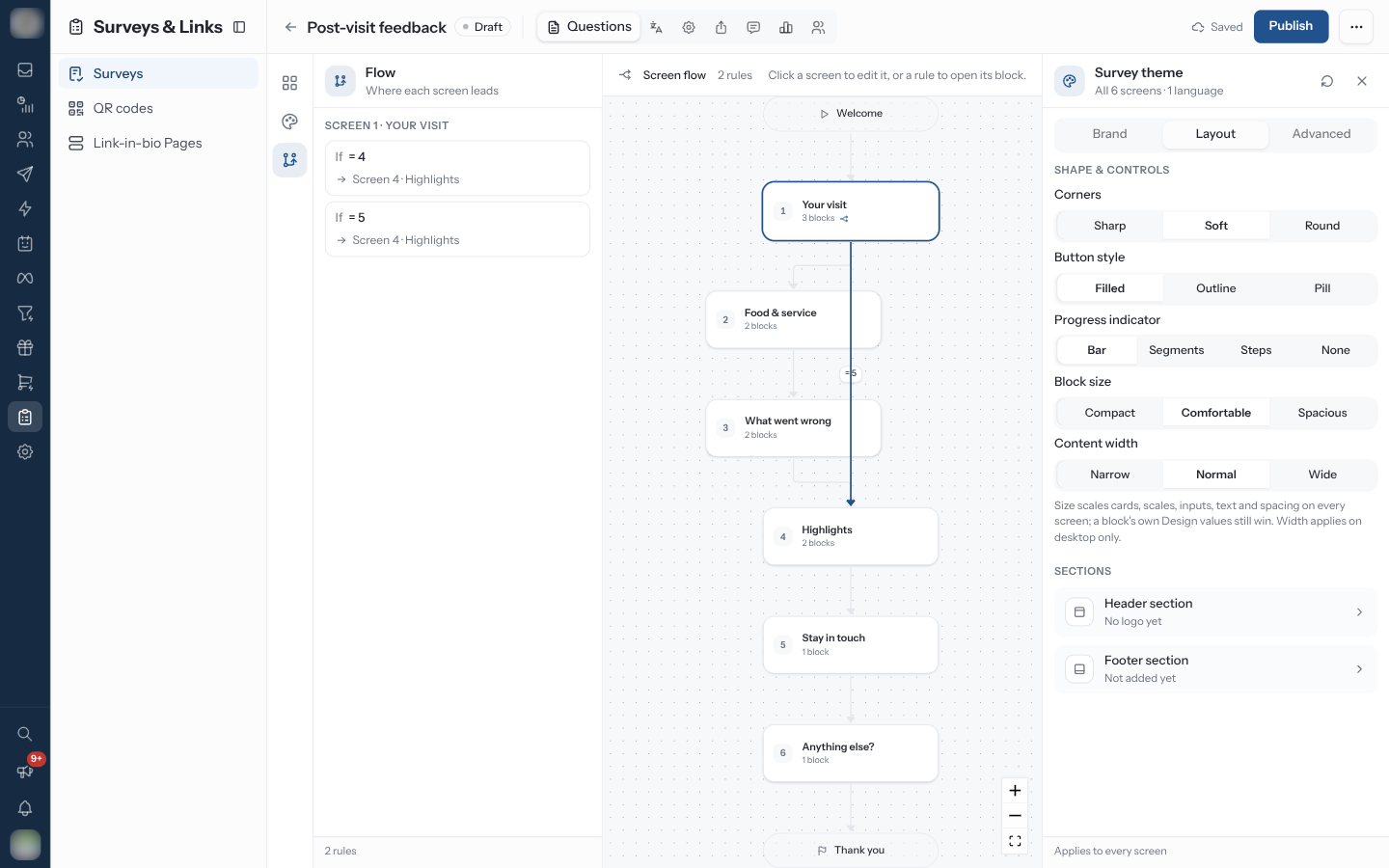
To see rule targets without leaving the canvas, turn on Show logic paths in the canvas toolbar: each block with rules is labelled with where they lead (Screen 3, End).
Variables
Variables store a value while someone fills in the survey, and let you use it later. Open them from any block: Settings → Routing & data → Survey variables.
| Kind | Meaning |
|---|---|
| Default Variables | One per answerable question, holding that question's answer. RateUp creates and names them; you cannot add, rename or delete them |
| Custom Variables | Ones you create with Add Variable, and set yourself |
Default Variables
Each answerable question gets a variable named after its position in the survey, not after the
question itself. The third question's answer is Q3_response.
Two question types answer several things at once, so they get one variable per field:
| Question type | Variables at position n |
|---|---|
| Contact | Qn_name_response, Qn_phone_response, Qn_email_response |
| Testimonial | Qn_name_response, Qn_jobTitle_response, Qn_testimonial_response, Qn_rating_response |
| Every other supported type | Qn_response |
Not every question has one. Default variables exist for Text Input, Large Text, Number, Date, Rating, Smiley, Opinion Scale, Yes or No, Like or Dislike, Terms & Conditions, Wheel Of Price, Contact and Testimonial. The choice questions (Single Select, Multiple Select, both dropdowns, Picture Choice, Single Select Grid), Custom NPS, Email, Phone, Photo, File Input and Multi Text Input have none — to reference one of those answers, assign it to a custom variable.
Because the names follow position, reordering or inserting a question renumbers them. Move
question 3 to the end of a five-question survey and Q3_response now means what used to be
question 4. Anywhere you have referenced a default variable — question text, a thank-you page, a
condition, an automation — points at the new occupant of that position, not at the question you
meant. After changing the order, re-check every reference. A custom variable, whose name you
chose, is unaffected.
Custom Variables
Click Add Variable, then give it a Name and a Value and click Create. Names can only have letters, numbers and underscores.
Use Assign a value to variable on a question so answering sets it.
Reference the variable later — in question text, on the thank-you page, or in a condition.
Names must be unique within a survey — reusing one is rejected with Variable already exist.
What variables are for
- Personalisation — greeting someone by the name they gave two questions ago
- Scoring — accumulating a value across several answers and branching on the total
- Passing context in — carrying a campaign or location identifier into the response record
Passing a variable in through the survey's URL is how you tell which QR code, campaign or branch a response came from — without asking the customer.
Custom Validation
Custom validation constrains what an input block accepts. Select the block and click Validation rules under Settings → Validation; the row reads Rules set once a block has some.
| Rule | Accepts |
|---|---|
| Text Type | Letters, Letters_&_Numbers or Numbers only |
| Length | Between a Min and Max number of characters |
| Word Count | Between a Min and Max number of words |
Every rule carries an Error Message. Write it as help, not as a scolding: "Please enter a 10-digit mobile number" beats "Invalid input".
Over-strict validation loses responses silently. A phone rule that rejects international formats will block real customers who then simply close the tab.
Putting Them Together
A well-built feedback survey usually uses all three:
- Validation keeps the contact details usable
- Logic jumps ask detractors and promoters different things
- Variables carry the source into the response, so you know which branch or campaign produced it