Settings
Publishing, scheduling, access control, languages, kiosk mode and the response webhook.
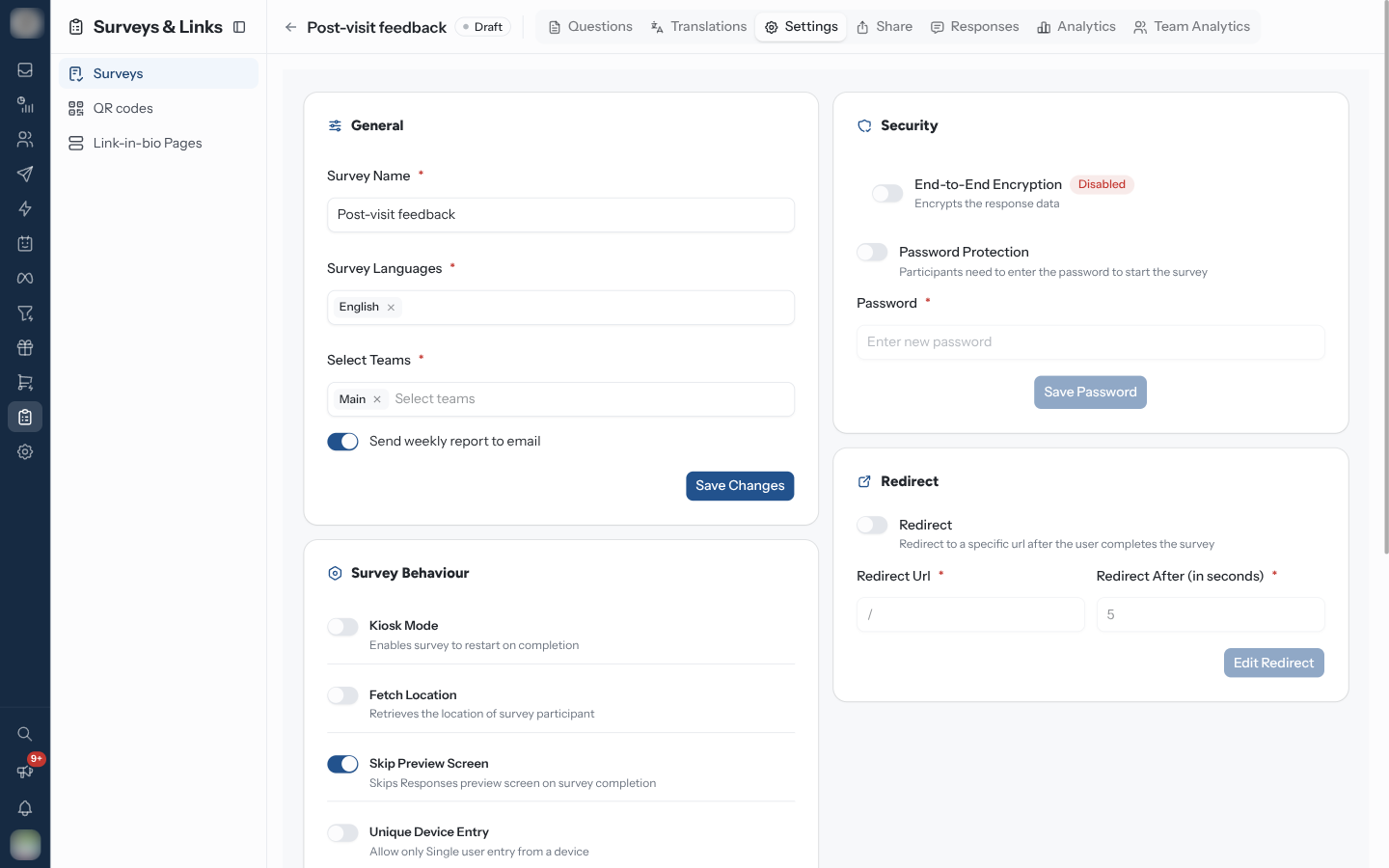
Everything about how a survey behaves, as opposed to how it looks. Open the survey's Settings tab — or Settings in the builder's ⋯ menu. The cards are General, Security, Redirect, Survey Behaviour, Webhooks and DANGER ZONE.
Publishing
| Where | Control | Effect |
|---|---|---|
| Builder header | Publish | Checks the survey for errors and makes it live — see Creating a Survey |
| Share tab | Published switch | Publishes or unpublishes the survey |
| Share tab, or the builder's ⋯ menu | Pause / Pause Survey | Stops collection without unpublishing; Resume starts it again |
A survey must be published before its link works.
Scheduling
On the Share tab, Publish Settings can Schedule Publish for a later time (at least an hour ahead, rounded to the hour) and Schedule survey expiry with an End Survey At date — or No Expiry to leave it open indefinitely. A scheduled survey shows the Scheduled badge until it goes live.
Use scheduling for anything time-bound: an event feedback survey should close when the event is over, not linger collecting stray responses for a year.
Access Control
| Setting | Effect |
|---|---|
| Password Protection | Participants need to enter the password to start the survey |
| Anonymous | Responses are not tied to an identity |
To restrict a survey to known email addresses, use the Email OTP block's address list — see Question Types.
Anonymous genuinely changes what people tell you. For sensitive feedback — complaints, staff surveys — it raises both response rate and honesty. For anything you need to follow up on, it makes that impossible. Decide deliberately.
End-to-End Encryption
End-to-End Encryption encrypts response data.
Turn it on for anything sensitive. Note that encrypted responses limit what can be processed automatically — check your reporting still works before relying on it.
Languages
Survey Languages in the General card lists the languages the survey offers. At least one is required — you will be told "Must contain atleast one language" otherwise. Pick from the list of over thirty languages, or type one that is not listed and choose Create. The first language is the default.
With more than one language, respondents pick theirs on the language page, and the Translations tab lists every text to translate.
Response Behaviour
The Survey Behaviour card:
| Setting | Effect |
|---|---|
| Kiosk Mode | Enables the survey to restart on completion, for a shared device |
| Fetch Location | Retrieves the location of the survey participant |
| Skip Preview Screen | Skips the responses preview screen on survey completion |
| Unique Device Entry | Allows only a single entry from a device |
| Automatic Transition | Proceeds to the next question automatically after a selection |
Automatic Transition only applies on a screen with a single block — a screen with several blocks always waits for Next. A block's Settings tab shows the survey's setting as Auto-advance, read-only.
Kiosk Mode is what you want for a tablet at a counter or an event stand — it prevents one person seeing the previous person's answers. It is not available while the survey has a review page, and turning on a review page switches Kiosk Mode off.
Fetch Location collects personal data. Tell respondents why you need it, and do not enable it because it is available.
Redirect After Submitting
The Redirect card sends respondents to a URL of your choosing after they complete the survey — your site, a reward page. It is not available while Kiosk Mode is on. Switch on Redirect, enter the Redirect Url and Redirect After (in seconds) (2–60), and click Save Redirect (Edit Redirect once one is saved).
Send Responses to Your Own System
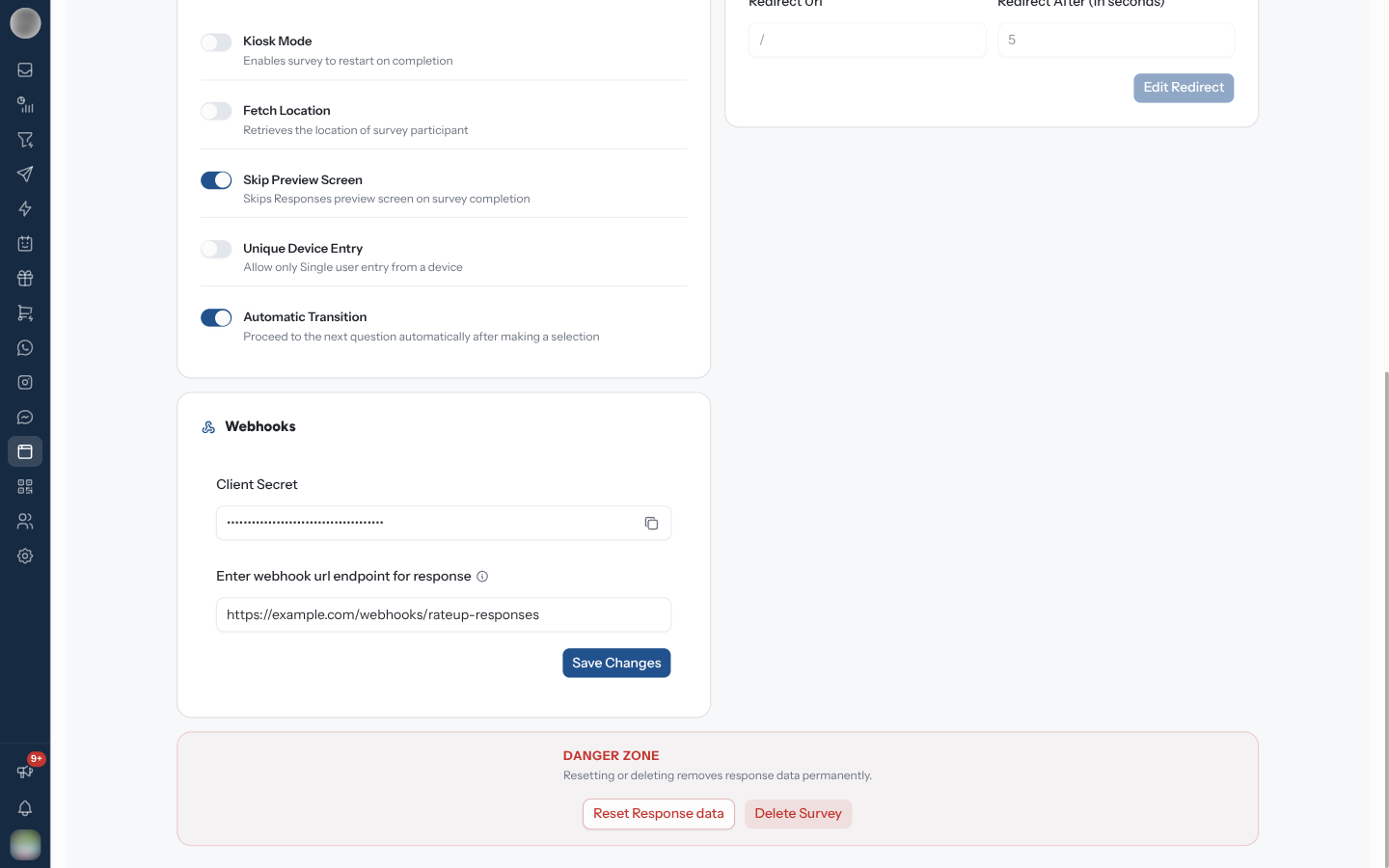
A webhook posts each response to a URL you control as soon as it is submitted. Use it to push responses into your own database, CRM or fulfilment system without polling. It sits in the Webhooks card of this Settings tab and needs the Webhook feature on your plan.
This webhook is configured per survey, and the same mechanism serves WhatsApp flows.
This is not the same webhook as the one under Settings → Integrations — that one is organisation-wide, reports events such as message delivery status, and has its own signing secret. This one carries survey responses and is signed with the Client Secret shown in this card, which is the same for every survey in your organisation.
Set it up
Create an HTTPS endpoint that accepts POST and parses a JSON body.
https://example.com/webhook-endpointPlain HTTP endpoints are skipped entirely — nothing is ever sent to them.
Enter the URL under Enter webhook url endpoint for response and click Save Changes. An address that is not a valid URL is refused with "Invalid Url, eg: https://example.com/your-endpoint".
Once a URL is saved, a Client Secret field appears above it. Copy it — it signs every request, and you need it to verify what arrives.
Payload
{
  "tag": "feedback",
  "createdAt": "2024-09-17T10:00:00Z",
  "phone": "14155552671",
  "language": "en",
  "responses": [
    { "type": "Rating", "response": 3, "title": "Please rate us?" },
    { "type": "Smiley", "response": "Happy", "title": "Are you satisfied?" }
  ],
  "teamId": "3112a17e-d353-482b-82e0-0af2f10771ee",
  "surveyId": "4365b702-69a3-4362-a162-1725ad50f259"
}| Field | Contains |
|---|---|
tag | The survey's tag |
createdAt | Submission time, ISO 8601 |
phone | The respondent's number, where captured |
language | The language they answered in |
responses | One entry per question — type, response, title |
teamId | The owning team |
surveyId | The survey the response came from |
Headers
| Header | Contains |
|---|---|
Content-Type | application/json |
X-Rateup-Timestamp | When this attempt was sent, Unix seconds |
X-Rateup-Signature-256 | t=<Unix seconds>,v1=<hex HMAC-SHA256 of "<t>.<raw body>">, keyed with the client secret |
X-Rateup-Signature | HMAC-SHA256 of the request body, base64-encoded (deprecated — no timestamp) |
X-Rateup-Triggered-At | When this attempt was sent, ISO 8601 |
X-Webhook-Id | An id for this delivery — the same on every retry of it |
Verify the signature
Prefer X-Rateup-Signature-256: it signs a timestamp too, so a captured delivery cannot be
replayed. It is checked exactly like the organisation webhook's — see
Settings → Integrations → Verify the signature — with
the Client Secret as the key.
For the older header, compute an HMAC-SHA256 of the raw request body with your client secret, base64-encode it, and
compare it with X-Rateup-Signature.
import crypto from "crypto";

// rawBody: the request body exactly as received, before JSON parsing
function verifySignature(rawBody, signature, secret) {
  const expected = crypto.createHmac("sha256", secret).update(rawBody).digest("base64");
  return crypto.timingSafeEqual(Buffer.from(signature), Buffer.from(expected));
}
Hash the bytes you received rather than re-serialising the parsed JSON — a re-serialised body can differ in spacing or key order and never match.
Verify before acting on the payload. Your endpoint URL is not a secret, and an unverified handler processes whatever anyone posts to it.
Delivery and retries
Responses are queued and delivered in the background, so a slow endpoint never holds up the respondent.
| Your endpoint | What happens |
|---|---|
| Answers 2xx | Delivered; done |
| Answers 5xx, or does not answer within 15 seconds | Retried, up to 3 attempts in all, with exponential backoff |
| Answers 4xx | No retry — the response is abandoned immediately |
| Answers with a redirect (3xx) | Not followed, and not retried |
| Resolves to a private or internal address | Refused, and not retried |
A 4xx is read as "your endpoint rejected this deliberately" and the event is dropped for good. If your handler hits something temporary — a database blip, a lock — return a 5xx so it is retried. Returning 400 loses the response permanently.
Make your handler idempotent
Because retries exist, the same response can arrive twice. Record the X-Webhook-Id of every
delivery you process and skip ids you have already seen — a retry carries the same id as the
original.
Acknowledge with a 2xx as soon as you have the payload, then process it asynchronously.
Troubleshooting
| Symptom | Cause | Fix |
|---|---|---|
| Nothing ever arrives | Endpoint is HTTP, not HTTPS | Non-HTTPS endpoints are skipped |
| Nothing ever arrives | Webhook not saved on this survey, or the plan lacks the Webhook feature | Re-check this Settings tab |
| Nothing ever arrives | The URL redirects, or resolves to a private address | Use the final public HTTPS address |
| Signature never matches | Wrong secret, or the body was re-serialised before hashing | Hash the raw body with the Client Secret from this card |
| One failure and it never returns | Your handler returned a 4xx | Return 5xx for transient failures |
| Duplicate records | No idempotency | Deduplicate on X-Webhook-Id |
Danger Zone
Reset Response data deletes every response and the survey's stats, keeping the survey. Delete Survey removes the survey and its responses (also Delete in the builder's ⋯ menu).
Deleting takes every response with it. Export from Results first — and prefer unpublishing or pausing a survey you have simply finished with.
Related Pages
- Sharing
- Results
- Design
- Integrations — the separate organisation-wide webhook