Managing Contacts
Add, find, view, edit, import, export and delete the people in your database — one at a time or in bulk.
Contacts → All Contacts is the full list of everyone in your database. This page covers getting people in, finding them again, working on them in bulk, and keeping the data clean.
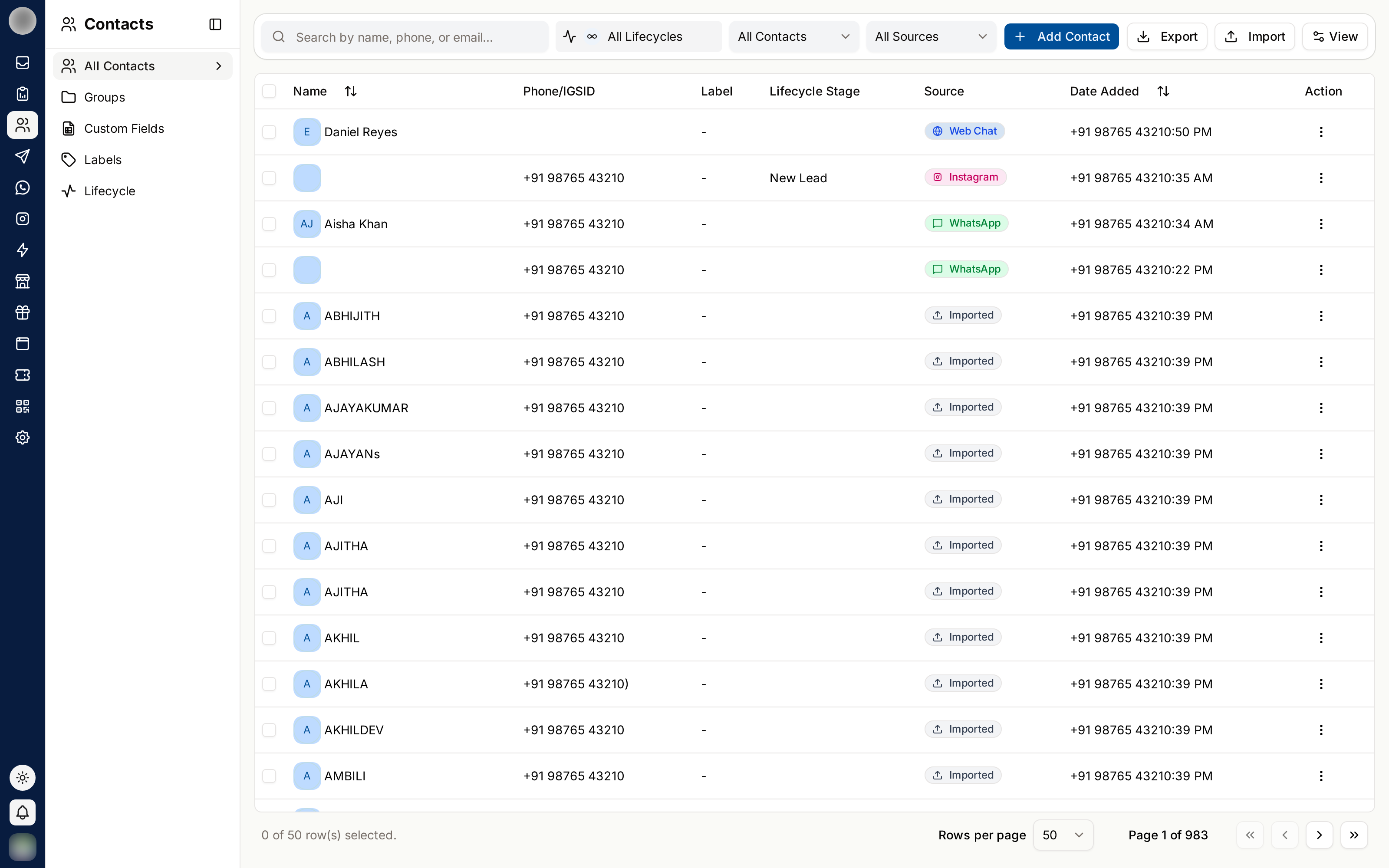
Where Contacts Come From
Every contact carries a source, shown as a badge on the list and in their details:
| Source badge | How they arrived |
|---|---|
| They messaged one of your WhatsApp numbers | |
| They messaged or commented on your Instagram account | |
| Web Chat | They wrote in through your website chat |
| Manual | Someone on your team added them by hand |
| Imported | They came in through a file import |
| Loyalty Customer | They joined your loyalty programme |
Anyone who messages you becomes a contact automatically — you never have to add inbound customers yourself.
The Contacts Table
By default the table shows Name, Phone/IGSID, Label, Source and Date Added. More columns are available from the View menu at the top right of the toolbar:
| Column | Shows |
|---|---|
| Name | The contact's name — click it to open their details |
| Phone/IGSID | Phone number, or Instagram ID for Instagram contacts |
| Status | Active, or Blocked if you have blocked them on WhatsApp |
| Other | Extra information, such as a location |
| Label | Their labels |
| Lead stage | Their column on your pipeline board. Organisations without a board see Lifecycle Stage instead, if lifecycle display is on |
| Each custom field | One column per custom field |
| Source | Where they came from — see above |
| Consent | Granted or Denied — whether they may receive templates and campaigns |
| Date Added | When the contact was created |
| Last Contact | When they last messaged you |
Sort by Name, Date Added or Last Contact by clicking the column header. The list is paged; pick how many rows to show at the foot of the table.
Search and Filter
The toolbar holds one search box and three filters. They combine, so Label: VIP plus Source: Instagram shows only VIPs who came in through Instagram.
| Control | Narrows by |
|---|---|
| Search by name, phone, or email... | Text anywhere in the name, phone number or email. A leading + is ignored, so paste numbers as they are |
| Stage | A column of your pipeline board. Without a board, this is a Lifecycle filter instead |
| Label | All Contacts, one label, or a status: Active or Blocked |
| Source | All Sources, WhatsApp, Instagram, Web, Manual or Imported |
Reset appears once a filter is active and clears them.
There is no filter for groups or custom fields on this page. To see who is in a group, open the group itself under Groups.
Add a Contact
Click Add Contact.
Under Contact details, fill in Full Name and Phone Number — both are required, and the phone number must be valid with its country code. "Name cannot be blank", "Phone Number cannot be blank" and "Invalid phone number" tell you which is missing.
Optionally add:
| Section | Fields |
|---|---|
| Contact details | Email, Date of Birth, External ID, Address |
| Assignment | Labels; Lead stage, which puts them straight onto your pipeline board (shown only if your board has columns); Assignee, the team members responsible for them; and Group, any number of groups |
| Custom fields | A value for each custom field. Email and number fields are checked |
| notes | Free text |
Click Save. If something is wrong, a "Fix the following before saving:" list tells you what.
You can also add a contact from the Inbox, with New Contact in the Inbox toolbar.
Adding a contact does not open a messaging window. If they have never written to you, your first message must be an approved template.
Act on One Contact
Every row has a ⋮ menu at the end:
| Option | What it does |
|---|---|
| View Details | Opens the contact's details — the same as clicking their name |
| Edit | Opens Edit Contact with every field from Add a Contact |
| Open in Inbox | Jumps to this contact's conversation in the Inbox |
| Delete contact | Deletes them — see Deleting Contacts |
To message a contact, open their conversation with Open in Inbox and reply there — or send a template if they have not written in the last 24 hours.
View a contact's details
Click a contact's name (or ⋮ → View Details) to open everything RateUp knows about them in one place.
The header shows their name and phone, with badges for source, inbox status, lifecycle, No consent, Blocked and Spam where they apply. Beneath it, four figures: Conversations, Last received, Campaigns, and Points for a loyalty member or Added for anyone else.
| Section | Contains |
|---|---|
| Contact | Phone, Email, Address, WhatsApp name, Location, Date of birth, Consent, Added, External ID |
| Activity | Last received, Last sent, Assigned to, Lead stage and Lead owner |
| Labels | Their labels |
| Custom fields | Every custom field with a value — hidden fields are left out |
| Loyalty | Program, Tier, Points and Referral code — only for loyalty members |
| Groups | Every group they are in. Remove them from one, or Add to group to add them to another |
| Notes | Free-text notes. Click Edit notes, then Save |
| Conversations | Their five most recent conversations, with ticket number, subject or message count, and status |
Rows with nothing to show are left out. Hover a phone number, email, ID or referral code to reveal a copy button.
The footer has Close, Edit, and View in inbox, which opens their conversation.
Bulk Actions
Tick the checkbox on each row you want — or the checkbox in the header to take the whole page. A bar appears showing "N Selected" with four actions:
| Action | What it does |
|---|---|
| Add to Group | Adds everyone selected to one group |
| Apply Label | Opens Apply Labels to Contacts — pick one or more labels and click Apply |
| Update lead stage | Puts everyone on one column of your pipeline board, opening a lead for anyone not on it. Organisations without the Pipeline feature see Update Lifecycle Stage |
| Delete | Deletes everyone selected, after a confirmation |
The header checkbox selects the current page only. To act on more people, raise the rows per page first.
Import Contacts From a File
An import runs in the background: the file is checked as soon as you upload it, then the contacts are written by a background job while the dialog shows its progress. You can close the dialog and carry on working.
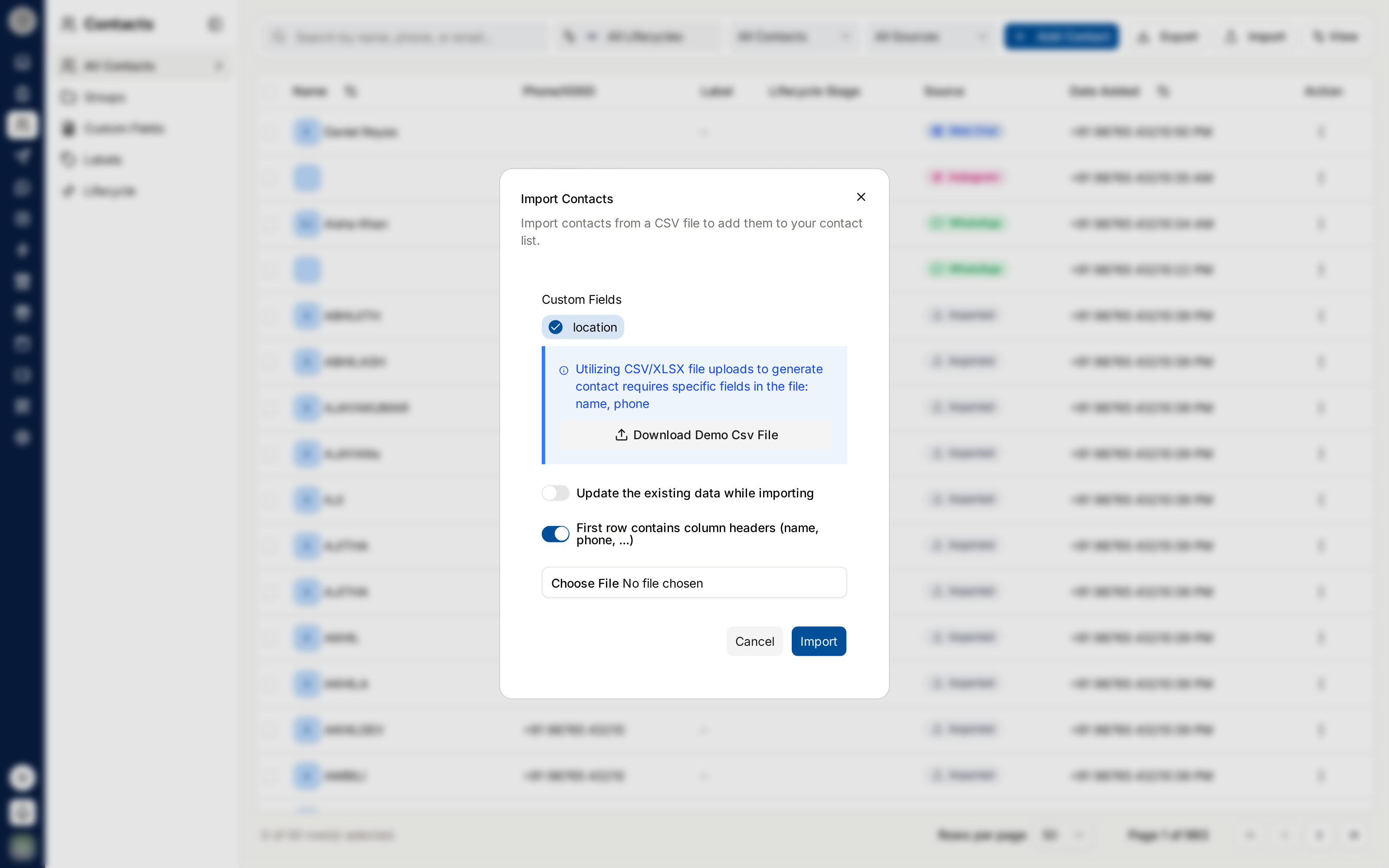
Click Import. The Import contacts dialog opens.
Lay your file out with a name column ("Required.") and a phone column ("Required, with the country code, e.g. 919876543210."). CSV template downloads an example to start from.
Under Custom fields, "Tick the ones your file has a column for." Every custom field starts ticked — untick the ones your file does not have. Each column must be headed with that field's Field ID, shown on the Custom Fields page.
Set the two switches:
| Switch | Default | Effect |
|---|---|---|
| Update contacts that already exist | Off | See Existing contacts |
| First row contains column headers (name, phone, ...) | On | Turn off for a file with no header row. The columns must then run name, phone, then the ticked custom fields in order |
Choose the File — "CSV, XLSX or ODS." — and click Import.
Follow the import
| The dialog shows | Means |
|---|---|
| "Waiting to start…" | The file passed its checks and is queued |
| "Importing N of N contacts…" with a progress bar | Contacts are being written, a thousand at a time |
| Import finished with a summary | Done — see below |
| The import stopped before it finished | "N of N rows were saved before it stopped. Import the file again to add the rest. Contacts already saved are skipped." |
"You can close this window. The import keeps running and tells you when it is done." If you do, a toast reports the result — "Contact import finished: N added, N updated, N already in your list."
The summary counts:
| Row | Counts |
|---|---|
| Added | New contacts created, with the source Imported |
| Updated | Existing contacts the file changed |
| Already in your list, left unchanged | Existing contacts skipped because updating was off |
| Repeated in the file, imported once | Phone numbers listed more than once. The last row for a number wins |
| Rejected | Rows that could not be imported — View rejected rows lists them |
Existing contacts
A phone number can only belong to one contact, so an import never creates duplicates:
| Update contacts that already exist | A phone number already in your contacts is… |
|---|---|
| Off (default) | Left exactly as it is |
| On | Updated: its name is replaced with the file's, and its source becomes Imported |
With updating on, a contact whose row has any custom-field value has all of its existing custom-field values replaced by the file's — including fields the file has no column for, which are cleared. A row with no custom-field values leaves the contact's fields alone. Export first if you are not sure what the file holds.
Rows that are rejected
A row is rejected if its name is missing or its phone number is missing or invalid. The rest still import, and View rejected rows opens a Failed contact import list with each rejected row and the reason — for example "phone is missing" or "…: Invalid phone number".
If no row in the file is usable, nothing is queued and the list opens straight away.
Phone numbers must include the country code — 447700900123, not 07700900123. If Excel has
shortened a long number to scientific notation (9.18883E+11) and dropped its last digits, the row
is rejected with "Excel shortened this number. Format the phone column as Number with 0 decimals
(or as Text), then save the file again" rather than imported with the wrong number.
Limits
| Limit | Value |
|---|---|
| File types | .csv, .xlsx, .ods — anything else is refused with "Please upload a valid CSV, XLSX, or ODS file." |
| File size | 10 MB |
| Rows per file | 100,000 — a larger file is refused with "The file has N rows. Import up to 100,000 at a time — split it into smaller files." |
| Empty file | Refused with "The file contained no contacts." |
What an import can set
An import sets name, phone and custom fields only. Email, labels, groups and stages are not read from the file — apply them afterwards with bulk actions. To import straight into a group, use Import on the group's own page instead — see Groups.
Only import people who have agreed to hear from you. Messaging a list that never opted in lowers your WhatsApp quality rating, and that is far harder to repair than a slow month of campaigns.
Export Contacts
Use the View menu to show the columns you want in the file.
Click Export and choose Download as Excel or Download as OpenDocument (ODS).
The export contains every contact in your organisation, newest first — your search and filters do not narrow it. It includes these visible columns: name, phone, status, other, source, consent, date added and custom fields. The Label, Lead stage and Last Contact columns come out empty.
Exports contain personal data. Treat the file accordingly and delete it when you are done.
Deleting Contacts
Delete one contact from ⋮ → Delete contact, or several with the Delete bulk action.
Deleting a contact cannot be undone, and it reaches further than RateUp:
- Every conversation and message with them is deleted, along with their group memberships, labels and campaign history
- If you have Zoho CRM or Bigin connected, the matching contact is deleted there too
- Zapier receives a contact deleted event
Their pipeline lead is kept but no longer linked to anyone. If someone just asks not to be contacted, withdraw their consent instead — deletion is for data-removal requests.
Keeping the Database Clean
- Import carefully; most bad data arrives in bulk
- Keep country codes on every phone number
- Review contacts with repeated message failures — see Message Analytics
- Agree naming conventions for labels before everyone invents their own
Related Pages
- Groups
- Labels
- Custom Fields
- Pipeline — the board Lead stage writes to
- Campaigns