LoyalityCashier portal
Registering a Customer from Cashier Portal
Learn how to register a new customer using the Loyalty Cashier Portal in RateUp.
This guide explains how to register a new loyalty customer directly from the Cashier Portal.
Open the Cashier Portal
To start customer registration:
- Log in to your RateUp account
- From the left sidebar, open Loyalty
- Click Cashier Portal
The Cashier Portal allows cashiers or store staff to quickly search and register loyalty customers.

Start Customer Registration
- Click the Register Customer button at the top-right corner
- The loyalty registration form will open
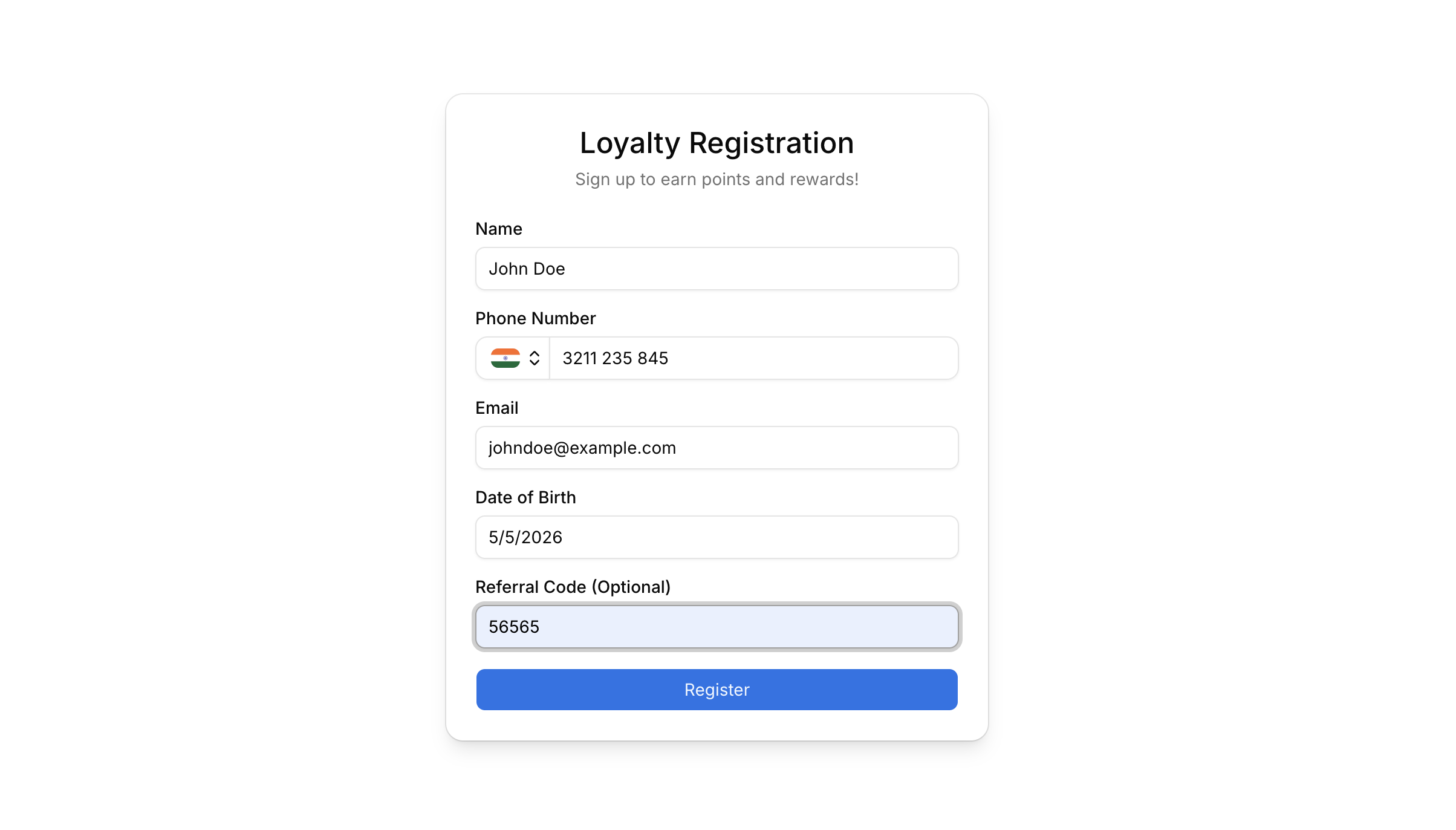
Fill Customer Details
Enter the customer information in the registration form.
Required Fields
- Customer Name
- Phone Number
Optional Fields
- Email Address
- Date of Birth
- Referral Code
Make sure the phone number is entered correctly because loyalty rewards and notifications are linked to the customer’s number.
Complete Registration
After entering all details:
- Review the customer information
- Click Register
Once registration is successful:
- The customer will be added to the loyalty program
- Loyalty points can now be earned and redeemed
- The customer will appear in the Customers section
Important Notes
- Duplicate phone numbers may not be allowed
- Referral codes are optional and depend on your loyalty configuration
- Customer registration may trigger welcome messages or reward flows
What’s Next?
Continue to the Customers section to manage registered loyalty customers and view their activity.