Commands
The Commands page allows administrators to configure WhatsApp commands that customers can send to interact with the loyalty program. These commands trigger automated responses such as checking points, joining the loyalty program, or viewing rewards.
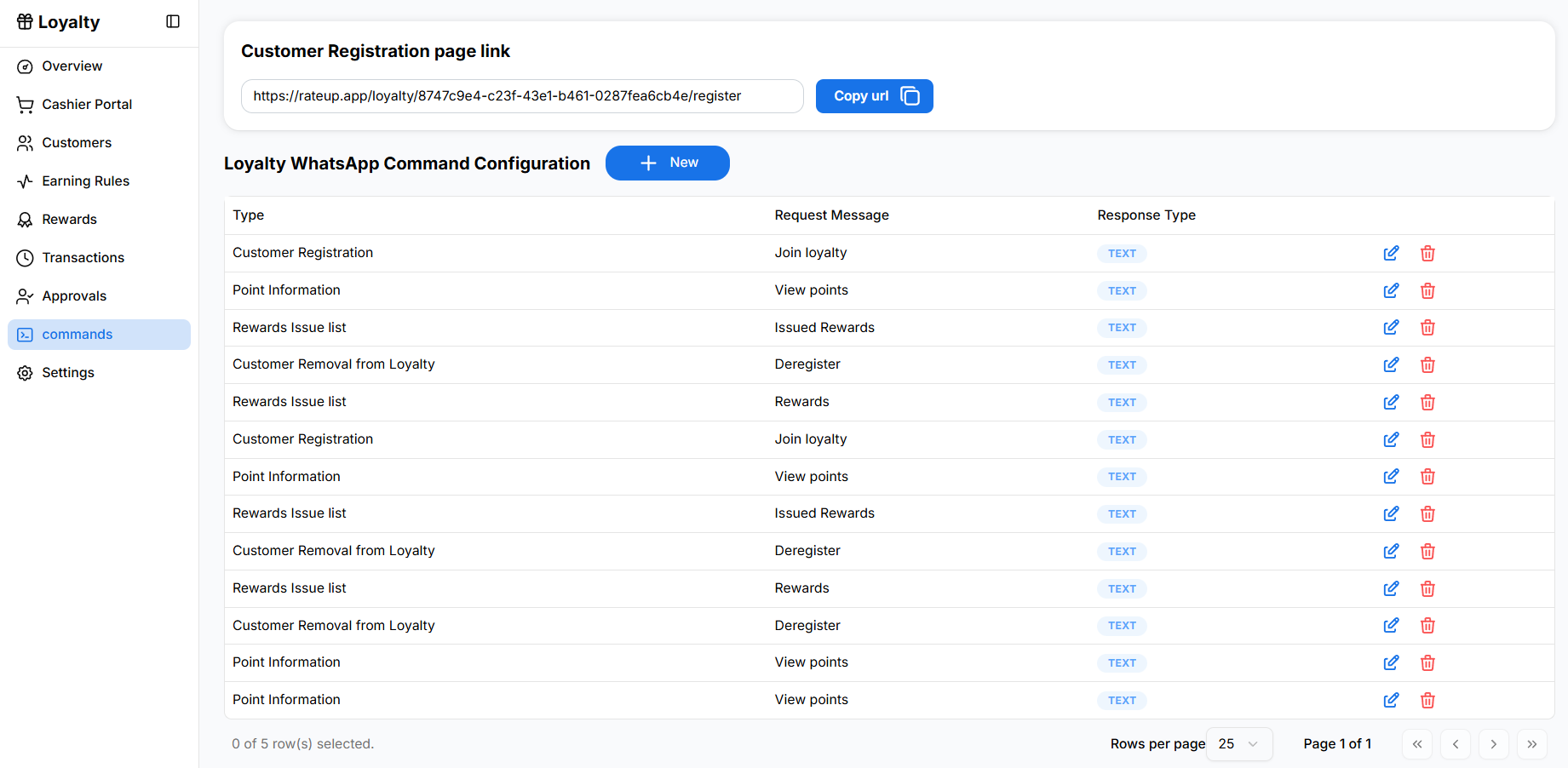
Customer Registration Link
At the top of the page, the Customer Registration page link is displayed.
This link can be shared with customers so they can register for the loyalty program.
Copying the Registration Link
To copy the registration link:
- Locate the Customer Registration page link section.
- Click Copy URL.
You can share this link through:
- SMS
- QR codes
Customers who open the link will be directed to the loyalty registration page.
Loyalty WhatsApp Command Configuration
Below the registration link, the Loyalty WhatsApp Command Configuration table lists all available WhatsApp commands.
Each command defines a keyword customers can send via WhatsApp to trigger a specific loyalty action.
Table Columns
Type
Indicates the action triggered by the command.
Examples include:
- Customer Registration
- Point Information
- Rewards Issue List
- Customer Removal from Loyalty
Request Message
The message customers must send on WhatsApp to trigger the command.
Examples:
- Join loyalty
- View points
- Rewards
- Deregister
Response Type
Defines the format of the response sent back to the customer.
Possible options include:
- Text
- Template
Actions
Each command entry provides the following options:
- Edit – Modify the command configuration.
- Delete – Remove the command.
Creating a New WhatsApp Command
To create a new command:
- Click New in the Loyalty WhatsApp Command Configuration section.
- Configure the command details.
- Click Save.
For detailed configuration steps, see Command Configuration.