Messenger Chatbots
Build chatbots for your Facebook Page in the same editor as WhatsApp and Instagram, and start them from an automation rule.
A Messenger chatbot answers people who message your Facebook Page — greeting them, answering the usual questions, collecting a lead or a booking, and handing over to your team. You build it in the same editor as WhatsApp and Instagram chatbots, and an automation rule starts it.
Create a Chatbot
Open Messenger in the sidebar and click Create Chatbot. The wizard opens on Starting point — the channel is already Messenger.
Pick Start from scratch or one of the examples. Filter them with the chips along the top. On a wide screen, the selected example plays in a phone preview on the right.
Click Next. Check the Chatbot Name — at least 3 characters, only your team sees it.
Optionally pick an Account — your Facebook Page. "Optional. Used to set up the rule that starts this chatbot."
Click Create Chatbot. The editor opens at /dashboard/messenger/flowbots/<id> with the example
laid out. Change the wording, then Save.
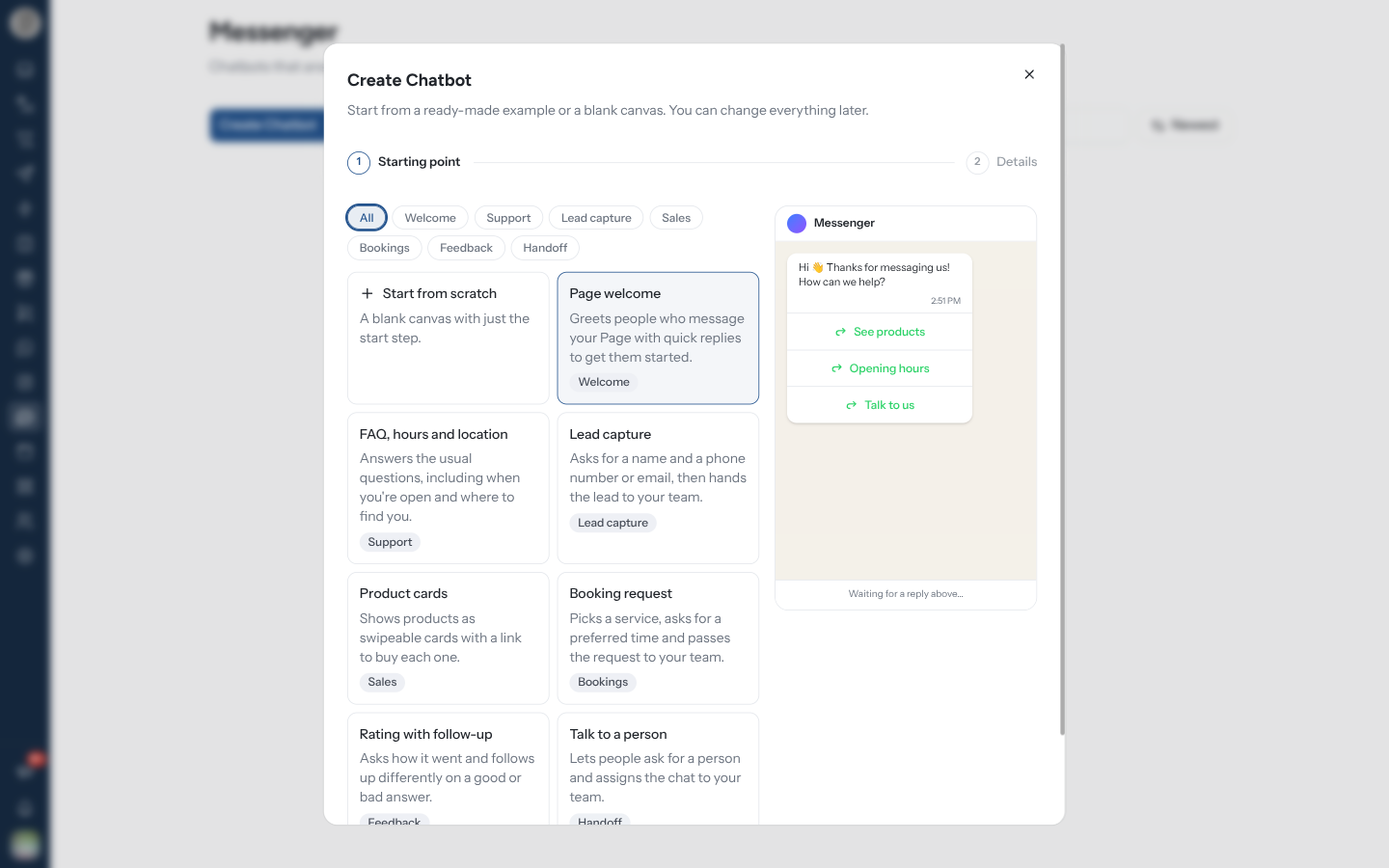
With no chatbots yet, the page offers three examples and Start from scratch as buttons.
Messenger Examples
| Example | Filter | What it does |
|---|---|---|
| Page welcome | Welcome | Greets people who message your Page with quick replies to get them started |
| FAQ, hours and location | Support | Answers the usual questions, including when you're open and where to find you |
| Lead capture | Lead capture | Asks for a name and a phone number or email, then hands the lead to your team |
| Product cards | Sales | Shows products as swipeable cards with a link to buy each one |
| Booking request | Bookings | Picks a service, asks for a preferred time and passes the request to your team |
| Rating with follow-up | Feedback | Asks how it went and follows up differently on a good or bad answer |
| Talk to a person | Handoff | Lets people ask for a person and assigns the chat to your team |
Every example comes with placeholder text, links and opening hours — https://example.com/shop,
"Mon–Sat, 9 AM – 6 PM". Change them to yours before the bot goes live.
Start It from a Rule
A Messenger chatbot runs only when an automation rule with the Messenger platform starts it, using the Trigger Chatbot action. The action lists only Messenger chatbots — a rule can only start a chatbot of its own platform.
After creating from an example, the editor shows Set up the trigger — "Starts when a message to your Page matches a rule you set up." Click Create the rule.
The rule builder opens with Messenger and the Message Received trigger chosen, and your Page if you picked one in the wizard. On Template, click Start from scratch to keep them.
On Conditions, set the condition — a keyword, or any message. On Actions, check that Trigger Chatbot points at your new chatbot.
On Review, name the rule and click Activate automation.
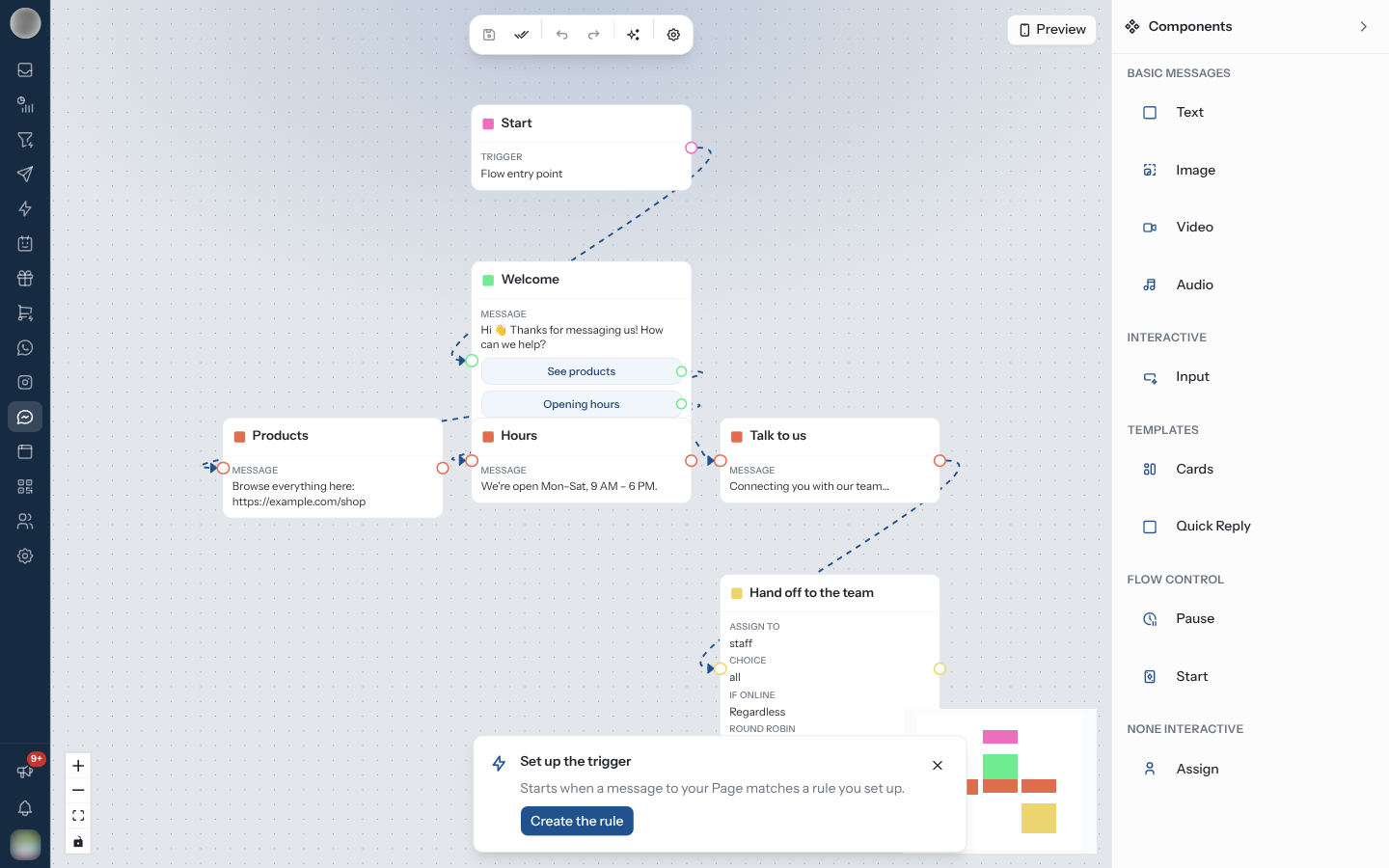
The Set up the trigger card appears once. Dismiss it and it is gone — the chatbot then sits unused until you build the rule yourself in Automation.
Messenger rules can use the same triggers as WhatsApp's general ones — Message Received, Chat Closed, Chat Assigned, Contact Created and the rest — but not the Instagram-only comment, story and link triggers. See Triggers.
What a Messenger Bot Can Send
The Components panel on Messenger offers:
| Group | Components |
|---|---|
| Basic Messages | Text · Image · Video · Audio |
| Interactive | Input |
| Templates | Cards · Quick Reply |
| Flow Control | Pause · Start |
| None Interactive | Assign |
| Component | Detail |
|---|---|
| Quick Reply | A Message Text with up to 13 tappable replies, each up to 20 characters |
| Cards | Up to 10 swipeable cards, each with up to 3 buttons — a URL or an Action |
| Input | Asks a question and saves the answer under Save Answer to Variable |
| Assign | Hands the conversation to your team in the Inbox |
Instagram's Product Template and Follow Check do not appear, and neither do WhatsApp's buttons, lists, templates or flows. The canvas, toolbar and Preview work as described in the Chatbot Builder.
How a Conversation Continues
A Quick Reply, Cards or Input step waits for the person, then carries on:
| They… | The bot… |
|---|---|
| Tap one of the step's buttons | Follows that button's branch |
| Type a button's title (case does not matter) | Treats it as that button |
| Type anything else at a Quick Reply step | Keeps waiting; the message goes to your rules instead |
| Answer an Input step | Saves the answer and moves on |
The bot waits up to 24 hours — Messenger only lets a Page message someone within 24 hours of their last message. A message the bot consumes as an answer does not also fire your rules.
Manage Chatbots
| Action | Notes |
|---|---|
| Search chatbots... | Filters by name |
| Sort | Orders the cards |
| Refresh | Reloads the list |
| Clone | From More actions. Asks for a name, prefilled "Copy of …" |
| Delete | From More actions, after you confirm |
| Settings | In the editor toolbar. Renames the chatbot |
To change a chatbot people are using, clone it, edit and preview the clone, then point the rule at the clone.
Troubleshooting
| Symptom | Cause | Fix |
|---|---|---|
| The page shows "Connect a Facebook Page" | No Page is connected | See Connect a Facebook Page |
| The bot never runs | No Messenger rule starts it | Add a rule with Trigger Chatbot |
| Trigger Chatbot does not list the bot | The rule's platform is not Messenger | Change the rule's platform |
| The bot stops part-way | Meta refused a message — usually because more than 24 hours passed since the person last wrote | Nothing to fix; it restarts when a rule fires again |
| "Failed to load automation" in the editor | The chatbot could not be loaded | Click Retry |
Related Pages
- Messenger Overview — connecting a Page
- Automation — rules that start a chatbot
- Chatbot Builder — the editor canvas
- Instagram Chatbots
- WhatsApp Chatbots
- Inbox