Chatbot Builder
The canvas where a chatbot is actually built — nodes, connections, the toolbar, validation, preview and settings.
Opening a chatbot from the Chatbots list opens the builder: a canvas of connected nodes, one node per thing the bot says or does.
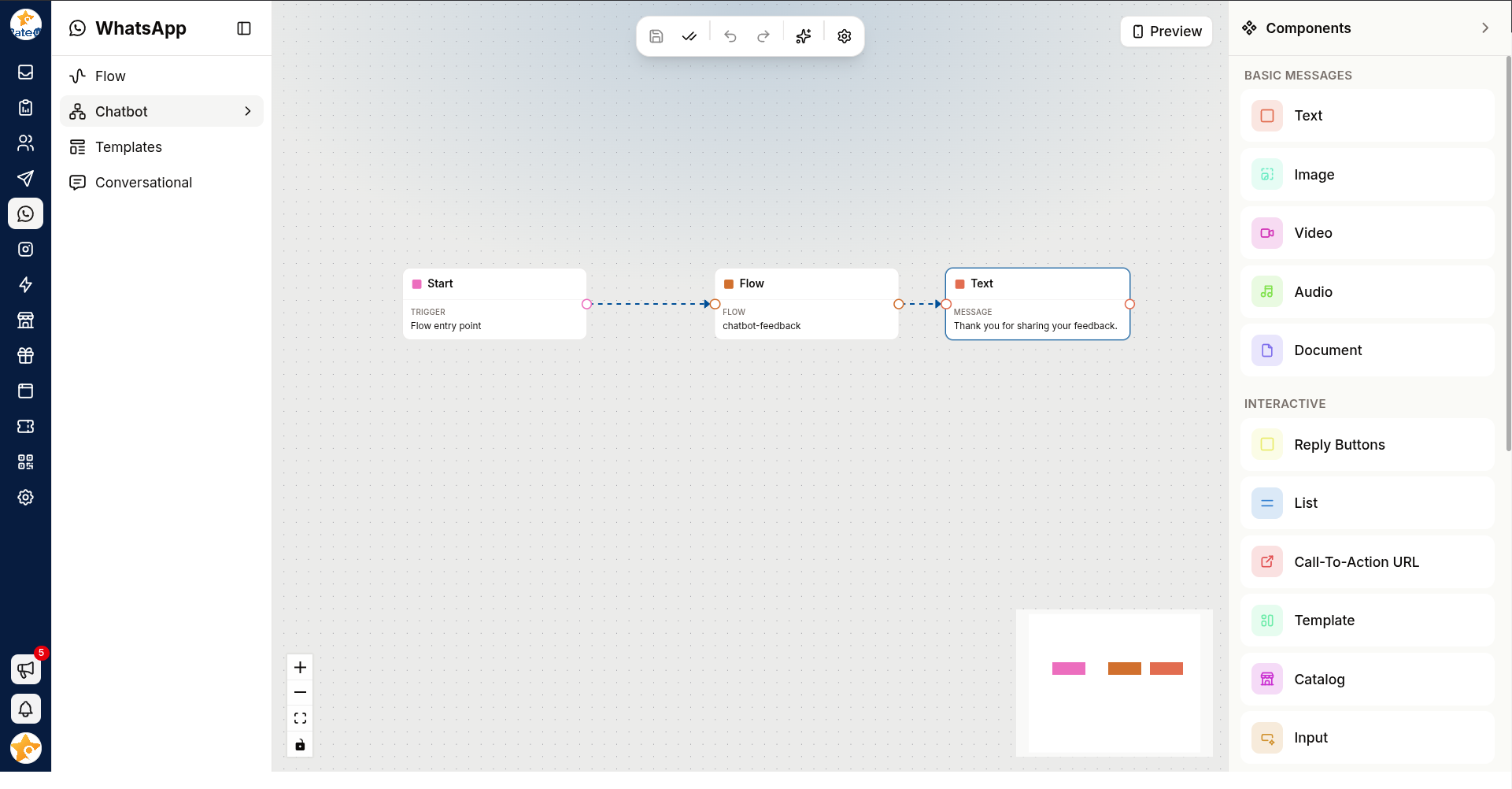
The Four Regions
| # | Region | What it is |
|---|---|---|
| 1 | Canvas | The bot itself — nodes and the arrows between them |
| 2 | Toolbar (top centre) | Save, validate, undo/redo, auto layout, settings |
| 3 | Components panel (right) | The nodes you can add. Becomes the node editor when you select a node |
| 4 | Controls (bottom left) and minimap (bottom right) | Zoom in and out, fit to view, lock the canvas — and a map of a bot too big for one screen |
Add and Connect a Node
Drag a component from the right-hand panel onto the canvas. It lands where you drop it.
Drag from one node's handle to another's to connect them. The arrow is the path the conversation takes.
Click a node to open its editor in place of the Components panel. Fill in the message, media, buttons or settings it needs.
Click Save in the toolbar.
Nothing is saved until you click Save. The button is highlighted while you have unsaved work and greys out to "All changes saved" once you do — that greyed state is the only confirmation you get, so check it before you close the tab.
The Toolbar
| Control | Does |
|---|---|
| Save | Writes the bot. Disabled — "All changes saved" — when there is nothing to write |
| Validate flow | Checks the structure and reports the first problem it finds |
| Undo / Redo | Ctrl/Cmd + Z and Ctrl + Y also work |
| Auto layout | Re-arranges every node — Vertical or Horizontal — then fits the view |
| Settings | Opens Automation settings (below) |
| Preview (top right) | Runs the bot in a phone frame |
Components
The panel groups nodes by what they do. Components that the current channel does not support are hidden, so an Instagram automation and a WhatsApp one show different lists.
| Group | Nodes |
|---|---|
| Basic Messages | Text · Image · Video · Audio · Document |
| Interactive | Reply Buttons · List · Call-To-Action URL · Template · Catalog · Input |
| Templates | Cards · Quick Reply · Product Template · Follow Check — Instagram and Messenger only; Product Template and Follow Check are Instagram only |
| Location & Contacts | Location · Contacts |
| Flow Control | WhatsApp Flow · Pause · Start |
| None Interactive | Assign · Lead |
Nodes worth knowing
| Node | What it needs, and what to watch |
|---|---|
| Start | Where the bot begins. Start Message is read-only — it shows the keyword that triggers this bot. Exactly one per bot |
| Text | Up to 1024 characters |
| Reply Buttons | A body, an optional header and footer (footer max 60 characters), and up to 3 buttons |
| List | A Button Text, then sections with rows — each row has a title and an optional description |
| Call-To-Action URL | Button Text and the URL that opens when it is tapped |
| Input | Collects one answer — text, number, email, phone or date |
| WhatsApp Flow | Opens a flow for structured input |
| Template | Sends an approved template |
| Pause | Pause Duration plus a unit — Seconds or Minutes |
| Assign | Assign To Me or Assign To Staff; for staff, optionally Assign only if assignee is online |
| Lead | For lead automations only, and it must be the first node |
Validating Before You Save
Validate flow answers a question the canvas cannot: is this bot actually runnable? It reports the first thing that is wrong.
| Message | Meaning |
|---|---|
| "Flow is empty. Please add some nodes." | Nothing on the canvas |
| "Flow must have a start node." | Add a Start node |
| "Flow must have exactly one start node." | Delete the spare one |
| "Only one start node is allowed in the flow." | Shown while you drag a second one in |
| "First node should be a Lead Node." | A lead automation has to open with Lead |
| "Only one Lead node is allowed" | Delete the spare one |
| "Lead node is only allowed lead automation" | Remove the Lead node from an ordinary bot |
A clean structure reports "Flow validation successful!".
Validation checks the shape of the bot, not its wording or its dead ends. A bot can validate perfectly and still trap a customer in a loop — that is what the preview is for.
Preview
Preview runs the bot in a phone frame, following the same arrows a customer would.
Walk it end to end and check every button leads somewhere, no path dead-ends, and the customer can always reach a person.
Automation Settings
The Settings button opens Automation settings:
| Field | Notes |
|---|---|
| Chatbot Name | Required, at least 3 characters. An internal name — customers never see it |
| WhatsApp Account | WhatsApp chatbots only. Optional — only needed when the bot has a lead step that sends messages from a specific number |
Closing with unsaved edits asks Discard Changes? — Keep Editing or Discard.
Troubleshooting
| Symptom | Cause | Fix |
|---|---|---|
| Save is greyed out | There is nothing to save | Everything is already written |
| Edits disappeared after a reload | They were never saved | Save before leaving; the builder does not auto-save |
| A node cannot be dropped | The channel does not support it | Check the group is offered for this bot's platform |
| Customers never reach a node | Nothing connects to it | Drag an arrow into it, then validate |
| The canvas is unreadable | Nodes have drifted | Auto layout → Vertical |
Related Pages
- Chatbots — creating, cloning and managing them
- Flow Editor — building the flows a bot can open
- Templates
- Instagram Chatbots — the same builder on Instagram