Welcome & Menu
Set the Get Started button, greeting, ice breakers and persistent menu people see when they open a Messenger chat with your Facebook Page.
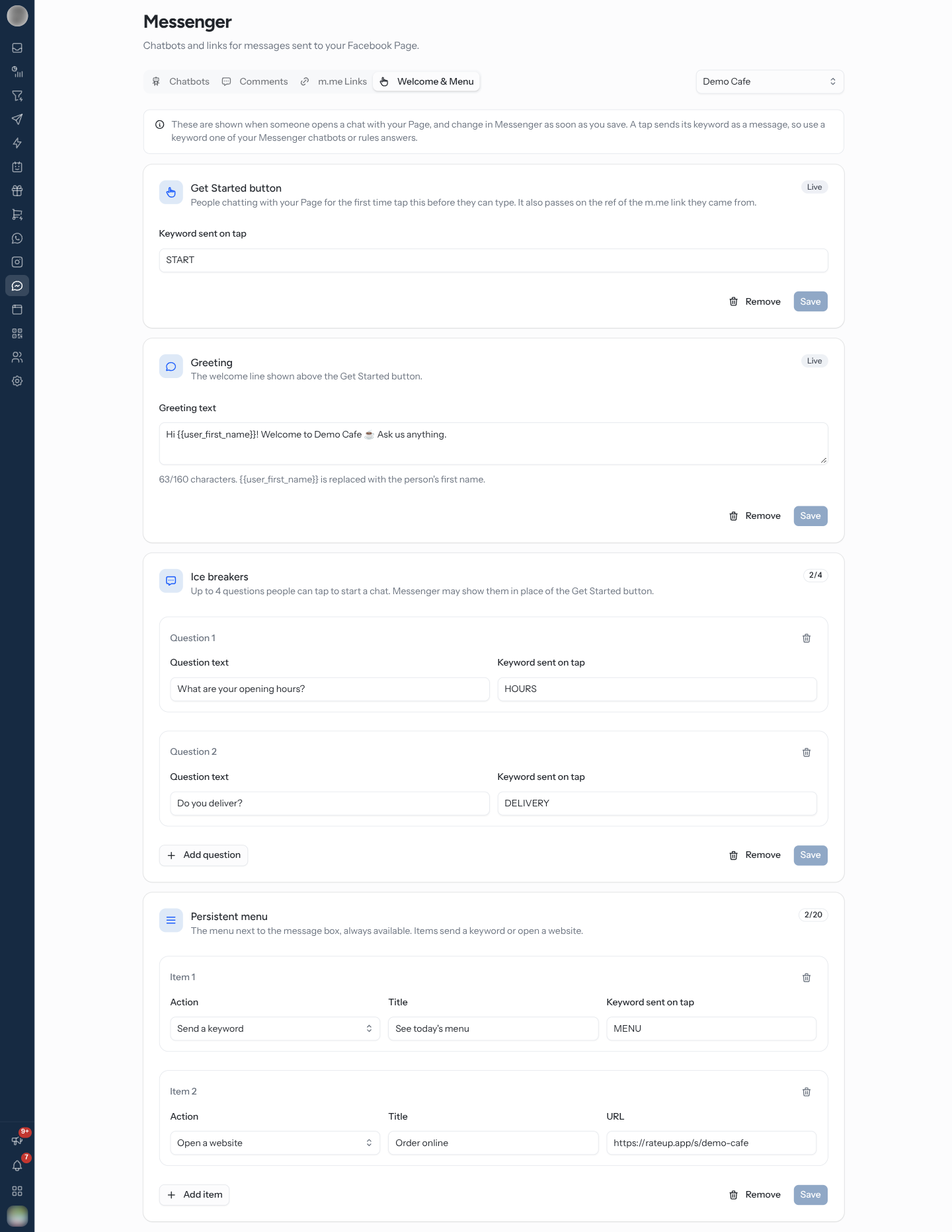
The Welcome & Menu tab on Messenger sets what people see before they type anything: a Get Started button, the Greeting above it, tappable Ice breakers, and a Persistent menu next to the message box. Everything on the tab belongs to the Page selected at the top of the page.
How a Tap Starts Something
Get Started, ice breakers and menu items do not start a chatbot directly. Each one sends a keyword — "A tap sends its keyword as a message, so use a keyword one of your Messenger chatbots or rules answers." The keyword reaches your rules exactly as if the person had typed it, so a Message Received rule on that keyword decides what happens next — usually Trigger Chatbot.
Pick a keyword for each tap — START, HOURS, AGENT.
In Automation, build a Messenger rule with the Message Received trigger and a Message Body condition on that keyword.
On Actions, add Start a chatbot and pick a Messenger chatbot, or reply with Send a message.
Come back to Welcome & Menu and enter the same keyword under Keyword sent on tap.
A keyword no rule answers does nothing — the person taps, the tap lands in the Inbox, and nobody replies until an agent sees it. Build the rule first, then the button.
Changes Are Live When You Save
Each card has its own Save. "These are shown when someone opens a chat with your Page, and change in Messenger as soon as you save." There is no separate sync step, unlike Instagram. Remove takes a card's setting off Messenger.
The tab reads the settings back from Meta every time it opens, so what you see is what is live — including anything changed outside RateUp. The badge on each card says Live or Not set.
| Message | Meaning |
|---|---|
| "Couldn't read this Page's Messenger profile from Meta." | Meta did not answer. Click Try again |
| "You can view these settings. Ask an admin for the manage channels permission to change them." | Your role cannot change channels, so every control is disabled — see Members & Roles |
Set the Get Started Button
"People chatting with your Page for the first time tap this before they can type. It also passes on the ref of the m.me link they came from."
On the Get Started button card, enter the Keyword sent on tap — for example START.
Click Save.
The Get Started button matters beyond the first tap:
- The persistent menu only shows once it is set.
- An m.me link opened by someone new starts its automation when they tap Get Started. When an m.me link rule answers the tap, it runs instead of your keyword rule.
Removing the button while a menu is live asks first — "Messenger only shows the persistent menu with a Get Started button, so your menu is removed too."
Write a Greeting
"The welcome line shown above the Get Started button." Enter the Greeting text and click Save.
| Rule | Detail |
|---|---|
| Length | Up to 160 characters — the counter under the box shows how many are used |
| First name | {{user_first_name}} is replaced with the person's first name |
Add Ice Breakers
"Up to 4 questions people can tap to start a chat. Messenger may show them in place of the Get Started button."
On the Ice breakers card, fill in Question 1: the Question text as the customer would ask
it — "What are your business hours?" — and the Keyword sent on tap, such as HOURS.
Click Add question for more, up to 4. The badge counts them — 2/4.
Click Save.
| Field | Limit |
|---|---|
| Question text | 80 characters |
| Keyword sent on tap | 1,000 characters |
Save stays disabled until every question has both fields filled in. The bin icon removes a question; the last one cannot be removed — use Remove to take the ice breakers off Messenger.
Set Up the Persistent Menu
"The menu next to the message box, always available. Items send a keyword or open a website."
Set a Get Started button first. Until then the card shows "Messenger only shows a persistent menu once a Get Started button is set." and Save stays disabled.
For Item 1, pick the Action — Send a keyword or Open a website — and enter the Title people see, such as "Talk to an agent".
Enter the Keyword sent on tap (for Send a keyword) or the URL (for Open a website).
Click Add item for more, then Save.
| Field | Limit |
|---|---|
| Items | Up to 20 — the badge counts them |
| Title | 30 characters |
| Keyword sent on tap | 1,000 characters |
| URL | A full http:// or https:// address |
Keep the menu short. Three items people actually need get used; twenty get scrolled past.
Troubleshooting
| Symptom | Cause | Fix |
|---|---|---|
| Tapping a button does nothing | No rule answers its keyword | Add a Message Received rule on that keyword |
| The menu does not show in Messenger | No Get Started button | Set one, then save the menu again |
| Save is disabled | Nothing changed, a field is empty or too long, or (menu) no Get Started button | Fill in every field within its limit |
| Every control is greyed out | Your role cannot change channels | Ask an admin |
| Ice breakers show but Get Started does not | Messenger may show ice breakers in its place | Nothing to fix — both send a keyword |
Related Pages
- Messenger Overview
- m.me Links — links that start an automation, with Get Started
- Messenger Chatbots — what a keyword can start
- Triggers — Message Received and the Messenger triggers
- Ice Breakers, Menu & Links — the Instagram equivalent