Go Live
Switch the agent on, choose who it answers, set the handoff message, decide what happens after a handover, and cap its usage.
Go live is where the agent is switched on, and where you bound what it does once it is. It has four panels: Rollout & behaviour, Inbox handover, Allowlist and Usage caps.
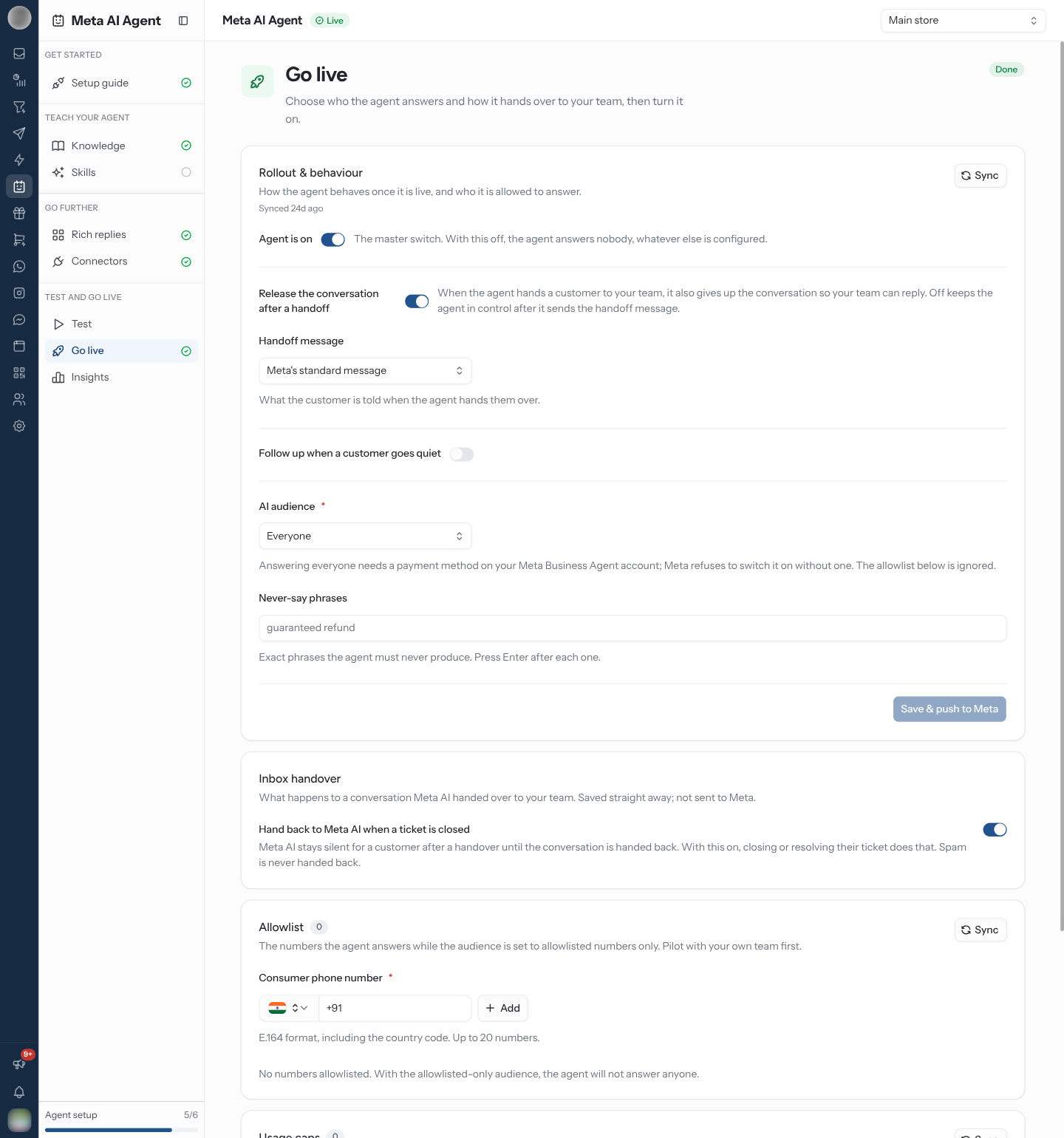
Switch the Agent On
The header badge turns Live and the setup guide shows Your agent is live.
| Control | What it does |
|---|---|
| Agent is on | The master switch. Off, the agent answers nobody, whatever else is configured. Turning it back on only affects conversations that start afterwards |
| Release the conversation after a handoff | On, the agent gives up the conversation when it hands a customer to your team, so your team can reply. Off keeps the agent in control after it sends the handoff message |
| Handoff message | What the customer is told at the handoff — see below |
| Follow up when a customer goes quiet | Whether the agent nudges a conversation the customer has abandoned |
| After | How long to wait: 5 minutes, 15 minutes, 30 minutes, 1 hour, 2 hours, 8 hours or 24 hours. Meta only supports these intervals |
| Follow-up message | What that nudge says, up to 1,024 characters |
| AI audience | Everyone, or Allowlisted numbers only |
| Never-say phrases | Exact phrases the agent must never produce — press Enter after each one, up to 50 |
Nothing on this panel takes effect until you click Save & push to Meta.
Everyone needs a payment method on your Meta Business Agent account — Meta refuses to switch it on without one, and the allowlist is then ignored. Allowlisted numbers only needs no payment method, and is how you test against real conversations without exposing every customer to a half-configured agent.
Choose the Handoff Message
| Option | What the customer gets |
|---|---|
| Meta's standard message | Meta's own wording, translated for the customer |
| Written by the agent | The agent writes its own line for the moment |
| My own message | Your text, up to 1,024 characters — for example "Let me get a colleague to help with that — one moment." |
Sending the message and releasing the conversation are separate: with Release the conversation after a handoff off, the customer is told they are being handed over but the agent keeps the conversation.
Decide What Happens After a Handover
Once Meta AI hands a customer to your team, it stays silent for them until the conversation is handed back. The Inbox handover panel decides whether closing the ticket does that.
| Setting | Default | What it does |
|---|---|---|
| Hand back to Meta AI when a ticket is closed | On | Closing or resolving the customer's ticket hands the conversation back to Meta AI. Spam is never handed back |
This switch saves straight away and is not sent to Meta. Your team can also hand a conversation back by hand — from the conversation in the inbox, or from Test → Thread control.
Any message RateUp sends to a customer takes the conversation off Meta AI — not only a teammate's reply, but an automation, a campaign or a message sent through the API. WhatsApp gives the conversation to whoever sends. A broadcast to customers the agent is serving silences it for each of them until they are handed back.
Add Numbers to the Allowlist
The Allowlist is the numbers the agent answers while AI audience is Allowlisted numbers only. Enter a Consumer phone number with its country code and click Add; remove one with the cross on its chip.
Meta allows 20 numbers. With the allowlisted-only audience and an empty list, the agent answers no one.
Cap the Agent's Usage
Usage caps limit how much the agent does so costs stay predictable. With no caps, usage is unlimited.
When a cap is reached, the agent finishes its current reply, then hands new messages to your team until the window rolls over. Saving replaces the whole set at Meta, so removing a row and saving deletes that cap.
Only people with the Connect systems and credentials ability can change caps; everyone else sees "Only admins can change usage caps."
Roll Out Safely
Never-say phrases are the cheapest safeguard here. Add the promises your business cannot keep — guaranteed delivery dates, refund commitments, medical or legal advice — as exact phrases.
Troubleshooting
| Symptom | Cause | Fix |
|---|---|---|
| Meta refuses to switch AI audience to Everyone | No payment method on the Meta Business Agent account | Add one at Meta, or stay on Allowlisted numbers only |
| The agent answers nobody | Agent is on is off, or the audience is allowlist-only with an empty list | Switch it on and save; add numbers or choose Everyone |
| The agent stopped answering one customer | The conversation was handed over, or RateUp sent them a message | Hand it back from the inbox or Test → Thread control |
| Customers are being sent to your team mid-day | A usage cap was reached | Raise the cap, or wait for the window to roll over |
| Add is disabled on the allowlist | The list is full at 20 numbers | Remove one first |
Related Pages
- Setup guide — the agent must exist before rollout does anything
- Test — try it before switching it on
- Insights — how many conversations it handled, and what is waiting on your team
- Inbox — where a handed-over conversation lands
Test
Chat with the agent before customers do, send business events, hand conversations back to Meta AI and run evaluations.
Insights
How the agent is doing once it is live — conversations handled, handoffs waiting, connector tool and event performance, and a turn-by-turn trace of one customer's conversation.