Replying to Customers
Send messages, quick replies, attachments, templates and chatbots; copy, react to and download messages — and understand when the composer is locked and why.
This page covers everything about answering a customer: the composer, its limits, and the four situations where you cannot reply.
Before You Reply
Check the ticket has an owner. If the composer is replaced by an Assign to me bar, take the ticket first.
Read the ticket strip — the number and title tell you what this ticket is about.
Check the history bar. If the customer has previous conversations, expand it and see what your team already told them.
Check the countdown in the header on WhatsApp tickets. It shows how long you can still send a free-form reply.
Instagram Comment Threads
A ticket that starts from an Instagram comment opens with Commented on your post, followed by a View post link. It opens the original post on instagram.com in a new tab, so you can read what the customer is replying to before you answer.
The link only appears when Instagram supplies the post's permalink.
The Composer
Two tabs decide where your text goes:
| Tab | Delivered to | Colour |
|---|---|---|
| Message | The customer | Blue |
| Private Note | Your team only | Amber |
Always check which tab is active before sending. The composer changes colour precisely so this is hard to get wrong — but it is worth the half-second glance.
Send a Reply
Make sure the Message tab is selected.
Type your reply in the message box.
Press Enter, or click the send button.
The message appears in the thread the moment you send it, carrying a clock instead of a tick. The clock means RateUp has the message but WhatsApp has not confirmed it yet; it becomes a normal outgoing message, with delivery ticks, once it does.
This applies to everything you send from the composer — a typed reply, an attachment, a template drawn as the card you previewed, and a flow shown with its invitation message and button.
If a send fails, the bubble is taken back down and an error appears saying so — most often "Could not send the message". A send that vanishes without an error has not failed; it has been replaced by the confirmed message.
What the Customer Sees While You Type
When you type in the Message tab, the customer sees a typing bubble in their own app, the same one they see when a friend is writing. It works on WhatsApp, Instagram and Messenger.
| Messenger | |||
|---|---|---|---|
| Typing bubble shows | Yes | Yes | Yes |
| Hidden when you stop typing for 5 seconds | No — stays up to 25 seconds | Yes | Yes |
| Hidden when your reply arrives | Yes | Yes | Yes |
| Also marks their message as read | Yes — their ticks turn blue | No | No |
- The bubble is only sent inside the 24-hour reply window. Outside it you cannot send a free-form reply, so there is nothing to type.
- Writing a Private Note never shows a bubble. Notes are for your team.
- Website chat has no typing bubble.
docs/screenshots/inbox/customer-typing-bubble.pngOpening a ticket already tells the customer you have seen their message: blue ticks on WhatsApp, Seen on Instagram and Messenger. The typing bubble comes on top of that.
When a teammate is typing
If a teammate is writing a reply in the same ticket, a line above the composer says so — "Jane is typing…", or "2 teammates are typing…" when there are more. It goes away a few seconds after they stop. Check it before you start your own reply, so the customer does not get two answers.
docs/screenshots/inbox/teammate-typing.pngCharacter Limit
Customer messages are limited to 1024 characters.
A counter sits to the right of the composer tabs, showing how much you have used — for example
184 / 1024.
| State | What happens |
|---|---|
| Under the limit | Counter shown in grey |
| At the limit | Counter turns red and Send is disabled |
Shorten the message, or split it into two, to send again.
Private notes have no character limit, so the counter is hidden on that tab.
Quick Replies
Quick replies are saved answers to questions you get constantly.
Two ways to insert one:
| Method | How |
|---|---|
| Button | Click the lightning icon next to the character counter |
| Keyboard | Type / in the message box to open the list, and keep typing to filter |
Pick a reply and its text is inserted into the composer, where you can edit it before sending. A quick reply with a paperclip also carries images, voice notes or videos: they are added to your message as attachments. Remove any you do not need before sending — that does not change the saved quick reply.
Quick replies are created under Inbox Settings.
The Composer Toolbar
Under the message box sits a row of tools. Which ones you see depends on the channel.
| Tool | What it does | Channels |
|---|---|---|
| 😀 Emoji | Insert an emoji | All |
| Format Message (T) | Bold, italic, strikethrough, Clear formatting, code, quote, bulleted and numbered lists | All |
| Undo / Redo | Step back or forward through your edits | All |
| 📎 Insert Media | Attach a file — see below | All |
| Template | Send an approved WhatsApp template | |
| Flow | Send a WhatsApp Flow | |
| Automation | Start one of your chatbots for this customer — see below | |
| 🎙️ Voice note | Record and send audio | All but Webchat |
| From selector | Which of your numbers the reply is sent from — see below | All but Webchat |
On a phone, Template, Flow, Automation, Undo and Redo fold into a single ⋯ button.
Formatting is converted to WhatsApp's own markup when the message is sent, so bold arrives as bold on the customer's phone.
Attachments
Insert Media (📎) offers:
| Type | Accepted | Not offered on |
|---|---|---|
| Document | PDF, TXT, Word, Excel, PowerPoint | |
| Image | Image files | — |
| Video | Video files | — |
| Audio | AAC, AMR, MP3, MP4 audio, OGG | — |
| Contacts | Share contact cards — pick Individual contacts or a whole Group | Instagram, Messenger |
| Location | Share a pin — drop it on the map, or use your current location | Instagram, Messenger |
You can also drag files straight onto the message box.
Attached files appear as thumbnails above the box. Click the red ✕ on one to remove it, or click an image or video to preview it first. Then click Send.
Location uses your browser's location to centre the map. If you have blocked location access for RateUp, the picker reads "Browser location access denied". Allow it in your browser's site settings, or drop the pin by hand.
Choose which number you reply from
The From selector at the right of the toolbar shows the number or account this reply will be sent from. It is set automatically to the number the customer wrote to, and switches back each time you open a different ticket.
Only change it if you have a reason to. A reply sent from a number the customer has not written to has no open 24-hour window, and WhatsApp rejects it. If the customer's number is no longer connected, the selector is left empty and you must pick one before sending. Sending without one gives "Select a account to send the message".
On Instagram and Messenger the selector is locked to the account the conversation is on.
Start a chatbot for this customer
Automation (the robot icon) hands the customer to one of your WhatsApp chatbots.
Click Automation. The Initiate Automation dialog lists your chatbots.
Select one under Select an automation.
Click Send. The chatbot's first message goes out and it takes the conversation from there.
Use it to hand a customer to a self-service flow — booking, order tracking, a feedback survey — without typing the steps out yourself. With no chatbots set up, the dialog reads "No Automations found". Automation needs an open 24-hour window, so it is not offered once the window has closed.
When Meta AI Is Answering
If you use the Meta AI agent, a pill beside the customer's name in the chat header shows who is answering them. Click it for the details.
| Pill | Means |
|---|---|
| Meta AI | "Meta AI is replying" — it answers this customer. Replying here takes the conversation over |
| Staff | "Handed over to staff" — Meta AI has stopped answering, and stays silent until the conversation is handed back |
| AI agent | Meta AI has replied to this customer, but no handover has been seen yet |
The popover also says why and when the conversation last changed hands, for example:
| Reason | What happened |
|---|---|
| The customer asked for a person | Meta AI handed over at the customer's request |
| A teammate replied from the inbox | Someone on your team sent a reply |
| An automation sent a message / A campaign message was sent / A message was sent through the API | RateUp sent something on its own |
| Handed back to Meta AI | Someone clicked Hand back to Meta AI |
| Handed back when the ticket closed | The ticket was closed or resolved |
Any message RateUp sends takes the conversation off Meta AI — your reply, but also an automation, a campaign or an API send. WhatsApp gives the conversation to whoever sends. Check the pill before a campaign goes to customers Meta AI is still helping.
Hand a conversation back to Meta AI
Click the Staff or AI agent pill in the chat header.
Click Hand back to Meta AI. The pill turns to Meta AI.
Closing or resolving the ticket hands it back on its own. That is controlled by Hand back to Meta AI when a ticket is closed in the agent's Go live settings — on by default. A contact marked as spam is never handed back.
If the customer's WhatsApp number cannot be matched to one of your connected numbers, the popover says so, and the conversation can only be handed back from Meta AI Agent → Test (Hand a Conversation Back to Meta AI).
When You Cannot Reply
In these situations the composer is replaced by a banner, or limited to private notes:
| Situation | What you see | How to continue |
|---|---|---|
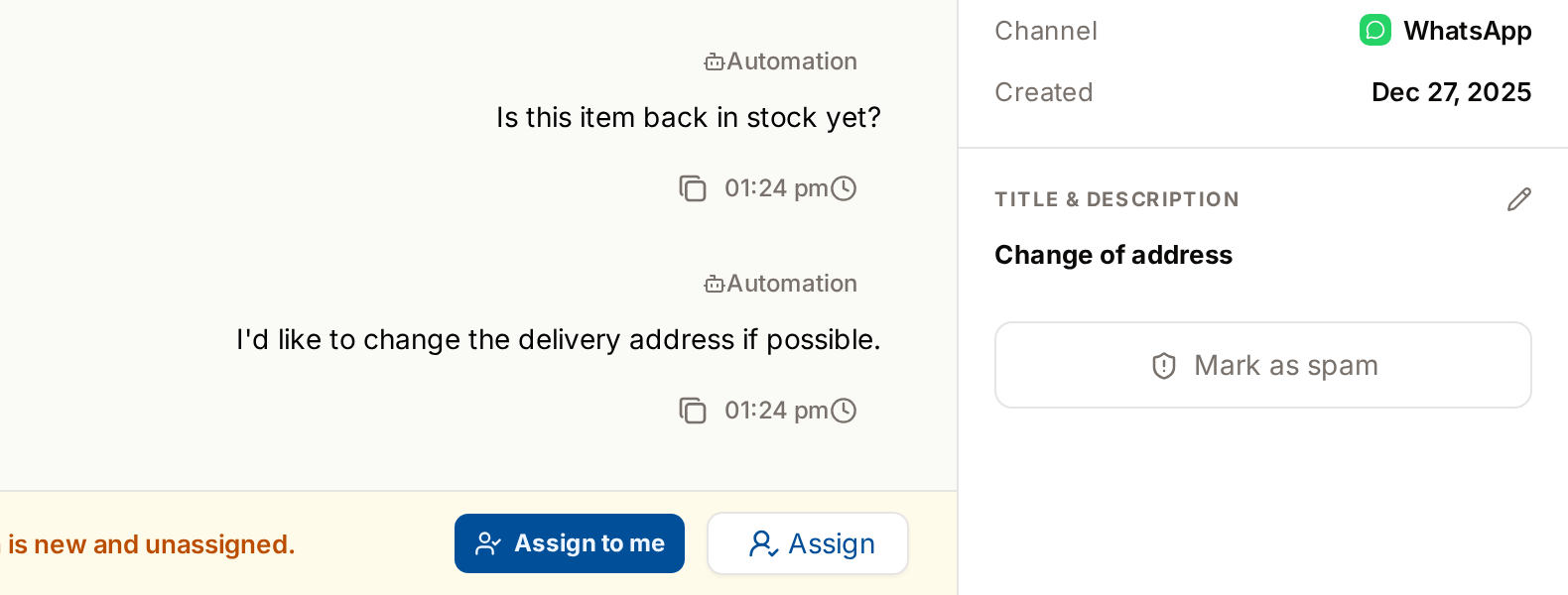
| Unassigned ticket | "This conversation is new and unassigned." with Assign to me | Take the ticket, or use Assign to… to give it to someone |
| Closed ticket | "This chat has been closed by … at …" and whether the 24-hour window is still open | Click New conversation, Assign to…, or Reopen in the header |
| Assigned to someone else | "This chat is not assigned to you" | Ask the owner, or reassign it to yourself from Assignment in the details panel |
| Blocked contact | "This contact has been blocked by you." | Click Unblock contact |
| Contact flagged as spam | "This contact is marked as spam." | Click Not spam in the banner |
| WhatsApp 24-hour window expired | A pulsing + button above a composer that only writes private notes | + → Send WhatsApp Template |
| Instagram / Messenger window expired | A composer that only writes private notes | Wait for the customer to write again |
Once a WhatsApp window expires, the Message tab disappears but Private Note stays, so you can still leave a handover note on the ticket.
When your plan's active contacts run out
If your plan's monthly active contacts are used up, an amber notice sits above the composer: Active contact limit reached — "New contacts can't be messaged until next month. Contacts already active this month can still be messaged." It does not lock the composer. You can keep replying to customers you have already messaged this month; a message to a new one is refused with an error. View plans opens Billing.
The WhatsApp 24-Hour Window
WhatsApp — not RateUp — restricts when you may send free-form messages.
How it works
- The window opens when the customer sends you a message
- It lasts 24 hours from that message
- The countdown in the chat header shows the time remaining
Inside the window
- Send free-form replies, attachments and quick replies
- Continue the conversation normally
Outside the window
- Free-form messaging is disabled
- A + button with a pulsing green dot appears above the composer. It opens a menu with just Send WhatsApp Template
- The composer switches to Private Note, so you can still write to your team
- Only approved templates can be sent
- Once the customer replies to your template, a new 24-hour window opens and normal replying resumes
This limit applies to WhatsApp only. Other channels have their own rules.
Message Status
Outgoing messages show delivery ticks:
| Status | Meaning |
|---|---|
| Sent | Accepted by the channel |
| Delivered | Reached the customer's device |
| Read | Opened by the customer |
Hover a message's time to see the exact timestamps. A message still waiting for WhatsApp shows a clock instead of a tick.
Working With Messages in the Thread
Copy a message
Every message except a deleted one has a Copy button beside its time. Click it to copy the text to your clipboard. A "Copied to clipboard" notice confirms it.
React to a customer's message
Find the customer's message and click the emoji button beside its time.
Pick an emoji. It is sent to the customer as a reaction on that message.
Reactions work on messages the customer sent, not on your own. A reaction the customer sends shows as a small emoji on the bubble. Hover it to see who reacted.
Instagram and Messenger accept only a limited set of reactions. Picking one they do not support gives "… not supported", and nothing is sent.
Download an image
Every image in a conversation carries a Download image button, on the thumbnail and again in the full-size view. Click the image to open it full size.
Messages you did not type
| Label on the bubble | Sent by |
|---|---|
| Your colleague's name and avatar | A person on your team |
| 🤖 Automation | A chatbot, flow or automation rule — in a lighter bubble |
| 📣 Campaign | A campaign |
| Centred grey chip | A system note — assigned, reassigned, closed, reopened, spam |
| Centred amber bubble with 🔒 | A private note — never sent to the customer |
Deleted Messages
If a WhatsApp user deletes a message they had sent — "delete for everyone" — the message stays in the thread but its content is withheld. In its place you see, in italics:
🚫 This message was deleted
This applies both ways: a customer deleting their own message, and your business deleting a message it sent from the WhatsApp Business app.
| Where | What it shows |
|---|---|
| The thread | The placeholder, in the same position in the timeline |
| The conversation list preview | "This message was deleted" |
| An exported chat | The row is kept; the text is replaced by the placeholder |
Deletions are reported by WhatsApp only for accounts using the WhatsApp Business app (coexistence). On a Cloud API-only number, a customer deleting a message on their phone changes nothing on your side — you keep seeing what they sent.
A deletion is an edit to history, not a new message: it starts no automations, opens no ticket and does not touch the 24-hour window.
Frequently Asked
Best Practices
- Reply fast — the 24-hour window is shorter than it sounds
- Check the history bar before answering a returning customer
- Use quick replies for repeat questions, and personalise the opening line
- Keep long explanations under the character limit, or split them deliberately
- Close the ticket once the topic is done
Related Pages
- Sending Templates
- Private Notes & @Mentions
- WhatsApp Voice Calls
- Closing & Reopening
- Inbox Settings — where quick replies are created
- Meta AI Agent → Go live — the inbox handover setting