Creating a Rule
The step-by-step automation builder — Template, Trigger, Conditions, Actions and Review — the phone preview, and sharing a keyword rule as a link.
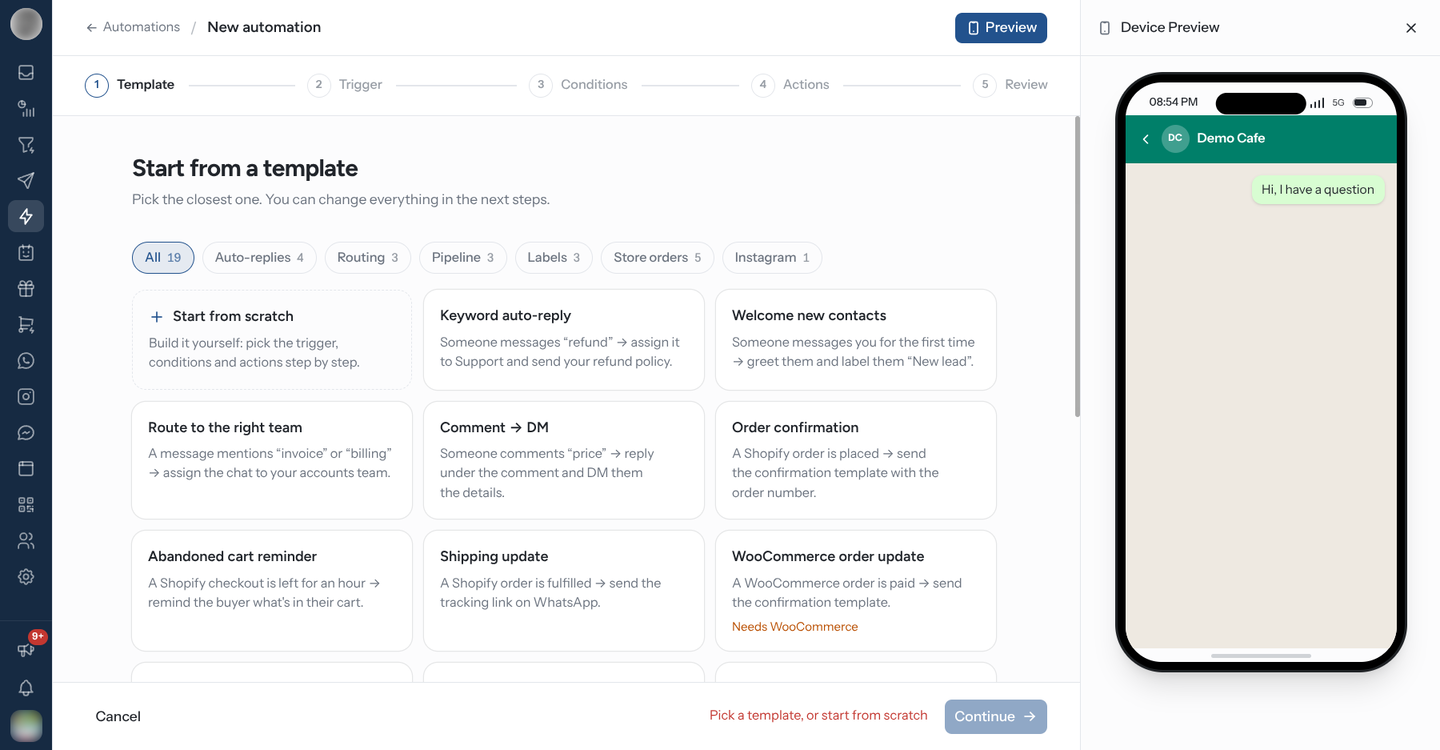
An automation is built one step at a time. A step rail across the top reads Template → Trigger → Conditions → Actions → Review, and Continue stays disabled until the step you are on is complete — the reason is written next to it.
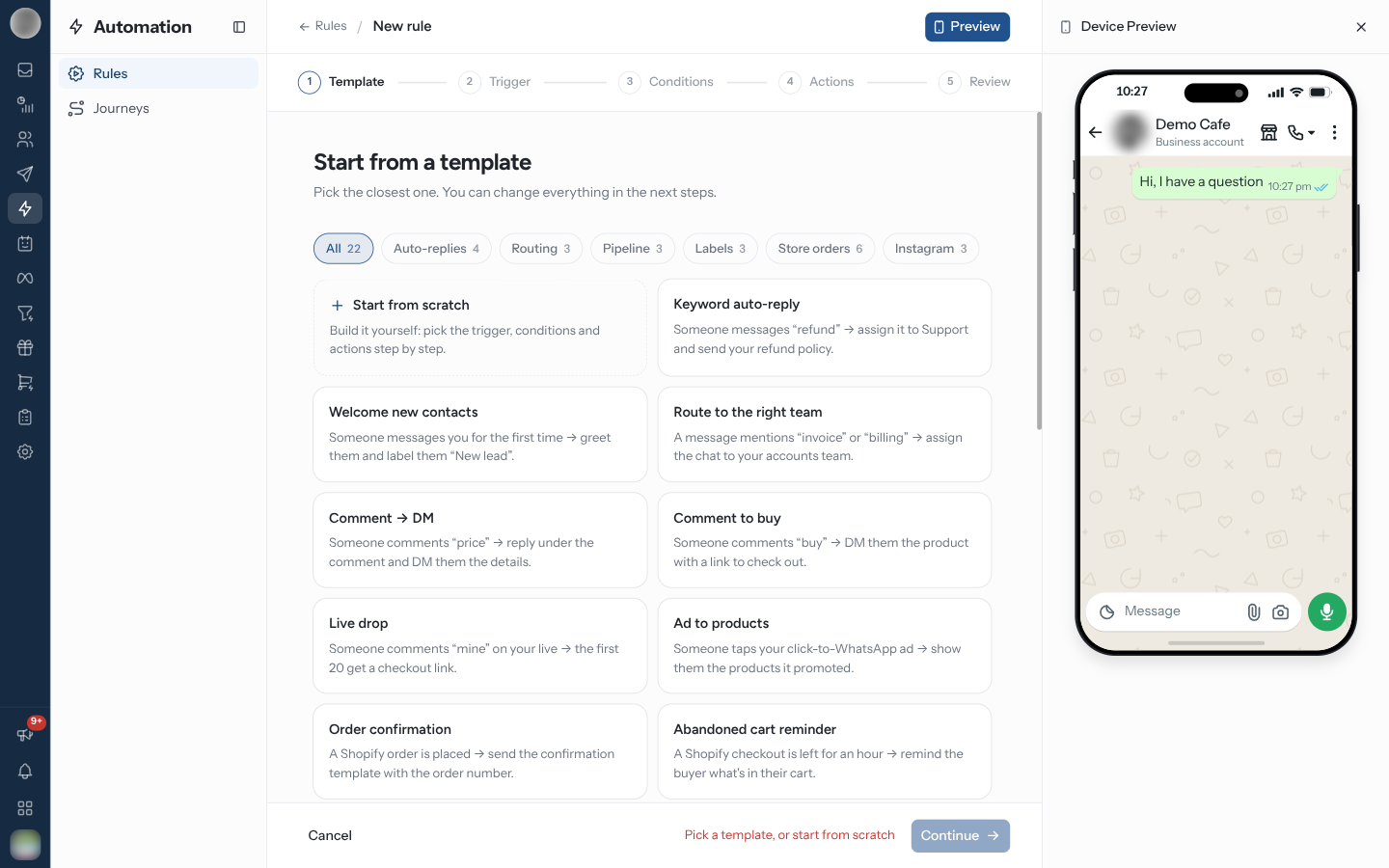
Build a Rule Step by Step
Go to Automation and click Create Automation. The header reads Automations / New automation until you give it a name.
Template — "Start from a template". Pick the closest template, or click Start from scratch. Filter the gallery by Auto-replies, Routing, Pipeline, Labels, Store orders or Instagram. A template fills in the trigger, conditions and actions; you still pick the team, label or WhatsApp template it should use. Some are marked Needs Shopify, Needs WooCommerce or Needs Instagram.
Trigger — "What starts it?" Under Channels, switch on every platform the rule should run on — WhatsApp, Instagram and Messenger can all be on at once. Choose the Event, then tick the accounts under Listen on (or Send from, for events that only send). A Shopify Event asks Which Shopify event, and a WooCommerce Event asks for the Order status. See Triggers.
Conditions. Add what must match. The heading follows the trigger — "Which messages should it reply to?" for Message Received, "Which comments should it answer?" for Instagram and Facebook comments, "Only when…" otherwise. See Conditions.
Actions — "What should it do?" Add actions; they run in order, top to bottom. See Actions.
Review — "Review and switch it on". Give the rule a Name, read the sentence that describes it — click any coloured part to jump back and change it — set any Limits, and click Activate automation.
Opening the builder from a template card on the Automation page skips the Template step and starts on Trigger. A new rule is saved switched on.
One Rule on Several Channels
A rule can listen on WhatsApp, Instagram and Messenger at the same time and reply on each. Switch the platforms on under Channels, then tick at least one account for each.
| What you see | Meaning |
|---|---|
| A channel chip is dimmed | The chosen event or one of the actions does not run on that platform. Hover it for the reason |
| You cannot switch the last channel off | A rule needs at least one channel |
| Accounts disappear when you switch a channel off | That platform's accounts are removed from the rule |
| "Tick a … account, or turn … off" | A channel is on with no account ticked for it |
Watch It in the Phone Preview
The Preview button in the header opens the Device Preview panel on the right; it opens by itself when the builder loads. It plays the rule as the customer will see it: what they send, then what comes back. Actions the customer never sees — labels, assignments, webhooks — are listed under the conversation.
When a rule runs on more than one channel, a switch above the phone picks which app it shows. The same switch drives the Share tab, so the phone and the share link always show the same platform.
What Each Step Checks
Continue checks only the step you are on. While it is disabled, the reason sits next to it:
| Step | Blocks you when |
|---|---|
| Template | "Pick a template, or start from scratch" |
| Trigger | "Tick at least one account to continue", "Pick a Shopify event to continue", "Pick an order status to continue", or a channel with no account |
| Conditions | "Add at least one condition — without one it would answer every message", "Remove the repeated condition", "Fill in every condition", "Pick at least one post" |
| Actions | "Add at least one action", "Two actions are the same — remove one", or "Finish the “…” action" |
| Review | "Give it a name to switch it on", or "Pick which business hours" |
Changing the Event clears the settings that belonged to the old one — Shopify and WooCommerce events and products, Instagram post choices, the ig.me and m.me link names and the ad IDs — so a hidden value is never saved.
Pressing Enter in a text field moves to the next step rather than saving, so a half-built rule is never saved by accident.
Set Limits on the Review Step
| Option | Effect |
|---|---|
| Run once a day per contact | "Skips anyone this automation already ran for in the last 24 hours." |
| Only during business hours | The rule fires only inside the hours you pick under Business hours |
Business hours are the schedules defined on Settings → Account.
Edit a Saved Rule
Click a rule's card to open it. A saved rule opens on Trigger with every step unlocked, so you can jump straight to the one you want from the step rail, and Save changes is available on every step — you do not have to walk to Review again.
If a save fails validation, the builder jumps to the step holding the problem and shows the message.
Share a Keyword Rule as a Link
A saved Message Received rule with at least one keyword gets a second tab in its header: Builder and Share.
Open the Share tab and pick the Keyword.
If the rule runs on more than one channel, pick the platform tab — WhatsApp, Instagram or Messenger. Each has its own Account, Share Link and QR code.
Copy the Share Link, or download the QR code.
| Platform | Link | What the customer does |
|---|---|---|
wa.me/<number>?text=<keyword> | Presses send — the keyword is already typed | |
ig.me/m/<username> | Types the keyword themselves | |
| Messenger | m.me/<page id> | Types the keyword themselves |
Instagram and Messenger links cannot pre-fill a message: they only open the chat. Print the keyword next to the link or QR code — "Send REFUND to start" — or the rule never fires.
Troubleshooting
| Symptom | Cause | Fix |
|---|---|---|
| Continue is disabled | The current step is incomplete | Read the message next to the button |
| No Share tab | The rule is unsaved, not Message Received, or has no keyword | Save it with a Message Body keyword |
| A channel chip cannot be switched on | The event or an action does not run on that platform | Hover the chip for the reason |
| Instagram or Messenger link opens an empty chat | Those apps cannot pre-fill text | Tell customers which keyword to send |
| The rule never fires | It is Inactive, or the conditions cannot match | Check the switch on its card, then the Conditions step |
Related Pages
Automation Overview
Build rules — from a template or from scratch — that react to messages, comments, contact changes and store events on WhatsApp, Instagram and Messenger.
Triggers
The events that start an automation rule — messages, contacts, store events, Instagram, Messenger and ad taps — which channels each runs on, and which need a single channel.