Profile & Business
Your personal profile and your organisation's business information.
Settings → Profile & Business (/dashboard/settings/profile) holds your own profile and
language, plus the organisation's business details and business hours. It was previously called
Account.
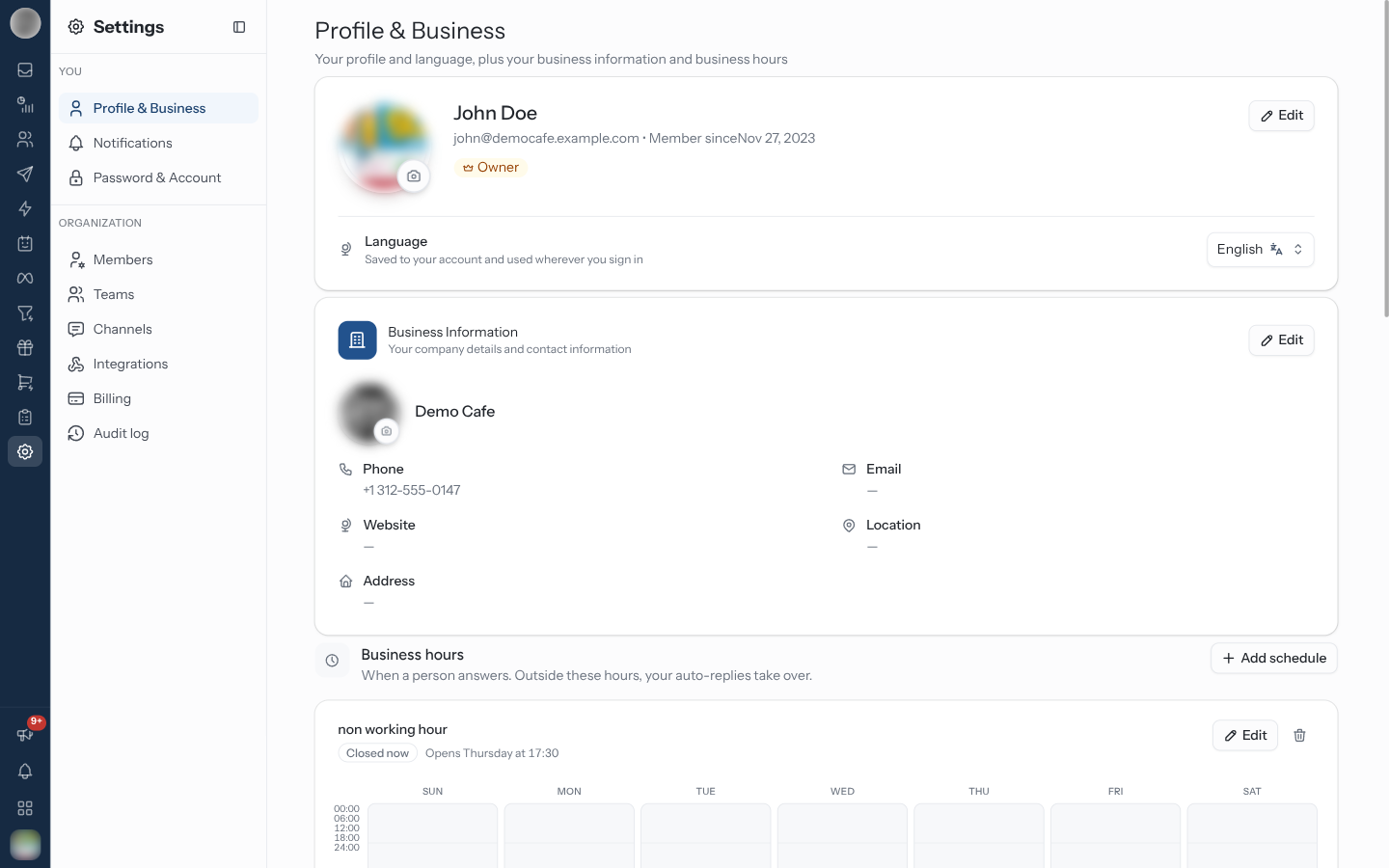
Your Profile
| Field | Notes |
|---|---|
| Profile photo | JPG, PNG or GIF, max 2 MB |
| Title | Mr, Mrs or Mx — required |
| Full Name | Shown on your messages and internal notes — cannot be blank |
| Email Address | Your login address — read-only |
| Phone Number | Must be a valid number for its country |
| Role | Your role in the organisation — read-only; an admin changes it under Members |
| Member since | When you joined, read-only |
Click Edit on your profile card. The Edit Profile dialog opens.
Update the fields you need.
Click Save Changes. Your name updates everywhere it appears, including past messages.
Your name is what colleagues see on internal notes and what customers may see on replies. Use the name people would recognise, not a nickname.
Changing Your Photo
Click the camera icon on your avatar and choose an image. Large uploads take a moment — the page shows "Hold on, changing your profile photo" while it processes.
The same applies to the organisation logo, which is uploaded separately.
Business Information
The organisation's own details, shared by everyone. Only people whose role can change organisation settings see Edit on this card; everyone else sees the details read-only.
| Field | Used for |
|---|---|
| Logo | Uploaded with Upload Logo — JPG, PNG or GIF, max 2 MB |
| Business Name | Displayed across RateUp and in customer-facing pages |
| Industry | Categorises your organisation |
| Website | The business's website |
| Business Phone | The organisation's contact number |
| Business Email | The organisation's contact address — optional |
| Location | Where the business operates |
| Address | Your full business address |
Click Save Changes in the dialog to apply them.
These fields appear on customer-facing surfaces such as survey pages and loyalty registration. Keep them accurate — a wrong business name here shows up in front of customers.
Language
Choose the language RateUp uses under Language. It is saved to your account and used wherever you sign in. It changes the interface for you only; it does not change the language of messages sent to customers.
Set Your Business Hours
Business hours at the bottom of the page records when a person answers. Outside these hours your auto-replies take over — automation rules can check a schedule and hold replies until someone is around.
Click Set up business hours. The first schedule is named Main hours and starts from a standard week, Monday to Friday, 9:00–17:30.
Change the days and times that do not fit. Use Add a break for a gap in the day, and Apply to weekdays or Apply to all days to copy one day's hours across.
Check the time zone, then click Save changes.
Add more schedules with Add schedule. Each card shows whether you are Open now or Closed now and which automation rules use it.
| Rule | Detail |
|---|---|
| Who can edit | The same people who can edit Business Information |
| Deleting a schedule | Any automation rule using it stops checking hours. The last remaining schedule cannot be deleted |
Related Pages
- Password & Account — password and account deletion
- Members & Roles — managing other people
- Automation Rules — rules that check business hours