Email Channel
Forward your support address to RateUp so customer emails arrive as inbox tickets, and set the sender name, signature and domain your replies go out with.
The Email channel turns the address your customers already write to — [email protected]
— into an inbox channel. You forward that mailbox to a private RateUp address, each new email
becomes a ticket, and your team's replies go back into the customer's own email thread.
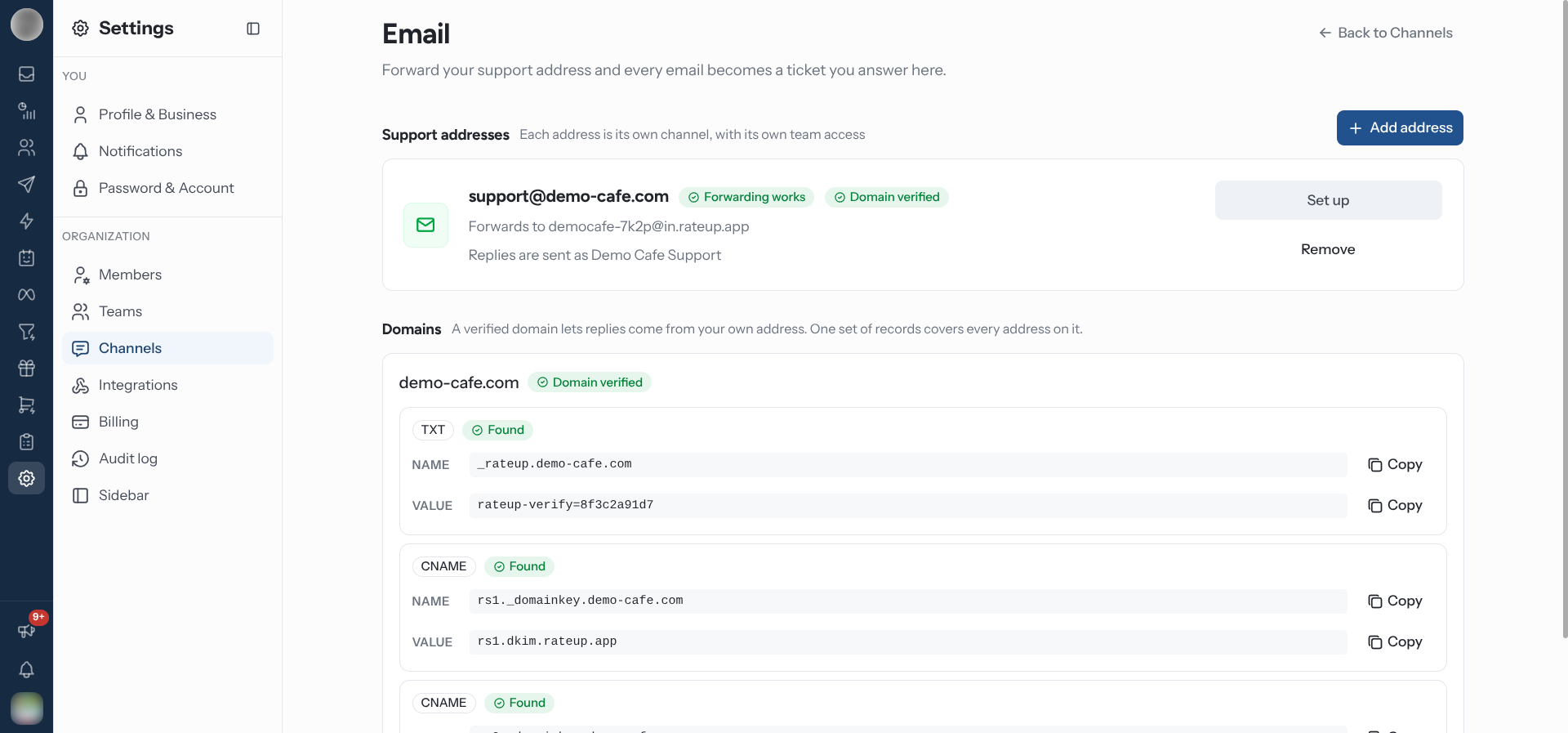
Open it from Settings → Channels → Email. Everyone who can see channels sees the list; adding, setting up and removing an address needs a role that can connect, remove and configure channels.
Connect a Support Address
Click Add address. Setup is five short steps — Address, Forwarding, Test, Domain and Signature — and each is saved as you finish it, so Finish later keeps what you have done. Set up on the address's row picks up again at Forwarding.
Address. Type the Support address — "The address your customers already write to. You keep receiving mail there." — and a Sender name, which is "What customers see as the sender of your replies." Click Continue.
Forwarding. RateUp shows your forwarding address, such as [email protected].
Click Copy and set up a forward from your support mailbox to it. The step carries short
instructions for Google Workspace or Gmail, Microsoft 365 or Outlook and Another
provider. Keeping a copy in your own mailbox is fine; RateUp only needs the forward.
Test. Click Send test email. RateUp emails your support address; when the message comes back through your forward, the badge turns to Forwarding works — "Emails to … now reach your inbox."
Domain. Publish the DNS records shown, so replies can come from your own address — see Send Replies From Your Own Domain. You can move on and do this later.
Signature. Check the Sender name, type a Signature ("Added under every reply from this address.", up to 2,000 characters) and choose whether to Reply with the ticket number. Click Save and finish.
Gmail and Google Workspace send a confirmation email before they forward anything. RateUp catches it, and the Test step shows "Google needs you to confirm the forward" with a Confirm forwarding button. Open it, confirm, then send the test again.
You can connect as many addresses as you like. Each one is its own channel, with its own team access, and the forwarding address is random, so knowing your company name is not enough to post tickets into your inbox.
The automatic acknowledgement
Reply with the ticket number is on by default. Saving with it on creates an automation rule called Acknowledge new emails to …, which answers every new email ticket with:
Hi
{{contact_name}}, thanks for contacting us. We've received your request and your ticket number is #{{ticket_number}}. Just reply to this email if you'd like to add anything.
Edit or turn it off in Automation like any other rule. The switch is not offered when a new-ticket rule already answers that address.
Automatic emails are held back to protect your sending reputation: an address gets at most three an hour from your rules, and a rule triggered by an incoming email never answers a sender whose domain failed its authentication check.
Send Replies From Your Own Domain
Until your domain is verified, replies go out from your RateUp forwarding address, with Reply-To set to your support address — so the customer's answer still reaches you. Once it is verified, replies come from the support address itself.
Find your domain under Domains (or on the Domain setup step). It lists one TXT record and the CNAME records your domain needs, each with a Name and Value and its own Copy button.
Add them at your DNS provider.
Wait, or click Check now. RateUp checks every 15 minutes, and it can take a few hours after you add the records. Each record turns from Not found yet to Found.
One set of records covers every address on the same domain.
| Domain badge | Meaning |
|---|---|
| Domain pending | Records not found yet; still checking |
| Domain verified | Replies come from your support address |
| Domain check failed | The check failed; correct the records at your DNS provider and click Check now |
| Sends from RateUp | The address is on a mail provider's domain — Gmail, Outlook, Yahoo, iCloud and the like — whose DNS you cannot change. Replies always come from your forwarding address, with Reply-To set to your support address |
How Emails Become Tickets
| An email that… | Goes to |
|---|---|
| Answers one of your replies, or an earlier email in the thread | The same ticket |
Has the ticket's tag, such as [#1042], in its subject, from someone already on that ticket | The same ticket |
| Starts a new thread | A new ticket, even if the customer already has one open |
| Answers a thread whose ticket is closed | A new follow-up ticket — the closed one is not reopened |
The sender becomes a contact with that email address, and the ticket is titled by the
email's subject, with any Re: or Fwd: taken off.
Some mail never becomes a ticket, so an automatic answer cannot start a loop:
- out-of-office and other automatic replies
- bounces and delivery reports
- mailing lists and bulk mail
- mail flagged as spam or carrying a virus
- mail from your own support or forwarding addresses
- more than 20 emails a minute from one sender to one address
Attachments over 25 MB on an incoming email are left out of the ticket.
For what the email looks like in a ticket and how to answer it, see Reply to an email ticket.
Remove an Address
Click Remove on the address's row and confirm. "New emails to this address stop becoming tickets. Existing tickets stay. Turn off the forward at your email provider too."
Removing the address in RateUp does not stop your mail provider forwarding to it. Turn the forward off there as well, or your provider keeps sending your support mail to an address nobody reads.
Troubleshooting
| Symptom | Cause | Fix |
|---|---|---|
| Forwarding not checked stays amber | The test email has not come back through your forward | Check the forward is on and points at the exact forwarding address, then Send again |
| "Google needs you to confirm the forward" | Gmail is waiting for its confirmation link | Confirm forwarding, then send the test again |
| "Use your own support address, not a RateUp address" | A rateup.app or forwarding address was typed as the support address | Enter the address customers write to |
| "This address is already connected" | It is already one of your email channels | Use Set up on its row |
| Replies come from the forwarding address | The domain is not verified yet, or is a mail provider's domain | Publish the records under Domains, or keep the Reply-To behaviour |
| An email never became a ticket | It was an automatic reply, a bounce, list mail or spam | These are dropped on purpose |
| A ticket is missing an attachment | The file was over 25 MB | Ask the customer to send it another way |
Related Pages
- Channels
- Replying to Customers
- Tickets
- Automation rules
- Teams — which teams see which address
Channels
Connect WhatsApp numbers, Facebook Pages, Instagram accounts and support email addresses — together or on their own — and manage each number's name, profile, calling, Marketing Messages status and credentials.
Integrations
Connect RateUp to your own systems with API keys and a signed webhook, or to the stores, CRMs and tools you already use.