Journeys
Automated conversations for WhatsApp, Instagram and Messenger in one list — create one from an example, let the wizard set up the rule that starts it, and switch it on or off.
A journey answers a conversation automatically — handling the questions you get constantly,
collecting details, and passing anything else to a person. Automation → Journeys in the sidebar
(/dashboard/automation/journeys) lists every journey you have built, on WhatsApp,
Instagram and Messenger together.
Journeys were previously called Chatbots. A journey is a scripted, step-by-step conversation you draw in a visual builder — it follows the path you set and does not use AI. For an AI agent that answers in its own words, see Meta AI Agent.
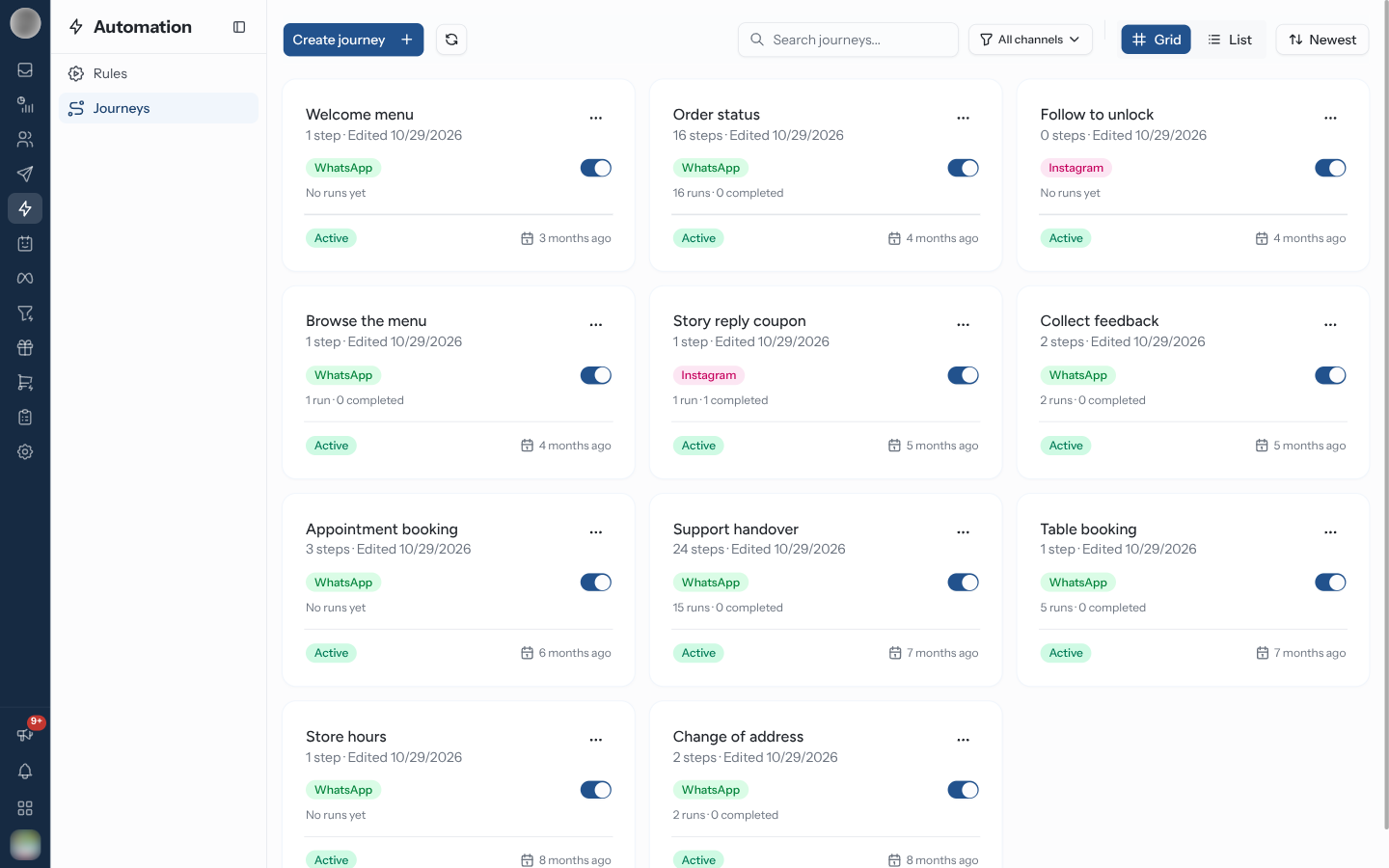
Find a Journey
| Control | Does |
|---|---|
| Create journey | Opens the creation wizard — see below |
| Refresh | Reloads the list |
| Search journeys... | Filters by name |
| Channel filter | All channels, WhatsApp, Instagram or Messenger |
| Grid / List | Cards, or a table with Name, Channel, Runs, Last edited, Created and Active |
| Sort | Newest, Last edited, Oldest, Name (A-Z), Name (Z-A) |
The channel filter is part of the address — ?channel=whatsapp, ?channel=instagram or
?channel=messenger — so a filtered list can be bookmarked or shared. The Instagram journeys
and Messenger journeys buttons on the Instagram and Messenger pages
open the list filtered this way.
Each card shows:
| Part | Meaning |
|---|---|
| Name and subtitle | How many steps it has, and "Edited …" with the date |
| Channel badge | WhatsApp, Instagram or Messenger — a journey belongs to one channel |
| Switch | Switches the journey on or off |
| Runs line | "12 runs · 8 completed" — how many conversations it started and how many reached the end — or "No runs yet" |
| Active / Inactive | Whether it is switched on |
Click a card to open the journey in the builder, at
/dashboard/automation/journeys/<id>.
If your plan does not include WhatsApp, WhatsApp journeys are left out of the list and a banner says "WhatsApp journeys are hidden because WhatsApp isn't part of your plan.", with See plans.
Create a Journey
Click Create journey. The wizard opens — "Start from a ready-made example or a blank canvas. You can change everything later." — with three steps: Channel, Starting point and Details.
Channel — "Where will this journey reply?" Pick WhatsApp, Instagram or Messenger. Each card lists what only that channel can do. A channel with no account connected says so and offers Connect WhatsApp (or Instagram, or Messenger) instead. On a list filtered to one channel, that channel is already picked; you can still change it.
Click Next. Starting point. Pick Start from scratch — "A blank … journey with just the start step." — or one of the channel's examples. Filter them with the chips along the top (All, Welcome, Support, …). On a wide screen, picking an example plays it in a phone preview on the right, so you can see the conversation before you create anything.
Click Next. Details. The Journey Name is filled in from the example; change it if you like. It must be at least 3 characters and is only ever seen by your team.
Optionally pick the account — WhatsApp number, Instagram account or Facebook Page. On Instagram and Messenger it is "The account whose DMs and comments start this journey" (or "The Page whose messages and comments start this journey"); leave it empty and the rule listens on every connected account of that channel.
Under How it starts, pick what should start the journey. The choice follows the example; change it if you like. "We create the rule for you, switched off until you turn it on in the builder."
Click Create journey. The builder opens with the example already laid out.
docs/screenshots/automation/journey-wizard.pngWhen a list filtered to one channel is empty, it offers three of that channel's examples and Start from scratch as buttons, so the wizard opens on Starting point with your choice already made.
How It Starts
| Channel | Choices | Rule the wizard creates |
|---|---|---|
| Message with a keyword · Any new message · Lead ad form | Message Received with a keyword you fill in later · Message Received on any message, once a day per person · none — a lead ad starts the journey from its Lead step | |
| DM with a keyword · Comment on a post or reel · Story mention · ig.me link | Message Received · Instagram Comment on all posts · Instagram Story Mention · ig.me Link Opened | |
| Messenger | Message with a keyword · Get Started button · Comment on a Page post · m.me link | Message Received · Message Received on your Get Started payload · Facebook Page Comment · m.me Link Opened |
The rule is named after the journey — "Welcome menu · start" — runs on the account you picked (or all of the channel's accounts), ends in Start a journey, and is saved switched off: the journey still has the example's placeholder wording, and a keyword rule has no keyword yet. If no account is connected on the channel, no rule is made — "No account is connected on this channel yet, so no rule was made."
Switch It On
The builder tells you what is still missing with a card at the bottom of the canvas:
| Card | When | What to do |
|---|---|---|
| This journey is off | Every rule that starts it is switched off — the normal state right after the wizard | Finish the messages, type the keyword if it asks for one ("Keyword, e.g. menu"), and click Switch on. Edit rule opens the rule instead |
| Set up the trigger | Straight after the wizard, when no rule starts the journey — no account was connected, the rule could not be made, or you picked Lead ad form | Create the rule opens a new rule with the channel, trigger and account already filled in. For Lead ad form there is no button: add a Lead step after Start and pick your form |
| This journey is switched off | The journey itself is switched off on the list | Switch on |
docs/screenshots/automation/journey-off-card.pngDismiss a card with × to hide it. This journey is off and This journey is switched off come back the next time you open the journey; Set up the trigger does not — it only appears straight after the wizard.
Creating the journey is not the same as switching it on. Until its rule is switched on, no customer reaches it. If you closed the builder without switching it on, find the rule — named "… · start" — on Automation → Rules and flip its switch, or open the journey again.
Any rule can start a journey with the Start a journey action — see Actions. A rule can only start a journey of its own channel, so it runs on one channel only.
Turn a Journey Off
Flip the switch on its card. A switched-off journey is Inactive: "Rules, lead ads and the inbox won't start it." Its rules stay as they are, and switching the journey back on brings it back.
Start a Journey from the Inbox
An agent can start a journey for the customer in front of them. In the Inbox composer, click Journey (on a phone it is in the ⋯ menu). Start a journey lists the switched-on journeys of the conversation's own channel — "Sends its first message to … on …" — pick one and click Start journey.
| Message | Meaning |
|---|---|
| "No … journeys yet" | There are no journeys on this channel — create one under Journeys |
| "Every … journey is switched off" | Switch one on in Journeys first |
| "This contact can't get a journey on … yet." | RateUp has no address for this person on that channel |
WhatsApp Examples
| Example | Filter | What it does | How it starts |
|---|---|---|---|
| Welcome menu | Welcome | Greets people with buttons to explore, read FAQs or get in touch | Message with a keyword |
| FAQ list | Support | Answers common questions from a list, with a way back to the list | Message with a keyword |
| Mini store | Sales | Lets people browse categories and follow a link to your store | Message with a keyword |
| Appointment booking | Bookings | Picks a service, a day and a time, then confirms the booking | Message with a keyword |
| Rating with follow-up | Feedback | Asks how it went and follows up differently on a good or bad answer | Any new message |
| Loan eligibility | Qualification | Checks employment, income and credit score before passing a lead on | Message with a keyword |
| Lead capture | Lead capture | Asks for a name and what they need, then hands the lead to your team | Lead ad form |
| Talk to a person | Handoff | Lets people ask for a person and assigns the chat to your team | Message with a keyword |
For Instagram and Messenger examples, see Instagram Journeys and Messenger Journeys.
Examples carry placeholder wording and links (https://example.com/…). Replace them before the
journey goes live — a customer who taps Visit store and lands on example.com is worse off than
one who got no journey at all.
Testing Before You Go Live
The builder's Preview runs the journey as a customer would experience it. Walk it end to end and check:
- Every button leads somewhere real
- No path dead-ends without an option
- The customer can always reach a human
- The wording sounds like your brand
The single worst journey failure is the loop with no exit. Before you switch the rule on, try deliberately giving unexpected answers and confirm you can still get out.
Handover to an Agent
When the journey reaches an Assign step, the conversation becomes a normal ticket in the Inbox. The journey's messages are already in the thread, so the agent has the context and the customer does not repeat themselves.
Clone or Delete a Journey
| Action | Notes |
|---|---|
| Clone | From a card's More actions menu. Asks for a name, prefilled "Copy of …" |
| Delete | From More actions. "Are you sure you want to delete this journey? This can't be undone." |
Clone before editing anything customers are currently using. Edit the copy, test it, then point the rule at the copy.
Troubleshooting
| Symptom | Cause | Fix |
|---|---|---|
| A channel cannot be picked in the wizard | No account is connected on it | Click Connect … on its card, or see Channels |
| Create journey stays disabled on Details | The name is shorter than 3 characters | Type a longer name |
| The journey never runs | Its rule is still switched off, or there is no rule | Open the journey and use the card at the bottom, or switch the rule on in Automation → Rules |
| The journey never runs although its rule is on | The journey is switched off | Flip its switch on the Journeys list |
| "The journey was created, but its rule wasn't." | The rule could not be saved | Use Create the rule in the builder |
| WhatsApp journeys are missing | Your plan does not include WhatsApp | See plans |
Customers see example.com links | Example wording was not replaced | Edit the nodes in the builder |
Related Pages
- Journey Builder — the canvas in detail
- Automation Rules — the rules that start a journey
- Instagram Journeys
- Messenger Journeys
- WhatsApp Flows
- Inbox
Abandoned-Cart Reminders
Message Shopify shoppers who left a checkout, follow up with a second rule, and see the orders and revenue the reminders bring back.
Journey Builder
The canvas where a WhatsApp, Instagram or Messenger journey is built — nodes, connections, the toolbar, validation, preview, settings and the card that switches it on.