Customers
The Customers page allows administrators to view and manage members enrolled in the loyalty program. From this page, teams can search for customers, review loyalty points, track customer tiers, and export customer data for reporting.
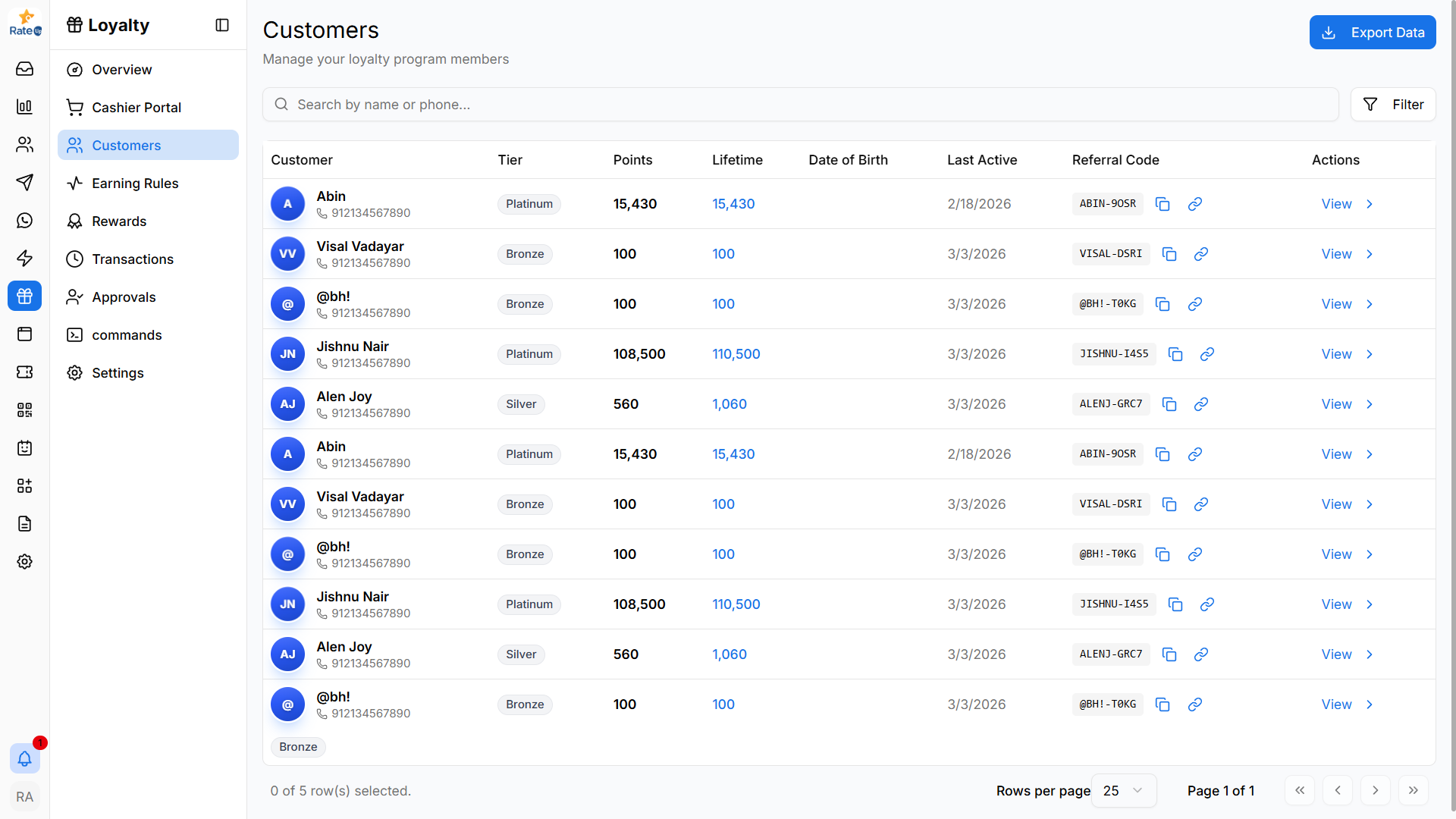
Opening the Customers Page
To access the Customers page:
- Open the Loyalty module from the sidebar.
- Click Customers.
The page loads with a table displaying all loyalty program members.
Searching for Customers
The Search bar at the top of the page allows staff to quickly locate customers.
To search for a customer:
- Click the Search field.
- Enter the customer name or phone number.
- Matching results will appear instantly in the table.
This helps staff quickly find specific loyalty members.
Exporting Customer Data
The Export Data button allows downloading the customer list for reporting or analysis.
To export customer data:
- Click Export Data in the top-right corner.
- Select the preferred format.
Available export formats:
- CSV – Useful for data processing and integrations.
- Excel – Suitable for spreadsheet-based analysis.
Understanding the Customer Table
The customer table provides a detailed overview of loyalty members.
Customer
Displays:
- Customer name
- Registered phone number
- Profile avatar or initials
Tier
Shows the customer's current loyalty level.
Examples include:
- Bronze
- Silver
- Platinum
Tiers represent the customer's engagement level in the loyalty program.
Points
Displays the number of available loyalty points that the customer can redeem.
Lifetime
Shows the total number of points earned by the customer throughout their loyalty history.
Date of Birth
Displays the customer's birth date, which can be used for birthday rewards or special campaigns.
Last Active
Shows the most recent date when the customer interacted with the loyalty system.
This helps identify active and inactive members.
Referral Code
Each customer has a unique referral code used to invite new members to the loyalty program.
Additional options include:
- Copy icon – Copies the referral code.
- Link icon – Generates a shareable referral link.
Actions
The Actions column provides quick access to customer details.
Available action:
- View – Opens the detailed customer profile.
Customer profile functionality will be documented in the Customer Details page.
Pagination
At the bottom of the table, pagination controls allow navigation through large customer lists.
Options include:
- Rows per page selector
- Page navigation controls
This ensures smooth navigation when managing many customers.
Why the Customers Page Matters
The Customers page helps teams:
- Manage loyalty program members
- Track loyalty tiers and engagement
- Monitor customer points
- Access referral codes
- Export loyalty data for reporting
This page provides a centralized overview of all customers participating in the loyalty program.