Customer Details
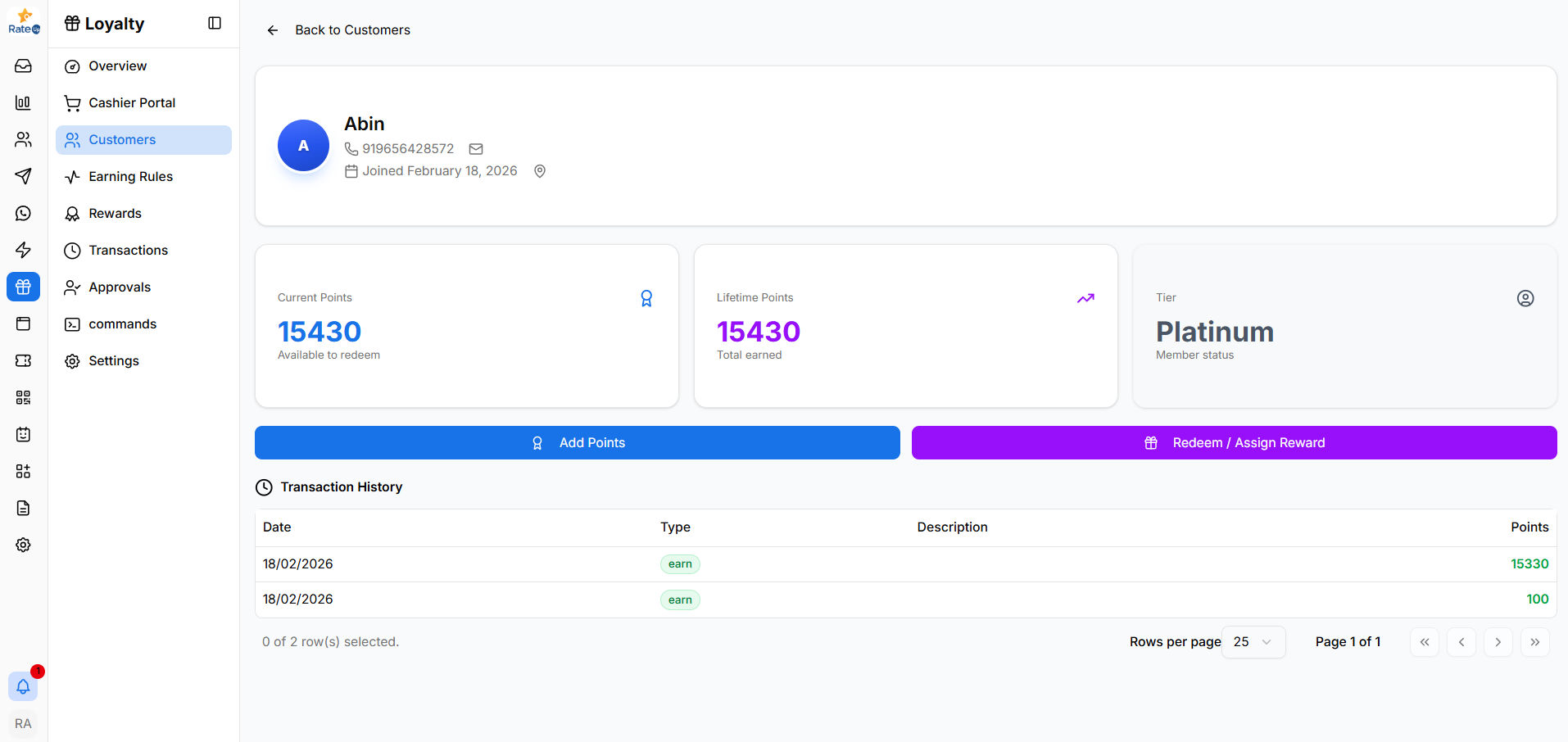
The Customer Details page provides a complete overview of a loyalty program member. From this page, administrators can view customer information, monitor loyalty points, assign rewards, and review transaction history.
Opening Customer Details
To open a customer profile:
- Navigate to the Customers page in the Loyalty module.
- Locate the desired customer in the table.
- Click View in the Actions column.
The system opens the Customer Details page for the selected loyalty member.
Customer Profile Overview
At the top of the page, the customer profile displays basic information about the loyalty member.
Displayed information includes:
- Customer Name
- Phone Number
- Email (if available)
- Join Date
This section helps identify the customer and confirm their loyalty program membership.
Loyalty Summary
The loyalty summary cards provide key metrics about the customer's engagement with the loyalty program.
Current Points
Displays the number of available loyalty points the customer can currently redeem.
Lifetime Points
Shows the total number of points earned by the customer since joining the loyalty program.
Tier
Displays the customer's current loyalty tier, such as:
- Bronze
- Silver
- Platinum
Tiers represent the customer's engagement level and benefits within the loyalty program.
Quick Actions
The Customer Details page also includes the same Quick Actions available in the Cashier Portal.
Using Quick Actions, staff can:
- Issue Points
- Issue Rewards
- Issue Coupons
- Redeem Coupons
- Use Coupons
- Redeem Rewards
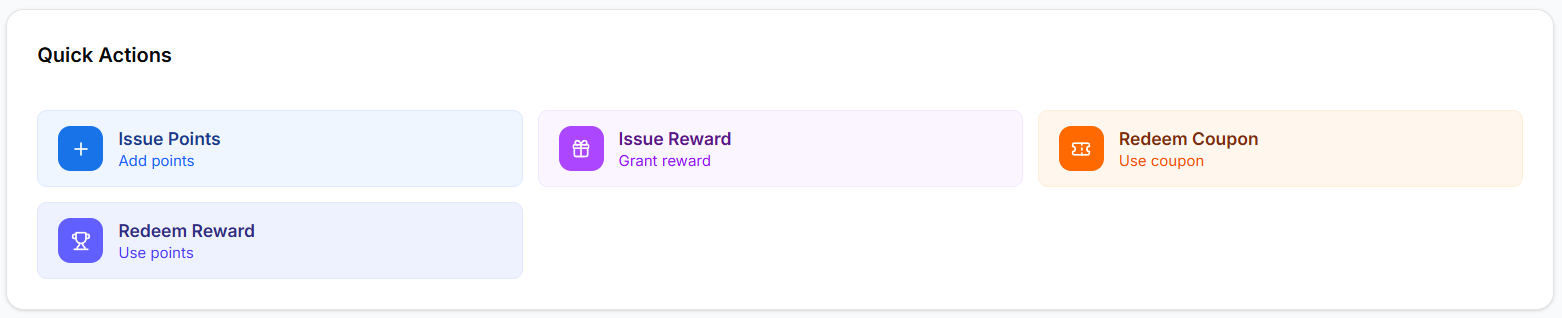
For detailed step-by-step instructions on each action, see Quick Actions.
Transaction History
The Transaction History section displays all loyalty-related activities associated with the customer.
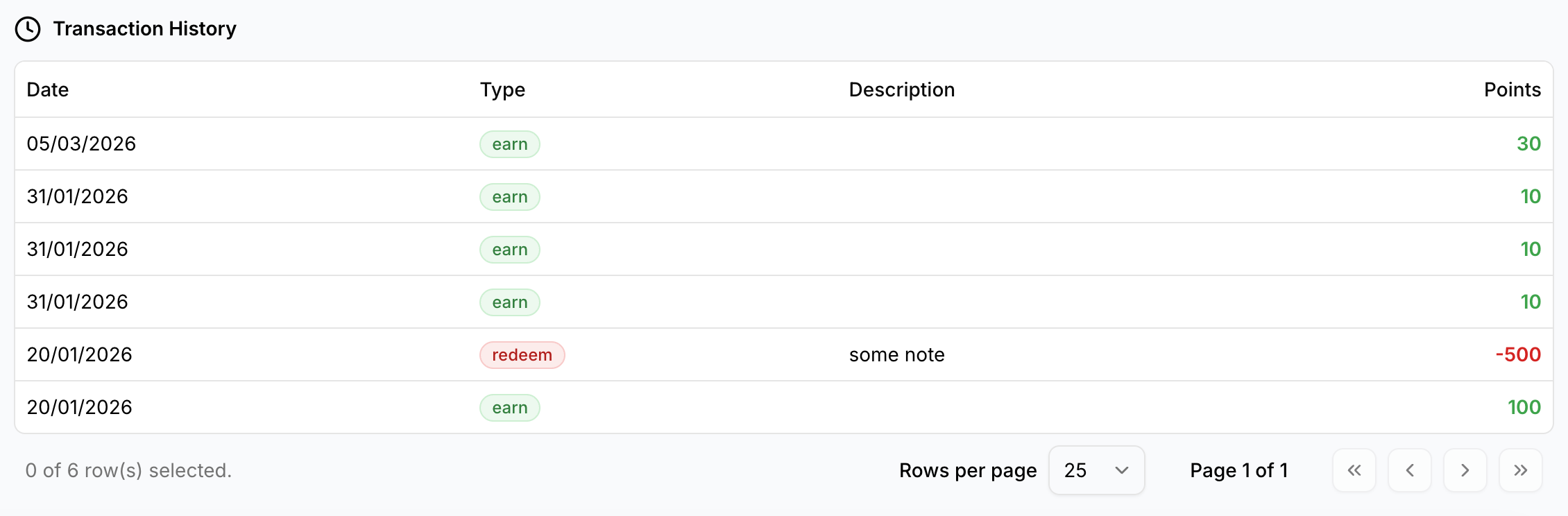
Information shown includes:
- Date – When the transaction occurred
- Type – The action performed (e.g., earn, redeem)
- Description – Details about the transaction
- Points – Points added or deducted
This section provides a full record of the customer's loyalty activity.
Navigating Back
To return to the customer list:
- Click Back to Customers at the top of the page.
This returns you to the main Customers page.
Why the Customer Details Page Matters
The Customer Details page helps teams:
- Monitor individual customer loyalty activity
- Manually adjust loyalty points
- Assign or redeem rewards
- Review transaction history
- Manage customer engagement within the loyalty program
This page provides complete visibility into a customer's loyalty participation.