Notifications
Choose what RateUp tells you about and where — in the app, on your phone, by email or as desktop alerts.
Settings → Notifications decides which events reach you and on which channels. "These settings are yours alone" — changing them never affects anyone else in your organisation.
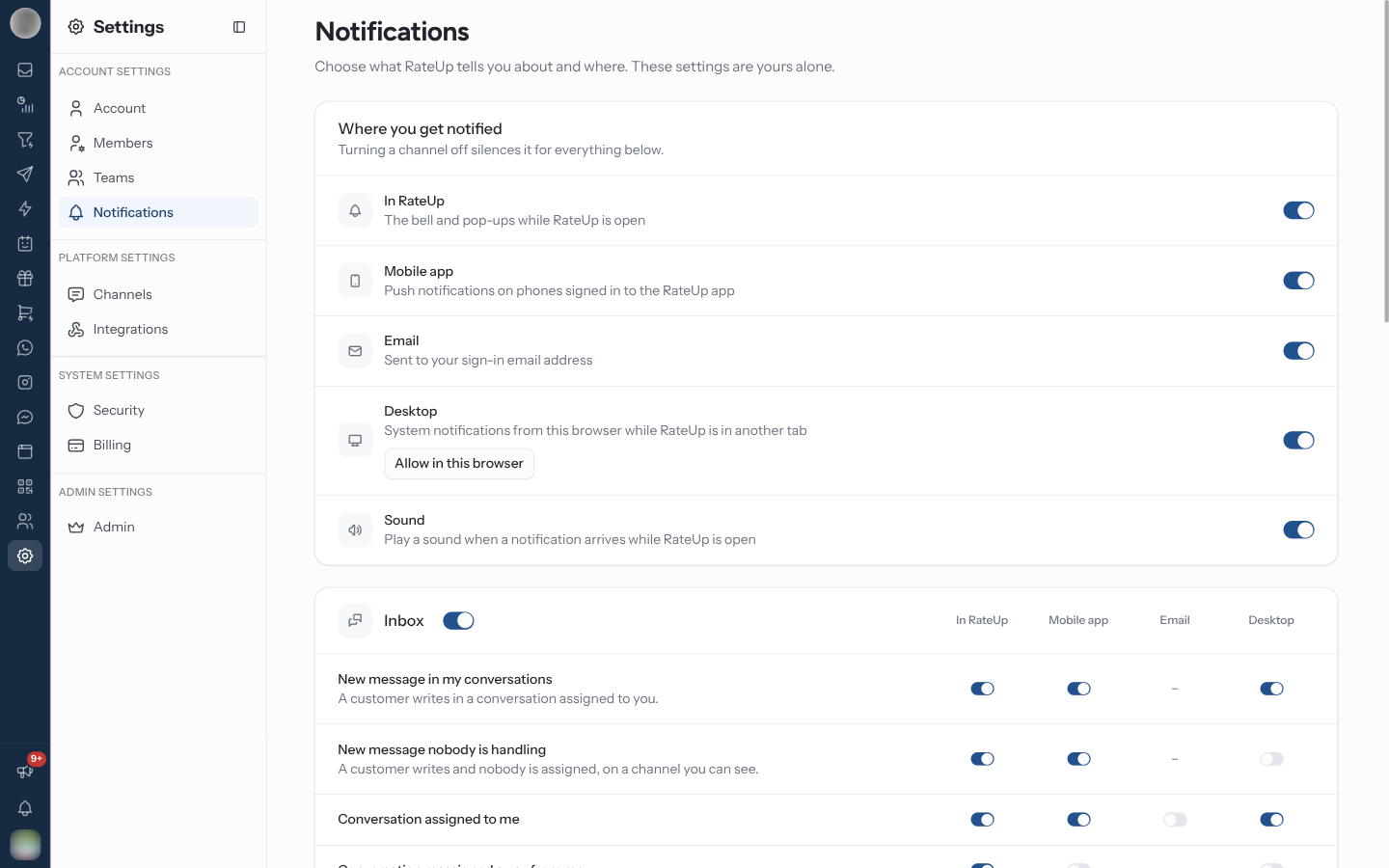
Every member can open this page from Settings → Notifications. Changes save as soon as you flip a switch — there is no Save button.
Choose Where You Get Notified
The first card, Where you get notified, holds one master switch per channel. "Turning a channel off silences it for everything below."
| Channel | Delivers |
|---|---|
| In RateUp | "The bell and pop-ups while RateUp is open" |
| Mobile app | "Push notifications on phones signed in to the RateUp app" |
| "Sent to your sign-in email address" | |
| Desktop | "System notifications from this browser while RateUp is in another tab" |
| Sound | "Play a sound when a notification arrives while RateUp is open" |
All five start switched on.
Allow Desktop Notifications in Your Browser
Desktop alerts also need your browser's permission, and that is granted per browser. With Desktop on, the card shows one of:
| You see | Meaning | Do this |
|---|---|---|
| Allow in this browser | The browser has not been asked yet | Click it and accept the browser prompt |
| "This browser is blocking notifications from RateUp. Allow them in the site settings." | You refused earlier | Re-allow notifications for RateUp in the browser's site settings |
| "This browser does not support desktop notifications." | The browser cannot show them | Use another browser, or rely on In RateUp |
| Nothing | Permission is granted | — |
Turn Individual Notifications On or Off
Below the first card, events are grouped into sections: Inbox, Pipelines, Campaigns, Loyalty, Channels and integrations and Billing. Each event has a switch per channel.
Find the event, for example Conversation assigned to me under Inbox.
Flip the switch in the column for the channel you want — In RateUp, Mobile app, Email or Desktop.
- A – means the event is not offered on that channel.
- A greyed-out switch means its channel is off in Where you get notified (hover it: "Turned off under Where you get notified"). Turn the channel back on to use it.
- The switch beside a section's title turns every event in that section on or off at once. It shows on while anything in the section is on, so one click silences the whole section.
You only see events your role allows you to receive. An Agent, for example, has no Billing section, and Request waiting for my approval appears only for people who can approve loyalty requests. See Members & Roles.
Every Notification and Its Defaults
✓ on by default · ✗ off by default · – not offered on that channel.
| Section | Event | In RateUp | Mobile app | Desktop | |
|---|---|---|---|---|---|
| Inbox | New message in my conversations — "A customer writes in a conversation assigned to you." | ✓ | ✓ | – | ✓ |
| New message nobody is handling — "A customer writes and nobody is assigned, on a channel you can see." | ✓ | ✓ | – | ✗ | |
| Conversation assigned to me | ✓ | ✓ | ✗ | ✓ | |
| Conversation reassigned away from me | ✓ | ✗ | – | ✗ | |
| Mentioned in a note | ✓ | ✓ | ✗ | ✓ | |
| My conversation closed by someone else | ✗ | ✗ | – | ✗ | |
| AI agent hands a customer to a person — "Meta AI passes a conversation to your team." | ✓ | ✓ | – | ✓ | |
| Pipelines | Lead assigned to me | ✓ | ✓ | ✗ | ✓ |
| Task assigned to me | ✓ | ✓ | ✗ | ✓ | |
| Campaigns | Campaign finished sending — "For campaigns in your teams." | ✓ | ✗ | ✓ | ✗ |
| Campaign failed | ✓ | ✓ | ✓ | ✓ | |
| Campaign paused by an account problem | ✓ | ✓ | ✓ | ✓ | |
| Loyalty | Request waiting for my approval | ✓ | ✓ | ✗ | ✓ |
| Unhappy customer feedback | ✓ | ✓ | ✓ | ✓ | |
| Channels and integrations | WhatsApp template approved or rejected — "Meta finished reviewing a template." | ✓ | ✗ | ✓ | – |
| WhatsApp account restricted | ✓ | ✓ | ✓ | ✓ | |
| Integration needs attention — "Meta Conversions API failures and a Shopify store uninstalling RateUp." | ✓ | ✗ | ✓ | – | |
| Billing | Active contact limit reached — new contacts can't be messaged until you add a contact pack, upgrade, or the month resets | ✓ | ✓ | – | ✓ |
| Campaign credits used up — campaigns pause until you add a credit pack, upgrade, or the month resets | ✓ | ✓ | – | ✓ |
Who Sees Each Section
| Section | Shown to people who can… | Roles by default |
|---|---|---|
| Inbox | See conversations | Viewer and above |
| Pipelines | See pipelines | Viewer, Staff and above |
| Campaigns | See campaigns | Viewer, Staff and above |
| Loyalty — approval requests | Approve or reject point requests | Manager and above |
| Loyalty — unhappy feedback | Configure tiers, rewards and rules | Manager and above |
| Channels and integrations — templates | Create and edit templates | Staff and above |
| Channels and integrations — account restricted, integration errors | Receive integration alerts | Manager and above |
| Billing | Receive billing alerts | Manager and above |
The two new-message events show live in the app but do not add a row to the bell — one row per incoming message would bury everything else.
Emails You Cannot Turn Off
"Invitations, password and sign-in emails, payment receipts and plan expiry reminders are always sent. The account owner and admins are also always emailed when a plan limit is reached."
Troubleshooting
| Symptom | Cause | Fix |
|---|---|---|
| A switch is greyed out | Its channel is off under Where you get notified | Turn the channel back on |
| No desktop alerts although Desktop is on | The browser has not been allowed, or RateUp is the active tab | Click Allow in this browser; desktop alerts show while RateUp is in another tab |
| No phone notifications | You are not signed in to the RateUp mobile app, or Mobile app is off | Sign in to the app and check the switch |
| An event you expect is missing | Your role does not include the ability the event needs | Ask an Admin to adjust your role or fine-tune your abilities |
| "Could not load your notification settings" | The page could not reach RateUp | Reload the page |
Related Pages
- Members & Roles — what each role is allowed to receive
- Teams — which conversations and campaigns count as yours
- Assignment & Reassignment
- Billing