Billing & Subscription
Your plan, the active contacts and campaign credits it includes, top-up packs, and every charge with its invoice.
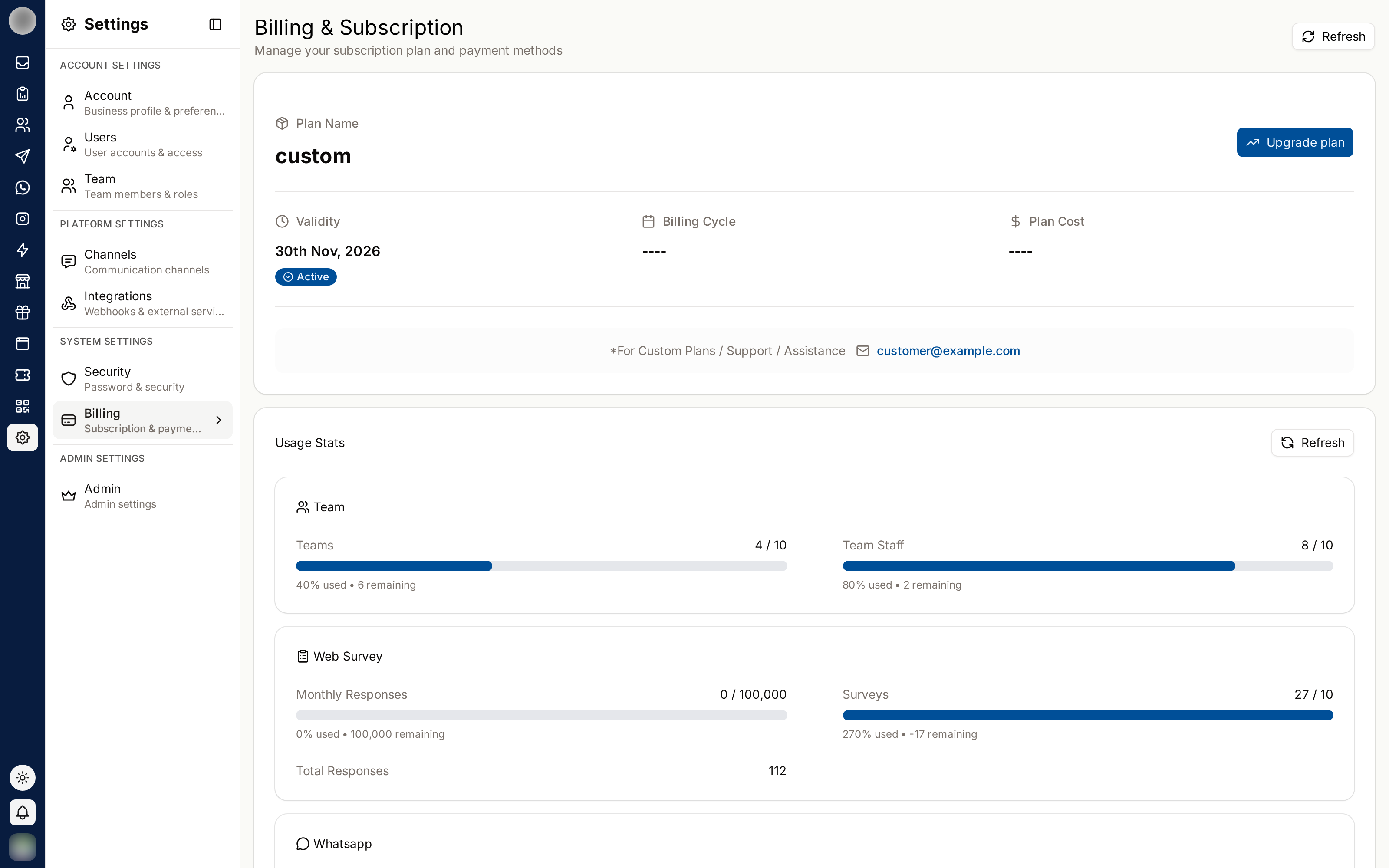
Billing & Subscription shows the plan you are on, how much of this month's allowances you have used, and everything you have been charged. It is under Settings → Billing, and only people whose role can see invoices and orders get the menu item.
How Plans Are Measured
Every plan is sized by two monthly allowances:
| Allowance | What uses it up |
|---|---|
| Active contacts | Each different contact you have a conversation with in the month |
| Campaign credits | One credit for each campaign message sent to one recipient |
A contact who only ever receives campaigns is free — they use campaign credits, not an active contact.
What Makes a Contact Active
A contact becomes active the first time, in a calendar month, that either of these happens:
| Event | Counts? |
|---|---|
| The contact sends you a message, on any channel | Yes |
| You send them a message that is not part of a campaign — an Inbox reply, an automation or chatbot reply, a WhatsApp Flow, a message sent through the API | Yes |
| You send them a campaign message | No |
| A message to them fails to send | No |
The rules that follow from that:
- Each contact counts once a month, however many messages you exchange. Once a contact is active, messaging them on another of their channels costs nothing more — a contact who writes in on Instagram is already active when you reply on WhatsApp.
- Months are calendar months in UTC. Every count restarts at the start of the 1st; the Usage tab shows the date it next resets.
- A broadcast never makes a contact active on its own. If the contact replies to the campaign, their reply does.
Campaign Credits
One credit is spent for each campaign message to one recipient, when the message is sent. A broadcast to 1,000 contacts costs 1,000 credits. Your plan's monthly credits are used first, then any credit packs you hold, oldest-to-expire first.
Plans
| Plan | Teams · users | Active contacts / month | Campaign messages / month |
|---|---|---|---|
| Free | 1 · 1 | 100 | 500 |
| Starter | 2 · 5 | 1,000 | 10,000 |
| Growth | 5 · 15 | 5,000 | 50,000 |
| Scale | 15 · 50 | 25,000 | 250,000 |
| Enterprise | Unlimited | Custom | Custom |
Plans are billed monthly or yearly. Prices are shown in the plan picker and on the pricing page, in your billing currency.
An Enterprise plan is unlimited unless your agreement sets a ceiling. If it does, the What's included card shows your agreed numbers rather than "Unlimited", and they are enforced like any other plan's.
The Billing Page
The top of the page is a summary strip; the detail sits in three tabs below it. Click Refresh at the top right to re-read everything, for example just after paying.
Summary Strip
| Cell | Shows |
|---|---|
| Plan | Your plan's name, its status (Active, Processing, Cancelled or Expired) and how it is billed |
| Next charge | The amount and date of the next renewal — or None scheduled, Payment failed, Confirming payment, In Shopify or By agreement |
| Active contacts | Used this month against your allowance, and how many are left |
| Campaign credits | Credits used against plan plus packs, and how many are left |
Clicking either allowance cell opens the Usage tab.
Tabs
| Tab | What is on it |
|---|---|
| Plan | Your plan and its price, Change plan / Cancel plan (or Choose a plan, Upgrade plan, Resubscribe), and What's included |
| Usage | Usage this period — a meter for each allowance, with the packs for each WhatsApp meter directly beneath it |
| History | Billing History — every charge, newest first, with Details and Download |
The tab is part of the address, so /dashboard/settings/billing?tab=usage opens Usage directly.
Usage Meters
| Meter | Notes |
|---|---|
| Active contacts | Plan allowance plus any contact packs in date. Shows +N over when inbound messages take you past it |
| Campaign credits | Plan credits plus pack credits left |
| Form submissions | Only if your plan includes web forms; resets at the start of each month |
| Teams / Users | Against your plan's caps; these do not reset |
| AI tokens | For your information only — it does not count against your plan |
| Loyalty customers / rewards / actions | Only if your plan includes loyalty |
Choose or Change a Plan
On the Plan tab, click Choose a plan (on Free), Resubscribe (after a cancellation or expiry) or Change plan (on a live paid plan).
Pick a tier and Monthly or Yearly. A new subscription goes on to Confirm your order; click Continue to payment.
Pay in the Razorpay window that opens. A plan billed through Stripe goes to Stripe's hosted checkout page instead.
Wait for the Next charge cell to stop showing Confirming payment. This usually takes under a minute — click Refresh if it does not update.
Change plan moves a live subscription without cancelling it first:
| Change | When it starts |
|---|---|
| Downgrade | At your next renewal |
| Upgrade | Straight away when your payment method allows it; otherwise at your next renewal |
Each tier in the dialog says effective now or at next renewal before you click. Most
card mandates in India are fixed-amount, so an upgrade usually lands at renewal — the dialog tells
you why and gives [email protected] if you need it sooner.
A Shopify-billed plan is managed in Shopify, and an Enterprise or other custom plan is changed by
emailing [email protected].
Buy a Pack
Packs top up a paid, self-serve plan without changing it. They are one-off charges: nothing renews, and packs stack.
| Pack | Adds | Lasts |
|---|---|---|
| Active contact packs | 1,000 extra active contacts | 30 days from purchase |
| Campaign credit packs | 10,000 campaign credits, used after your plan's credits run out | 90 days from purchase |
Open the Usage tab. Each pack card sits under its meter and shows its price in your billing currency.
Use + and − to choose how many — up to 20 in one purchase.
Click Buy a pack (or Buy N packs) and pay in the Razorpay window.
The card then shows how many packs you hold and "Your packs run out on …".
Packs are not sold on Free — the card offers Upgrade instead — or on an Enterprise agreement, where your limits are set by contract.
Buy a pack for a one-off busy month; if you run out every month, the next plan up is better value.
When You Reach a Limit
Active Contacts
New contacts cannot be messaged until the next month, or until you add a pack or upgrade. Everything else keeps working:
- Incoming messages always arrive, and are always counted — a new contact who writes in becomes active even over the limit, so you can reply to them.
- Contacts already active this month can still be messaged.
- An Inbox reply, automation, Flow or API send to a new contact is refused with "You've reached this month's active contacts, so new contacts can't be messaged."
The Inbox composer shows Active contact limit reached with a View plans button while you are over.
Campaign Credits
Campaigns stop sending and are paused with "Paused: your campaign credits are used up." Recipients not yet reached stay pending — add a credit pack, upgrade, or wait for the next month, then resume the campaign. See Campaign Details.
How You Are Told
| Where | What |
|---|---|
| A banner above every dashboard page | On a paid plan, "You are running low on …" from 80% used. At 100%, "You have used all your … for this billing period." — this one cannot be dismissed |
| In-app notification | Once per allowance per month, to members who receive billing alerts |
| Once per allowance per month, to the owner and members who can manage billing |
Campaigns are what usually exhaust a plan's credits, and an exhausted allowance pauses every running campaign at once. Check Campaign credits on the Usage tab before scheduling a large broadcast.
Cancel Your Plan
On the Plan tab, click Cancel plan.
Click Cancel plan again in Cancel your plan? — or Keep my plan to back out.
Cancelling stops the renewal, not the plan. You keep every paid feature until the date shown, and the organisation then moves to the Free plan and its limits. Nothing changes mid-cycle, and you can Resubscribe at any time.
Billing History
The History tab lists every charge on the organisation, renewals and packs included, newest first. Each row has a status, Details (amount, billing period, reference, subscription) and Download for the invoice. Failed checkout attempts are listed too, without an invoice.
"Nothing billed yet" means no payment has been taken.
Troubleshooting
| Symptom | Cause | Fix |
|---|---|---|
| Confirming payment does not clear | The gateway has not confirmed yet | Wait a minute, click Refresh, check your email for the receipt |
| Payment failed under Next charge | A renewal charge was declined and is being retried | "Update your card if it keeps failing." |
| "Razorpay failed to load" | A script blocker or network issue | Allow the page in your blocker and try again |
| No pack card on the Usage tab | Your plan cannot buy packs, or the meter is not capped | Upgrade from Free; on Enterprise, contact us |
| A reply to a customer is refused | They are a new contact and the active contact allowance is spent | Buy an active contact pack or upgrade |
| A campaign shows Paused | Campaign credits are used up | Buy a credit pack or upgrade, then resume |
Related Pages
- Campaigns — what spends campaign credits
- Campaign Details — resuming a paused campaign
- Users — roles that can see and manage billing
- Account