Audit Log
The audit trail — what your team created, changed or deleted in RateUp, by whom and when.
Audit log lives under Settings → Audit log, in the Organization group: "Who on your team created, changed or deleted what, and when." Use it to answer "who changed this, and when?"
The page is at /dashboard/settings/audit-log. It was previously the Team activity tab under
Analytics → Logs; old links to it open Settings → Audit log.
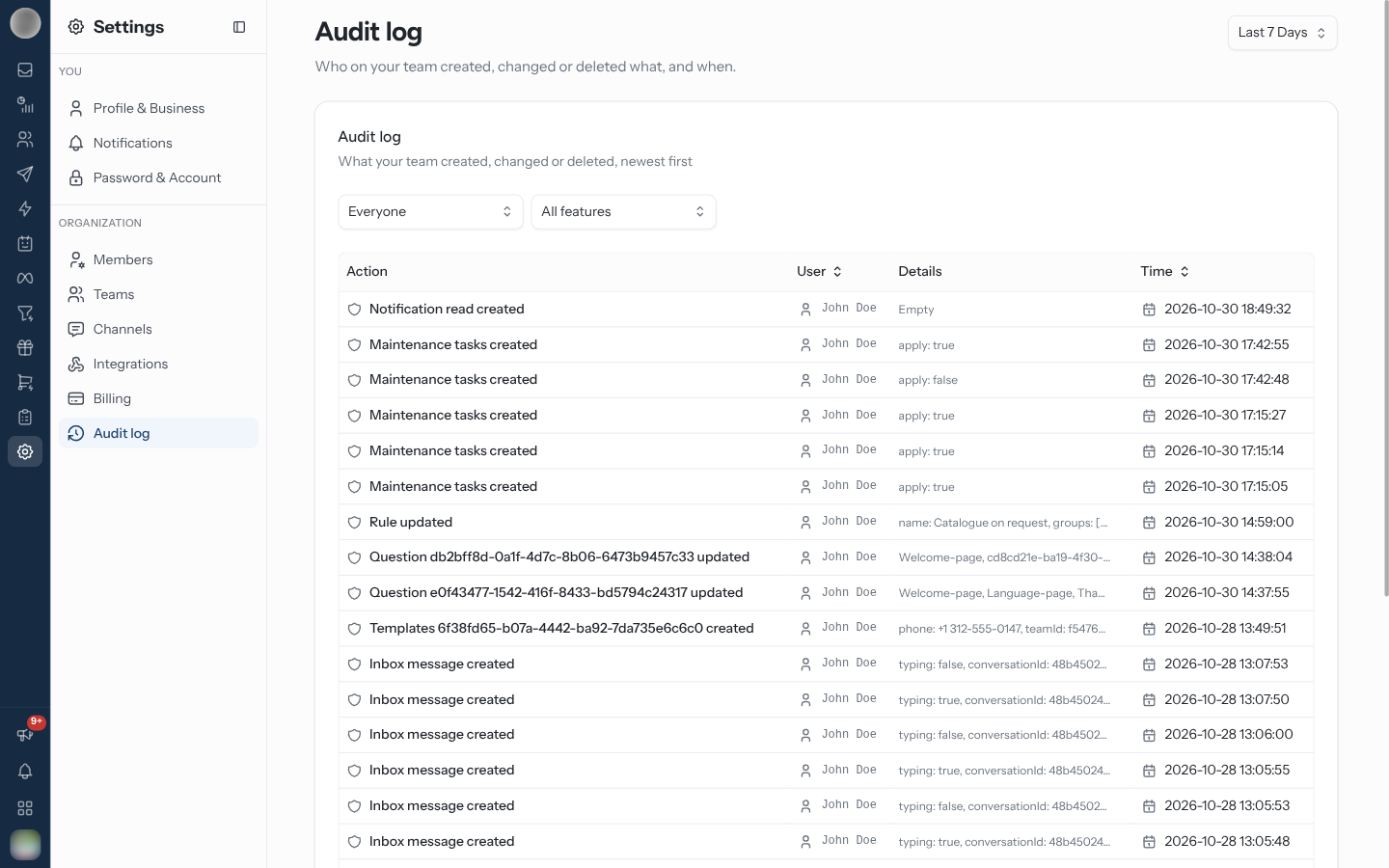
The Columns
| Column | Contains |
|---|---|
| Action | What was done, e.g. Channel added, Rule created, Journey updated |
| User | Who did it |
| Details | What was sent with the change. Click it to read all of it |
| Time | When, to the second |
Sort by User or Time from their headings. Rows come 25 to a page.
Changes to automation use the current feature names: an automation rule reads Rule created, Rule updated or Rule deleted, and a journey Journey created, Journey updated or Journey deleted. A change to an audience starts with Audience, followed by the audience's ID when there is one.
Find a Change
Set the date range with the picker at the top right of the page (Last 7 Days by default). The page has its own picker and no Team filter — it covers the whole organisation.
Pick a person in the first select (Everyone by default).
Pick an area in the second select (All features by default) — for example Contacts, Audiences, Campaigns, Channels, Automation rules or Journeys. The list only offers areas that have activity.
With nothing to show, it reads "No activity found" — "Nothing matches these filters in this date range." when you have filtered, or "Nothing your team did falls in this date range." when you have not.
The page needs the See the audit log ability — Admins and the Owner have it by default. Without it, Audit log is missing from the Settings list, and opening the page by URL reads "You can't see the audit log" — "Ask an admin to give your role access to the audit log." It has no PDF report.
When to Use It
| Situation | What to look for |
|---|---|
| A channel stopped receiving messages | A Channel updated or Channel removed row, and who made it |
| A setting changed and nobody remembers why | Filter by the feature, then read Details |
| Reviewing a new admin's first week | Filter by that person |
The audit log records changes, not presence. To see who is online right now, use the Right now card on Overview or the Status column on Team Performance → Agents.
Related Pages
- Message Log — every WhatsApp message sent, under Analytics → Message log
- Members & Roles — each member's own Activity tab
- Password & Account
- Settings Overview — the Organization group the audit log sits in