Template Analytics
See how many people received, read and clicked each WhatsApp template, and what it cost — straight from Meta.
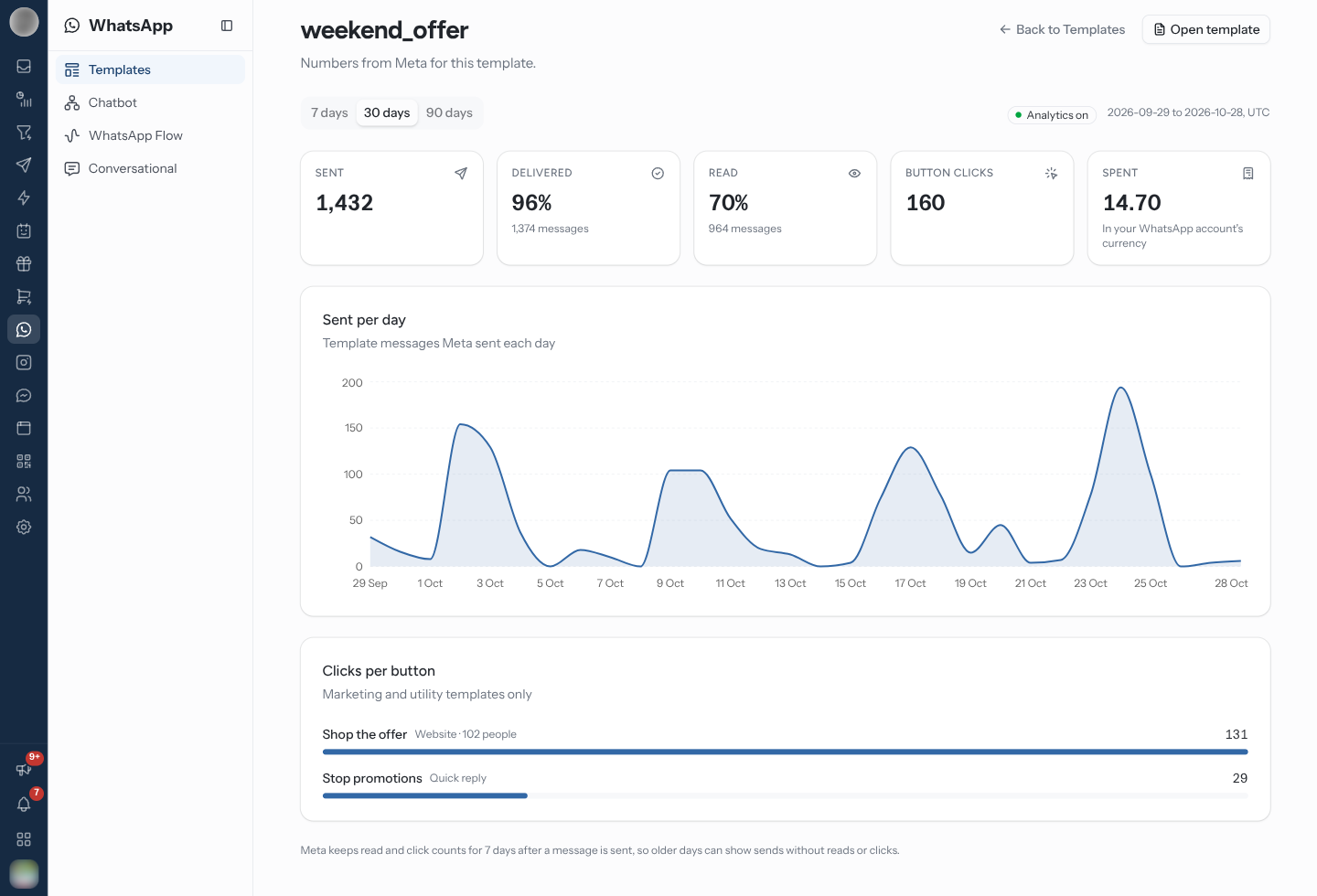
Template analytics show what happened after a template went out: how many were sent, delivered and read, which buttons people tapped, and what it cost. The numbers come from Meta, so they cover every send of the template — campaigns, automations, chatbots and the inbox alike.
Turn On Template Analytics
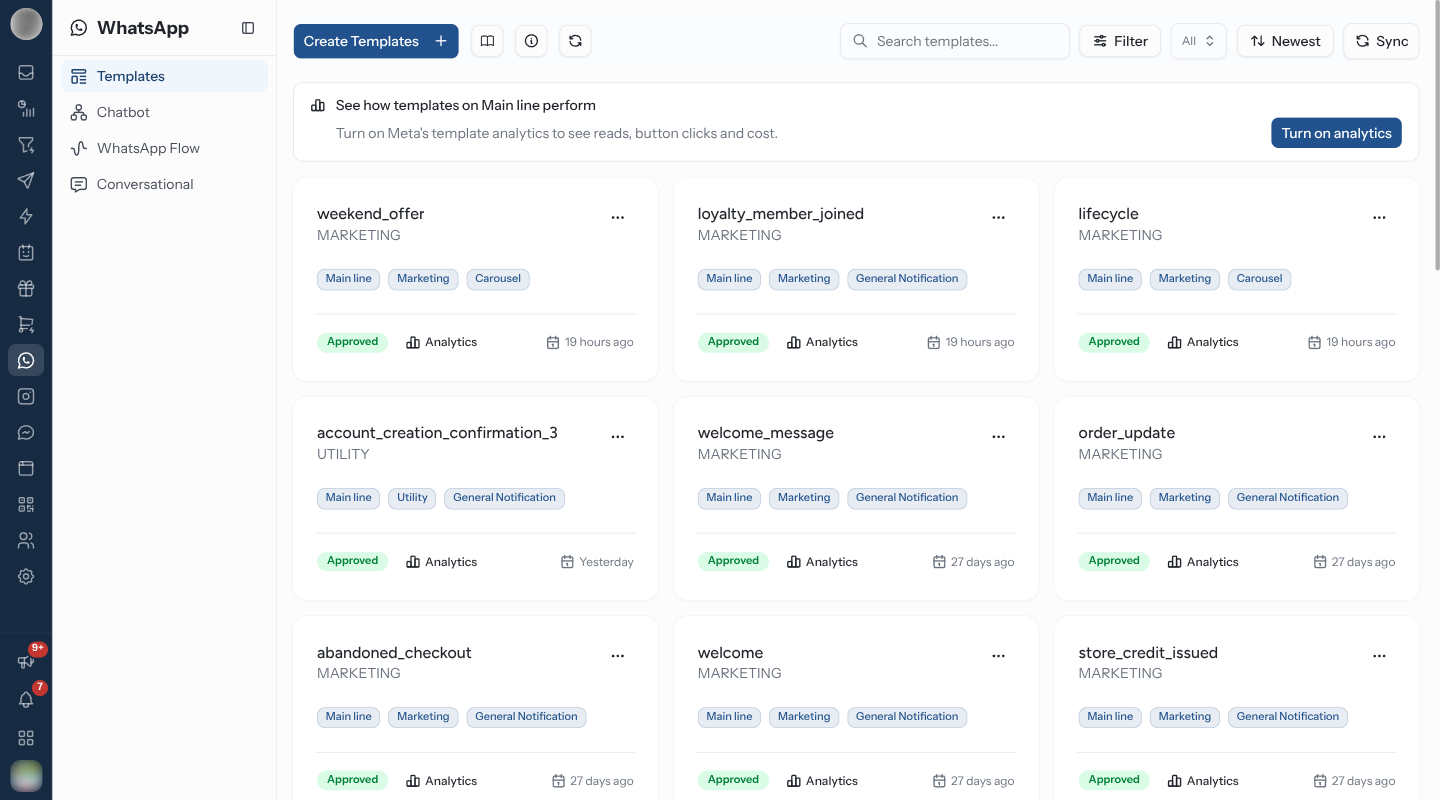
Meta only counts template analytics for a WhatsApp number once it has been switched on. An admin does this once per number. If the banner below never appears, analytics are already on for your numbers and there is nothing to do: a template's analytics page then shows a green Analytics on badge. There is no switch to turn them off, because Meta does not allow it.
Open WhatsApp → Templates.
Above the list, find the banner See how templates on your number perform.
Click Turn on analytics, read the message, and click Turn on.
Meta does not allow template analytics to be turned off again. Turning them on also turns on click tracking for website buttons on that WhatsApp account, which means the links customers tap pass through Meta first.
Only members who can manage channels see the Turn on analytics button. Everyone else sees "Ask an admin to turn on template analytics for this WhatsApp number."
Open a Template's Analytics
On WhatsApp → Templates, click Analytics at the bottom of a template card. With a template already open, click Analytics at the top of the page.
Pick a range: 7 days, 30 days or 90 days.
Analytics only appears on templates that have been submitted to Meta. Open template at the top of the analytics page takes you back to the template itself. Ranges are counted in whole days, in UTC.
| Tile or chart | What it shows |
|---|---|
| Sent | Template messages Meta sent in the range |
| Delivered | The share of sent messages that reached the customer's phone |
| Read | The share of delivered messages the customer opened |
| Button clicks | Taps on the template's website and quick-reply buttons |
| Spent | What the conversations these sends opened cost, in your WhatsApp account's currency |
| Sent per day | Sends over the range, one point per day |
| Clicks per button | Each button by name. Website buttons also show how many different people tapped them |
Why a Number Might Look Wrong
| Symptom | Cause |
|---|---|
| Older days show sends but no reads or clicks | Meta keeps read and click counts for only 7 days after a message is sent |
| No Button clicks at all | Meta counts clicks for Marketing and Utility templates only |
| No Spent tile | Meta does not report cost when your WhatsApp account pays through a partner's credit line |
| The banner is still there after turning analytics on | Refresh the page; Meta can take a few minutes to confirm |
| Analytics never appear | Meta does not offer template analytics to businesses or numbers in the European Union or Japan |
| Numbers differ from Analytics → Messages | That report counts RateUp's own send log; template analytics are Meta's count of the same template, over UTC days |
The numbers refresh about every 10 minutes.
Related Pages
- Templates — creating and managing templates
- Campaigns — sending a template to many people
- Message Analytics — every message RateUp sent, by status