Template Editor
The step-by-step template editor — every step and field, the formatting toolbar, button rules, what each template type forces, and what happens on submit.
Creating a template, or opening one from the Templates list, opens the editor. It works one step at a time, Start → Setup → Message → Buttons → Review, with a phone preview on the right showing the message as the customer will see it.
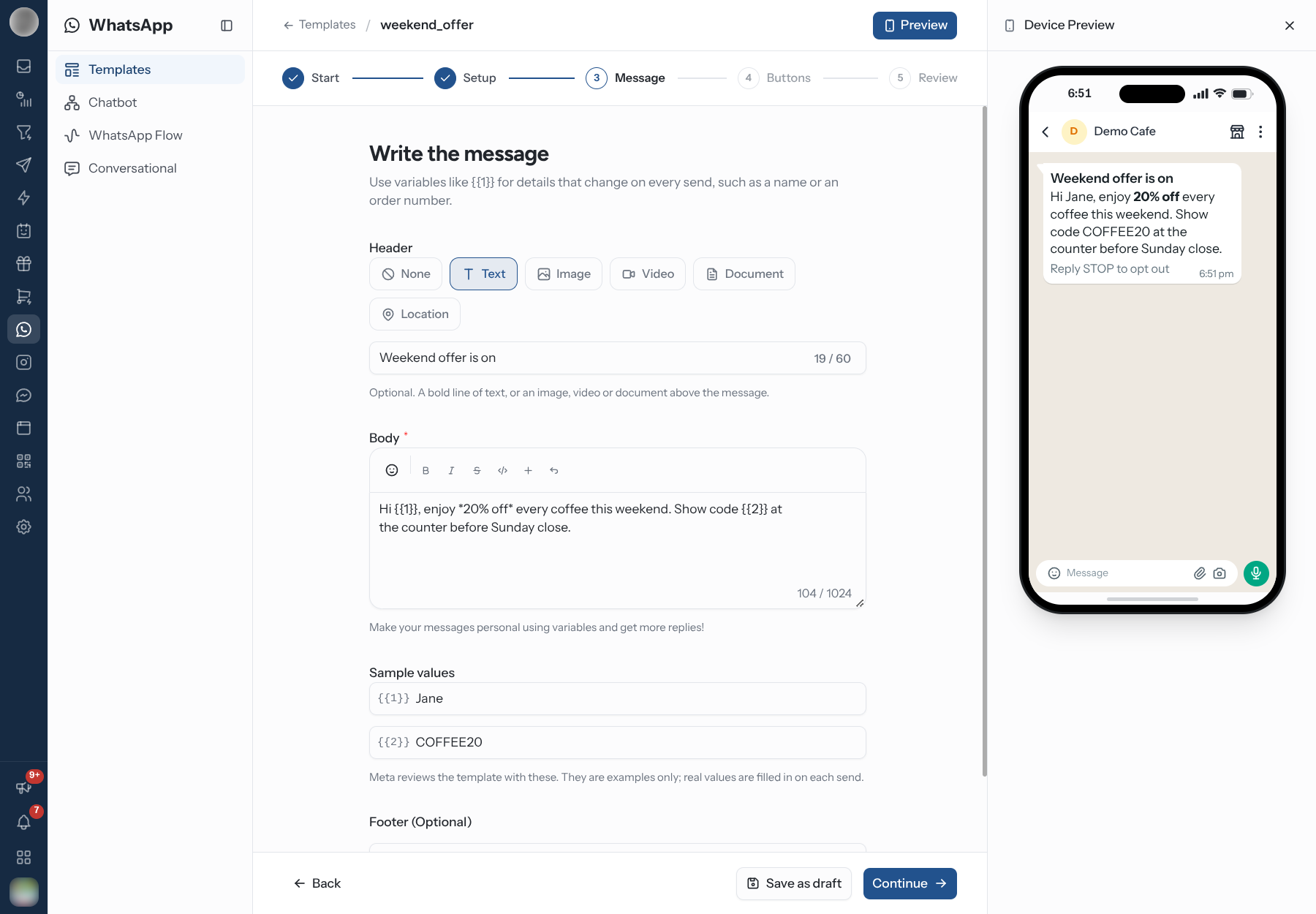
Opening an existing template skips Start and lands on Setup, with every step open. A CAROUSEL or PAYMENT_CONFIRMATION template has no Buttons step. A template started from Meta's library has a Details step instead of Message and Buttons. See Start from Meta's library.
The Header and Footer Bars
| Control | Does |
|---|---|
| Templates | Back to the list. Changes you have not saved are lost |
| Status badge | Where an existing template stands with WhatsApp, such as DRAFT or APPROVED |
| ID | Meta's id for the template. Click to copy. Only on a saved template |
| Edit | Appears on a template already submitted. The fields are read-only until you click it |
| Preview | Opens or closes the phone preview |
| Back / Cancel | The previous step. On the first step, Cancel returns to the list |
| Save as draft | Keeps it in RateUp without sending it to WhatsApp. On every step after Start. Ctrl/Cmd + S does the same |
| Continue | The next step. Disabled until the current step is complete, with the reason in red beside it |
| Submit to Meta | On Review: sends it to WhatsApp for approval. Save & resubmit when editing |
Anything the save rejects appears in a red band on Review, along with whatever WhatsApp reported.
The Setup Step
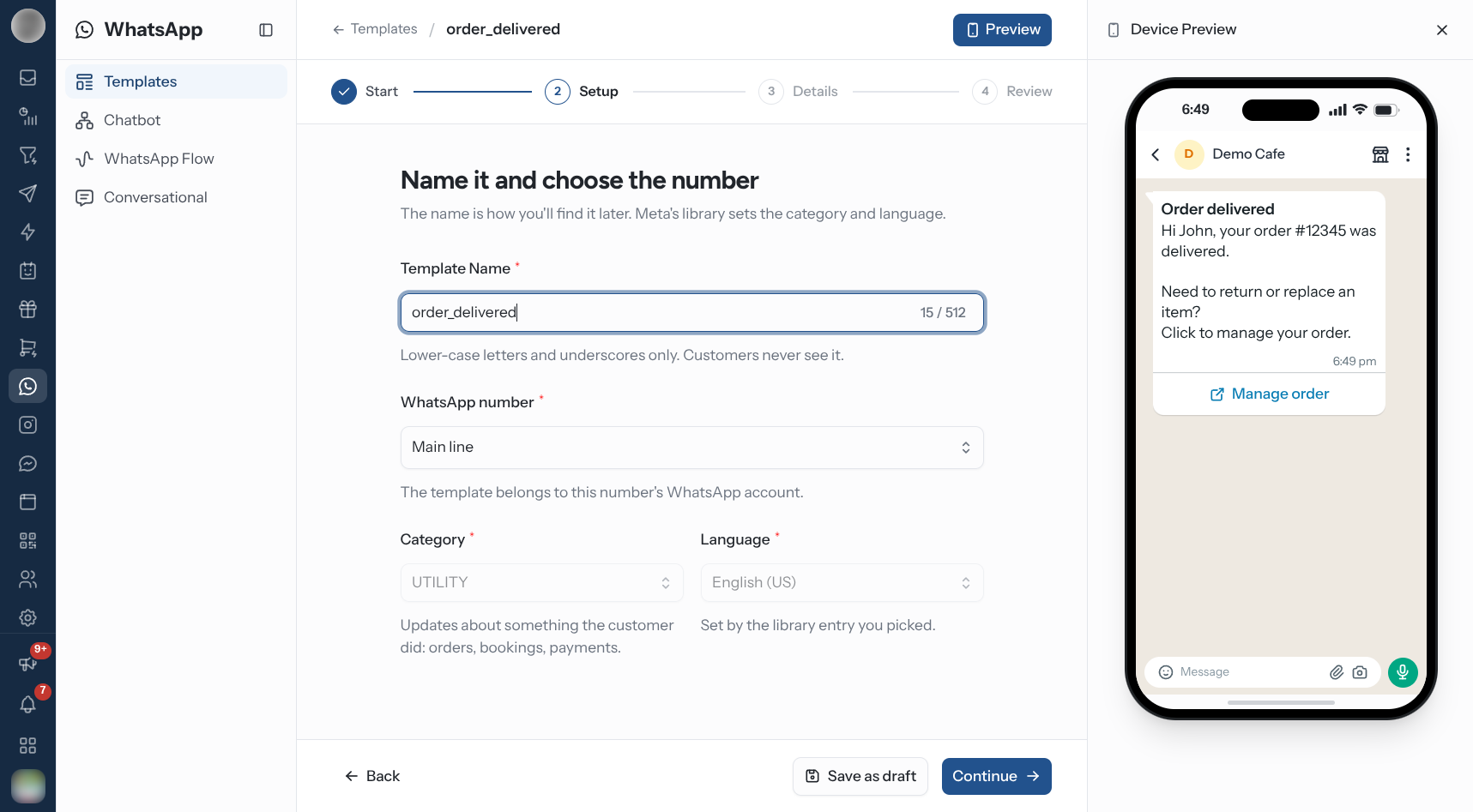
| Field | Notes |
|---|---|
| Template Name | Lower-case letters and underscores only. Customers never see it. Counter runs to 512 |
| WhatsApp number | Which of your numbers owns the template. "A submitted template stays on the number it was created on." |
| Category | MARKETING, UTILITY or AUTHENTICATION. The hint under it says what each is for |
| Language | One template, one language. Send the wrong language and it will not match your audience |
| Template type | What kind of message this is. See Template types |
The Message Step
| Field | Notes |
|---|---|
| Header | None, Text, Image, Video, Document or Location. A Text header is one bold line, up to 60 characters |
| Body | The message. Required, up to 1024 characters. See Writing the body |
| Sample values | One per variable in the body. Appears once the body has a {{1}} |
| Footer (Optional) | Small print, such as "Footers are great to add any disclaimers or to add a thoughtful PS". Up to 60 characters |
| Code Expiration (minutes) | Replaces Footer on an AUTHENTICATION template. Between 1 and 90 minutes |
A CAROUSEL template builds its Cards on this step instead.
The Buttons Step
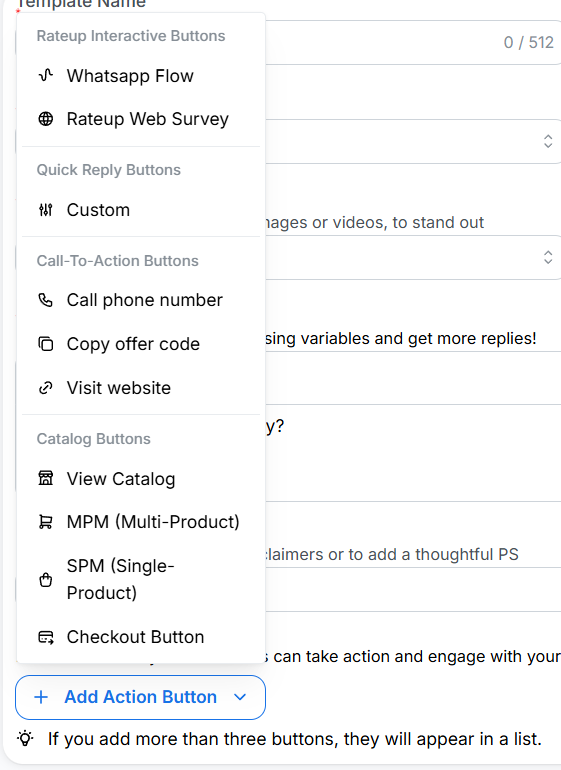
Optional. See Buttons below for every type and the rules on combining them.
The Review Step
A summary of Name, WhatsApp number, Category, Language and Type, each with a Change link back to its step. Read the phone preview once as your customer will, then click Submit to Meta.
Files and Template Types
Header and card files
An Image, Video or Document header takes an uploaded file, and so does each card of a CAROUSEL template. WhatsApp accepts only these formats, so the editor checks the file before saving:
| Where | Accepts | Largest file |
|---|---|---|
| Image header | PNG or JPG | 5 MB |
| Video header | MP4 | 16 MB |
| Document header | PDF (PNG, JPG and MP4 also pass) | 100 MB for a PDF |
| Carousel card | PNG or JPG on an image card, MP4 on a video card | 50 MB |
A file that does not fit is refused on save with a message naming the problem, for example "AVIF files aren't supported. Use a PNG or JPG image, an MP4 video or a PDF.", "The header is set to Image, so choose a PNG or JPG file." or "This file is too large. PNG files can be up to 5 MB." On a carousel the message starts with the card — "Card 2: Each card needs at least 1 button".
Template types
The dropdown shows them in the API's own spelling:
| Type | What it changes |
|---|---|
| GENERAL_NOTIFICATION | The default. You choose the category |
| ORDER_DETAILS | Forces UTILITY and an image header, and adds the checkout configuration below. Cannot be saved as a draft |
| PAYMENT_CONFIRMATION | Forces UTILITY |
| LOYALTY | For loyalty messages |
| CAROUSEL | Forces MARKETING and builds a scrollable card set |
Switching type after you have written the message can move your category out from under you. Pick the type first, then write.
Writing the Body
The toolbar above the body applies WhatsApp's own formatting:
| Button | Produces |
|---|---|
| Bold | *bold* |
| Italic | _italic_ |
| StikeThough | ~struck through~ |
| Monospace | ```monospace``` |
| Add Variable | Inserts the next {{n}} at the cursor |
| Undo the last text formating | Reverts the last formatting change |
There is an emoji picker at the left of the same toolbar.
Variables
Add Variable numbers them for you — {{1}}, then {{2}}, and so on. Each one gets its own
row under Sample values, prompting "Enter the content for {{1}}". The phone preview shows
the sample in place of the variable.
Both variable rules are enforced only when you submit, and both reject the whole template: "Dynamic variables name should is sequential numeric order" if the numbers skip or repeat, and "Please provide example values for all dynamic variables" if any example is blank. Fill the examples in as you add each variable rather than at the end.
Buttons
Click + Add Action Button and pick from the grouped menu. Up to 12 in total — what you may combine is constrained by WhatsApp, and the editor refuses the combination rather than letting WhatsApp reject it later.
| Group | Buttons |
|---|---|
| Quick Reply Buttons | Custom — sends a canned reply back to you. The only type you may have several of |
| Call-To-Action Buttons | Call phone number · Copy offer code · Visit website |
| Rateup Interactive Buttons | Whatsapp Flow opens a flow; Rateup Web Survey opens a web form |
| Catalog Buttons | View Catalog · MPM (Multi-Product) · SPM (Single-Product) · Checkout Button |
| Authentication Buttons | OTP (One-Time Password) — offered only when the category is AUTHENTICATION |
An option you cannot use is disabled with the reason on hover — "Already added", "Only one authentication button allowed", "Remove all buttons to add View catalog button".
| Message you may hit | Meaning |
|---|---|
| "Only one button allowed for this type" | Every type except quick reply is limited to one |
| "Only quick reply buttons are allowed along with checkout button. Remove others to add checkout button" | Clear the other buttons first |
| "Max number of button in buttons should be 12" | Remove one |
Which flows a Flow button can reach
A Whatsapp Flow button's Flow picker lists only published flows recorded against the WhatsApp number this template is being created on. A flow that is missing is on another number — see Flows.
What is accepted on save is wider than what the picker offers: the check is the WhatsApp Business Account, so a flow from any number under the same account passes. Only a flow from a second business account is refused, naming the flow:
The flow "…" belongs to a different WhatsApp number than the one this template is being created on. Pick a flow from that number, or create the template on the number the flow belongs to.
The message says number, but the boundary it enforces is the business account. If you run one business account, any flow of yours is acceptable — you just have to build the template on the number the flow was created on for the picker to offer it.
Order Details & Checkout
Choosing ORDER_DETAILS — or adding a Checkout Button — turns the template into a payable order and adds a configuration block: the item's name, price and tax, the order type, and the payment configuration to charge through.
The category is set to UTILITY and the header to an image for you, because WhatsApp requires both. Save as draft is not offered for this type.
Read-Only After Submission
Once a template has been submitted, its fields lock, and each step says "You're viewing the submitted template. Click Edit to change it". Click Edit in the header, then Save & resubmit on Review. An edit puts the template back through WhatsApp's review.
Editing an approved template is not free: it re-enters review, and until it clears you cannot rely on it for a campaign. If you need a variant in a hurry, create a new template instead of editing the one your campaigns already use.
Troubleshooting
| Symptom | Cause | Fix |
|---|---|---|
| A red toast on Save as draft or Submit to Meta | A field fails a check | The toast shows the first problem found — on a carousel it starts with the card number. If nothing more specific applies it reads "Please check the template and try again." |
| "Button 2 has no text. Fill it in and save again." | WhatsApp rejected a button with a missing field | Fill in that button (numbered from 1) |
| A WebP, SVG, GIF or AVIF image is refused | WhatsApp takes only PNG or JPG images | Convert the image — see Header and card files |
| Name rejected | Capitals, spaces or punctuation | Lower-case letters and underscores only |
| Category keeps changing back | The template type forces it | Change the type, or accept the category |
| Fields cannot be typed in | The template is submitted or approved | Click Edit |
| Approved template will not send | Wrong number, or no consent from the contact | Check the WhatsApp number on Setup and the contact's consent |
Related Pages
- Templates — the list, approval and syncing
- Sending Templates — using one in a conversation
- Campaigns — sending one to many people
- Flow Editor — what a flow button opens