Message Log
Every WhatsApp message sent from Campaigns, the Inbox, templates and the API — searchable, filterable and exportable, with the error behind each failure.
Where Template Delivery gives you the totals, Message log gives you the
individual messages behind them. Open it from Analytics → Message log
(/dashboard/analytics?tab=message-log). It was previously Analytics → Logs, whose second tab,
the audit log, has moved to Settings → Audit log.
This is the view you open when someone says "the customer says they never got it".
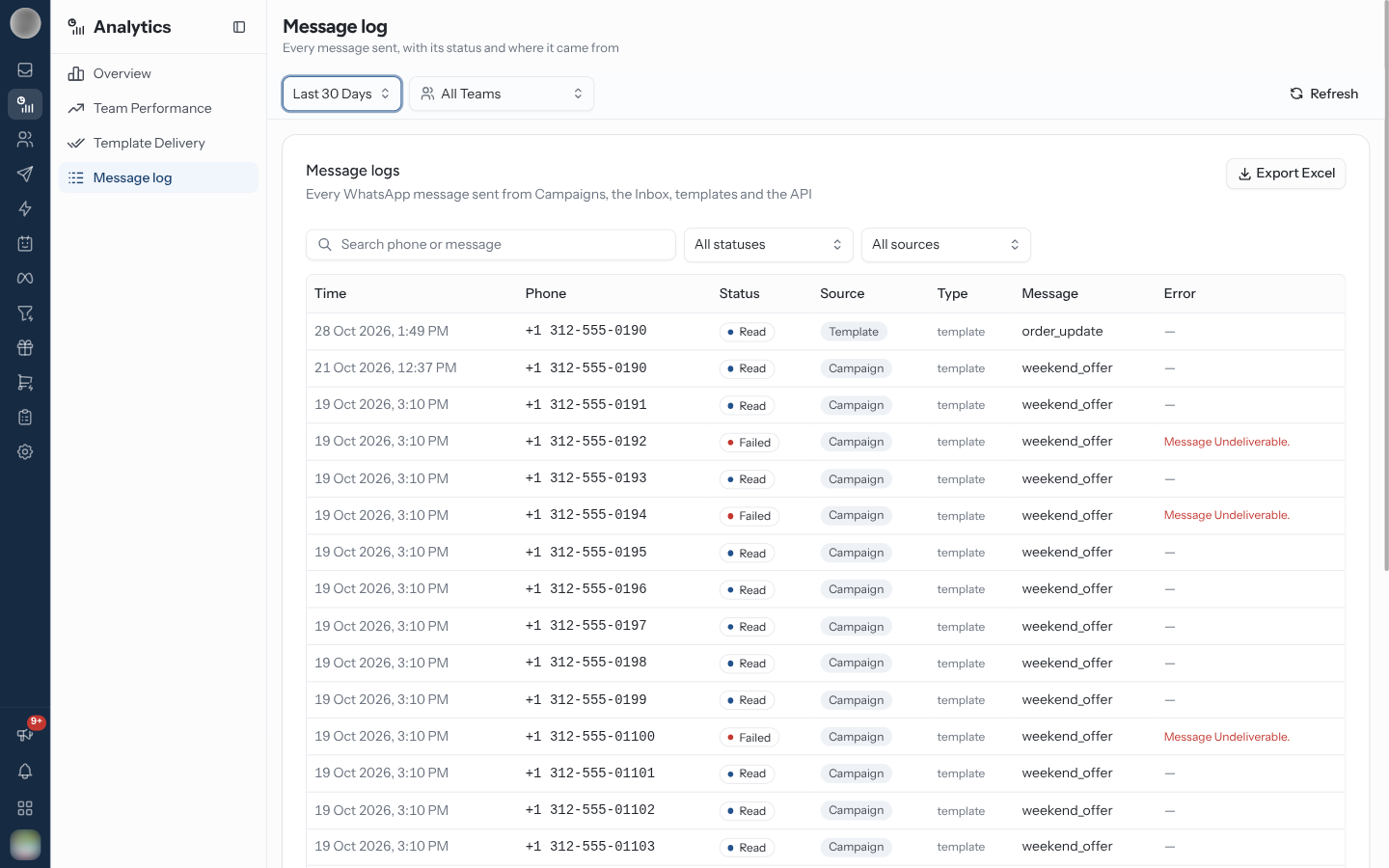
The Columns
| Column | Contains |
|---|---|
| Time | When the message was sent, e.g. 9 Oct 2026, 4:12 PM |
| Phone | The recipient |
| Status | Sent, Delivered, Read, Failed or Pending |
| Source | Campaign, Template, Inbox or External API |
| Type | What kind of message it was |
| Message | A preview of the content |
| Error | On a failed message, WhatsApp's reason. Click it to see the full error |
Rows come 25 to a page, newest first.
Find a Message
| Tool | Use |
|---|---|
| Search phone or message | Matches the phone number or the message text |
| Status | All statuses, Sent, Delivered, Read or Failed |
| Source | All sources, Campaign, Template or External API |
| Date range and Team | From the filter bar at the top of Analytics |
With nothing matching, it reads "No messages match — Try a longer date range, another team, or clear the filters."
Set the date range to cover when the message should have gone out.
Search the customer's phone number.
Set the status to Failed. Click the text in the Error column to read why WhatsApp refused it.
Export the Log
The table sits in a card headed Message logs. Click Export Excel on the card. A "Exporting message logs…" notice shows while the file is prepared. The export follows the search, filters and date range you have set.
Export Excel needs the Export chats and logs ability.
The message log contains customer phone numbers and message content. Treat an export as personal data — do not email it around, and delete it when you are done with it.
Common Investigations
| Question | How |
|---|---|
| "Did this customer get our message?" | Search their number, check Status |
| "Why did this campaign underperform?" | Source Campaign, status Failed, read the Error column |
| "Are our templates being read?" | Source Template, compare Delivered with Read |
| "What did our API send last night?" | Source External API, set the date range |
Related Pages
- Template Delivery
- Audit Log — now under Settings → Audit log
- Integrations — the message status webhook