Spend
What your WhatsApp messages cost in Meta fees, by category, number, team and sender, and a monthly budget that warns you at 80% and 100%.
Analytics → Spend shows what your WhatsApp messages cost in Meta's fees: "What your WhatsApp messages cost in Meta fees, by category, number, team and sender". Use it to see which campaigns and numbers drive your Meta bill, and set a monthly budget so you hear about it before the invoice does.
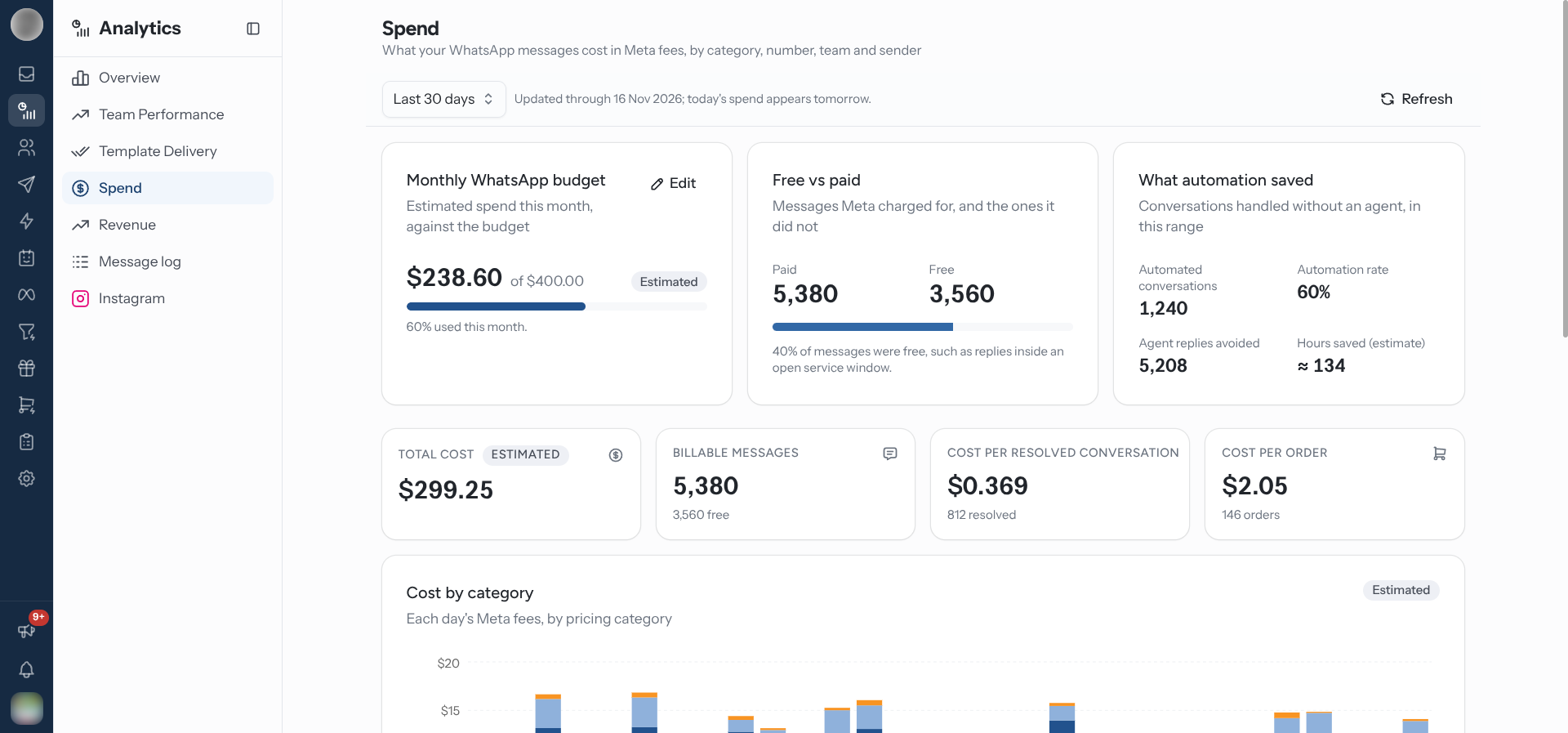
Every figure on this page is an estimate. Meta bills your WhatsApp Business account directly, and your Meta invoice has the exact amount. See How Costs Are Worked Out.
Open the Spend Page
Click Analytics → Spend in the sidebar. You need See analytics, the same as every other Analytics page.
| Control | What it does |
|---|---|
| Date range | Last 30 days (the default), This month, Last month, Last 90 days or Custom Range. A custom range can be at most 366 days. Days are whole UTC days |
| Refresh | Loads the figures again |
| Update note | "Updated through 16 Nov 2026; today's spend appears tomorrow." |
Spend is worked out once a night, shortly after midnight UTC, so the newest day on the page is yesterday. Today's messages never appear until tomorrow, and the date picker will not let you pick today. On a new account the note reads "Spend is worked out overnight; the first figures appear tomorrow."
Read the Cost Tiles
| Tile | Meaning |
|---|---|
| Total cost | Estimated Meta fees for the range, with an Estimated badge when any of it is not your own rate. Hover the badge for how many messages were priced at Meta's list prices and how many at a flat estimate |
| Billable messages | Messages Meta charged for, with the free ones underneath ("N free") |
| Cost per resolved conversation | Total cost divided by the conversations resolved in the range. "No resolved conversations" when there were none |
| Cost per order | Total cost divided by the paid shop orders in the range, in the same currency. Only shown when there were orders |
If your messages are priced in more than one currency, the tiles, the chart and the breakdowns repeat once per currency under a heading such as Spend in USD. Amounts in different currencies are never added together.
See What Was Free
Free vs paid counts the messages Meta charged for (Paid) against the ones it did not (Free), with a bar and a line such as "62% of messages were free, such as replies inside an open service window." Whether a message is free is Meta's decision, read from its delivery reports, not RateUp's.
See Where the Money Went
Cost by category is a bar per day, stacked by Meta's pricing category: Marketing, Utility, Authentication and Service. A bar's height is that day's total. A range where nothing was billed shows "Nothing billed in this range".
Four tables break the same spend down, costliest first. Each has Billable, Free and Cost columns.
| Table | Rows |
|---|---|
| By sender | Each campaign by name (click it to open the campaign), then Automations and flows, Meta AI agent, One-off templates and Inbox replies |
| By category | Marketing, Utility, Authentication, Service |
| By number | Each WhatsApp number, by its display name and number |
| By team | Each team. Messages with no team are No team; a team since removed is Deleted team |
All automation, journey and flow sends share the one Automations and flows row here. To see a single journey or rule's cost next to the orders it brought in, use Revenue.
See What Automation Saved
What automation saved covers "Conversations handled without an agent, in this range":
| Figure | Meaning |
|---|---|
| Automated conversations | Closed conversations no person replied to, where a journey, an automation or Meta AI handled the thread |
| Automation rate | Automated conversations as a share of all closed conversations (automated plus agent-handled) |
| Agent replies avoided | Automated conversations × the average number of replies agents sent in the conversations they handled |
| Hours saved (estimate) | Automated conversations × the agents' average time from first to last reply |
Both of the last two are rough: they assume an automated conversation would have taken as long as an average agent one.
Set a Monthly Budget
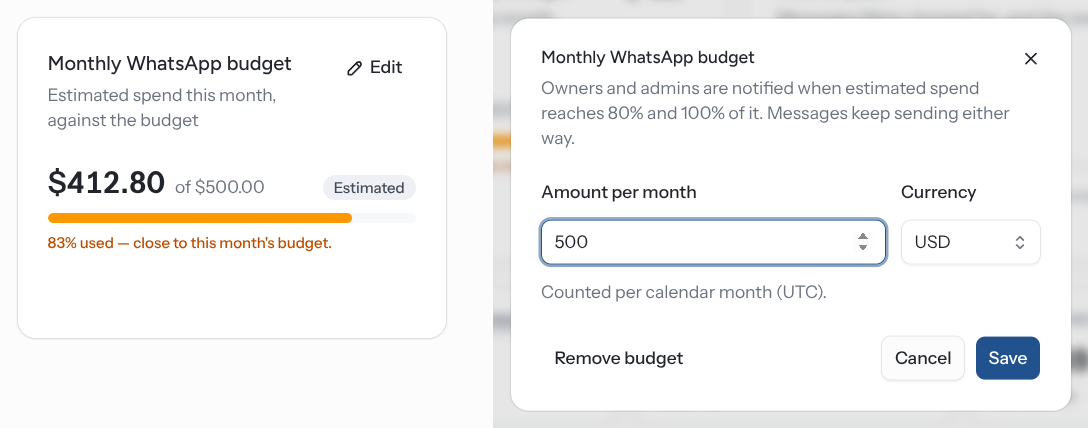
The Monthly WhatsApp budget card compares this month's estimated spend with a budget you set. It always shows the current calendar month (UTC), whatever date range the rest of the page uses.
On Monthly WhatsApp budget, click Set budget (or Edit once one is set).
Enter the Amount per month and pick a Currency. "Counted per calendar month (UTC)."
Click Save. The toast says "Budget saved".
Only spend priced in the budget's currency counts against it, so pick the currency your spend is shown in. To drop the budget, open the dialog and click Remove budget, then Remove.
Only Owners and Admins can set or change the budget (Change the plan and payment). Everyone else with analytics sees the card, or "No budget set. An owner or admin can set one."
What the Budget Warns You About
| Spend this month | Card shows | Notification |
|---|---|---|
| Under 80% | "N% used this month." with a blue bar | None |
| 80% or more | "N% used — close to this month's budget." in amber | "Estimated WhatsApp spend this month is …, N% of your … budget." |
| 100% or more | "N% used — this month's budget is spent. Sends are not stopped." in red | "Estimated WhatsApp spend this month is …, past your … budget." |
Each warning is sent once per level per month, after the nightly update, in the app and by email. It goes to everyone who receives billing alerts — Managers and above by default — as the WhatsApp budget event under Billing in Notifications, and opens this page. A new month starts from nothing, and saving a new or changed budget lets the warnings fire again the same month.
A budget never stops a message. Campaigns, automations and replies keep sending past 100%, and because spend is counted overnight, a big send today only shows against the budget tomorrow. Use the estimate on a campaign's Review step before a large send, not the budget, to decide whether it is worth it.
How Costs Are Worked Out
Each delivered message is priced by Meta's pricing category, in this order:
| Price used | When | Shown as estimated? |
|---|---|---|
| Your own rates | You entered all four under Message rates on Commerce → Overview, in your store's currency | No |
| Meta's list price for the customer's country | No rates of your own. The country comes from the customer's phone number; a customer known only by a WhatsApp user ID is priced at the sending number's country | Yes |
| A flat USD estimate | Neither applies, for example a country Meta prices as part of a region | Yes |
The list prices are Meta's published per-country rates in USD, as loaded into RateUp; they ignore volume tiers and any discount you have with Meta. Entering your own rates under Message rates ("Find your rates in WhatsApp Manager under Insights") gives the closest figure.
Who Sees What
| Viewer | Sees |
|---|---|
| Can see every team | Everything on the page |
| Limited to some teams | Only the spend of their teams' messages. What automation saved, Cost per order and the resolved-conversation count are organisation-wide, so they are left out |
Troubleshooting
| Symptom | Cause | Fix |
|---|---|---|
| Today's campaign is not on the page | Spend is counted overnight | Check tomorrow; the update note says which day the figures run to |
| "No billable messages in this range" | Nothing was sent, or it has not been counted yet | Try a longer range |
| The total does not match Meta's invoice | List prices or the flat estimate, not your own rates | Enter your rates under Message rates on Commerce → Overview |
| The budget stays at 0% though you are spending | The budget is in a different currency from your spend | Edit the budget and pick the currency shown on the tiles |
| No Set budget button | Setting a budget needs Change the plan and payment | Ask an Owner or Admin |
Related Pages
- Revenue — what that spend brought in
- Creating a Campaign — the estimated cost before you send
- Commerce Overview — Message rates and Messaging cost vs revenue
- Notifications
- Template Delivery