Creating a Campaign
The six-step wizard — basics, template, audience, schedule, retries and review — saved as a draft as you go.
Create Campaign opens a guided wizard. Every step saves to a Draft campaign as you move through it, so you can leave at any point and pick up where you stopped — nothing is sent until you press the launch button on the last step.
Before You Start
| You need | Where |
|---|---|
| An approved template | Message Templates — only approved templates are listed |
| A connected WhatsApp number | Channels |
| An audience | Contacts, audiences, a segment or a past campaign |
| For a marketing template: a WhatsApp account set up for Meta's Marketing Messages API | Channels — see Marketing Templates Need Marketing Messages |
| Campaign credits | Billing — one credit per message to one recipient |
How the Wizard Works
The rail across the top shows the steps and ticks each one off as it is completed. Click a step to jump to it. A Drip campaign has no Retries step, so it runs to five steps instead of six.
| Footer button | What it does |
|---|---|
| Back | The previous step |
| Save & exit | Saves the step you are on and returns to the campaigns list, with a "Draft saved" toast |
| Next | Saves the step and moves on. Not shown on Review |
| Discard draft | Deletes the draft and everything set up on it, after a confirmation. Only shown while the campaign is still a draft |
The badge in the top right reads Draft · saved just now after each save. Only Basics and Template are required — every other step can be left at its defaults.
Create a Campaign
Basics
Click Create Campaign. On "Let's start with the basics", fill in:
| Field | Notes |
|---|---|
| Campaign name | "Internal only — recipients never see this." Required |
| Team | "Controls who can edit and see results." Required |
| Campaign type | Broadcast or Drip — fixed once the draft is created |
Click Next to create the draft.
Template
For a broadcast, pick one template under Choose a template. Search with Search templates, or narrow the list to All, Marketing or Utility. Beside the list sit Variable mapping and Template details.
The message itself is shown in the Device Preview panel on the right, which opens by itself on this step: the template as the recipient will see it in WhatsApp, with the variables filled in. The Preview button in the header hides and shows it. The panel closes when you move on to Audience.
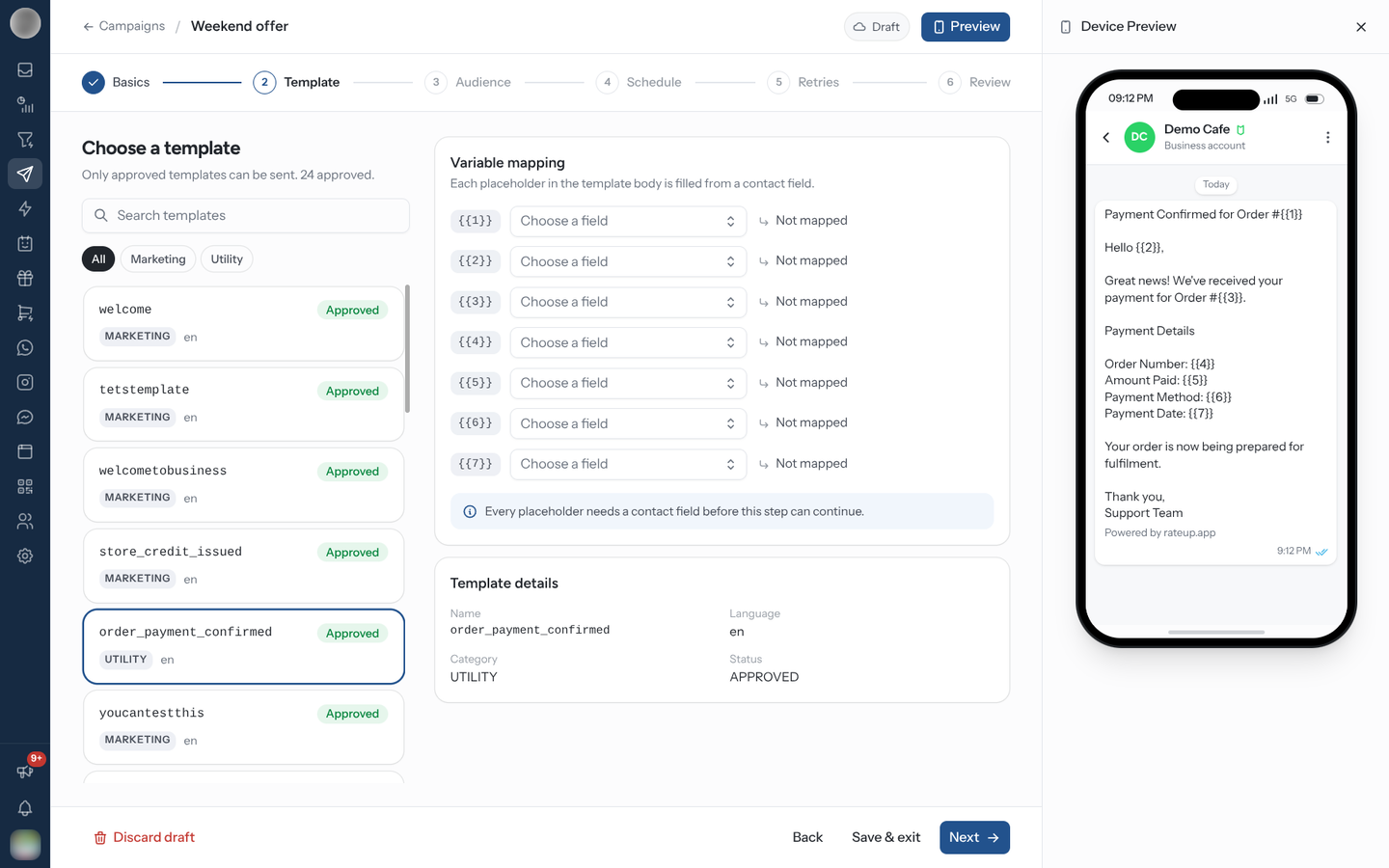
Under Variable mapping, every placeholder in the template body — {{1}}, {{2}} — must be
mapped to Contact name or one of your custom fields. Until they are,
Next stops with "Map every placeholder to a contact field to continue."
For a drip, "Build the sequence": each Stage has a template, a delay in minutes, hours or days, and a time of day. "Each stage sends once, the given delay after the contact joins." Use Add stage for more and Remove stage to drop one. Every stage needs a template. The Device Preview panel shows the first stage's template.
Audience
"Who should receive this?" Pick recipients from three tabs:
| Tab | Adds |
|---|---|
| Individual | Contacts you tick. Filters narrows the list by label, pipeline stage (or lifecycle), source and a custom-field value |
| Audience | Everyone in an audience or a segment. A segment is listed under its own name beside your hand-made audiences. Filters set on screen also narrow which members are added |
| Campaign | The audience of a past campaign, filtered by Message Status — COMPLETED, NOT COMPLETED, PENDING or FAILED |
When a search or filter is active, Add all matching enrols every contact that matches, across all pages — not just the page you can see. Anyone already on the campaign is skipped.
Only contacts you can reach on WhatsApp are listed — those with a phone number or a WhatsApp user ID — and an audience's count reflects those members. A contact who is also on Instagram or Messenger (after a merge, say) is listed like any other, and searching by their number finds them. "Audiences and campaigns are added as individual recipients when saved", so later changes to a hand-made audience do not change the campaign.
A dynamic segment is the exception: it keeps the campaign up to date. Just before the campaign sends — at launch, or when a drip starts — RateUp checks the segment again, adds anyone who has joined it since, and drops recipients who have left and have not been messaged yet. A running drip takes in the segment's changes after each hourly check. Nobody already messaged is removed. See When a Segment Is Checked.
This step is optional: "Optional — you can add recipients after saving."
Schedule
"When should it go out?" Choose Send now or Schedule. A scheduled send takes a date, Time and Timezone.
| Setting | Effect |
|---|---|
| Daily send limit | Off by default. Turn it on and set Messages per day to spread the send. The step shows when it will finish — "N recipients at N/day → finishes" a date |
| Only send to contacts who opted in | On by default. Skips contacts with no recorded WhatsApp opt-in. "Recommended — required for marketing templates in several countries." |
On a metered plan the step also says how many campaign credits the send will use and how many you have left. Below that is the estimated cost of the send in Meta's fees.
Retries
Broadcasts only. "Recover messages Meta blocks" — turn on Retry blocked messages to re-send messages Meta refused for a reason that can clear on its own, such as a marketing frequency cap (error 131049). See Automatic retries for the strategies and what is retried.
Review
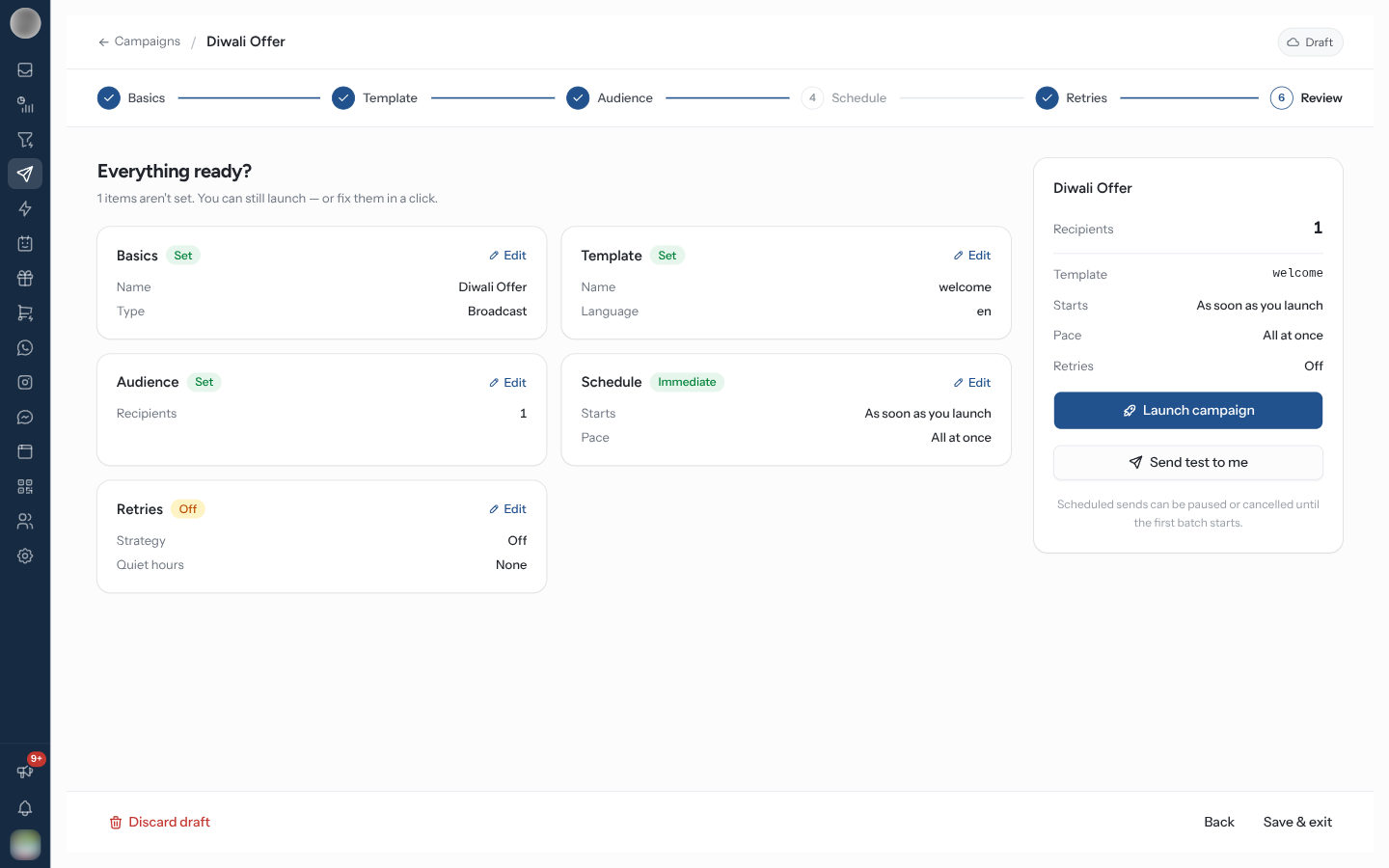
"Everything ready?" One card per step, each with a badge — Set, Needed, Empty, Scheduled, Immediate, On or Off — and an Edit link back to it.
The right-hand rail shows the recipients, template, start time, pace and retries, and on a metered plan Campaign credits after launch, then the estimated cost in Meta's fees. Click Launch campaign — or Schedule campaign when a send time is set.
When you launch, the wizard opens the campaign page.
Send a Test First
Send test to me on the Review step sends the real template to one number before you commit the whole audience.
Click Send test to me.
Under Send a test to, search your contacts by name or number, or enter a number with its country code.
Click Send test.
If the number belongs to one of your contacts, the test is filled in with their own name and fields; otherwise the template's example values are used. A template with a Flow button sends the button too.
The test is not a campaign send: it adds no participant and moves none of the campaign's numbers. It is still a real WhatsApp message — "Meta charges for it like any other message."
A mis-mapped variable goes out to your entire list at once and cannot be recalled. Send a test to yourself and read it on your phone before you launch.
Campaign Credits
| Message on Review | Meaning |
|---|---|
| "Uses N of N credits left" | What the launch will spend |
| "Uses N of N credits left — N stages each" | A drip spends one credit per stage per recipient |
| "N campaign messages are beyond your credits and will not be sent." | The audience is bigger than your remaining credits |
| "Your campaign credits are used up, so nothing would be sent." | Launch is disabled until you Buy credits or Upgrade |
Retries use a credit too. If credits run out mid-send, the campaign pauses rather than failing the rest.
Check the Estimated Cost
The Schedule and Review steps show what the send is likely to cost in Meta's fees, e.g. "≈ $42.50 in Meta fees, estimated" — "If every message is delivered."
docs/screenshots/campaigns/review-spend-estimate.png| Part of the estimate | How it is worked out |
|---|---|
| Messages | Recipients × messages each — a drip counts every stage |
| Price per message | The template's Meta category (marketing, utility or authentication) at your own Message rates if you set them on Commerce → Overview, otherwise Meta's list price for the sending number's country, otherwise a flat estimate |
| estimated | Shown unless your own rates were used |
It assumes every message is delivered and every recipient is in the sending number's country, so sends to customers abroad or with many failures will cost differently. Your Meta invoice has the exact amount; Spend shows the estimate for what was actually sent.
If you have a monthly WhatsApp budget in the same currency and this send would take the month past it, the notice turns amber: "This send would take this month past your WhatsApp budget: $480.00 → $522.50 of $500.00. It will still be sent." It is only a warning — Launch campaign stays as it is.
Marketing Templates Need Marketing Messages
Meta sends every Marketing template through its Marketing Messages API, and that only works for a WhatsApp Business account whose business has accepted Meta's Marketing Messages terms. RateUp checks each account's status every day and whenever you open its WhatsApp settings, and shows it there as Marketing Messages: active, Marketing Messages: not set up or Marketing Messages: not checked yet (see Channels).
When a campaign uses a marketing template — in a drip, on any stage — and the account it sends from is not set up, RateUp refuses to start it. Nothing is sent and no credits are used. You see: "This campaign sends a marketing template, and the WhatsApp Business Account it sends from is not set up for Marketing Messages yet. Accept Meta's Marketing Messages terms in WhatsApp Manager (Overview → Alerts), then send again." The message carries an Open WhatsApp Manager button that opens that account in WhatsApp Manager. The same check runs when you resume or retry a campaign, and when you start a drip.
Click Open WhatsApp Manager (or open WhatsApp Manager for that account yourself).
Under Overview → Alerts, accept the Marketing Messages terms. This needs an admin of the business portfolio.
Back in RateUp, launch the campaign again.
An account whose status has not been checked yet is never blocked; the check only stops a send that Meta would refuse for every recipient. Utility and authentication templates are not affected.
Edit or Add to a Campaign Later
Edit on the campaign page reopens the wizard on its Review step; Send to more opens it on Audience. On a campaign that has already gone out, Review says "This campaign has already been sent. Only the N recipients it has never messaged will be sent to — nobody is messaged twice." and the button reads Send to N new recipients.
Troubleshooting
| Symptom | Cause | Fix |
|---|---|---|
| The template is not in the list | It is not approved, or not available to the campaign's team | Check its status in Message Templates |
| Next will not leave the Template step | A placeholder has no contact field | Map every row under Variable mapping |
| Launch campaign is disabled | No template, or no campaign credits | "Add a template before launching — everything else is optional." or buy credits |
| Launch stops with "…is not set up for Marketing Messages yet…" | A marketing template from a WhatsApp account that has not accepted Meta's Marketing Messages terms | Accept the terms in WhatsApp Manager, then launch again |
| No cost estimate on Review | The send could not be priced, or has no recipients yet | Add recipients; the campaign still sends without it |
| The segment's members changed but the recipient count did not | Segments are re-checked just before the send, not while you edit | Expected — the send goes to who matches at launch |
| A test never arrives | The number has no country code | Use the country picker — "N's number has no country code. Fix it above to send." |
| Fewer people received it than were added | Only send to contacts who opted in skipped those without consent | Expected — check consent on Contacts |
Related Pages
- Campaign Details — monitoring the send
- Pausing, Resuming & Retrying
- Message Templates
- Audiences
- Segments
- Spend — what your sends cost, and the monthly budget