Audiences
Explicit, team-owned lists of contacts — create them, manage members, import straight into them, and send campaigns to them.
An audience is a list you put contacts into deliberately. Audiences are what campaigns are sent to. Every audience belongs to a team.
Audiences were previously called Groups.
Open Contacts → Audiences (/dashboard/contacts/audiences).
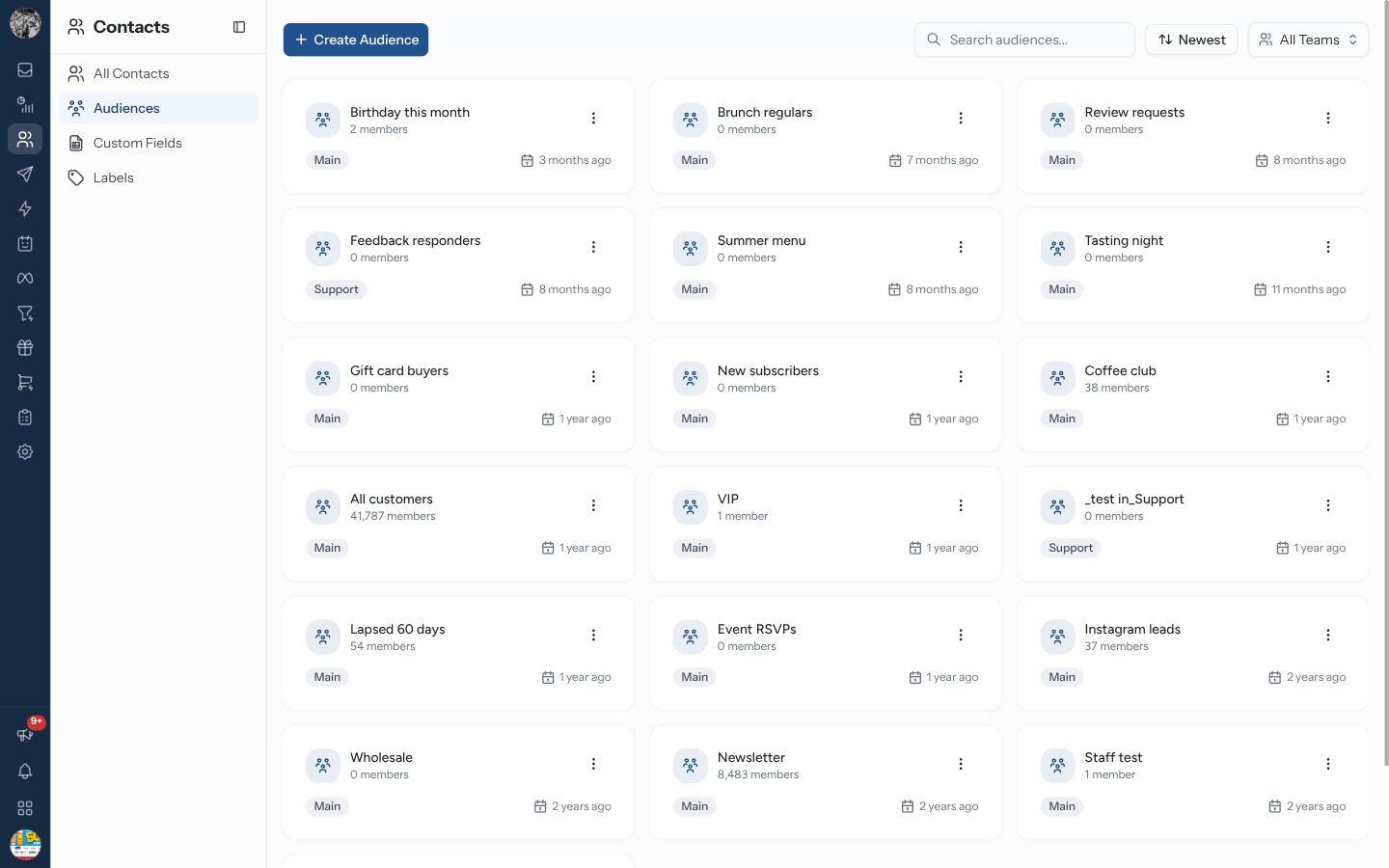
Each audience is a card showing its icon, name, how many members it has, owning team and creation date. Click a card to open the audience. Use Search audiences... to find one once you have several, sort the cards (newest first by default) and narrow them to one team with the team picker (All Teams).
Create an Audience
Click Create Audience. The Create New Audience dialog opens.
Enter an Audience Name. Name it for the people in it, not the campaign — Newsletter subscribers outlives March mailer.
Pick the team that owns it under Select Team. This is required.
Optionally Upload Icon — an image shown on the card.
Click Create Audience.
To rename an audience, change its team or icon, open the card's ⋮ menu and choose Edit Audience.
Inside an Audience
docs/screenshots/contacts/audience-page.pngThe top of the page shows the audience's icon, its name, how many members it has and the owning team.
| Control | What it does |
|---|---|
| Audiences | Return to the list |
| Icon | Click to open Audience icon — Upload new icon (a square image, at least 200×200 pixels) or Remove icon |
| Rename | Edit the name in place — Enter or ✓ saves, Esc or ✕ cancels |
| Delete Audience | Delete the audience — see below |
Below sits the members table. Search it with Search by name or phone....
Add Members
There are three ways to put people in an audience:
| From | How |
|---|---|
| The audience page | Add existing, New contact or Import |
| Contacts list | Tick contacts → Add to Audience |
| A contact's details | Audiences → Add to audience, or the Audience field when adding or editing a contact |
From the audience page
| Button | What it does |
|---|---|
| Add existing | Opens Add existing contacts — "Tick the contacts to add to" the audience |
| New contact | Opens Add Contact. The contact you create lands in the audience |
| Import | Imports a file — "Each row becomes a contact in this audience." |
Click Add existing.
Find people with Search Contact, or narrow the list with Filter by audience (to pull members of other audiences) and the label, stage, source and custom-field filters. Current members are shown ticked and locked.
Tick the contacts you want — or Select all on this page — and click Add N contacts.
While a search or filter is active, Add all N matching adds every contact that matches, across all pages. Anyone already in the audience is skipped.
Importing into an audience works like the main contact import — same columns, same Update contacts that already exist and header-row switches, same background progress — but every valid row in the file is also added to this audience, whether the contact was created, updated or left as it was. The summary adds an Added to this audience count.
Remove Members
Tick members in the members table.
Click Remove from audience. Clear selection unticks them instead.
You can also remove one person from an audience in their contact details — in the Audiences section.
Removing someone from an audience does not delete the contact — it only takes them off that list.
Delete an Audience
Use Delete Audience on the audience page, or ⋮ → Delete Audience on its card, and confirm "Are you sure you want to delete this audience?"
Deleting an audience removes the list only. Its members stay in your contacts, in their other audiences, with everything else about them intact.
Audiences vs Labels
This is the distinction people get wrong most often:
| Audiences | Labels | |
|---|---|---|
| Are | Lists you build | Tags describing a trait |
| Answer | "Who should get this campaign?" | "What is true about this person?" |
| Owned by | A team | The whole organisation |
| Visible in the Inbox | No | Yes, on every conversation row |
| Typical name | Newsletter subscribers | VIP, Refund pending |
Rule of thumb: if you would ever want to send something to it, it is an audience. If it describes what someone is, it is a label.
Designing Your Audiences
- Keep them purposeful — an audience nobody sends to is dead weight
- Prefer a few durable audiences over one per campaign
- Review membership before big sends; audiences drift
Related Pages
- Campaigns — the main consumer of audiences
- Labels
- Managing Contacts