Customer Timeline
A contact's lifetime spend, orders, loyalty and survey score at a glance, and one timeline of everything that happened with them.
Every contact has a summary and a timeline. The summary shows what the customer has spent, their orders, their loyalty points and their latest survey score. The timeline lists their conversations, orders, payments, loyalty, surveys, leads, campaigns and ad clicks in one place, newest first.
You will find both in three places:
| Where | Summary | Timeline |
|---|---|---|
| A contact's details: Contacts → All Contacts, then click a name. See View a contact's details | Under the header | The Timeline section |
| The inbox's Ticket Details panel | The Customer section | The Timeline section, below Identities |
| The mobile app's contact screen | At the top | The Timeline section |
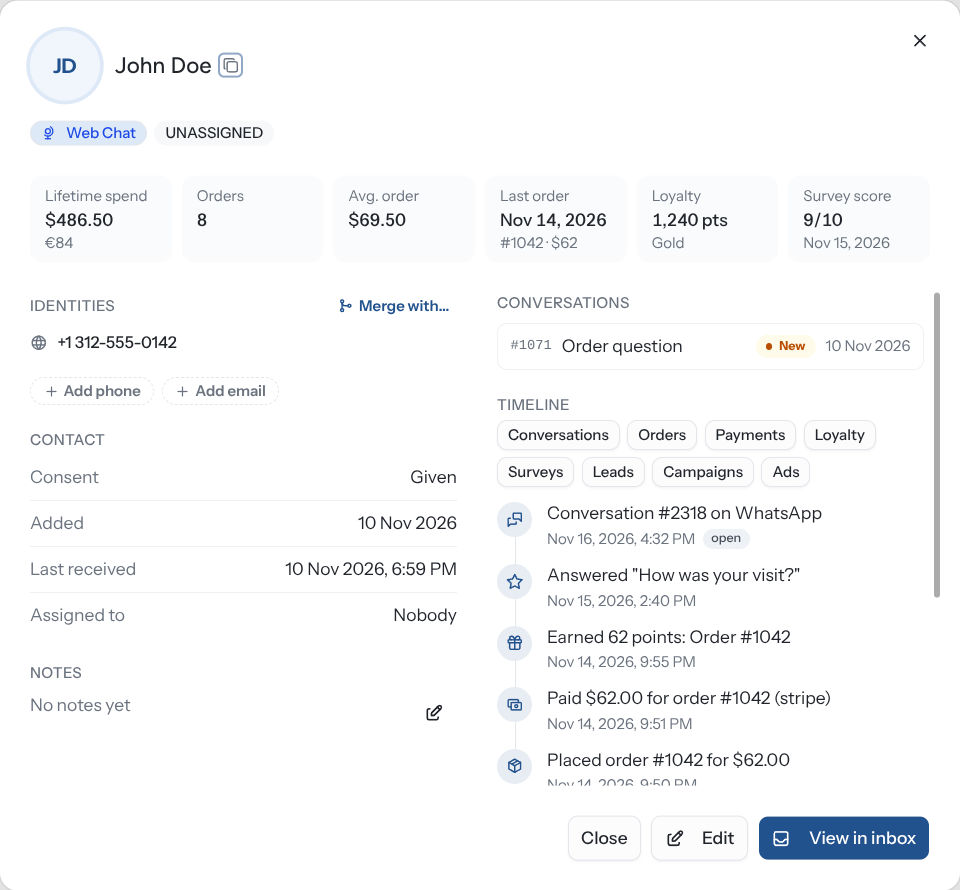
Read the Summary
| Tile | Shows |
|---|---|
| Lifetime spend | The total of their paid orders in the currency they spent most in. Spend in any other currency is listed underneath |
| Orders | How many paid orders they have placed, in every currency |
| Avg. order | Their average order value, in the same currency as Lifetime spend |
| Last order | The date of their latest paid order, with its number and total |
| Loyalty | Their points balance (… pts) and their tier, or the programme name if they have no tier |
| Survey score | Their latest survey score out of 10, and the date of their latest response |
| Open lead | Inbox only: the stage and pipeline of their open lead, if they have one |
A tile with nothing to show reads —.
Only paid orders count, including partly refunded ones. A fully refunded order drops out. The amount is the order total, the same figure the orders page shows.
Survey score comes from the most recent Opinion Scale or Rating answer, on a 0–10 scale. A 1–5 rating is doubled, so 4 stars shows as 8/10. It is the same score the Latest survey score (0–10) field in segments uses.
The four order tiles (Lifetime spend, Orders, Avg. order and Last order) appear only if your role can see Commerce. Without that access the summary starts at Loyalty.
Read the Timeline
Each row has an icon for its kind, a one-line summary and the date and time. Some rows also carry a status badge. Click a row with a link to open what it is about.
| Kind | A row looks like | Opens | Needs access to |
|---|---|---|---|
| Conversations | Conversation #1042 on WhatsApp, closed, one row per ticket, not per message | The contact's conversations in the Inbox | Inbox |
| Orders | Placed order #1001 for $45, plus a row for each change to the order | The order | Commerce |
| Payments | Paid $45 for order #1001 (…), or Refunded $10 of $45 on order #1001 | The order | Commerce |
| Returns | Asked to return order #1001: … | The order | Commerce |
| Loyalty | Earned 50 points or Redeemed 100 points | — | Loyalty |
| Surveys | Answered "…", with the survey's title | — | Surveys |
| Reviews | Asked for feedback, or Asked for feedback, and answered | — | Loyalty |
| Leads | Lead … created, … moved to …, … won, … lost, and notes on the lead | The pipeline | Pipelines |
| Campaigns | Sent campaign "…" | The campaign | Campaigns |
| Ads | Clicked the ad "…", or Clicked an ad | — | Contacts |
The row summaries are written in English, whatever language the dashboard is set to.
The timeline leaves out any kind your role cannot see, and it has no chip for that kind either. A role without Commerce access sees no orders, payments or returns anywhere on the profile.
Filter and Page Through It
- Filter chips sit above the rows, one for each kind this contact has and you may see. Click a chip to show only that kind, and click more to add them. Click a chip again to turn it off. With no chip on, every kind shows. The chips are hidden when the contact has only one kind of event.
- The newest five rows show first. Show more adds ten more, loading older history as needed, and Show less goes back to five.
"Nothing here yet." means the contact has no events you can see, or none of the kinds you picked. "Could not load the timeline." comes with a Try again button.
After a Merge
When you merge two contacts, the history of both lands in one timeline, and the summary adds up the orders of both.
Troubleshooting
| Symptom | Cause | Fix |
|---|---|---|
| No spend or order tiles | Your role cannot see Commerce | Ask an admin for Commerce access — see Members & Roles |
| Lifetime spend is lower than the customer's orders add up to | Unpaid and fully refunded orders are left out | Check the order's payment status on the orders page |
| Survey score reads — although they answered a survey | Only Opinion Scale and Rating questions give a score | Add one of those questions to the survey — see Question Types |
| A survey answer is missing from the timeline | The response is not linked to this contact | — |
| A chip you expected is missing | The contact has no events of that kind, or your role cannot see it | — |
Related Pages
- Managing Contacts
- Ticket Details Panel
- Segments: find every customer who matches a pattern
- Merging Contacts
- Orders
- Loyalty