Sending Templates
Use approved WhatsApp templates to message customers inside or outside the 24-hour window.
WhatsApp templates are pre-approved messages. They are the only way to write to a customer once the 24-hour window has closed — and they are useful inside it too.
When You Need a Template
| Situation | Free-form reply | Template |
|---|---|---|
| Customer messaged in the last 24 hours | ✅ | ✅ |
| More than 24 hours since their last message | ❌ | ✅ |
| You are starting the conversation | ❌ | ✅ |
The countdown in the chat header shows how long the current window has left. When it runs out, the composer switches to template-only options automatically.
Send a Template
Open the ticket in the Inbox.
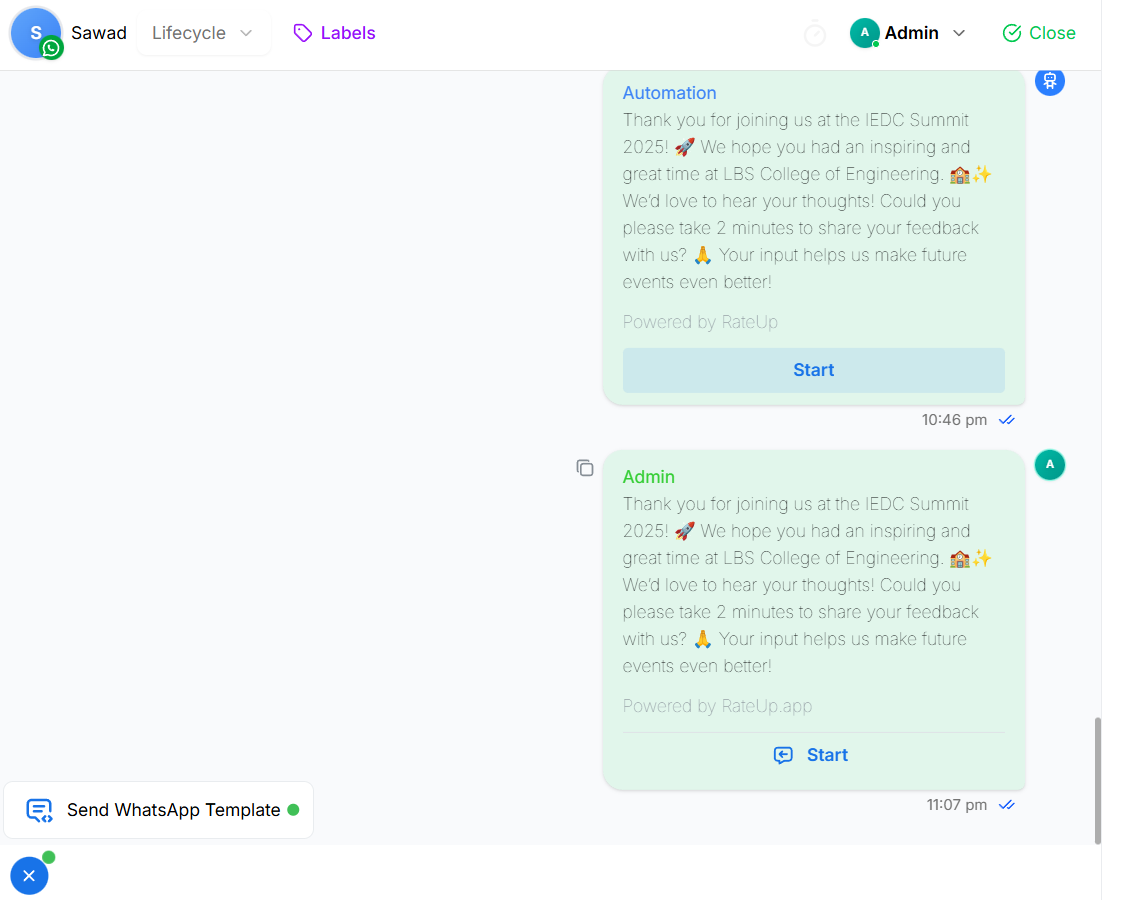
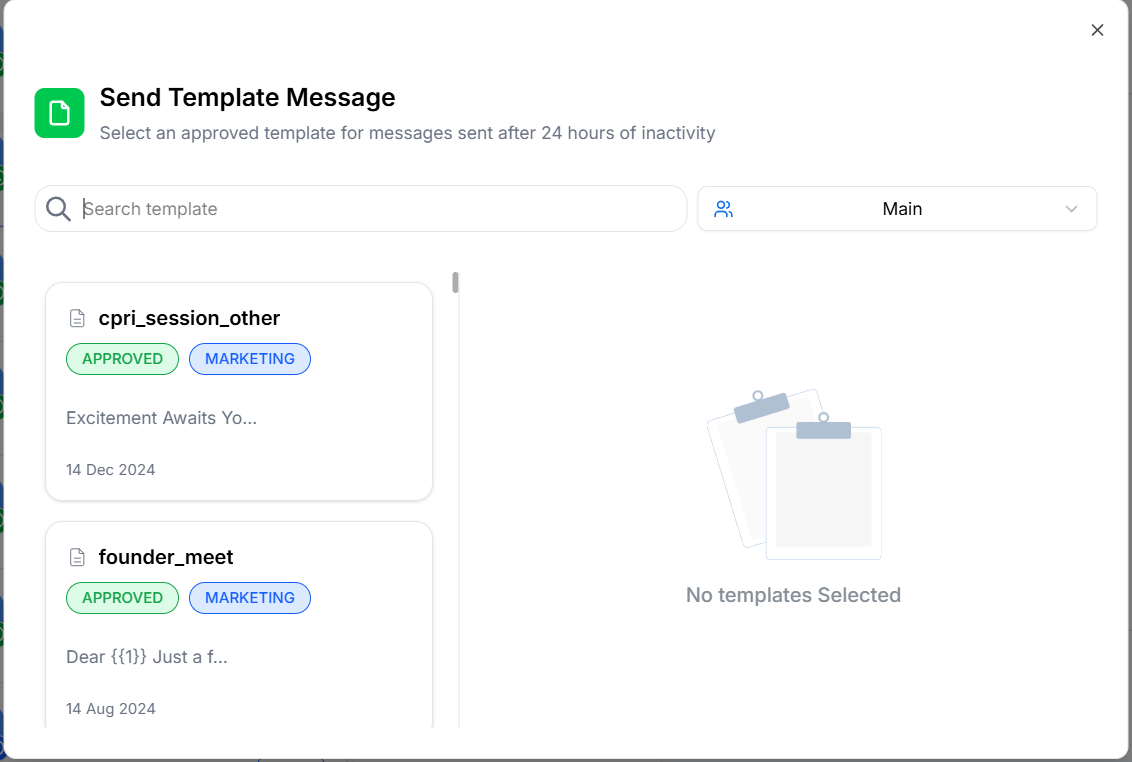
Inside the 24-hour window, click Template in the composer toolbar (under ⋯ on a phone). Outside it, click the pulsing + button and choose Send WhatsApp Template.
Pick an approved template from the list.
Fill in any variables the template requires, and review the preview.
Click Send. The template card appears in the thread straight away — the same card you just previewed — marked with a clock until WhatsApp confirms it. See Replying for what the clock means and what a failed send looks like.
After the Window Has Closed
When the 24-hour window has expired:
- The message box, the Private Note tab and the toolbar are replaced by a single + button with a pulsing green dot
- Its menu offers only Send WhatsApp Template
- Only templates approved by WhatsApp can be sent
Once the customer replies to your template:
- A new 24-hour window opens automatically
- Free-form replies, quick replies and flows become available again
Inside the Window
Templates still work while the window is open. Use one when you want:
- Consistent, approved wording
- A structured update — order status, appointment reminder
- A message with buttons or a defined layout
Manual replies and templates can sit side by side in the same ticket.
Templates vs Manual Messages
| Manual message | Template | |
|---|---|---|
| Availability | Inside the 24-hour window only | Any time |
| Approval required | No | Yes, by WhatsApp |
| Personalisation | Full | Limited to variables |
| Best for | Live conversation | Re-engagement and structured messages |
Consent
A customer who has not given consent cannot be sent template messages. Their name carries a DND badge in the chat header, and consent is shown in the Ticket Details panel.
Who Can Do What
| Role | Send templates | Create & edit templates |
|---|---|---|
| Owner, Admin | ✅ | ✅ |
| Manager | ✅ | ✅, if their team grants the templates feature |
| Staff, Agent | ✅ | ✅, if their team grants the templates feature |
Frequently Asked
Best Practices
- Use templates for re-engagement, not as a substitute for a real reply
- Keep the content relevant to that specific customer — generic templates get reported as spam
- Get templates approved before you need them, not during an incident
- Watch for the reply, so you can continue in free-form while the window is open
Related Pages
- Replying to Customers
- WhatsApp Templates — creating and approving templates
Replying to Customers
Send messages, quick replies, attachments, templates and chatbots; copy, react to and download messages — and understand when the composer is locked and why.
WhatsApp Voice Calls
Answer customers' WhatsApp voice calls in your browser, call a customer from their chat once they allow it, and find every call in the thread and in Analytics.