Calls
Every WhatsApp voice call your team took or made — who is on a call right now, the call log, and answer rate, missed calls and busiest hours.
Calls lists every WhatsApp voice call your team took or made, and shows how calling is going.
Open it from Analytics → Calls. It used to sit under WhatsApp; old links to
/dashboard/whatsapp/calls now land here.
Calls only appear once calling is turned on for a number — see WhatsApp Voice Calls.
See Who Is on a Call Right Now
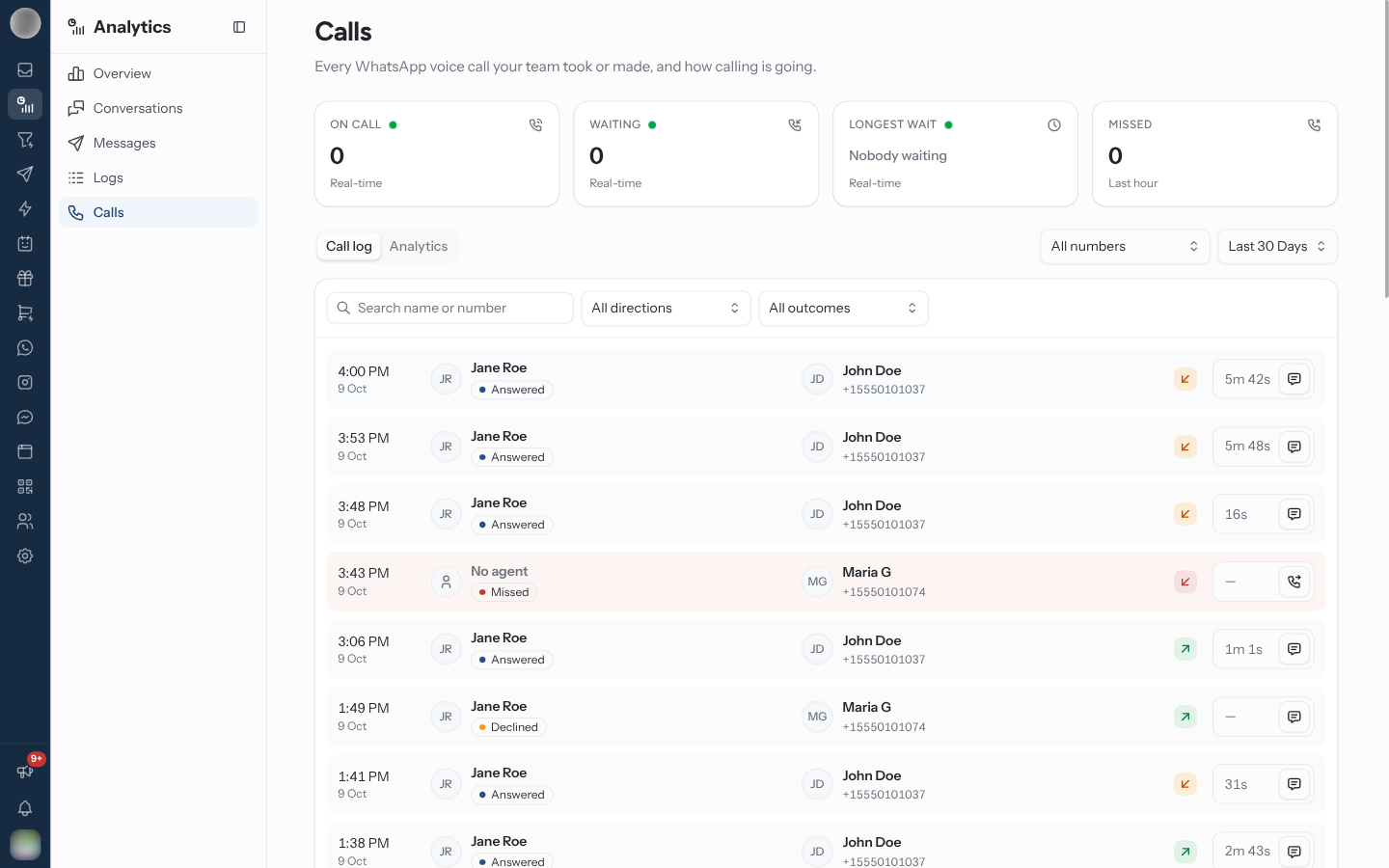
Four tiles sit at the top. They read the phones as of this moment and ignore the date range below them:
| Tile | Meaning |
|---|---|
| On call | Calls in progress |
| Waiting | Customers calling in whose call is still ringing |
| Longest wait | How long the longest-ringing of them has waited, counting up live. Nobody waiting when none are |
| Missed | Incoming calls nobody answered in the last hour |
The first three carry a pulsing green dot and the note Real-time. The tiles refresh every 15 seconds, and sooner when a call event arrives.
Narrow the Page
| Control | What it does |
|---|---|
| Number | One of your WhatsApp numbers, or All numbers. Only shown when you have more than one |
| Date range | Today, Yesterday, Last 7 Days (the default), Last 30 Days or Custom Range |
The Number select also narrows the live tiles. Both tabs below follow both controls.
Read the Call Log
Call log is the first tab. Each row is one call, newest first:
| Part of the row | Shows |
|---|---|
| Time and date | When the call started. A green dot means it is still in progress |
| Agent | Who took or placed it — No agent if nobody did — with the outcome: Answered, Missed, Declined, Failed or Ringing |
| Customer | Their name and number, or just the number |
| Direction arrow | Incoming or outgoing. Red for an incoming call nobody answered |
| Duration | Talk time. A call still on the line counts up — ring time until it is answered, then talk time |
| Action button | Call back on an unanswered incoming call, Open chat on every other |
Unanswered incoming calls — missed, declined or failed — are tinted red so they stand out.
Filter the log with Search name or number, the direction select (All directions, Incoming, Outgoing) and the outcome select (All outcomes, Answered, Missed, Declined, Failed). Fifty calls load at a time; click Load more for the next fifty.
With nothing to show, it reads "No calls — No calls match these filters. Try a longer date range."
Call a customer back
Find the missed call and click Call back at the end of its row.
The customer's chat opens in the Inbox.
Click the phone icon in the chat header to call them. WhatsApp's permission rules apply there — see Call a customer.
Read the Call Analytics
The Analytics tab is only shown to members with the See analytics ability.
| Tile | Meaning |
|---|---|
| Calls | Every call in the range, with "N incoming · N outgoing" |
| Answer rate | Answered incoming calls as a share of finished incoming calls. No incoming calls when there were none |
| Missed | Missed incoming calls, with "N called back" — how many of those customers your team then called within the range |
| Avg call length | Average length of answered calls, with "Picked up in … on average" — how long incoming calls rang before someone answered |
| Card | Shows |
|---|---|
| Calls per day | Answered against not answered (missed, declined or failed), per day |
| Busiest hours | Incoming calls by weekday and hour, in your time zone. Darker cells had more calls; hover one for its count |
| Agents | Answered and connected calls by who handled them: Calls, Talk time and Avg length |
Use Busiest hours to set your calling hours and to plan who is at their desk when customers ring.
Who Sees Which Calls
Calls follow the same rules as the Inbox:
| Member | Sees |
|---|---|
| Org-wide roles | Every number's calls |
| Members whose teams reach only some numbers | Those numbers' calls |
| Members limited to their own chats | Only calls they answered or placed |
The Call log needs the See conversations ability.
A high Missed count with a low "called back" figure means customers who tried to talk to you were never reached. Work the red rows in the call log every day — a missed call is a customer who wanted you badly enough to ring.
Related Pages
- WhatsApp Voice Calls — taking and placing calls
- Channels — turning calling on for a number
- Analytics Overview