Cashier
The counter-side screen for finding or registering a customer, adding a purchase, redeeming rewards and checking codes.
Cashier (/dashboard/loyalty/cashier) is the counter-side view of the programme. Staff search a
customer, act, and move on to the next one — every action ends on a receipt that says what changed
and whether the customer was told on WhatsApp.
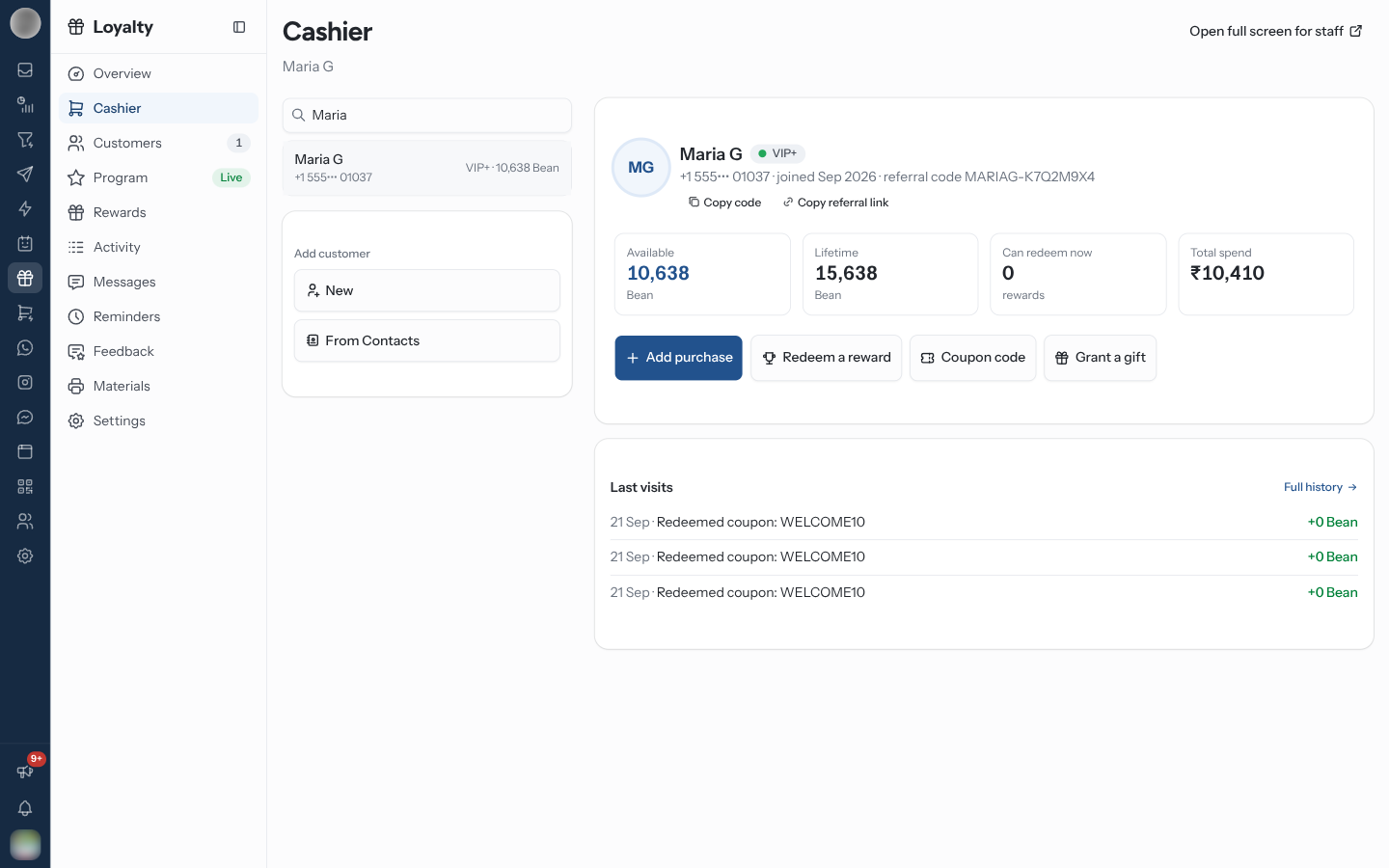
Find a Customer
Type in Name or phone number. Pick the customer to open them, or tap a name under Recent to serve someone again.
| Shown | Meaning |
|---|---|
| Available | Points they can spend now |
| Lifetime | Every point they have ever earned |
| Can redeem now | How many rewards their balance covers |
| To the next tier | How far they are from moving up |
| Total spend | What they have spent with you |
| Last visits | Their latest visits, with Full history for the rest |
Their referral code is shown too, with Copy code and Copy referral link.
Add a Purchase
Open the customer and click Add purchase.
Enter "What did they spend?". The form shows an estimate of the points — the base rate, any earning rule that applies, and the tier multiplier — and what their balance becomes.
Add a Note (optional), such as the bill number.
Click Give with the number of points. The receipt shows the balance before and after, any tier change, and whether the WhatsApp message was sent.
Made a mistake? Undo on the receipt does not reverse the purchase on the spot — it sends a correction to Activity › Pending for approval ("Sent to Activity › Pending for approval").
Redeem a Reward
Open the customer and click Redeem a reward. Each reward shows its cost and what it leaves, or how many points short they are.
Click Redeem on the one they want.
Hand it over. The customer gets a code on WhatsApp.
If a reward needs approval, the receipt says "This reward needs approval before it can be handed over — it is waiting in Activity."
A reward the customer was given but has not used yet appears on their record as Waiting, with Mark as used.
Check a Coupon Code
Click Coupon code — at the top of the Cashier, or on an open customer.
Type the Code from the customer's WhatsApp message and click Check code.
If it is valid, click Mark as used so the code cannot be used again.
| Message | Meaning |
|---|---|
| "No redemption with that code." | The code does not exist |
| "Already used." | Someone marked it used before |
| "Waiting for approval in Activity." | Approve it in Activity first |
Grant a Gift
Grant a gift gives a free gift without the customer spending points — for service recovery, a birthday, a goodwill gesture. Pick the gift, add a Note (optional), and click Give. Free gifts are set up on Rewards; with none, the form says so.
Register a Customer
Search their number. If nobody has it, click Register with the number — or click Add customer › New.
Fill in the Phone number and Name. Date of birth (optional), Gender (optional) and Referral code (optional) can be added too.
Click Register. They get the joining bonus and a WhatsApp welcome.
To enrol someone already in your contacts, click Add customer › From Contacts, search, and click Add. Existing members are marked Member.
Self-registration from the counter QR is better wherever possible: fewer typos, and the customer's own consent. Print it from Materials.
Run It on a Staff Device
Open full screen for staff opens the same screen at /cashier, without the dashboard around it.
It stays signed in on that device until someone clicks Sign out.
Troubleshooting
| Symptom | Cause | Fix |
|---|---|---|
| "WhatsApp is not connected" banner | No WhatsApp number | Points still work; connect a number so customers are told |
| Receipt says "Not sent — the program is not live" | The programme is paused | Resume it in Settings |
| Receipt says "Not sent — no approved template, and they have not messaged you today" | Outside the 24-hour window and no approved template | Check the message on Messages |
| "The program is not live, so nobody can join yet." | Paused or not activated | Activate or resume it in Settings |
| "This number is already a member." | They registered before | Open the existing member |