Materials
Print-ready pieces for your venue — the rewards brochure and the counter QR card that lets customers join on WhatsApp.
Materials (/dashboard/loyalty/materials) holds "Print-ready pieces for the counter and the
table: your join QR card and a rewards brochure." It has two tabs, Brochure and QR card. The
logo, colour and photo come from Program › Profile — Change in Profile takes
you there.
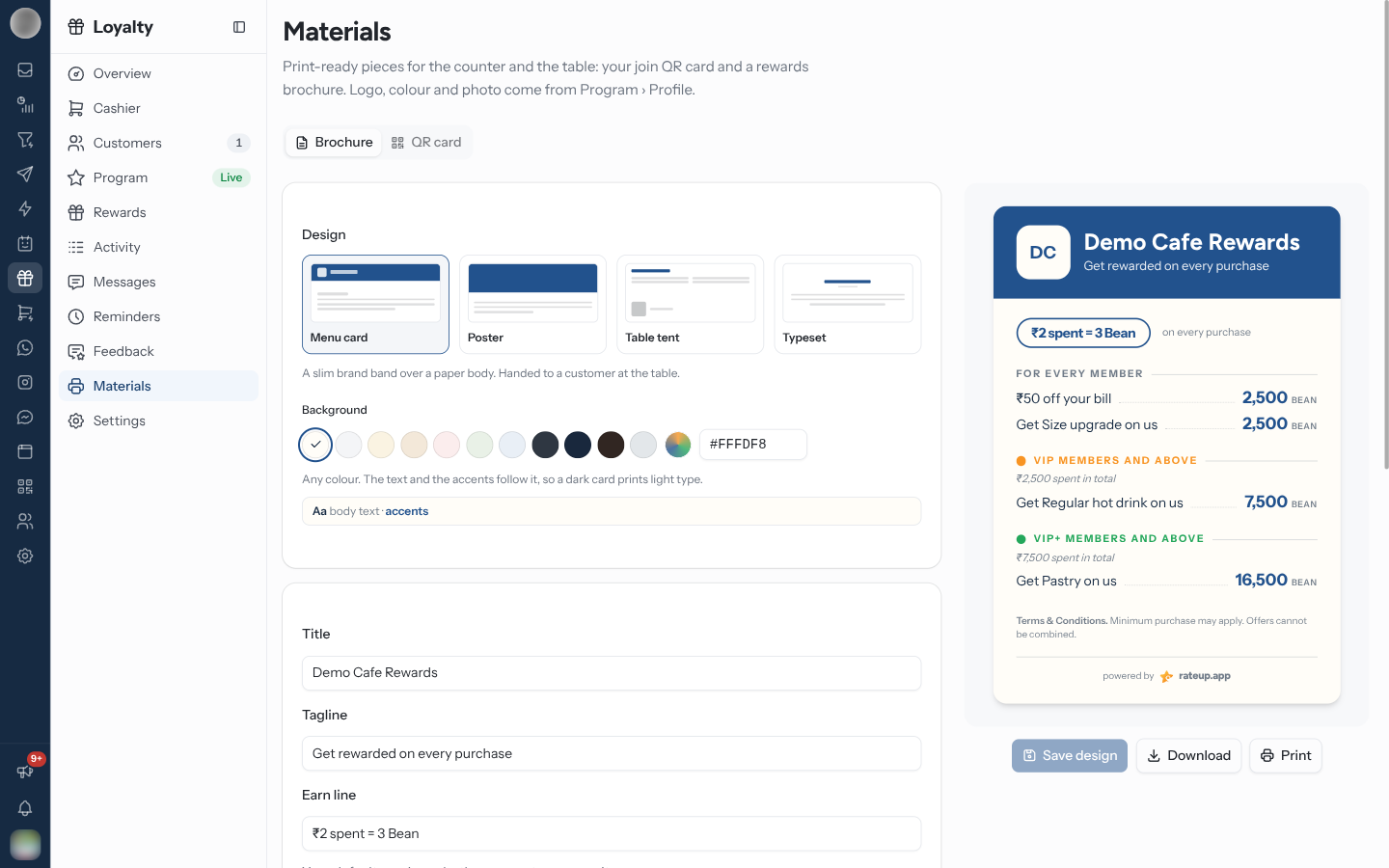
Make the Rewards Brochure
Open Materials › Brochure.
Pick a Design (see below), and a Background — "Any colour. The text and the accents follow it, so a dark card prints light type."
Edit the Title and Tagline, and the Earn line. Reset to my earn rate puts back your default earning rule, the way customers say it.
Under Rewards on the card, tick the rewards to show, and change the line each one says on the card if its name is not how you would put it. A tier-only reward is marked with its tier — for example "Only Gold members and above can redeem this".
Add any Terms & Conditions, and switch on Print the join QR to put the QR on the brochure.
Click Save design, then Download or Print.
| Design | Use |
|---|---|
| Menu card | "A slim brand band over a paper body. Handed to a customer at the table." |
| Poster | "The photo leads. For a wall or a counter easel, read from a distance." |
| Table tent | "Short and square, rewards in two columns, the code given room." |
| Typeset | "No colour band — the brand carried by type and rules alone." |
Your hero photo is the background of the brochure header. Only points rewards can go on the card — with none, the editor says "No point rewards yet." with Add rewards in Rewards.
Print the Counter QR Card
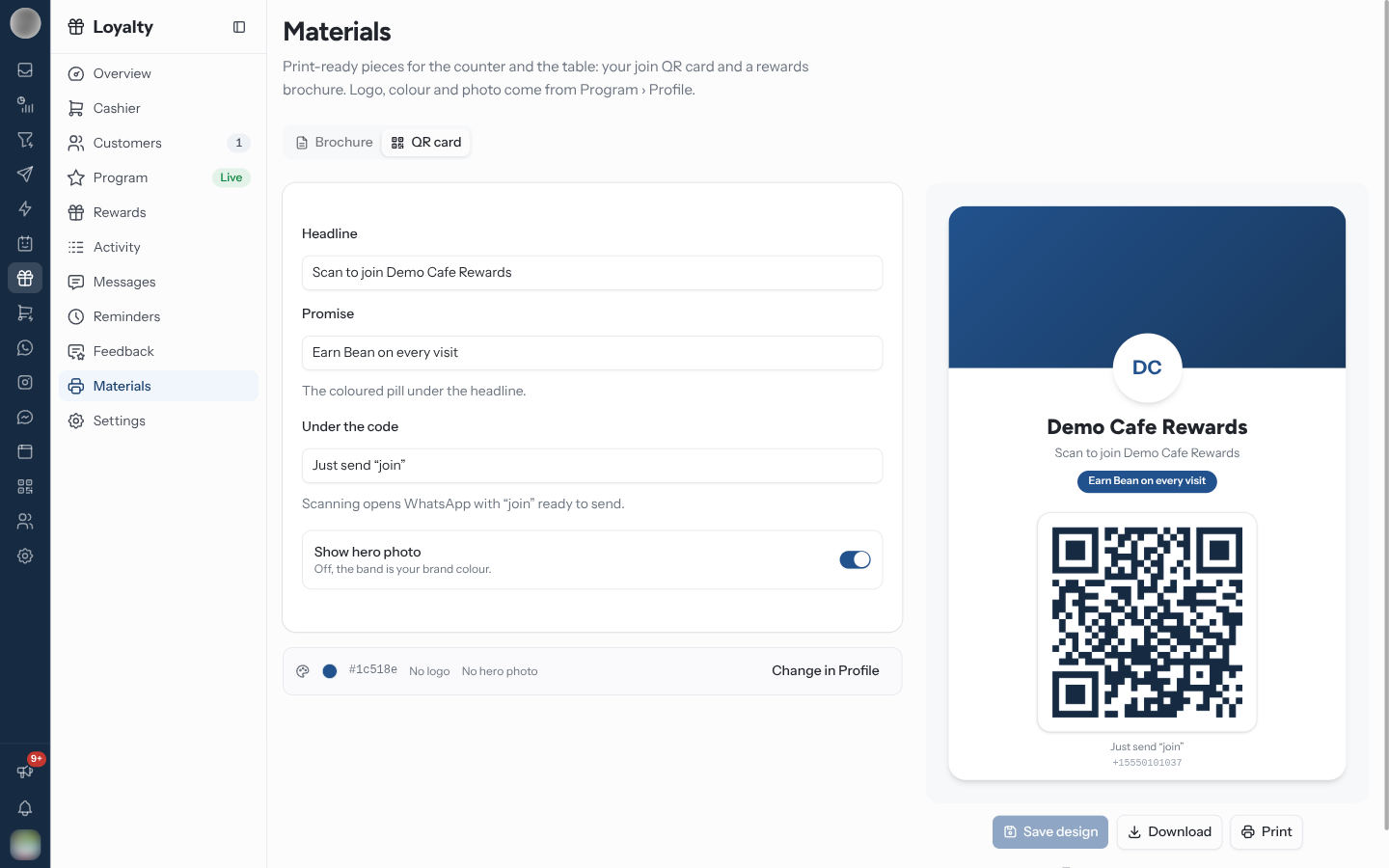
Open Materials › QR card.
Edit the Headline, the Promise ("The coloured pill under the headline.") and the text Under the code.
Switch Show hero photo on, or leave it off for a band in your brand colour.
Click Save design, then Download or Print.
Scanning the code opens WhatsApp with your join keyword ready to send — one tap and the customer is a member. Copy WhatsApp join link copies the same link for your website, receipts or social posts.
The join QR can only be made once a WhatsApp number is connected. Without one the tab shows Connect WhatsApp to get your join QR.