Messages
Everything your programme says on WhatsApp — automatic messages, keyword replies, the chatbot menu and the templates behind them.
Messages (/dashboard/loyalty/messages) is "Everything your program says on WhatsApp — what
sends automatically, how it replies, and the templates behind them." It has four tabs:
Automatic, Replies, Chatbot and Templates. The sidebar entry counts templates still
awaiting Meta. When scheduled messages send is set on Reminders.
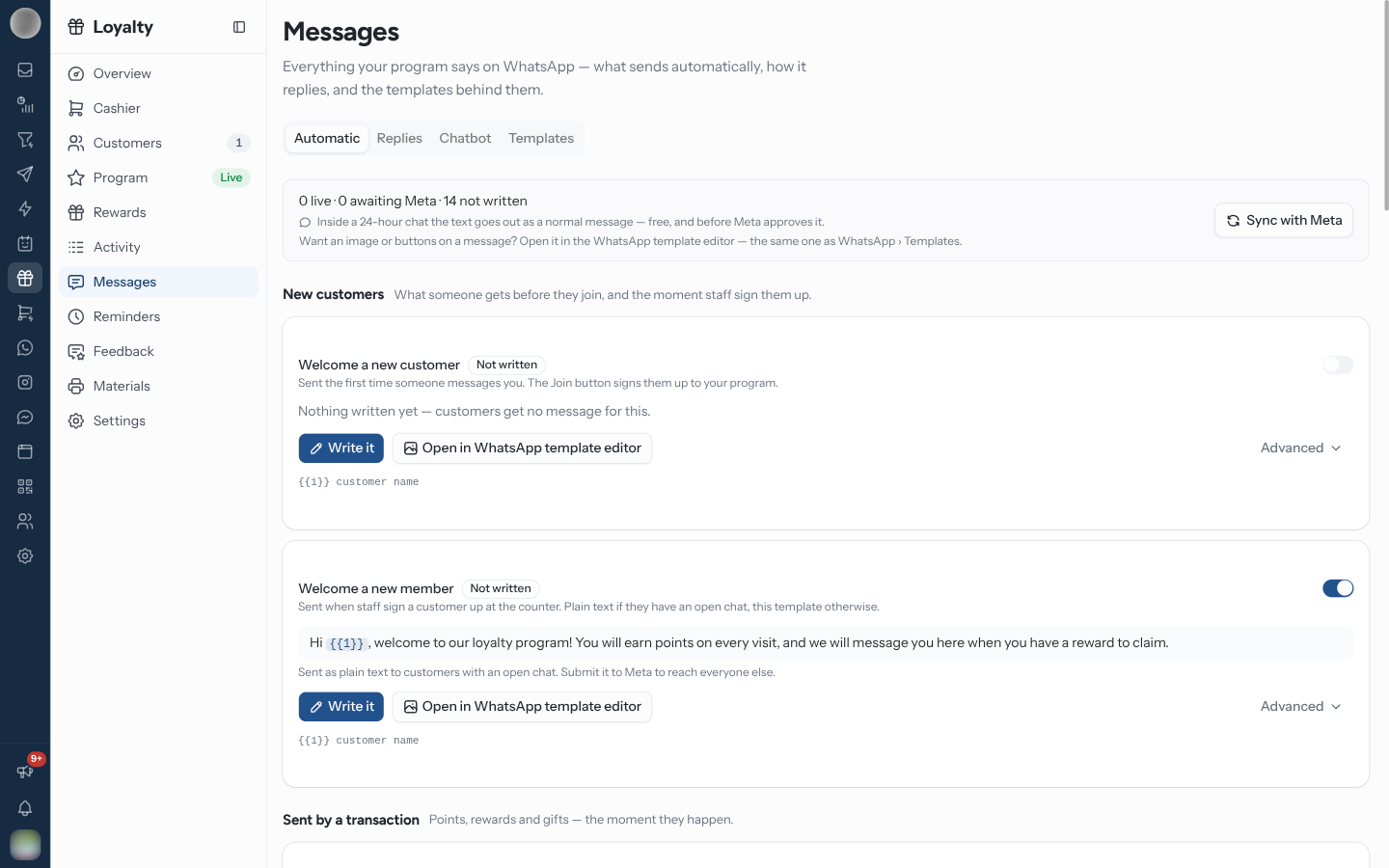
The Automatic Messages
The Automatic tab lists every message the programme can send, in three groups. Each card has an on/off switch and a status badge.
| Group | Message | Sent |
|---|---|---|
| New customers | Welcome a new customer | The first time someone messages you. Its Join button signs them up |
| Welcome a new member | When staff sign a customer up at the counter | |
| Sent by a transaction | When points are earned | After every purchase that earns points |
| When points are adjusted | When staff correct a balance and the change is approved | |
| When a gift is given | When staff hand a customer a free gift with a code | |
| When a reward is redeemed | When a customer spends points on a reward | |
| Tier upgrade | The moment someone reaches a new tier | |
| Reminders | Birthday gift, Inactivity reminder, Points expiry warning, Points expired, VIP status at risk, Reward expiring, Joining anniversary | On a schedule — Set when these send opens Reminders |
| Badge | Meaning |
|---|---|
| Approved | Meta approved the template — it reaches everyone |
| Awaiting Meta | In review, usually a few hours |
| Rejected by Meta | Rewrite it and submit again |
| Draft — not submitted | Saved in the template editor but never sent to Meta |
| Not written | "Nothing written yet — customers get no message for this." |
| Off | Switched off |
With no messages yet, Set up the standard notifications writes points earned, reward redeemed, tier upgrade and birthday for your programme and submits them to Meta in one go.
Write or Change a Message
On the message's card, click Write it (or Edit message).
Edit the words. The details filled in when it sends — the customer's name, their points — are shown under the box.
Click Save and submit to Meta. "Submitted to Meta — usually approved within a few hours."
For an image, a footer or buttons, click Open in WhatsApp template editor — the same editor as WhatsApp › Templates. Nothing is saved until you save there; a draft you started shows on the card, ready to carry on. A message with an image, footer or buttons can only be edited in that editor. Advanced lets you pick an existing loyalty template instead.
Until Meta approves it, a message still reaches customers who messaged you in the last 24 hours — "Sent as plain text to customers with an open chat." That depends on Send as a plain message inside the 24-hour window in Settings.
Set Up Keyword Replies
The Replies tab holds what the programme answers when a customer texts a keyword — "Plain replies — they work the moment your program is live. No approval needed."
| Keyword | What it does |
|---|---|
join | Joining the program — the welcome sent the moment someone signs up |
points | Checking their balance — what they have, spent and earned |
refer | Referring a friend — their referral code and joining link |
rewards | Browsing rewards — what they can redeem right now |
card | Getting their card — their QR card to show at the counter |
stop | Leaving the program — removes them, and says how to come back |
With none set up, click Add the standard replies — "Join, points, rewards, refer and stop — written for your program, editable afterwards."
To change one, click Edit. Set They text and You reply, or Write it from my program.
Optionally pick a Template for customers who haven't messaged yet.
Click Save.
A plain reply "Only reaches customers who have messaged you in the last 24 hours." A customer registered at the till who has never written to you gets nothing unless the reply has a template — use Create a template for the rest.
A keyword already used by another automation or command is not saved — "is already in use elsewhere in your inbox." Pick another word.
Turn Replies Into a Tappable Menu
The Chatbot tab turns your keyword replies into a WhatsApp list, so customers pick from a menu instead of having to know the words. "Every keyword below becomes a row customers can tap."
Write your keyword replies on Replies first — the menu is built from them.
Pick the WhatsApp account and a Trigger word customers text to open the menu. It cannot be one of your keywords.
Click Create the chatbot. This "Adds a chatbot under WhatsApp › Chatbot, and a rule that opens it."
When you change your keywords later, the tab says "The menu is behind your keywords" — click Update the menu. Open in flow editor opens the chatbot in the chatbot builder.
Manage the Templates
The Templates tab is the library of loyalty templates.
| Column | Meaning |
|---|---|
| Template | Its name |
| Account | The WhatsApp number it belongs to |
| Status | Approved, Awaiting Meta, Rejected or Draft |
| Used by | Which messages use it — Not used if none |
| Created | When it was made |
New template starts from one of the programme's messages (Automatic messages or Keyword replies) or Start blank, and opens the WhatsApp template editor. Sync with Meta refreshes the statuses. A template can only be deleted when nothing uses it, and deleting removes it from WhatsApp too.
Troubleshooting
| Symptom | Cause | Fix |
|---|---|---|
| Customers registered at the till get no welcome | No approved template, and they have not messaged you | Submit Welcome a new member to Meta and wait for Approved |
| A message never sends | Switched Off, Not written, or Send WhatsApp notifications is off in Settings | Check the card, then Settings |
| "messages could not be submitted" | Meta refused the submission | Open the message and submit again |
| A keyword does not answer | It is in use elsewhere, or the programme is paused | Pick another word; resume in Settings |
Related Pages
- Reminders — when scheduled messages send
- WhatsApp Template Editor
- WhatsApp Chatbots
- Settings — the sending number and the 24-hour switch