Program
What your programme promises — its profile, how points are earned, extra earning rules, and up to three tiers.
Program (/dashboard/loyalty/program) holds what the programme promises: its Profile, how
points are Earning, and its Tiers. What customers can redeem is on
Rewards; what the programme says is on Messages.
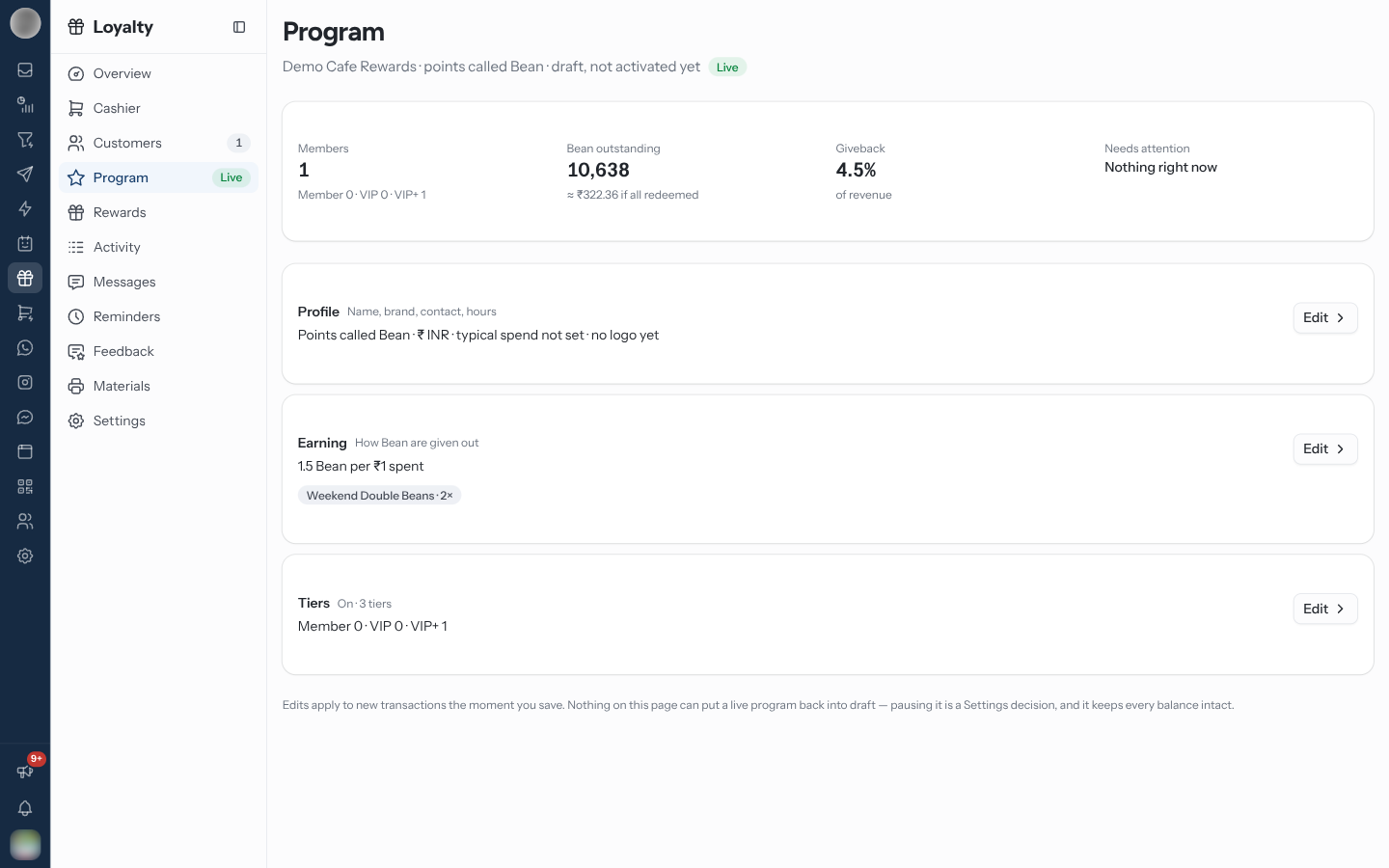
The Page at a Glance
The sidebar's Program entry carries a chip: Live, Paused or Draft. On a draft the page has a Continue setup button that reopens the setup.
The strip at the top shows Members, the points outstanding (and "≈ … if all redeemed"), the Giveback share of revenue, and anything that Needs attention — WhatsApp not connected, or templates awaiting Meta.
Each section card sums itself up and has an Edit button that opens its full editor at full width.
| Card | Summary | Editor |
|---|---|---|
| Profile | "Name, brand, contact, hours" — logo set or not | Business and programme names, currency, time zone, contact, logo, brand colour, hero image |
| Earning | The rate per unit spent, and "about … a visit" | The base earning rule, extra rules, typical spend, and the full tier list |
| Tiers | On · a number of tiers, or Off · one flat rate | The tier ladder, up to three tiers |
"Edits apply to new transactions the moment you save. Nothing on this page can put a live program back into draft — pausing it is a Settings decision, and it keeps every balance intact."
Edit the Profile
Edit on Profile opens the same form as the first setup step: Your business name, Your loyalty program name, Currency, Time zone ("Sets when birthday and reminder messages go out."), the Primary contact and the branding — Logo, Brand colour and Hero image.
The logo, colour and hero photo are what Materials prints on the QR card and the brochure.
Change How Points Are Earned
Edit on Earning opens Point Earning Rules.
The base earning rule
Base earning rule — "What every customer earns on every purchase." Edit it to change the rate: Spend an amount, earn a number of points. The form reads it back to you, for example "A ₹100 purchase earns 10 Beans." The base rule applies to every purchase, so it cannot be switched off.
Without one, the page shows No base earning rule — "Customers earn nothing on a purchase until a default rule exists." — with Open setup.
Changing the earning rate after launch changes what every point already issued is worth. Model it before you go live; this is the number you least want to change in public.
Add an extra earning rule
Additional Earning Rules "Replace the base rate at set times, like a happy hour or a weekend."
Click Add earning rule.
Enter the Rule Name — "e.g., Happy Hour Bonus, Weekend Multiplier, Birthday Bonus" — and a Description.
Choose the Rule Type: Points Multiplier (2x, 3x points), Fixed Bonus Points or Percentage Bonus, and set the Earn rate while this rule applies.
Narrow it with any of Specific Days/Times (Available Days, Start Time, End Time), Customer Tier Restriction (Applicable Tiers) or Limited Time Period (Valid From, Valid To).
Click Create Earning Rule. Switch a rule off with Enable Rule without deleting it.
An extra rule's rate "Replaces the default rate, it does not add to it." A weekend rule earning 1 point per unit while the base earns 2 halves the points at weekends.
Set Up Tiers
Edit on Tiers opens the tier ladder.
Switch Offer tiers on. Off, "everyone is simply a Member earning the same rate."
Name the tier Everyone starts as, and pick its Colour.
Click Add a tier above. Give it a Tier name, the Spend to reach it, a Points multiplier (1 to 10) and its Perks.
Set Spend counted within — Lifetime, or within 1 to 12 months.
Click Save.
On save, every member is re-placed on the tier their spend earns, and a toast says how many moved up and down. Promotions are messaged as usual.
| Rule | Detail |
|---|---|
| At most three tiers | The starting tier plus two above it — "Three tiers is the most this programme can run." |
| Multiplier | A tier cannot earn slower than everyone else, and stays at 10× or under |
| Names | Each tier needs its own name |
| Window | VIP status at risk on Reminders needs a window, not Lifetime |
A ladder of more than three tiers — built in the Tiers list inside the Earning editor, with Add tier — cannot be edited here: the section says so and sends you to the full editor.
Removing a tier that still has members asks Move members down a tier? — confirming with Downgrade and remove moves them to the tier below, where they earn at its rate. Tell them before you do it.
Related Pages
- Set Up Your Programme
- Rewards — what points buy
- Overview — members by tier and giveback
- Settings — pausing the programme