Board Types
Leads, Support, Projects and Custom boards — what each one is for, what it starts with, and how they differ.
Every pipeline has a type, chosen when you create it. The type decides the columns a board starts with, what its cards are called, and which sales features it carries. An organisation has one Leads board and up to ten boards of the other types beside it.
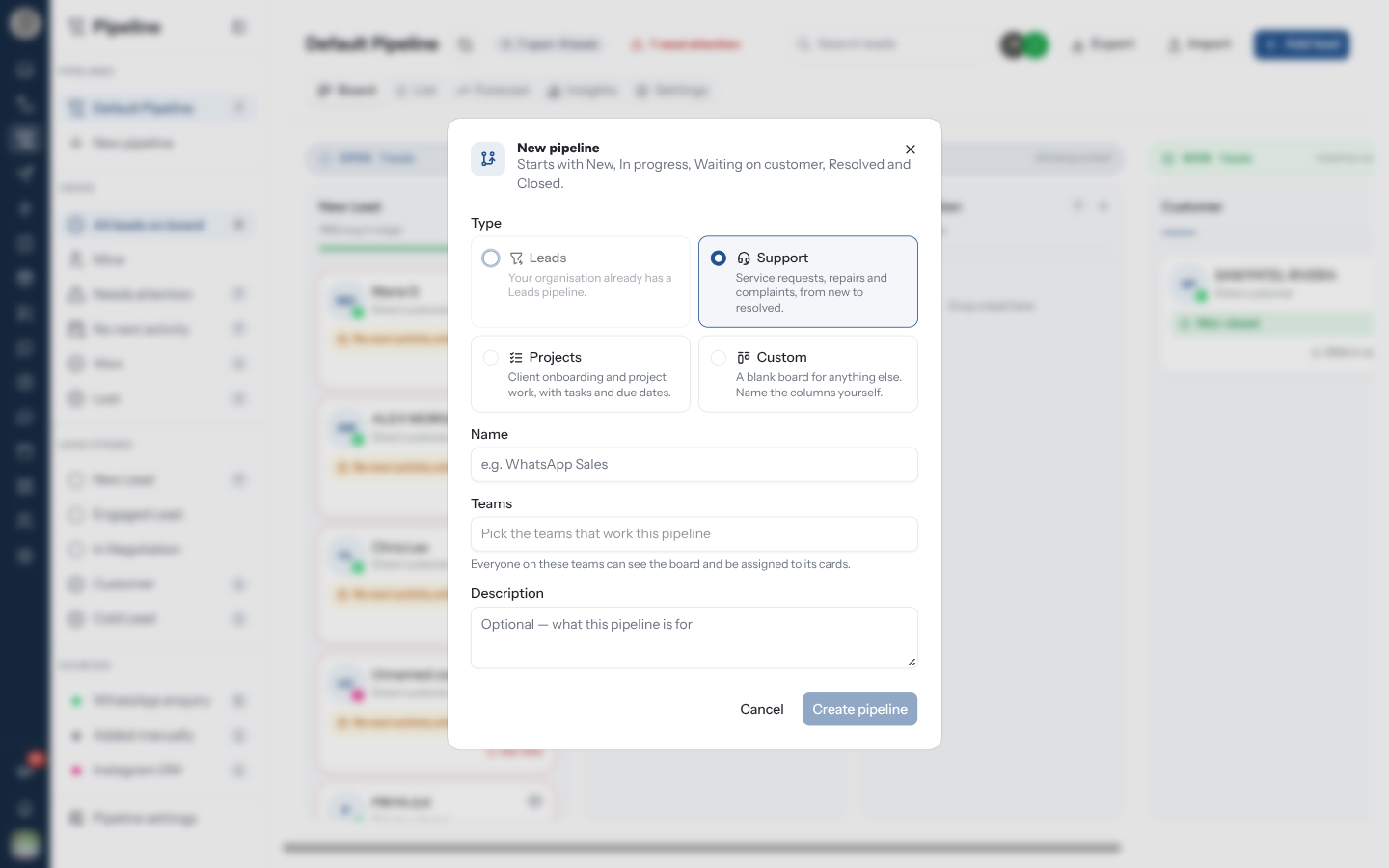
The Four Types
| Type | For | A card is | Starts with |
|---|---|---|---|
| Leads | Your sales funnel. The inbox, automations and CRM integrations use this board | A lead: a customer | New Lead, Contacted, Qualified, Demo / Proposal, Negotiation, Won, Lost, and five lost reasons |
| Support | Service requests, repairs and complaints, from new to resolved | A ticket | New, In progress, Waiting on customer, Resolved, Closed |
| Projects | Client onboarding and project work, with tasks and due dates | A task | To do, In progress, Review, Done, Cancelled |
| Custom | Anything else. Name the columns yourself | A card | To do, Doing, Done |
Every column is editable afterwards, on any board. See Stages for the Leads columns' probabilities and rotting windows.
A Support ticket here is a card on a board, not an inbox ticket. Moving a Support card does nothing to the customer's conversation, and closing a conversation does nothing to the card.
Create a Board
Click New pipeline under Pipelines in the sidebar. With no boards yet, the Pipeline screen offers Create a pipeline instead.
Pick a Type. A type you cannot create any more is greyed out and says why: "Your organisation already has a Leads pipeline.", or "You already have 10 boards besides Leads."
Give it a Name, and pick the Teams that work it. "Everyone on these teams can see the board and be assigned to its cards." You can only pick teams you are on yourself.
Optionally add a Description, then click Create pipeline. The new board opens.
Once an organisation has a Leads board and ten others, New pipeline disappears from the sidebar.
What Only Leads Boards Have
Support, Projects and Custom boards are for work rather than sales, so the sales parts of the board are left out:
| Feature | Leads | Other types |
|---|---|---|
| Forecast tab | Yes | Hidden |
| Win Probability on stages | Yes | Hidden |
| Lost reasons | Yes | Hidden; closing never asks for one |
| Company and Source | Yes | Not asked for; the sidebar has no Sources section |
| Conversion tracking (Meta CAPI) | Yes | Hidden |
| Used by the inbox, Assign Lead Stage automations, the contacts table and CRM syncs | Yes | No |
Everything else (columns, drag and drop, assignees, next activities, notes, stalled-card flagging, import and export, the List and Insights) works the same on every type.
Only the Leads board is wired to the rest of RateUp. An automation's Assign Lead Stage action, the inbox's Pipeline Stage chips, Update Pipeline Stage on contacts, and the Zoho, HubSpot, Pipedrive and GetLead syncs all read and write the Leads board, never a Support or Projects board. Cards on those boards are only ever added by hand or by import. See Leads That Open Themselves.
The Wording Follows the Type
The same screen speaks the board's language, so a Support board never talks about leads:
| Leads | Support | Projects | Custom | |
|---|---|---|---|---|
| Header button | Add lead | Add ticket | Add task | Add card |
| Closing outcomes | Won / Lost | Resolved / Closed | Done / Cancelled | Done / Cancelled |
| Header count | {n} open · {n} leads | … tickets | … tasks | … cards |
| Insights headline | Win rate | Completion rate | Completion rate | Completion rate |
Cards on Support, Projects and Custom Boards
A card on these boards is a piece of work first and a customer second. Add ticket (or Add task, Add card) asks for:
| Field | Notes |
|---|---|
| Title | Required, up to 160 characters, e.g. Order arrived damaged |
| Description | Optional, up to 5,000 characters |
| Due date | Optional; today or later. Shown on the card as Due {date}, in red once it is past |
| Stage | The column it starts in |
| Assignees | Anyone on the board's teams |
| Labels | Only shown when the board has labels |
| Link a contact | Optional. Open by default on Support boards, collapsed on the others. A linked contact gives the card an Open conversation button |
In the card window, Description, Due date and Contact can all be edited in place.
On these boards, dropping a card on a closing column closes it straight away, with no confirmation: there is no lost reason to ask for. A Custom board starts with no Cancelled column, so a card marked Cancelled there is closed where it stands until you add one in Settings.
Switching Between Boards
With more than one board, the board name in the header becomes a menu, and every board you can see is listed under Pipelines in the sidebar with its open-card count. The Leads board is always listed first, and opening Pipeline without picking a board lands on it.
You only see boards attached to one of your teams.