Working a Lead
Adding a lead, the lead window, next activities, notes, and closing or reopening it.
Everything about one lead lives in the lead window that opens over the board. Open it by clicking a card on the Board, or a row in the List.
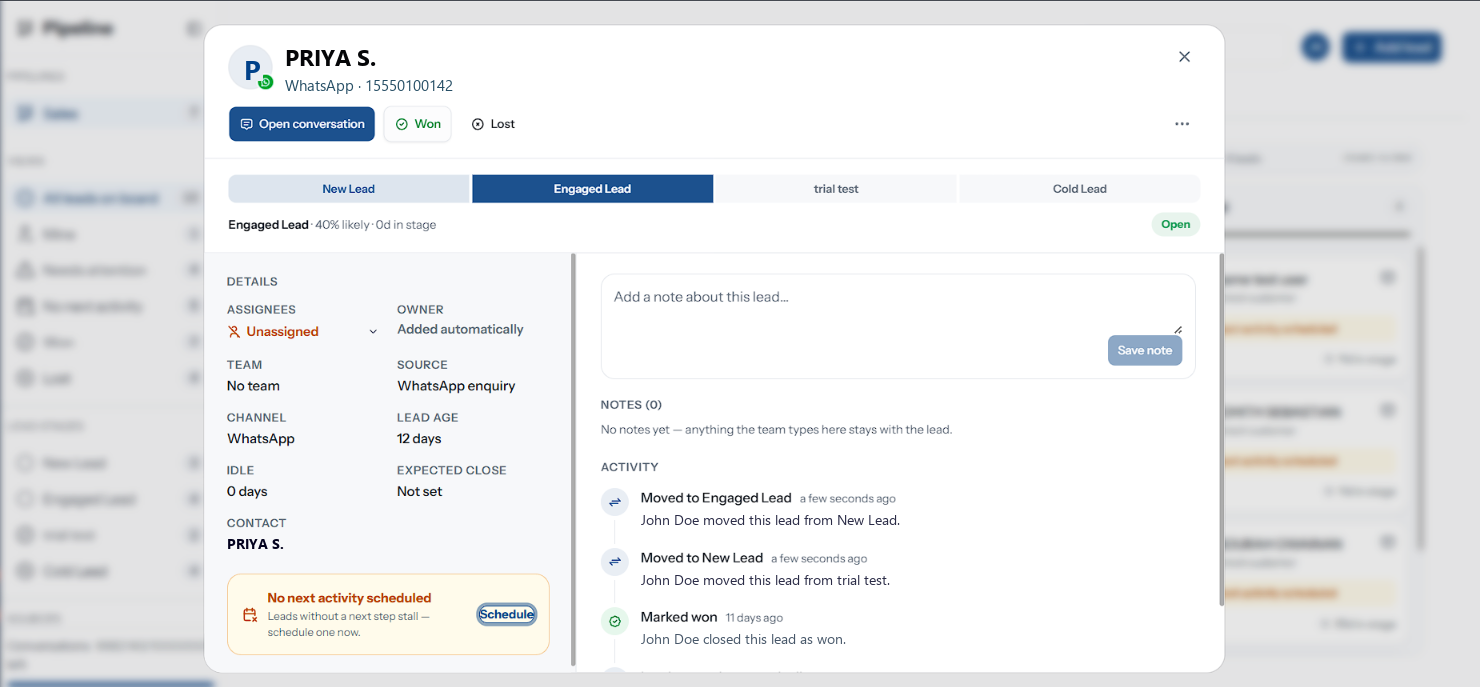
This page describes a lead on the Leads board. Tickets, tasks and cards on other board types open in the same window with a few differences — see Board Types.
Adding a Lead
Add lead in the header opens on no particular column; the + on a column header opens on that one.
Pick the Customer, either way round. Choose from contacts searches your existing contacts by name, phone or email; Enter details manually takes a Contact name, an optional Business / company and an optional WhatsApp number for somebody who is not in your contacts yet.
Pick the Stage it starts in.
Pick the Source — WhatsApp enquiry, Instagram DM, Messenger, Web survey, Referral program, Loyalty program or Added manually. The first three also set the channel the lead is reachable on.
Optionally tap the Assignees you want on it, then Add lead.
If the customer already has a lead on this board, the dialog stays open and says so — "That customer is already on this board." Pick a different customer, or find their existing card.
The lead copies the contact's name, phone and email so a card can render without a second lookup, but it is the contact link that matters — it is what makes Open conversation work.
A number typed in manually is looked up as you finish it, and the line under the field says what will happen with it:
| It says | Meaning |
|---|---|
| Nobody has this number yet — it will be added to your contacts | A new contact is created with the lead |
| {name} already has this number — the lead will be linked to them | Use their details links the lead to that contact instead of duplicating them |
| Linked to {name} — the lead opens their conversation in Inbox | Already linked. Unlink breaks it |
A name on its own is enough to save. That lead has no contact behind it, so its card carries the broken-link icon and Open conversation stays disabled until somebody gives it a number. A number that is typed has to be dialable — "That number doesn't look right." refuses anything else, since the lead carries it verbatim.
Choosing a closing column says so: "{stage} is a closing column — the lead opens already closed." That is occasionally what you want, for a deal you are recording after the fact.
The Header
| Button | Does |
|---|---|
| Open conversation | Jumps to this contact in the Inbox. Disabled on a lead with no contact |
| Won | Opens the close confirmation. Disabled on a lead already won |
| Lost | The same, asking for a reason. Disabled on a lead already lost |
| Link icon | Copy link to this card: a short link that opens the board with this lead's window on top. Teammates still need to sign in, and to be on one of the board's teams. On a phone it opens the share sheet instead |
| ⋯ → Reopen lead | Puts a closed lead back on the board. Disabled while it is open |
| ⋯ → Delete lead | Deletes the lead after a confirmation. Only shown to people whose role can Delete boards or move them between teams — Owners and Admins by default |
Deleting a lead takes its notes, tasks and history with it, and cannot be undone. If the lead was real but did not work out, mark it Lost instead — a lost lead stays on the board and still counts in your insights.
Under the header sits the stage stepper: every open column in order, with the current one highlighted. Clicking another step moves the lead there; on a closed lead it reads Reopen in {stage} and puts the lead back on the board in that column. Under the steps, one line sums the lead up: its win probability ({n}% likely), days in the current column, days idle — idle {n}d — stalled once past the column's rotting window — and its age.
Next Activities
The single most useful thing on a lead: what happens next, and when.
Schedule, under the details, opens the form. Type What happens next? — "Follow up on the quote".
Pick a Type: Call, Message, Meeting, Document or To-do. The type only chooses the icon that shows on the card.
Set a Due date and time — it starts at this time tomorrow. Then Schedule.
A lead can hold several. They list under Next activities ({n}), each with its type, due date and the lead's assignees, a Mark done button and a bin to remove it. + Schedule adds another. The earliest one is what the board card shows.
An overdue activity turns red on the card, in the list and in the window. A lead with nothing scheduled shows No next activity scheduled in amber — "Leads without a next step stall — schedule one now." — and appears under the sidebar's No next activity view.
Closing a lead marks all of its open activities done.
Leads without a next step stall. The No next activity count is the one number on this screen you can act on immediately — every lead in it is a decision nobody has made.
Details
| Field | Notes |
|---|---|
| Assignees | Everyone working the lead, and the one field you can change here. Pick from the people on the board's teams; Unassign everyone clears it |
| Owner | Whoever opened it, ringed in amber. Fixed, and shown as Added automatically for a lead a rule opened |
| Source and Channel | How it arrived, and where the customer is reachable |
| Expected close | Feeds the Forecast. Not set puts it in the unscheduled bucket. Read-only here: the lead window has no date picker for it on a Leads board, so it is set by the Expected close column of an import |
| Contact | The linked contact, or Not linked in amber |
The lead's age and idle time are on the line under the stage stepper.
Labels are the board's own and are separate from contact labels. They show as chips on a board card, but the lead window has no label picker and pipeline settings have no label editor, so on a Leads board there is currently no way to put one on a lead. Nothing else on the lead depends on labels.
Notes and Activity
The right-hand side of the window has two tabs.
Notes ({n}) is what your team writes down. Type in the box and press Enter to save, or Shift+Enter for a new line. Above the notes, Last activity shows the latest entry from the other tab; click it to jump there.
| On a note | Who |
|---|---|
| Author, time, and edited if it was changed | Everyone |
| Edit note | Only the person who wrote it |
| Delete note | Anyone who can open the lead, after a confirmation |
Activity is the automatic record — created, moved, assignees changed, won, lost, reopened, note added, next activity scheduled. Each entry names who did it, or says it was added by automation when a rule did. On a board synced with a CRM, entries also say whether the change reached it, such as "Synced to {crm}, but not the stage" or "Not sent to {crm}".
Notes count as activity, so leaving one resets the idle clock and clears a needs attention flag. That is intended — someone has looked at it — but it does mean a lead can be kept out of the stalled list without moving forward.
Closing a Lead
Closing happens two ways, and both end in the same confirmation: Won or Lost in the lead window's header, or dragging the card onto a closing column on the Board. The stage stepper only lists open columns, so it cannot close a lead.
| Outcome | What it asks |
|---|---|
| Won | Confirmation only. "The lead moves to the won column and stops counting as open." |
| Lost | A Lost reason, picked from the board's list — and it is required when the board has any |
Both accept an optional closing note, which is kept on the Activity tab. Closing also marks every open next activity on the lead done.
The lost reason is the only input the "why do we lose deals" side of reporting ever gets. A board with no lost reasons configured lets a loss through without one, and that loss can never be attributed afterwards — add them in Settings before your team starts closing.
A closed lead stays on the board in its closing column, stops counting as open, and can be put back with Reopen lead.
Troubleshooting
| Symptom | Cause | Fix |
|---|---|---|
| Open conversation is greyed out | The lead has no linked contact | It was created without one; raise a new lead from the contact |
| Nobody appears in the assignee picker | Nobody is on the board's teams yet | Add a team in Settings |
| Mark lost stays disabled | The board has lost reasons but none is selected | Pick one |
| No Delete lead in the ⋯ menu | Your role cannot delete | Ask an Owner or Admin, or mark it Lost |
| That customer is already on this board. | A contact holds one lead per board | Open their existing card |
| Edit note is missing on a note | You did not write it | Ask its author, or delete it and write your own |