Sidebar
See your menu in its groups and choose which optional features (Meta AI Agent, Pipelines, Loyalty, Commerce, Surveys, QR codes & Link-in-bio Pages) show for your organisation.
Settings → Sidebar lists your menu in the same order and groups as the sidebar itself, and lets an admin switch the optional features off for the whole organisation. Every feature your plan includes starts on. A feature you switch off is only hidden: nothing in it is deleted, and nothing you built on it stops running.
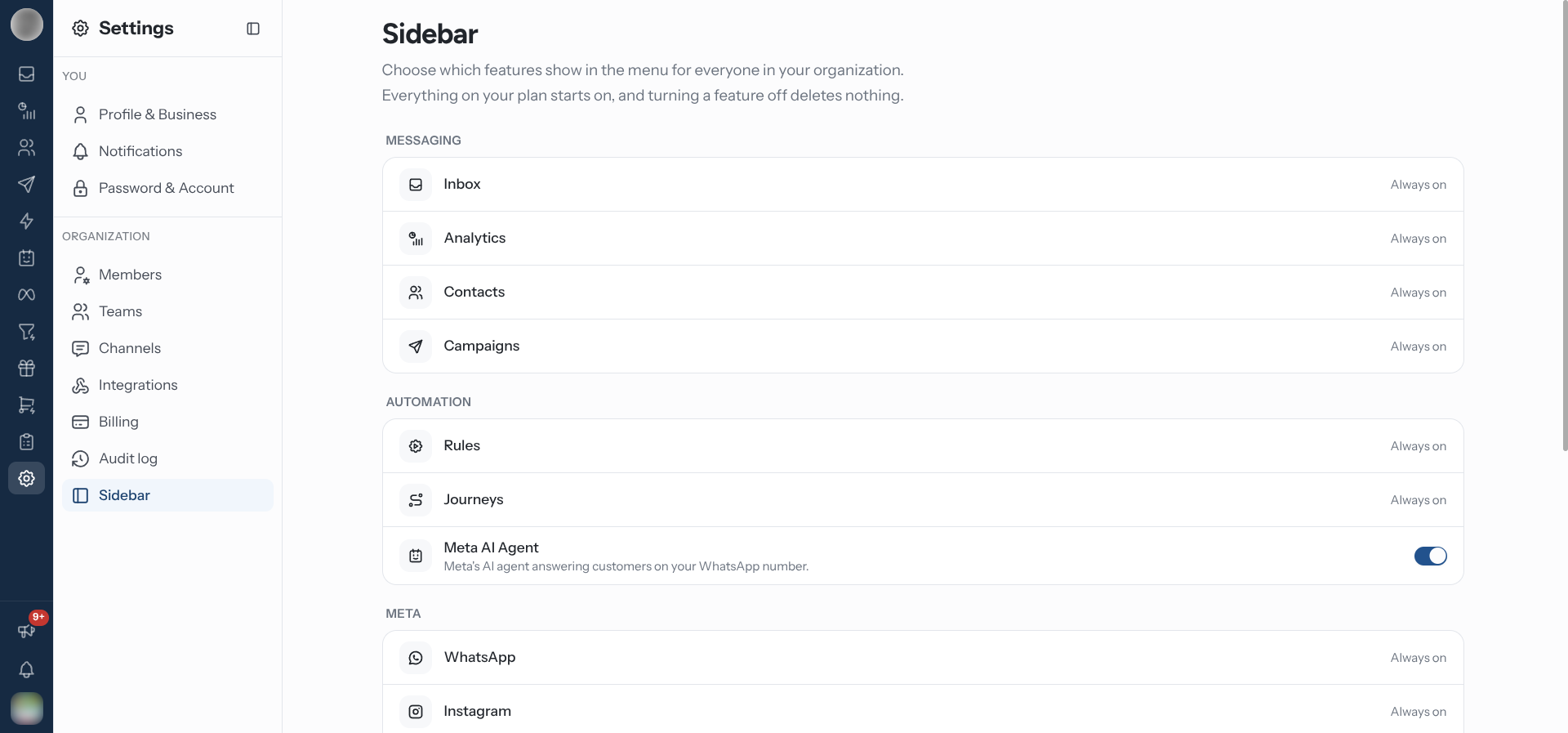
Open Sidebar Settings
Go to Settings → Organization → Sidebar (/dashboard/settings/sidebar). Everyone in the
organisation can open it.
This page used to be Customize Menu, opened from a grid icon at the bottom of the sidebar rail.
That icon is gone. The old addresses (/dashboard/customize-menu, /dashboard/features and
/dashboard/settings/features) redirect here.
How the List Is Grouped
The page follows the sidebar from top to bottom. Each group is a card, and each row is one section of the menu:
| Group | Rows | Can be switched off |
|---|---|---|
| Messaging | Inbox, Analytics, Contacts, Campaigns | No, each reads Always on |
| Automation | Rules, Journeys, Meta AI Agent | Meta AI Agent only |
| Meta | WhatsApp, Instagram, Messenger | No |
| Sales | Pipelines, Loyalty, Commerce | All three |
| Surveys & Links | Surveys, QR codes & Link-in-bio Pages | Both |
Messaging and Sales are names the page uses for sidebar sections that sit on their own in the rail. Automation, Meta and Surveys & Links are the rail's own groups.
Each optional feature shows its one-line description, for example "Catalogs, orders and payments inside the chat." for Commerce.
Turn a Feature On or Off
Open Settings → Sidebar.
Flip the feature's switch. The change saves straight away, and RateUp confirms "Your features are saved". There is no Save button.
The change applies to everyone in the organisation, not just you.
Features your plan does not include
A feature your plan lacks has no switch. Its row shows Not on your plan and, if you can see billing, an Upgrade button that opens Billing. It stays out of everyone's sidebar until the plan includes it. After an upgrade it appears on its own, unless someone switched it off here earlier.
Who can change it
Changing features needs the ability Edit organisation details and business hours. By default that is Managers, Admins and the Owner (see Members & Roles).
Everyone else sees the same list without switches. Each optional feature carries an In your menu or Turned off badge, under the description "The features your organization shows in the menu. Ask an admin to change them."
What Switching a Feature Off Does
| Where | Effect |
|---|---|
| Sidebar | The feature's entry disappears for everyone |
| Its pages | Opening one by URL or bookmark shows, for example, "Loyalty is turned off". Admins get a Turn on Loyalty button there; everyone else is told "Ask an admin to turn on Loyalty in Settings → Sidebar." |
| Inbox | With Pipelines off, conversation rows lose their stage chip and the ticket panel loses its board section. With Commerce off, the ticket panel's orders section is hidden |
| Members & Roles | The roles table and Fine-tune abilities hide the abilities for that feature, with "Abilities for features your organization has turned off are hidden." and a Manage features link to this page. Fine-tuned abilities you set earlier are kept |
| Setup guide | With Loyalty off, the guide's loyalty step is not offered |
| Your data and automations | Untouched. Programmes, boards, products, forms and codes stay, and automations, reminders and scheduled jobs that rely on the feature keep running |
Switching a feature off does not stop it. A loyalty programme keeps awarding points and sending its messages, and published QR codes and link-in-bio pages keep working. To stop a feature, switch it off inside the feature itself. Switching it off here only hides it.
What a New Organisation Starts With
Every feature the plan includes starts on. Your answers at signup no longer hide anything. They only shape the setup guide.
On 2026-11-17 every existing organisation got its hidden features back, including ones an admin had switched off. If you had trimmed your menu before then, switch those features off again here.
Sidebar, Roles and Teams
Four things decide what someone sees in the menu. They stack: an entry shows only if all of them allow it.
| Setting | Decides | Applies to |
|---|---|---|
| Settings → Sidebar (this page) | Whether an optional feature is in the menu at all | The whole organisation |
| Billing | Whether the plan includes the feature | The whole organisation |
| Members & Roles | What a person may do in each feature: read, manage, export | One person, through their role and fine-tuned abilities |
| Teams → Channel Access | Which channels' conversations a team sees | The members of that team |
So if Loyalty is missing for one agent but not for others, it is their role. If it is missing for everyone, it is switched off here or not on your plan.
Troubleshooting
| Symptom | Cause | Fix |
|---|---|---|
| A feature has vanished from everyone's sidebar | Someone switched it off on this page | Switch it back on |
| A feature shows Not on your plan and has no switch | Your plan does not include it | Upgrade, or see Billing |
| A page says "… is turned off" | The feature is hidden for the organisation | Click Turn on … if you can, or ask an admin |
| No switches, only In your menu / Turned off badges | You lack Edit organisation details and business hours | Ask a Manager, Admin or the Owner |
| A feature shows for some people and not others | Their roles differ | Check abilities in Members & Roles |
| Commerce came back after you switched it off | A Shopify or WooCommerce store was connected | Switch it off again if you do not want it in the menu |
| The grid icon at the bottom of the rail is gone | Customize Menu moved here on 2026-11-17 | Use Settings → Sidebar |
Related Pages
- Members & Roles: what each person may do inside a feature
- Teams: which channels a team sees
- Billing: features that need a plan
- Setup guide: the Choose features step