Sidebar Filters
Narrow any Inbox view by channel, lifecycle stage, contact label, conversation tag, agent or team — all from the sidebar, under the views.
Below the eight views in the sidebar sits a Filter group. Every section in it narrows whichever view you are looking at.
| Section | Filters by |
|---|---|
| Channel | The number or account the customer wrote to |
| Lifecycle | The contact's lifecycle stage |
| Contact Labels | Labels on the contact — matches every ticket that customer has |
| Conversation Tags | Tags on the ticket itself |
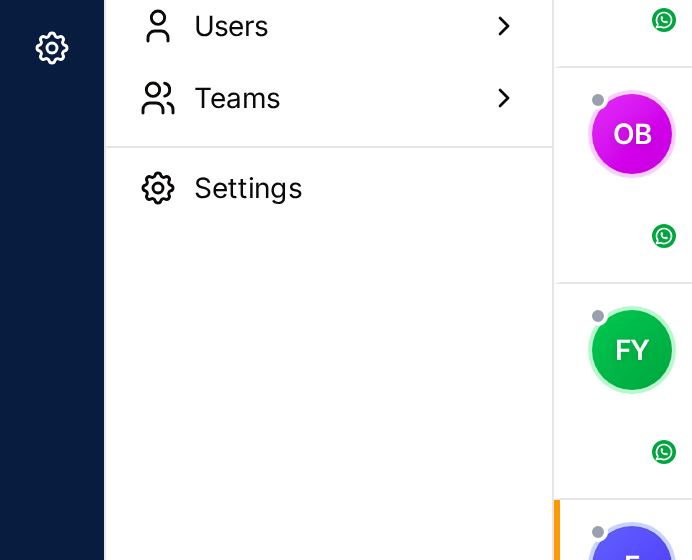
| Users | The agent the ticket is assigned to |
| Teams | The team the ticket is assigned to |
A section only appears if there is something to filter by: no labels defined, no Labels section.
Filtering used to live in an Advanced Filters popover above the conversation list. That popover has been removed — everything it did is in the sidebar now, where you can see what is active without opening anything.
Channel
Scopes the list to one channel: a WhatsApp number, an Instagram account or a Facebook page. Each entry carries its platform's icon.
Use it when you run more than one number and they mean different things — a support line and a sales line, or one number per branch.
Channel applies to every view, including Spam, and stays applied as you move between them.
On a narrow screen the sidebar is off-screen, so the Channel selector appears in the conversation list header instead. It is the same filter — changing one changes the other.
Lifecycle, Contact Labels & Conversation Tags
The first two filter on the contact; the third filters on the ticket:
- Lifecycle — one stage at a time, shown with its emoji
- Contact Labels — several at once; a ticket matches if its contact carries any of them
- Conversation Tags — several at once; only the conversations carrying the tag match
Useful for triage: work through New Lead enquiries first, find everyone labelled VIP who is waiting, or pull up every conversation tagged Escalated.
Contact Labels and Conversation Tags each carry their own clear control once a filter is active. The difference between them is worth knowing before you rely on either — see Conversation Tags & Contact Labels.
Users & Teams
These answer the question every manager asks a dozen times a day: whose work is this, and how much of it is there?
Users filters by assigned agent. Use it to:
- See everything one agent is handling right now
- Check whether someone is overloaded before assigning them more
- Review an individual's work before a coaching conversation
Teams filters by assigned team. Use it to:
- Focus on one department's queue — Support, Sales, Billing
- Compare load across teams
- Manage region- or language-based routing
Both accept several selections at once.
Clearing a Filter
Each section header shows a clear button once something in it is selected. Clearing one section leaves the others alone.
Filters persist across views and across sessions in this browser. A view that looks suspiciously empty is usually a filter you set yesterday — check the Filter group before assuming work has gone missing.
Combining Them
Applying several narrows the list to the intersection: tickets on the Sales number, assigned to Team Support, whose contact is a New Lead.
Useful combinations:
| Goal | View | Filters |
|---|---|---|
| What is my team sitting on right now? | Open | Team: Support |
| Is this agent overloaded? | Open | User: John |
| What did Sales close last week? | Closed | Team: Sales |
| Who has unowned work on the support line? | New | Channel: Support number |
| Which leads are waiting? | Open | Lifecycle: New Lead |
Who Sees What
| Role | Filter visibility |
|---|---|
| Owner, Admin | Every staff member, team and channel |
| Manager | The channels their teams grant, and the people working them |
| Staff, Agent | The same channel scope, minus any assigned tickets their organisation hides from them |
The filters never widen your access. They only narrow what you can already see — an agent whose team is restricted to one channel cannot reach another channel's conversations by picking it here.
Best Practices
- Clear the filters when you switch tasks, or you will wonder where your tickets went
- Combine a team filter with oldest first sorting to surface stale work
- Use New plus a channel filter to see what nobody has picked up on one number
- Rebalance by reassigning, not by asking people to "check the Inbox"
Related Pages
- Inbox Views
- Conversation Tags & Contact Labels
- Search, Selection & Sorting
- Assignment & Reassignment
- Teams — which channels a team may see at all